

Adding request headers to published APIs

Suppose you have a REST API and besides parameters also want to prompt subscribers for custom HTTP headers. WSO2 API Cloud makes this easy.
In the example below, we will add a custom header called setName to an existing API and invoke it from the Developer Portal.
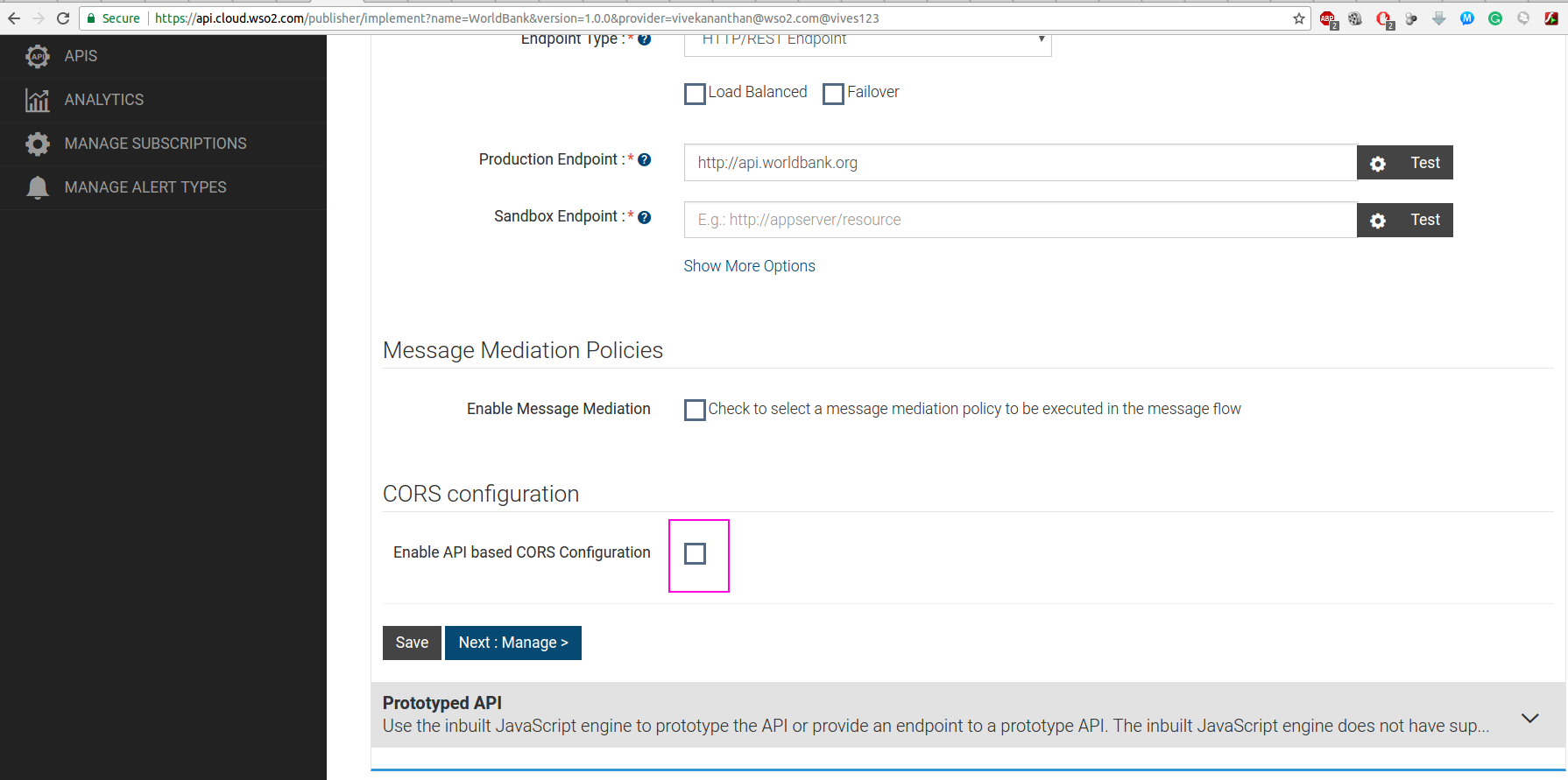
1. In API Cloud's Publisher interface, open the API for editing, and on the second screen (Implement), select the Enable API based CORS Configuration checkbox:
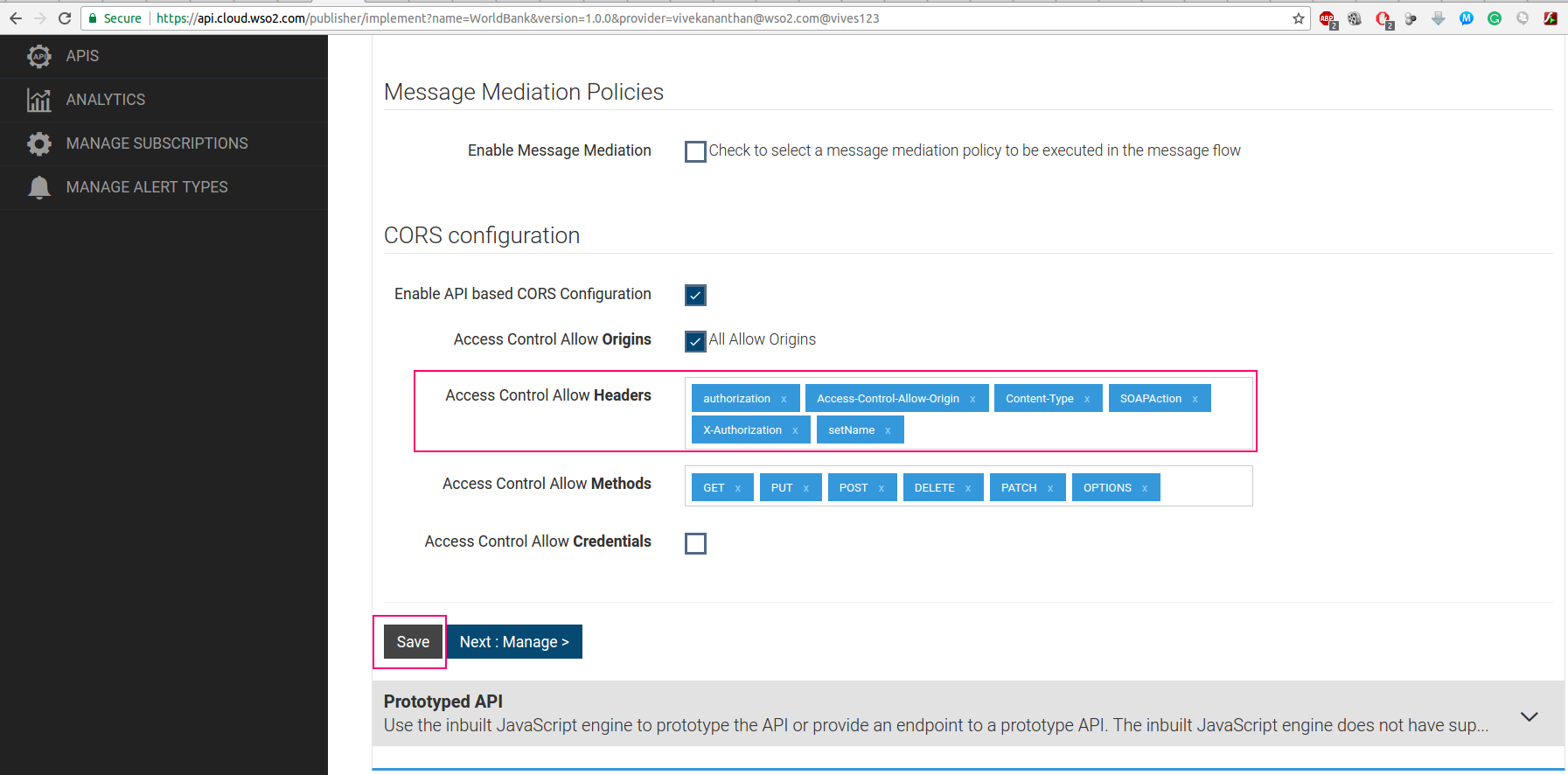
2. In the Access Control Allow Headers edit box, type the name of the header that you would like to add (in our case setName) and press Enter. Then click the Save button.
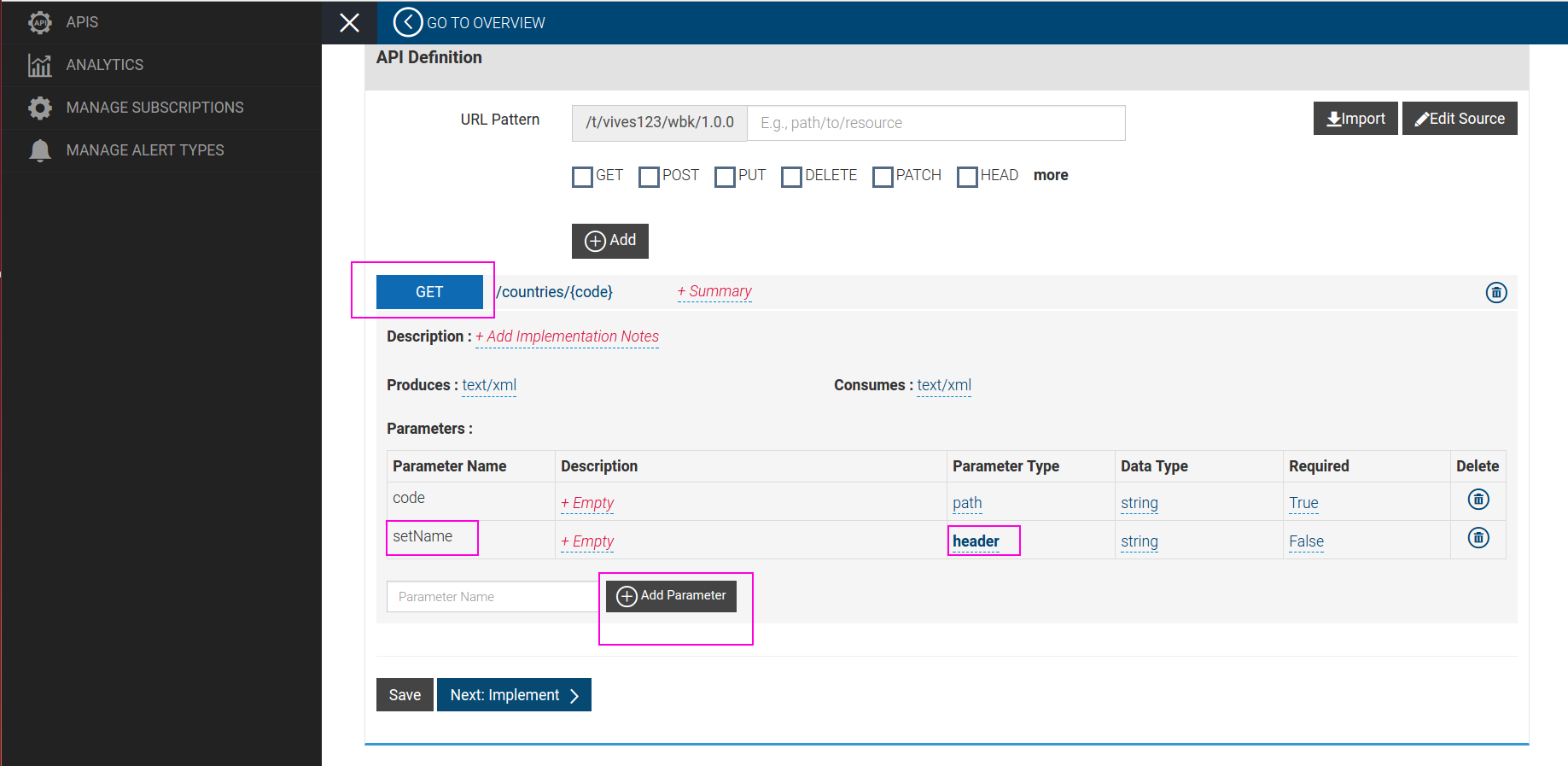
3. Now, go back to the first step of API editing (Design), open the resource that you want to request that header as a parameter, add the parameter with the name of the header, and change the Parameter Type from query to header:
4. If the API has already been published, you can just click Save to make the change go into effect. If not, go to the last step of the wizard and click the Save & Publish button there.
5. Now, you can go to the Developer Portal (also known as API Store), subscribe to the API if you have not done so yet, and expand the method that we have just modified - you will see that our new header setName is there, listed as one of the parameters:
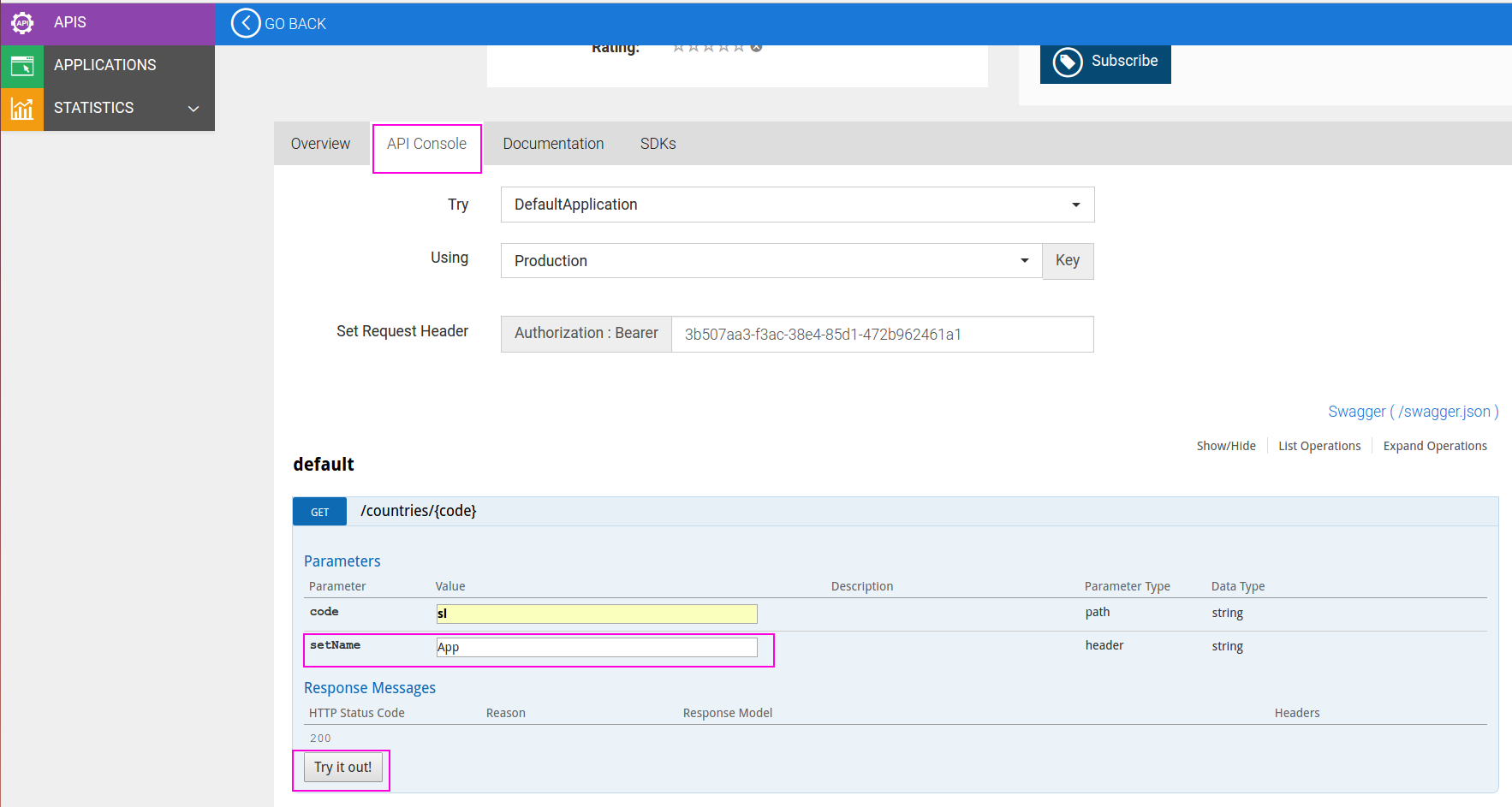
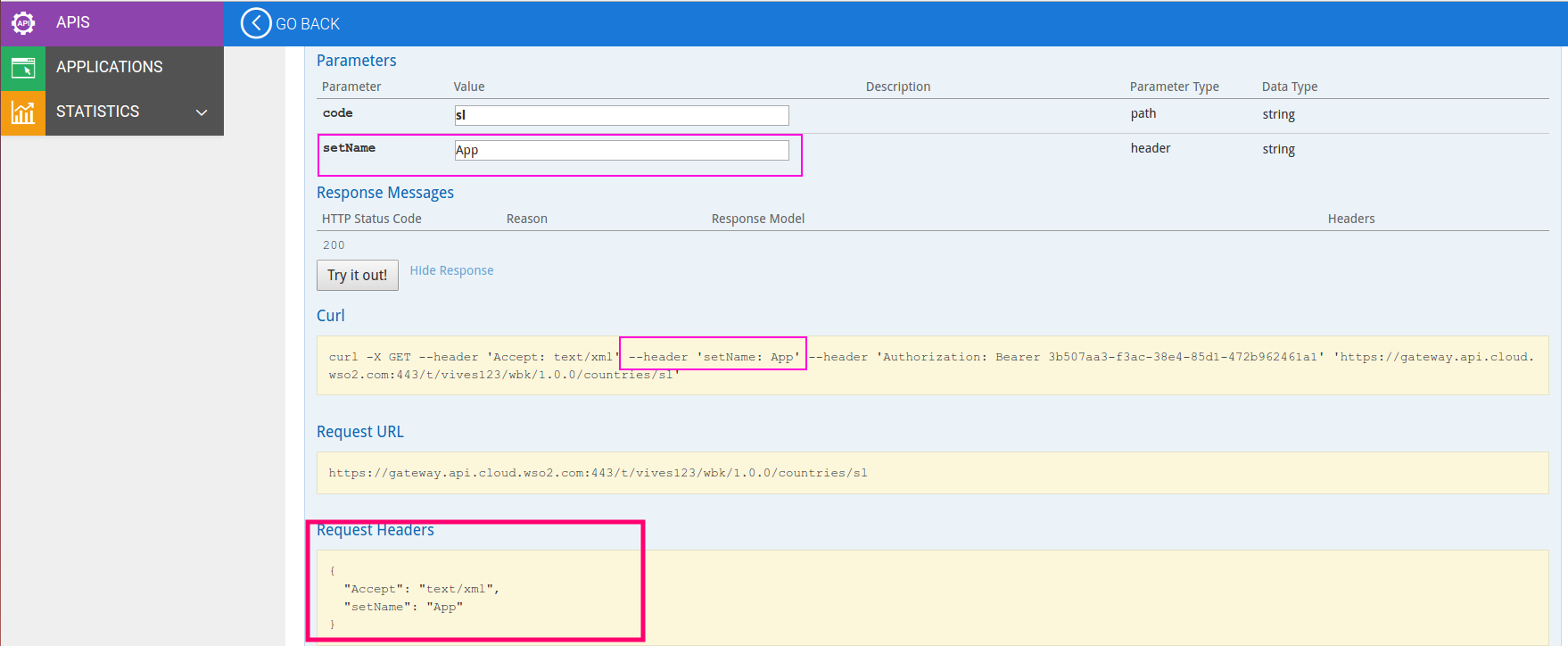
6. When you invoke the method, you can see that the new header is indeed getting added to the API call and passed to your backend. Notice that the generated curl command example also has the new header:
That is it! WSO2 API Cloud makes it easy to design your APIs the way you want them and have them published for your consumers in a way that is intuitive and easy to understand.