

Google analytics for REST APIs

Google Analytics provides great real-time and historical reports for websites and with WSO2 API Cloud you can easily get it them to report your REST API usage as well.
To do that you simply have to:
1. Create a tracking ID in Google Analytics
2. Configure WSO2 API Cloud to report to Google Analytics and provide the ID
3. See real-time and historical API usage reports
Let's go through all of these steps in detail.
1. Create a tracking ID in Google Analytics
This is not really specific to WSO2 API Cloud in any way. You basically create a Google Analytics account like you normally would:
1. Go to https://analytics.google.com and log in or sign-up.
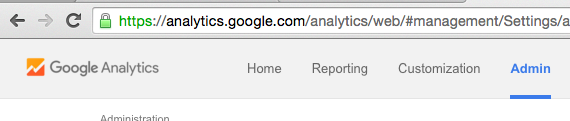
2. Click the Admin tab:
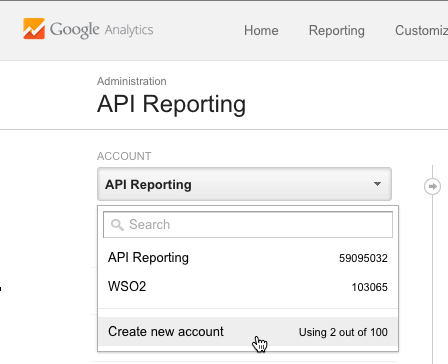
3. From the ACCOUNTS dropdown, select Create new account:
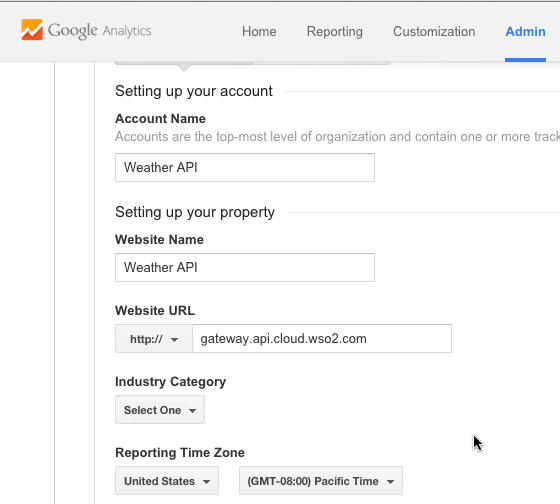
4. Provide the name of the account and site as you see fit. For the Website URL, either provide the custom URL you have configured in API Cloud or just gateway.api.cloud.wso2.com if you have not done so:
5. Click the Get Tracking ID button, accept terms and conditions, and Google Analytics will get you to the Tracking ID page of the new account. Right at the top of the page it will have the ID that you need. It will look like UA-12345678-9.
2. Hook up WSO2 API Cloud and Google Analytics
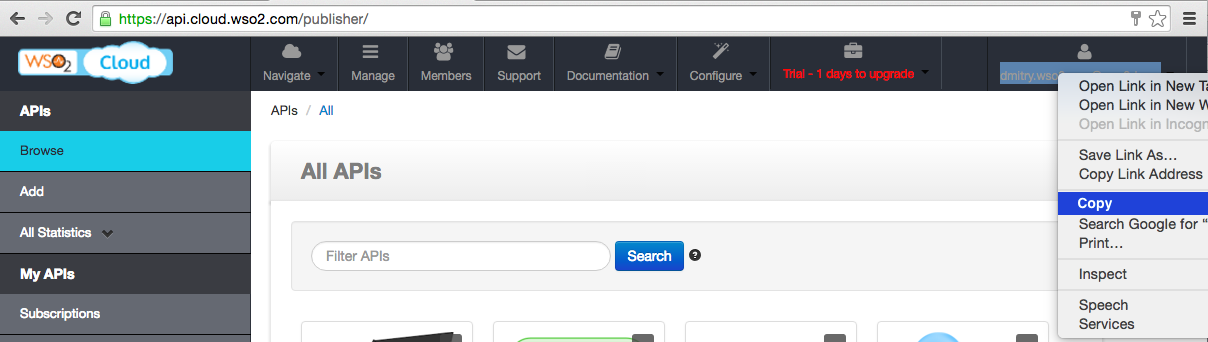
1. From your API Publisher view, copy your domain-qualified ID that is displayed in the top-right corner:
2. Go to advanced Gateway admin console at: https://gatewaymgt.api.cloud.wso2.com/carbon
3. Sign in with the domain-qualified name you got in step 1 and your regular password:
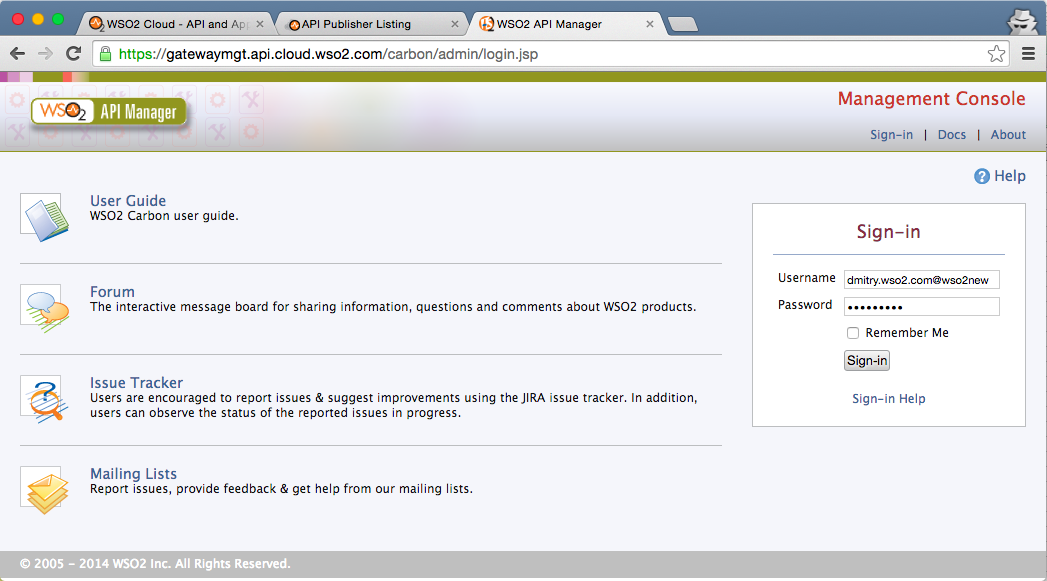
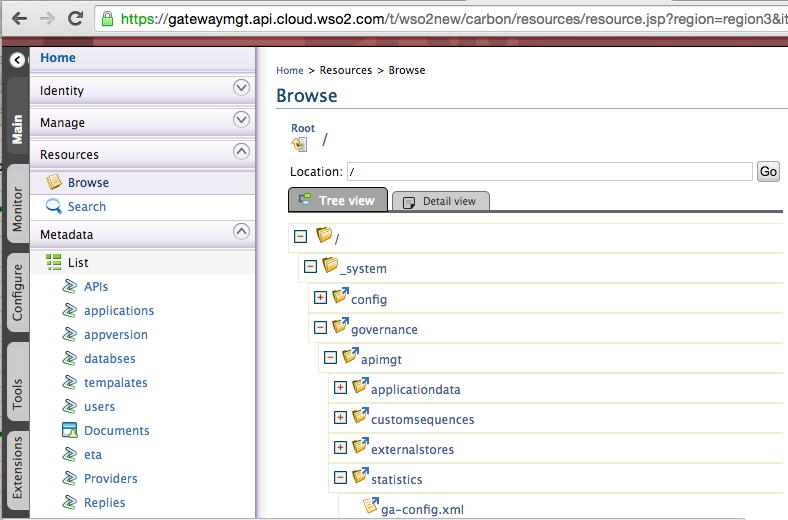
4. In the left-hand pane, click Resources / Browse.
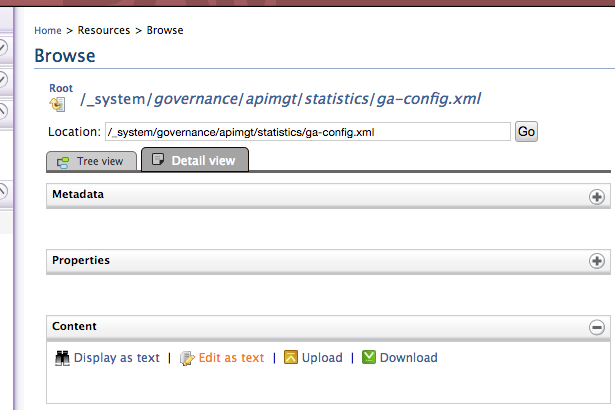
5. Browse to /_system/governance/apimgt/statistics/ga-config.xml:
6. Click Edit as text:
7. Change TrackingID that you got when setting up the Google Analytics account, and click Save Content:
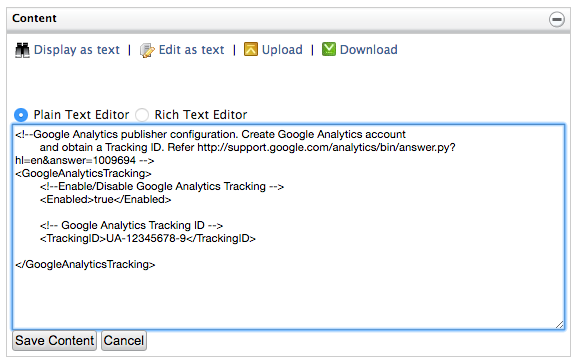
That is it. Now all API calls for your APIs get registered in Google Analytics.
3. Enjoy Google Analytics reports for APIs:
Once the configuration changes go into effect, your usage data will start showing up in Google Analytics reports.
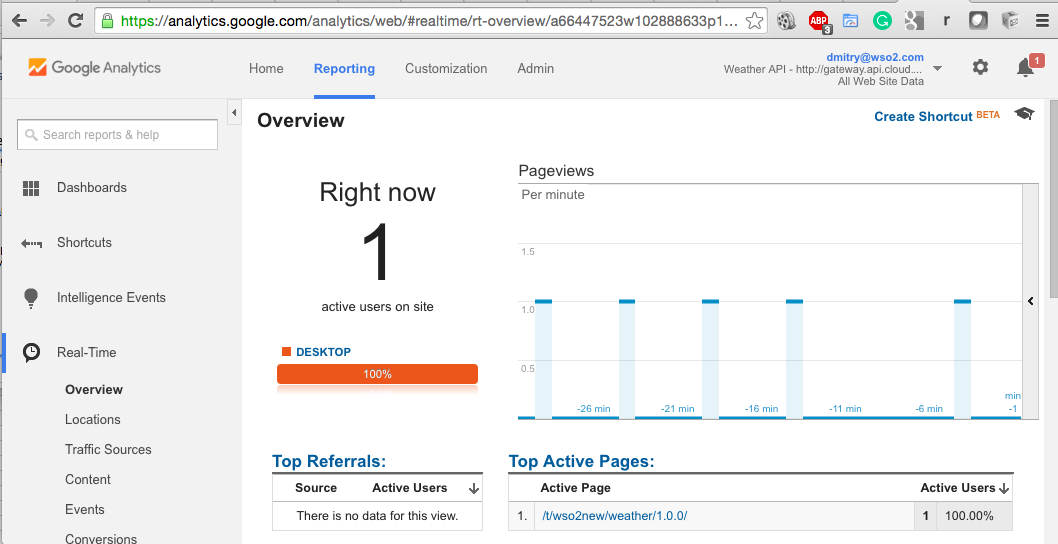
Real-Time report shows subscribers invoking your API right now:
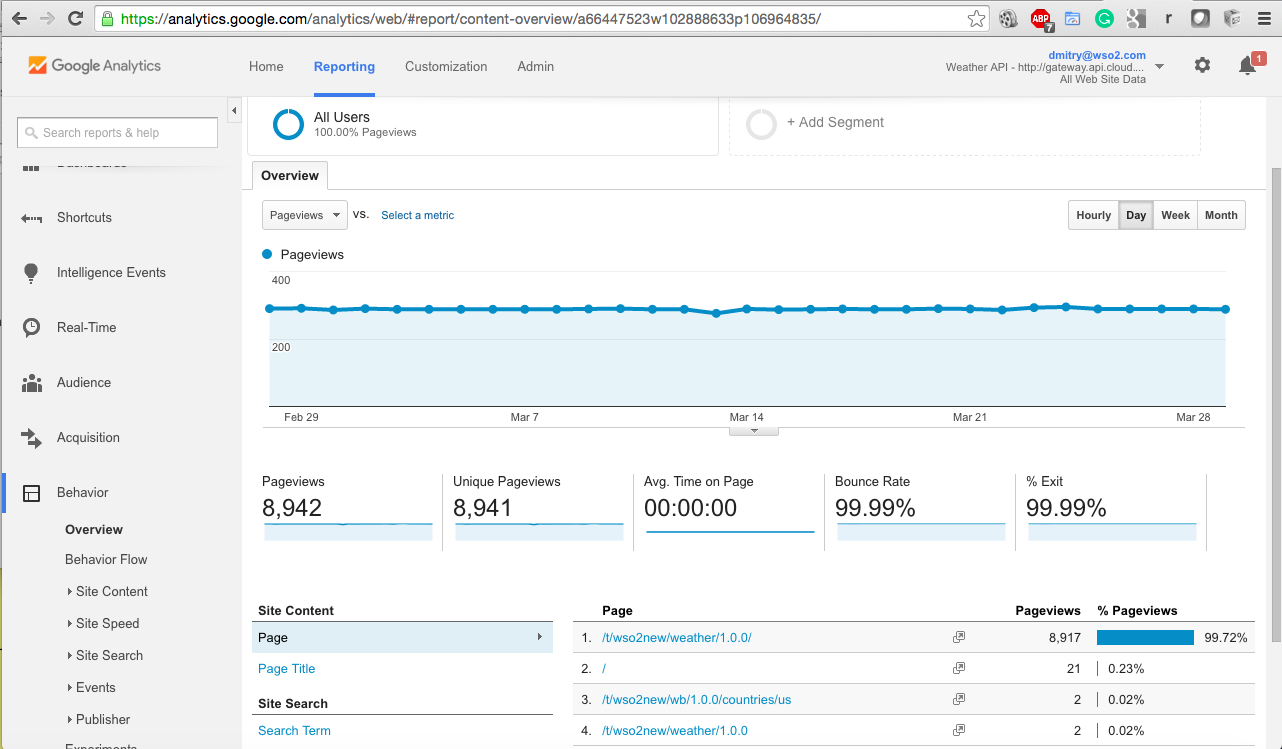
Behavior reports can show trends over time, popular REST paths and so on:
And of course, you can use various Google Analytics functionality to work with trends, grouping, custom reports, filtering and so on.
Try it today in WSO2 API Cloud!