Limit API access with OAuth scopes

OAuth scopes are a great way to segregate access to APIs and data. Combined with roles they can also be a powerful way to limit who gets access to what.
Let's have a look at how you can implement scopes in WSO2 API Cloud.
Sample API
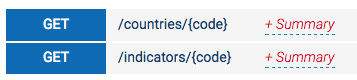
Let's start with a sample WorldBank API that has two resources: /countries and /indicators - both taking a code parameter:
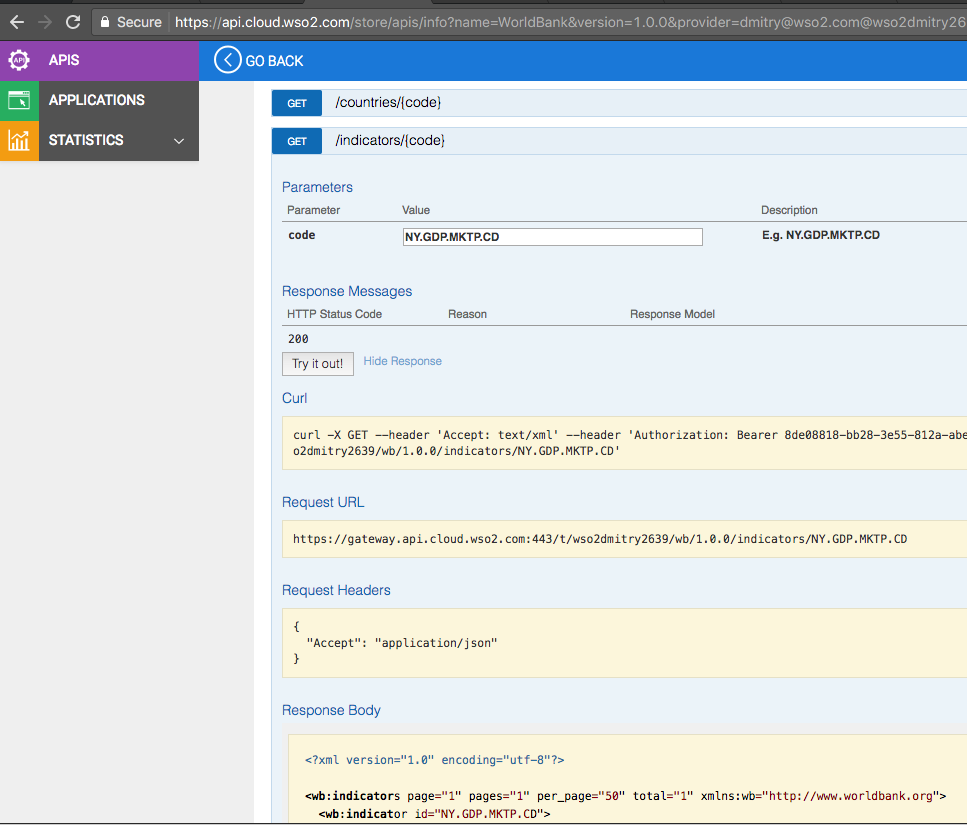
We have it published in Developer Portal and can invoke either of them with no problem (as long as we are subscribed to the API):
Adding Scopes
Now let's add two different scopes: one that would only give access to /countries and the other one that only gives access to /indicators.
To do this:
- Open the API for editing,
- Go to the third step (Manage),
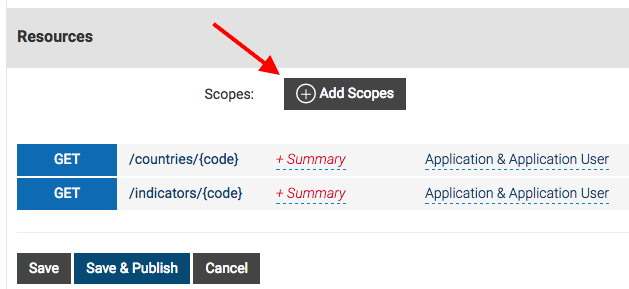
- Scroll down and click the Add Scopes button:
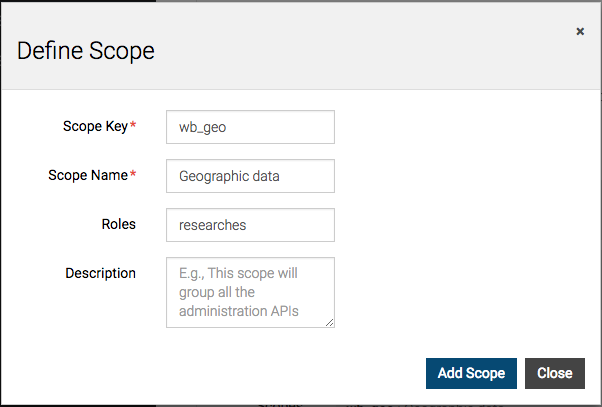
- In the Define Scope dialog box, add the wb_geo scope for geographic data:
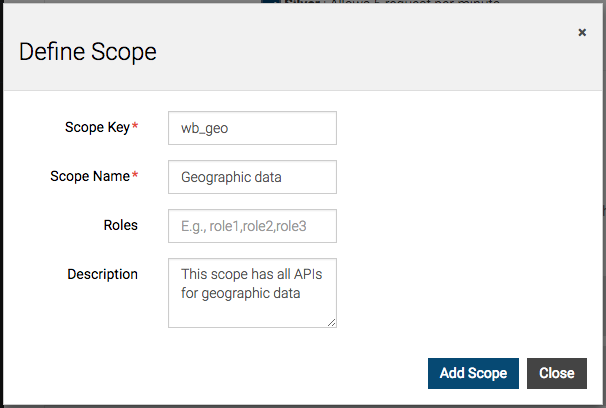
- Repeat the process to add wb_eco scope to the API.
- Now you can see both scopes available for the API. Click the + Scope button next to the /countries resource to assign its scope:
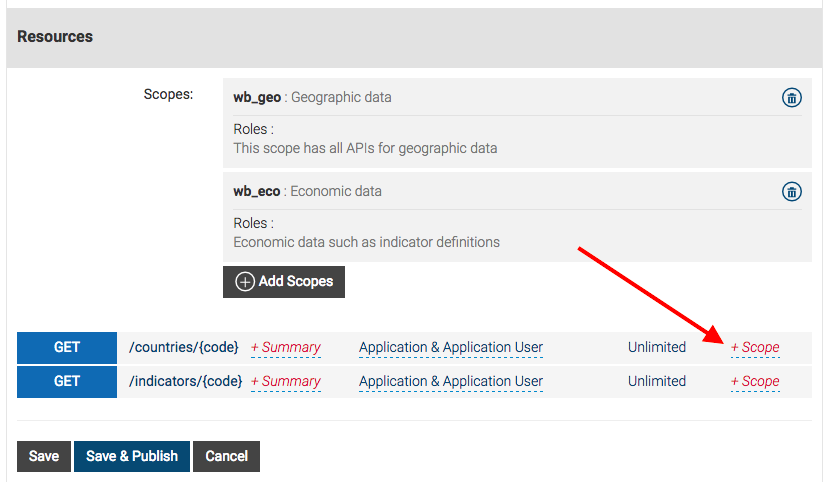
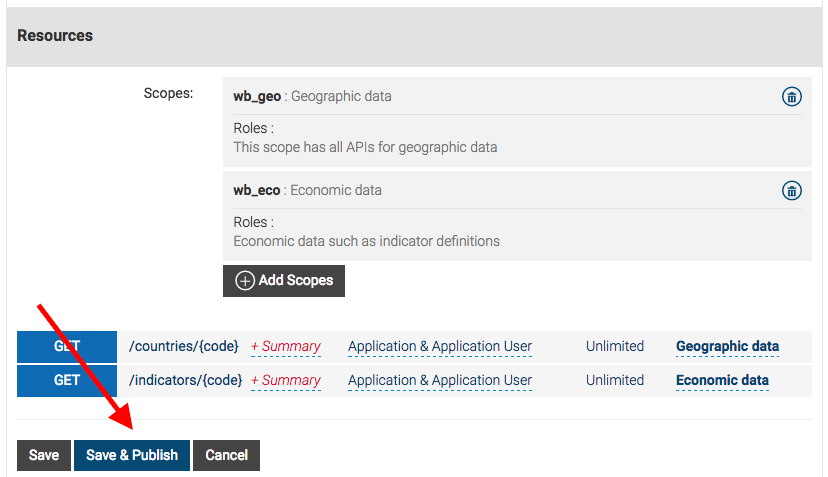
- Pick Geographic data for /countries and Economic data for /indicators:

- That's it: we defined two new scopes and applied them to two different REST resources. Now click Save and Publish to update the API:

Generate scope-limited OAuth token
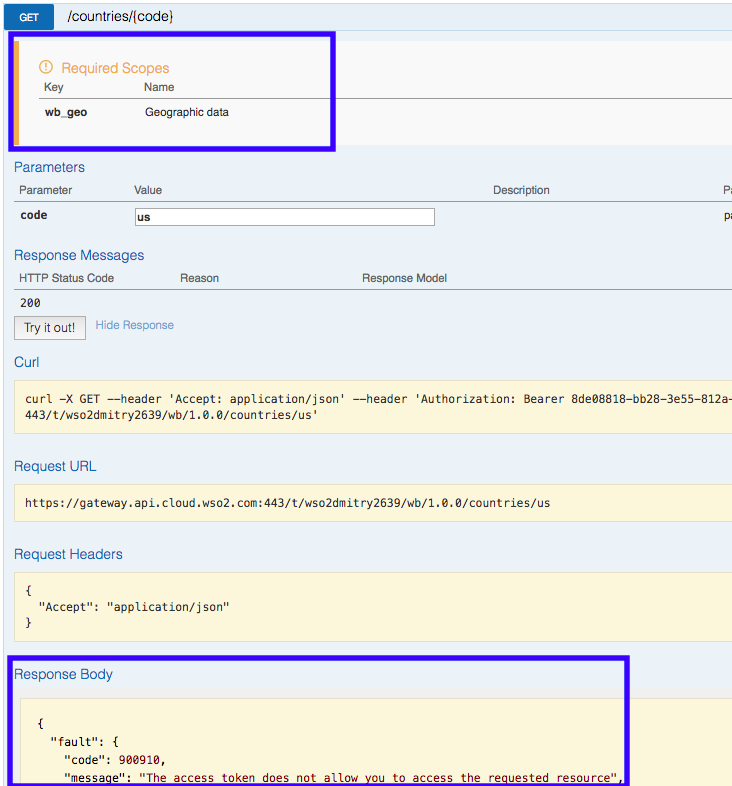
Now if you open the API in Developer Portal's API Console, you will see two things: resources have notes about the scopes they need and attempts to invoke them with a regular OAuth key fail:
To generate an OAuth token with the OAuth scope included:
- In Developer Portal (a.k.a. API Store), click Applications,
- In the application list, click the application which you used to subscribe to the API (for example, DefaultApplication),
- Click the Production Keys tab,
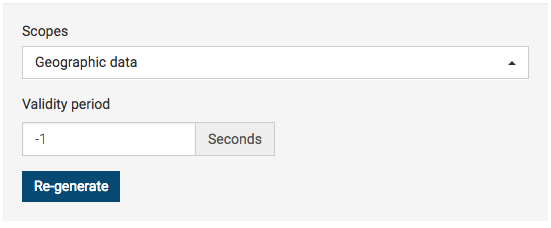
- Scroll down to the Scopes section, select the scopes you want (for example, Geographic data), and click the Re-generate button (I picked "-1" as the validity period to have a non-expiring token):
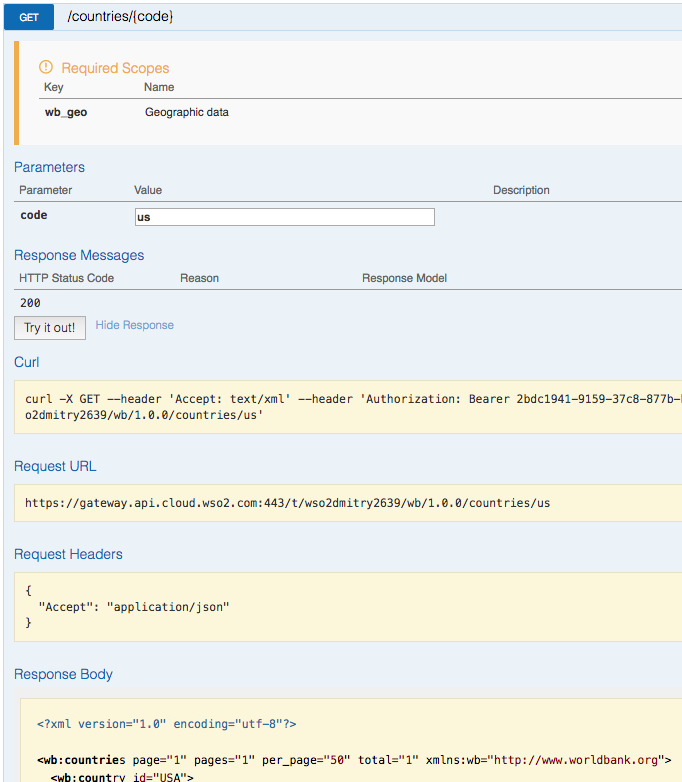
- Now if you go back to the API, you can use the new token and successfully invoke the API:
Adding Roles
If you want to limit scope access to particular groups of users, you follow the same procedure but this time also list the roles when adding your scopes. For example, in the screenshot below, I am limiting the wb_geo scope access to users in the researches role: