

Load testing published APIs with JMeter

WSO2 API Cloud gives you automated scaling and call limit enforcement.
Today we will describe how you can use Apache JMeter to load-test your APIs in WSO2 API Cloud and see these limits enforced.
1. Start by publishing your API and subscribing to it as explained in API Cloud tutorials.
2. Download Apache JMeter here, extract the files, navigate to /apache-jmeter-2.11/bin folder, and start it by running:
sh jmeter.shon Linux or Mac,jmeter.baton Windows.
You can find more information on JMeter on their Getting Started page.
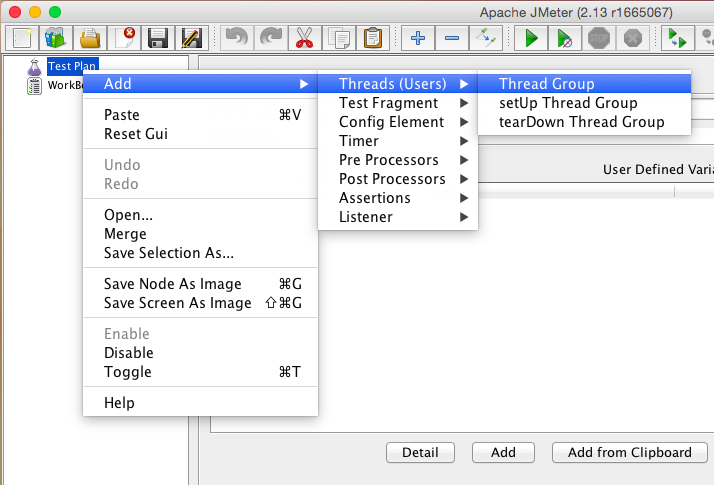
3. To add your test, in JMeter window, right-click the Test Plan node and click the Add / Threads (Users) / Thread Group on the shortcut menu:
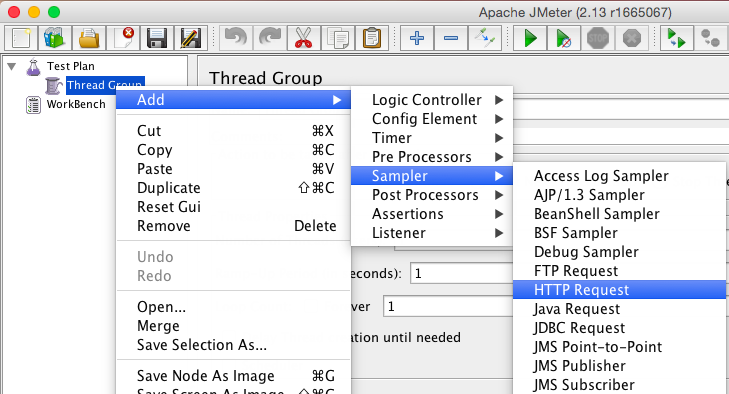
4. Now to add API call request, right-click the Thread Group that you have just added and click the Add / Sampler / HTTP Request on the shortcut menu:
5. Provide API call details: Server Name and Path. You can easily see them on your API's API Console page in API Store in Request URL when you invoke the API:
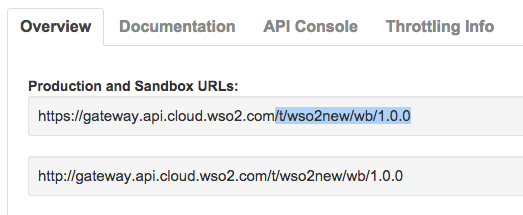
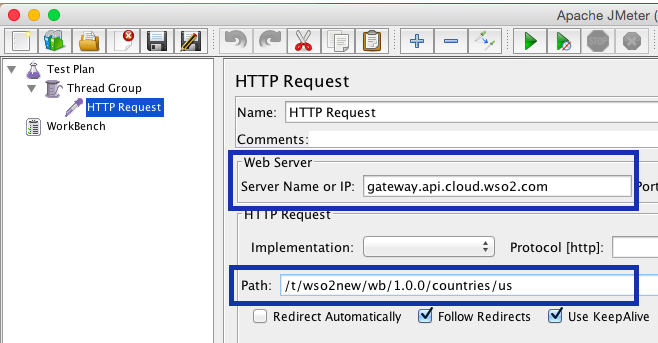
Server Name is the domain of the API URL. If you have not assigned your own custom URL, this would be gateway.api.cloud.wso2.com.
Path is the rest of the URL. For example, in my case this is /t/wso2new/wb/1.0.0/countries/us.
Put your parameters in the corresponding fields of JMeter:
6. Now we need to add the authorization header. Right-click the HTTP Request node and, on the shortcut menu, click Add / Config Element / HTTP Header Manager:
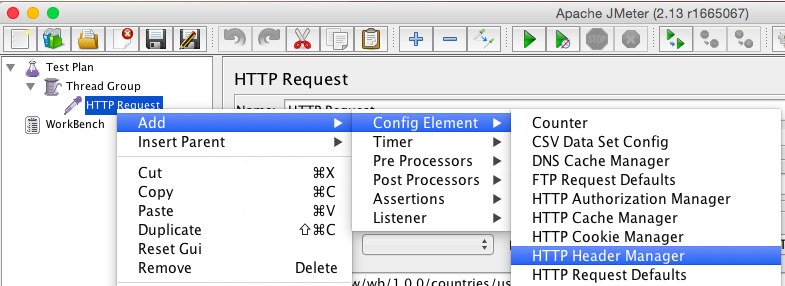
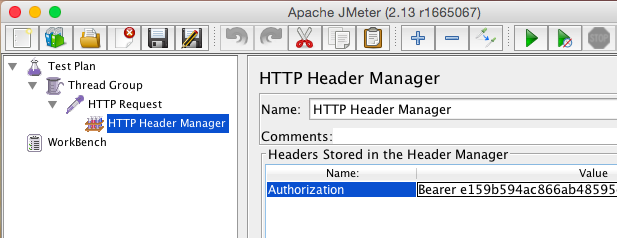
In the HTTP Header Manager, click the Add button. A new row will get added to the table of Headers Stored in the Header Manager.
Set Name to Authorization. And copy the Bearer part from API Console:
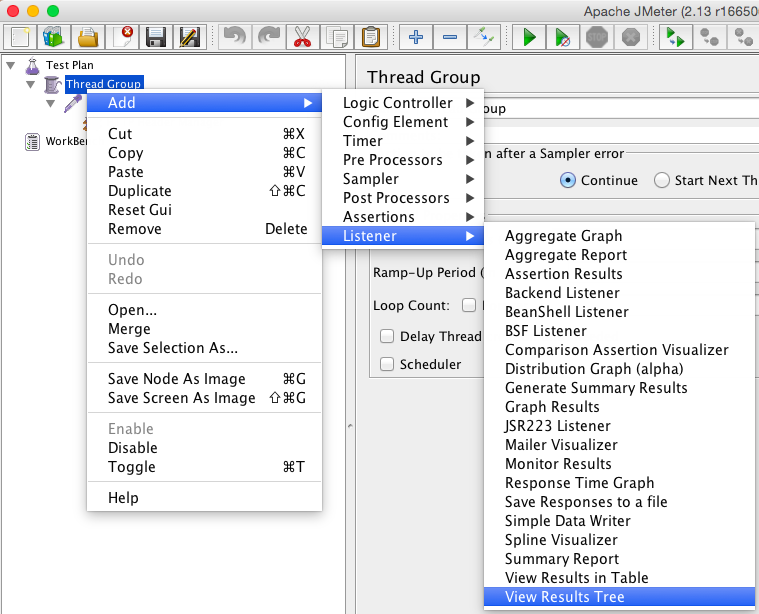
7. To be able to view results, add a listener. For that, right-click the Thread Group node and, on the shortcut menu, click Add / Listener / View Results Tree.
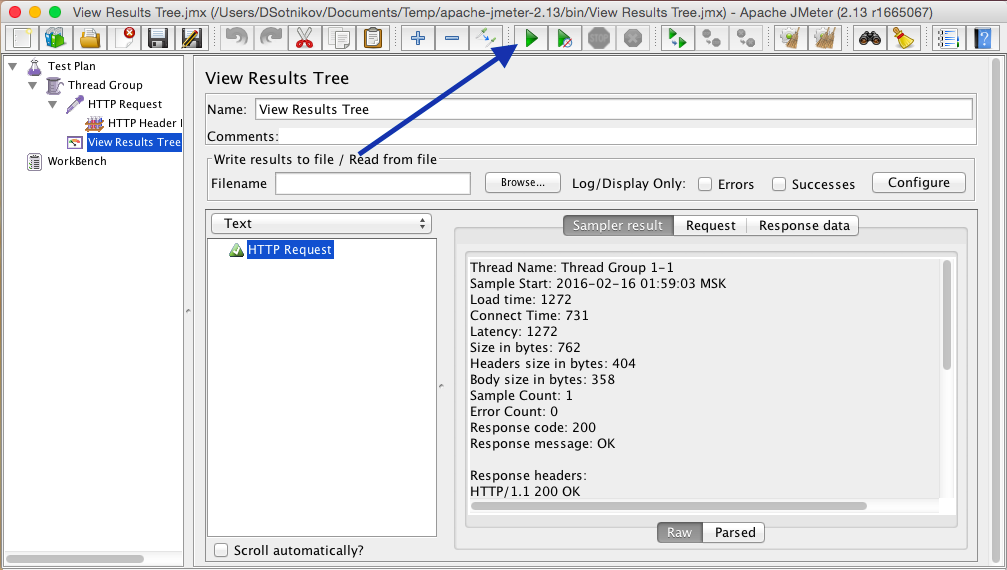
8. Now you can click the Run button and verify that the API call was successful. If prompted to save the configuration, do so.
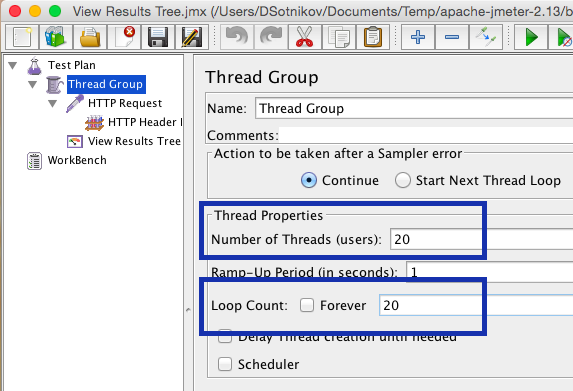
9. To be able to test at larger load, go back to the Thread Group node, and increase the Number of Threads and Loop Count:
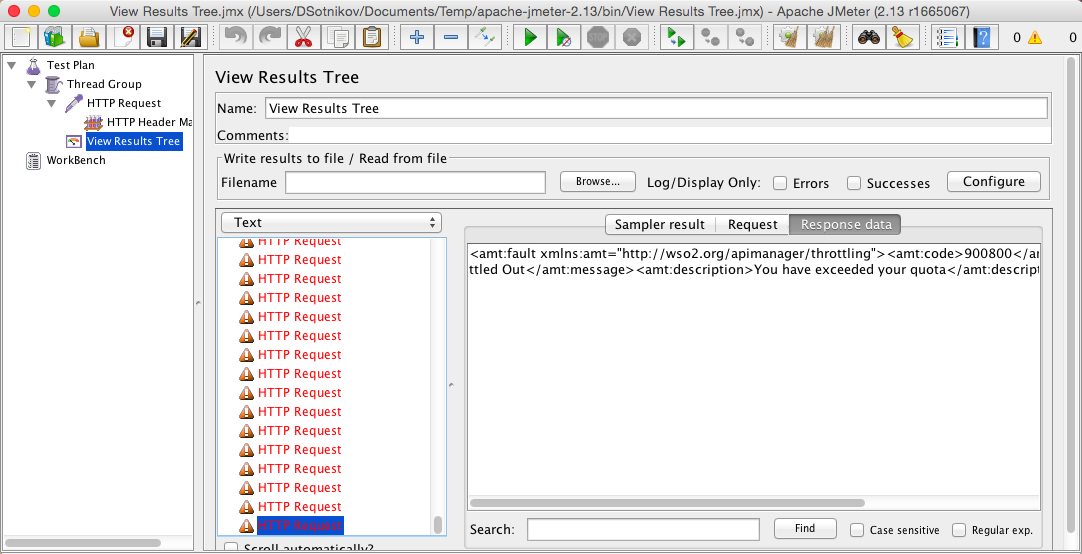
10. You will see that some of the messages are now getting blocked by the API Gateway. Check out the Response data tab to see why.
The limits imposed on the subscriber by the Subscription Tier that you set for the API - for example, 20 calls / minute - will result in "You have exceeded your quota" response:
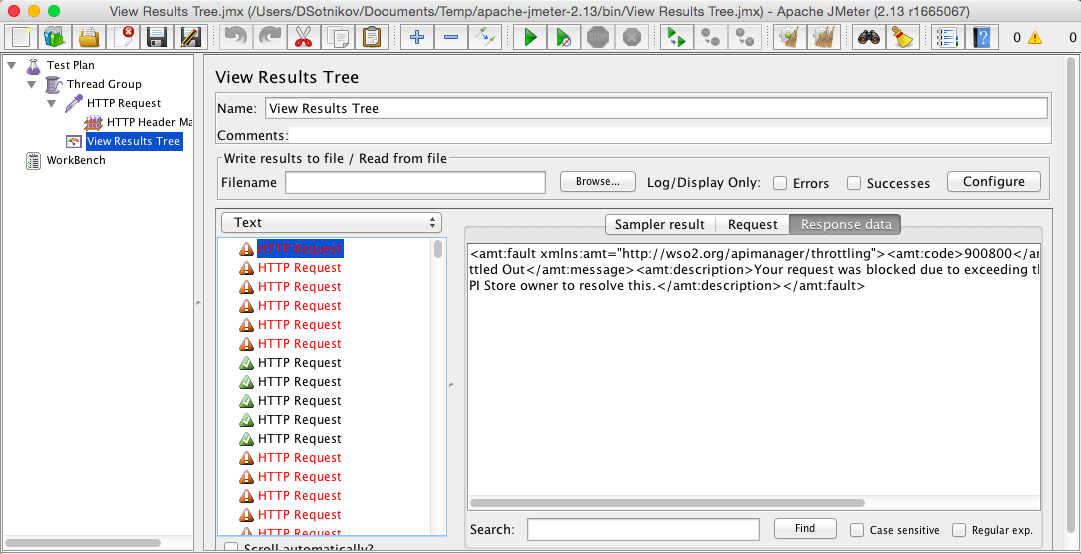
The transactions per second (TPS) limits that are based on your API Cloud subscription level will lead to "Your request was blocked due to exceeding the allocated quota. Please contact the API Store owner to resolve this.":
11. If you want to simulate multiple subscribers, you can create another subscriber account in API Cloud and create another HTTP Request in JMeter with this new subscriber's authorization header.
12. To run the tests from multiple machines using commandline, you can use the saved plan file and run:
sh jmeter.sh -n -t TestPlan.jmx -l Test1.jtl
where -t specifies the saved Test Plan file and -l specifies the output file for the responses, or the corresponding .bat command on Windows.
That is it! Try it today in WSO2 API Cloud!