

Introducing the case feedback feature in the WSO2 support portal

We're excited to introduce a new enhancement to our support portal: the Case Feedback feature. This functionality allows you to share direct feedback on case resolutions, helping us continually improve our support services and better meet your expectations.
What Is the Case Feedback Feature?
After a case solution is accepted, a feedback popup appears, displaying five emojis that represent different levels of satisfaction:
- Very Dissatisfied
- Dissatisfied
- Neutral
- Satisfied
- Very Satisfied
These emojis allow you to quickly and intuitively rate your experience with the case resolution.
Reasons for Your Rating
Once you select an emoji, you’ll see a set of tags with predefined reasons tailored to the feedback you’ve given. These tags represent common factors influencing each rating and offer a quick way to provide detailed feedback. You can select multiple tags or skip them entirely, depending on how specific you want to be.
For even more context, there’s an optional text box where you can share further thoughts. Whether you want to elaborate on your rating or suggest improvements, this space allows for open-ended input.
Why We Introduced This Feature
The Case Feedback feature makes it easier for you to communicate your satisfaction—or dissatisfaction—with case resolutions. It empowers you to:
- Provide structured feedback through emojis and tags.
- Identify areas where we can improve the support experience.
- Share detailed insights via the comment box to ensure no feedback is overlooked.
How to Use the Case Feedback Feature
Getting started with the feedback feature is simple:
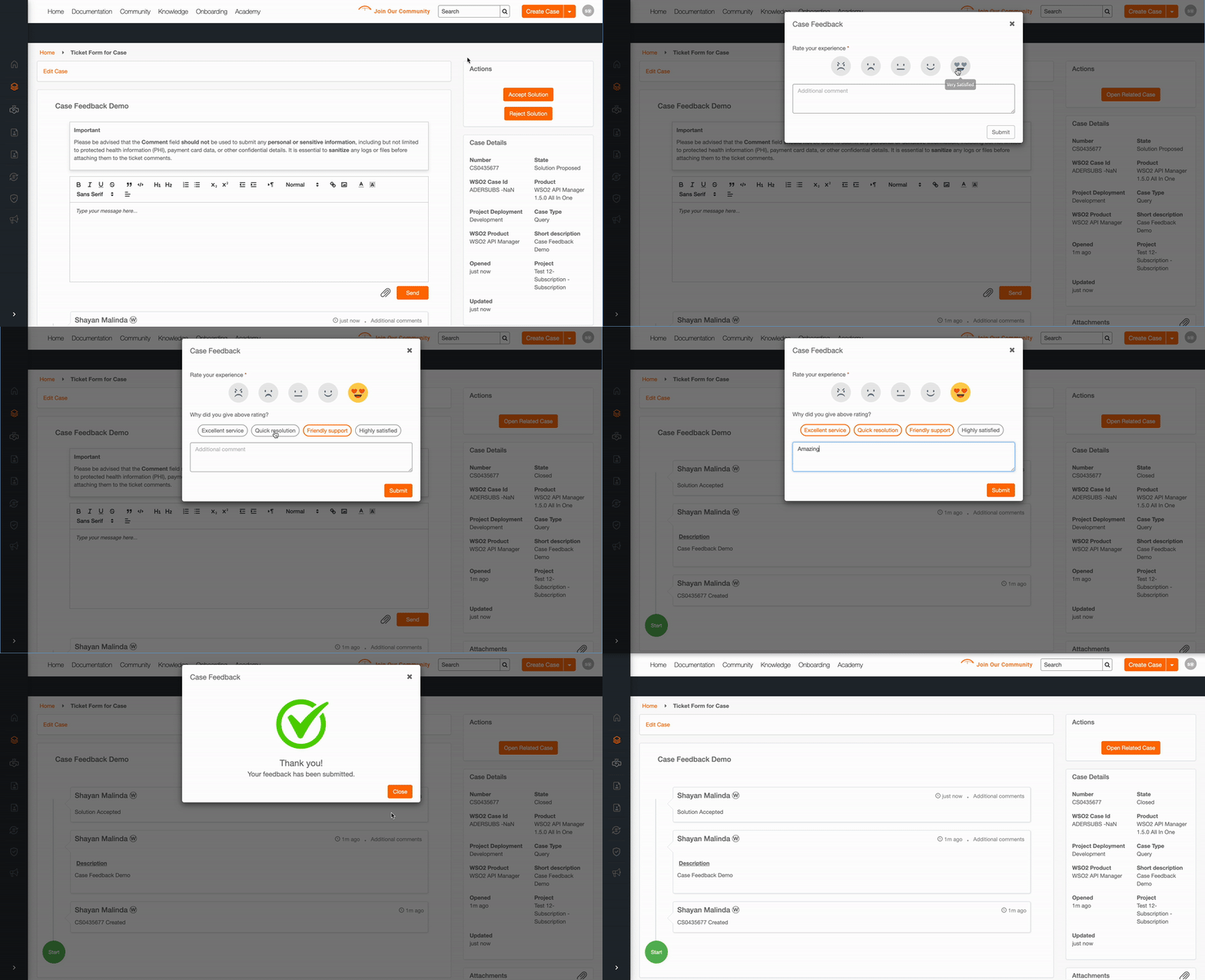
- Step 1: After a case solution is accepted, a feedback popup will appear.
- Step 2: Choose one of the five emojis to rate your satisfaction.
- Step 3: A list of dynamic tags will appear based on your emoji selection. Pick as many as you like to explain your rating.
- Step 4: Optionally, add comments in the provided text box.
- Step 5: Click Submit to send your feedback.
Conclusion
Your feedback matters. With the Case Feedback feature, sharing your thoughts on case resolutions is easier than ever, and every submission helps us fine-tune our services to better meet your needs. Whether your experience was great or could have been better, we’re committed to listening and improving.
If you have any questions or need assistance, feel free to reach out to your account manager or our support team. Thank you for helping us enhance the WSO2 support experience.