

Customizing WSO2 admin UI and web services application server management
Before you continue with the rest of this document, it is recommended that you read the WSO2 Commons Admin UI Framework article.
The WSO2 Web Services Application Server (WSAS) uses the wso2adminui.jar and the wso2adminui.zip artifacts to build its UI components. WSO2 WSAS uses the Apache Maven2 building tool to build the distribution and its artifacts. When Maven2 builds the WSAS distribution, it downloads the wso2adminui.zip and reconfigures it to fit the semantics of the Admin UI framework.
The WSAS Administration UI uses the index.html, forget_password.html, sign_in_help.html, about.html and faq.html templates from the wso2adminui.zip artifact. This article mainly focuses on the index.html.
The index.html comes with the following place holders (a.k.a. tokens):
- @menu.items@
- @div.items@
- @css.file.items@
- @js.file.items@
- @promotion.content@
WSAS uses its own ui-extensions-config.xml. The mapping section of this file shows the corresponding file that maps to the given token.
 1 <extension-config>
 2     ...
 3     <file-mappings>
 4         <mapping>
 5             <token>@menu.items@</token>
 6             <file>menu.html</file>
 7         </mapping>
 8         <mapping>
 9             <token>@div.items@</token>
10             <file>divs.html</file>
11         </mapping>
12         <mapping>
13             <token>@css.file.items@</token>
14             <file>css.html</file>
15         </mapping>
16         <mapping>
17             <token>@js.file.items@</token>
18             <file>js.html</file>
19         </mapping>
20         <mapping>
21             <token>@promotion.content@</token>
22             <file>promotion.html</file>
23         </mapping>
24     </file-mappings>
25     ...
26 </extension-config>
Thus, the menu.html, divs.html, css.html, js.html, and promotion.html contain the content that needs to be replaced with the given token. As they are default mapping files, they are listed under the /extensions/core folder.
Let's look at the WSAS administrator (or management) console and relate them to the different mappings.
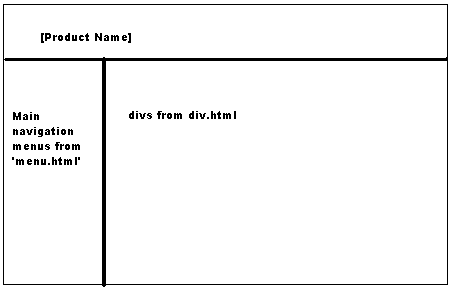
All the css files should be included in a css.html. For example, if you need to add your own css link,
<link rel='stylesheet' type='text/css' href='mycss/mycss.css'></link>, just go to the ${tomcat.home}/webapps/wso2wsas/extensions/core/css.html and add the prior entry.
The same semantics apply to the divs.html, js.html, and menu.html.
Resources:
Applies To:
WSO2 Commons - Admin UI - All versions
WSO2 WSAS - All versions