Using Manual Client Registration Flow
Step 1: Sign up as a TPP
-
Go to the Developer portal at
https://<APIM_HOST>:9443/devportal. -
Go to the Applications tab.

-
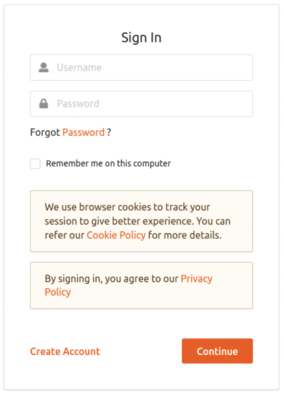
In the Sign-in form, click Create Account.
-
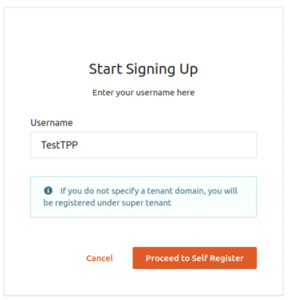
Provide a username and click Proceed Self Register.
-
Fill out the Create New Account form to complete registration.
-
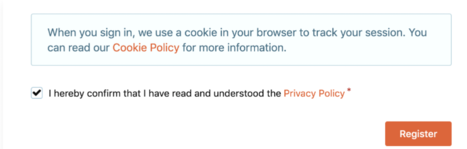
Read terms and conditions and click the checkbox to agree to the terms and conditions.
-
Click Register.
Step 2: Sign in to the Developer Portal as the TPP
-
Now, sign in to the Developer portal (
https://<APIM_HOST>:9443/devportal) as the TPP. -
Enter the username and the password you entered when signing up as a TPP.
-
Click Continue. Now, you are on the home page of the Developer Portal.
Step 3: Create an application
-
In the Developer Portal, go to the Applications tab.
-
Click ADD NEW APPLICATION. applications_tab
-
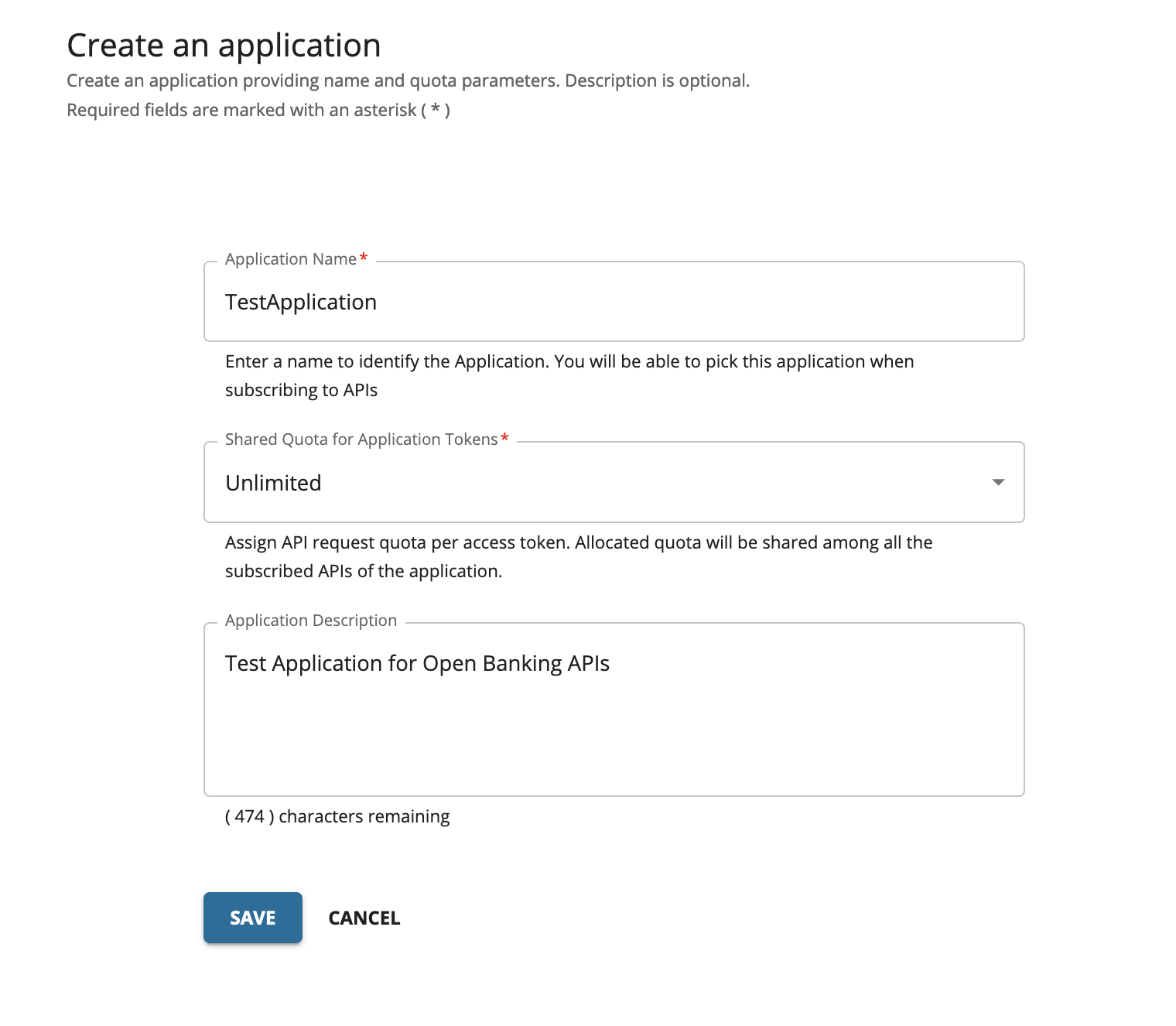
Enter the following application details.
-
Click SAVE. The Developer Portal displays the created application as follows:
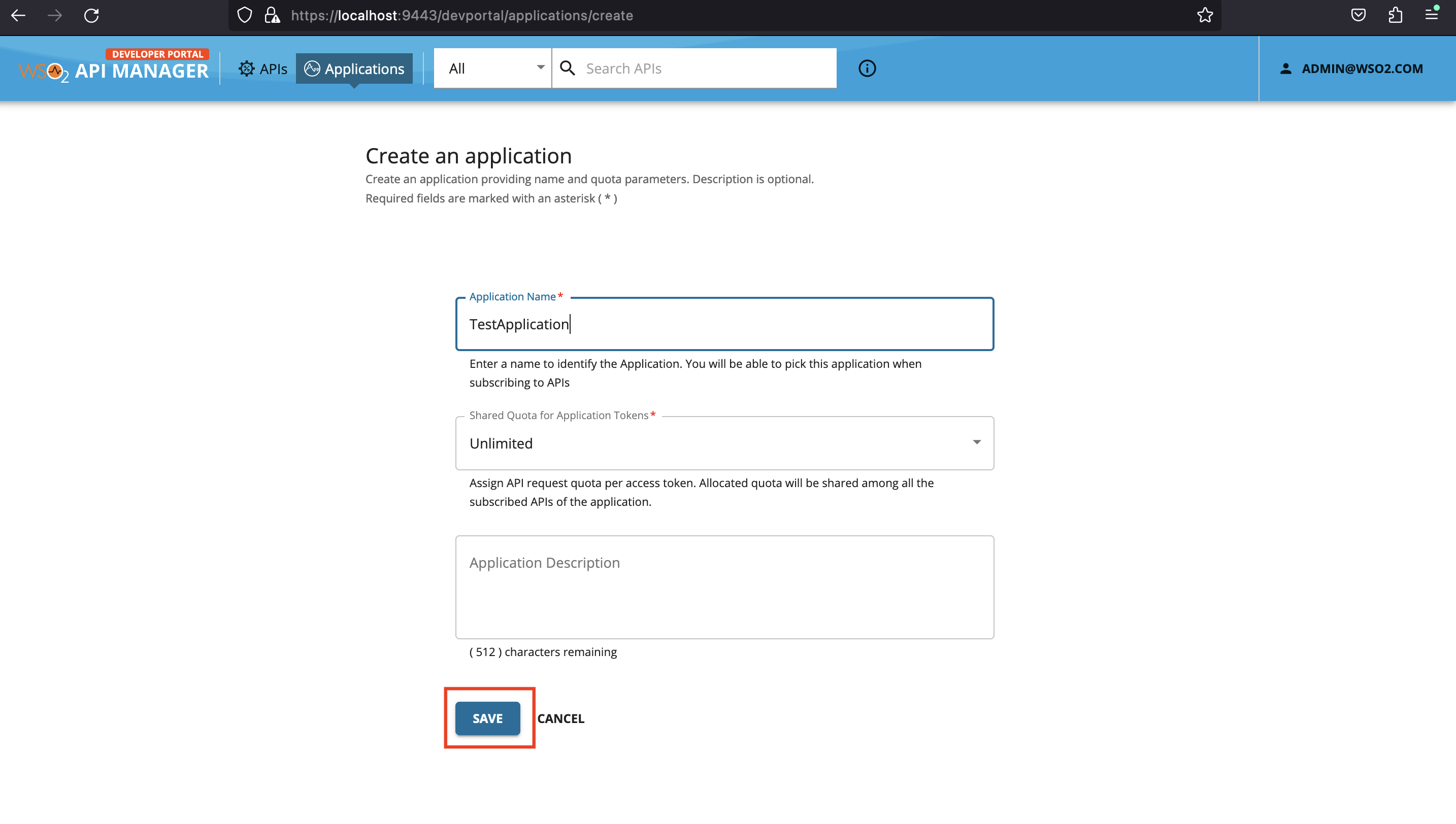
The application created via the Developer Portal allows you to observe statistics of APIs, subscribe to APIs, and access the subscribed APIs.
Step 4: Subscribe to API
-
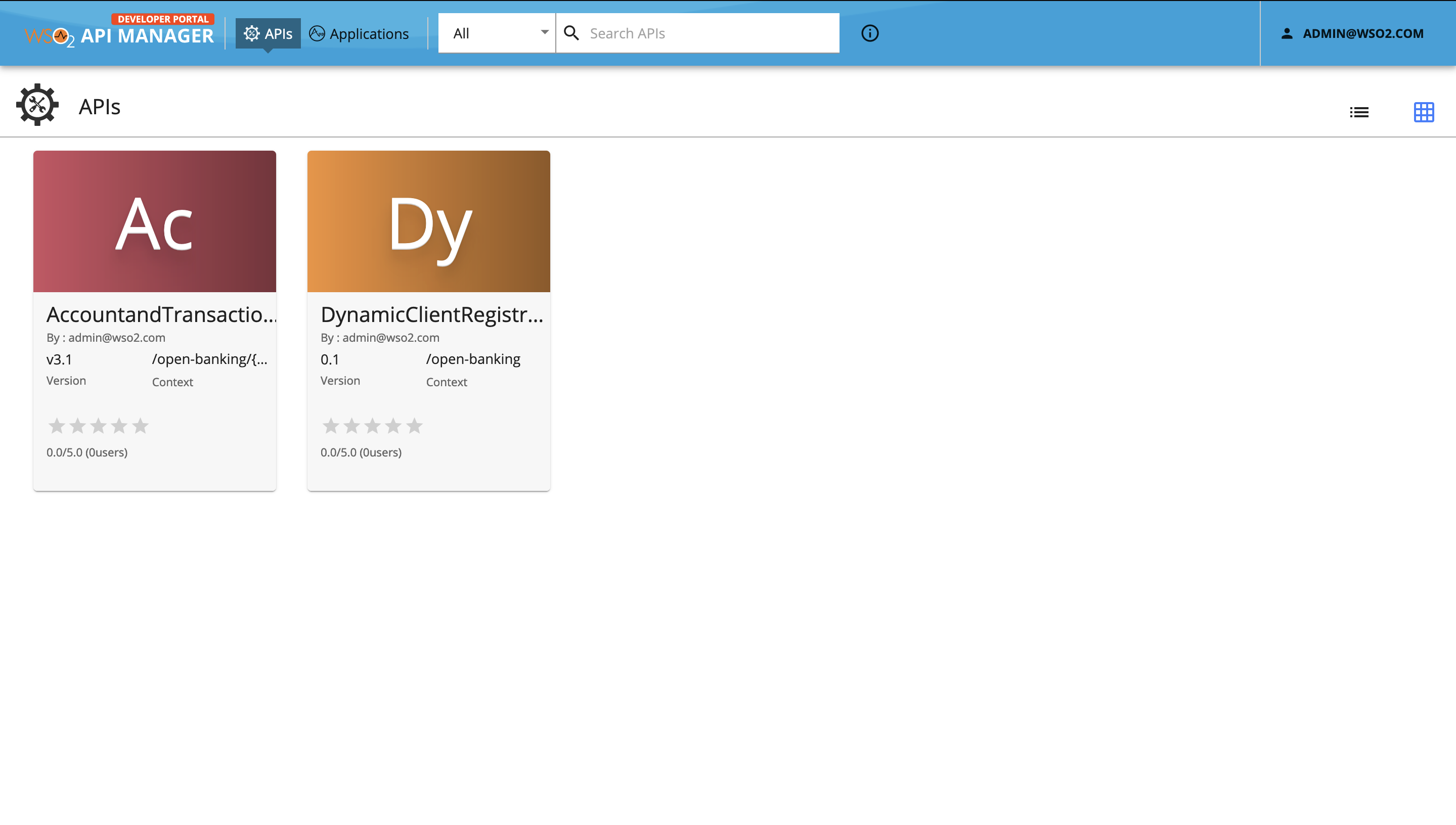
Go to the APIs tab in the Developer portal.

-
Select the API.
-
Go to Subscriptions at the bottom of the API and select SUBSCRIBE.
-
Select your application from the drop-down list then set the Throttling Policy and click SUBSCRIBE. Once subscribed, the application can access all the supported services of the API resources.
Step 5: Generate keys
The TPP application requires a Client ID (Consumer Key) to access the subscribed API.
-
Go to the Applications tab in the Developer Portal.
-
From the application list, select your application, which has subscribed to the API.
-
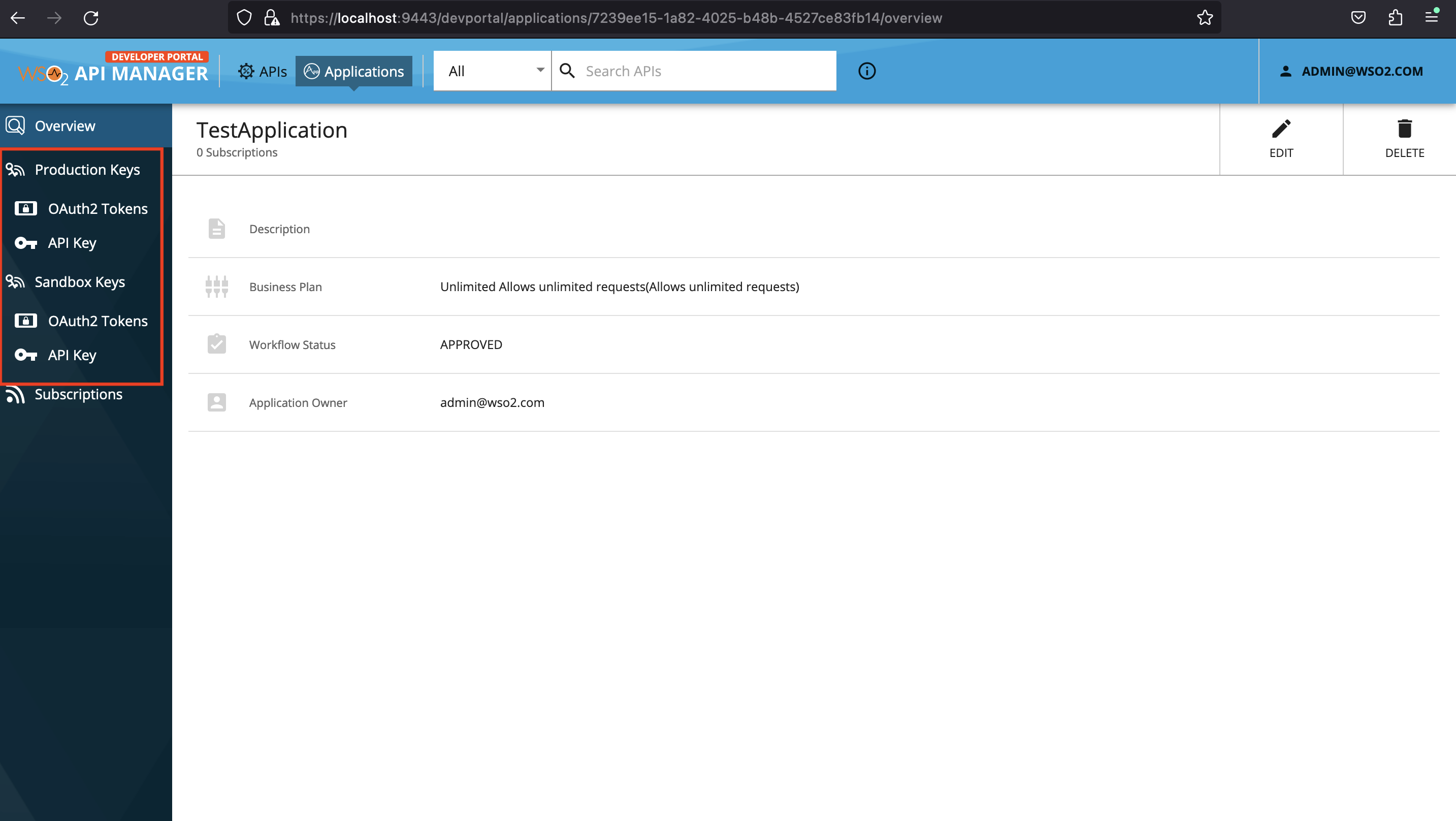
Select Production Keys > OAuth2 Tokens or Sandbox Keys > OAuth2 Tokens according to the type of key you require: a. Production Keys: Generates access tokens in the production environment. b. Sandbox Keys: Generates access tokens in the sandbox environment.
-
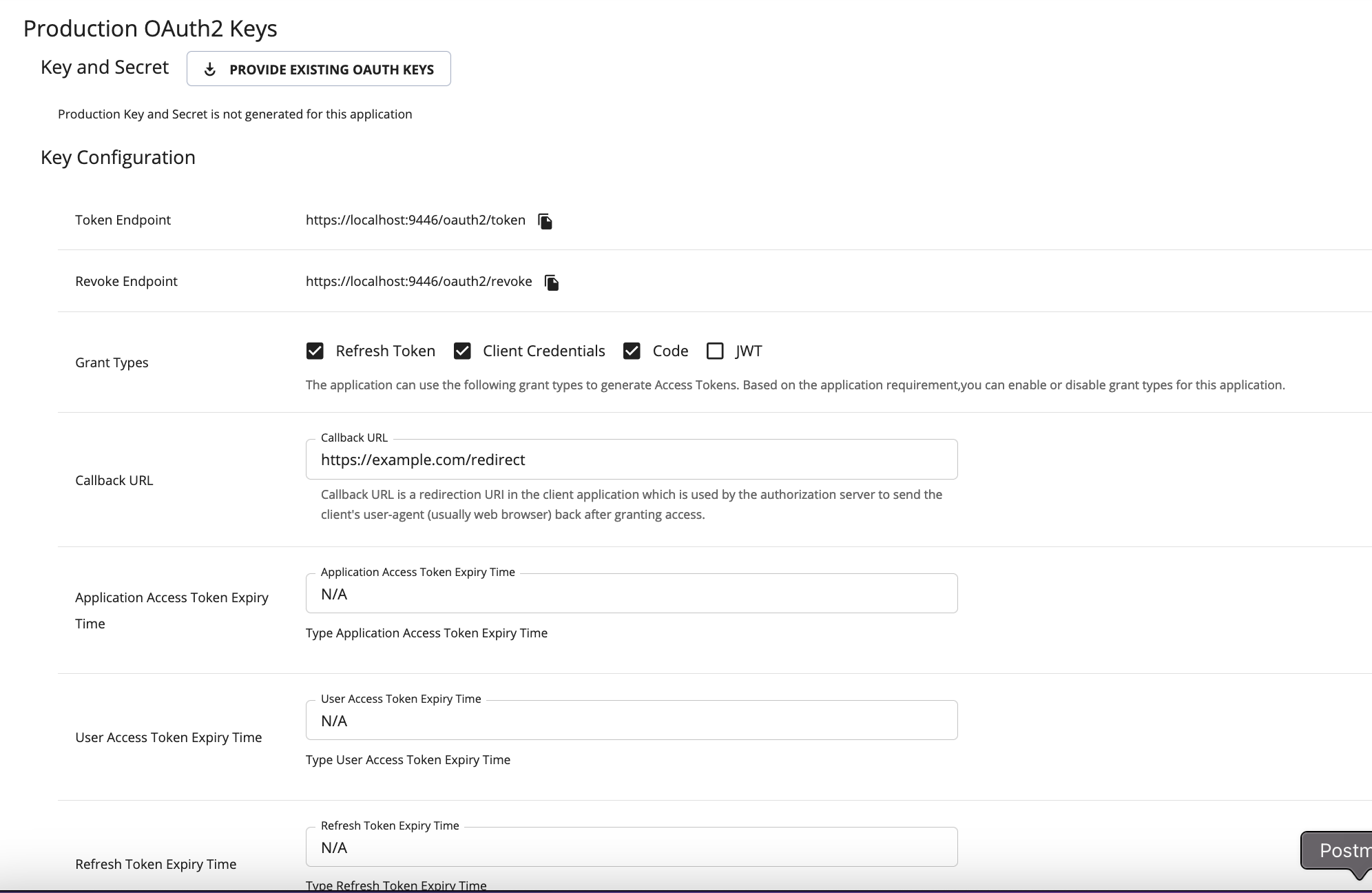
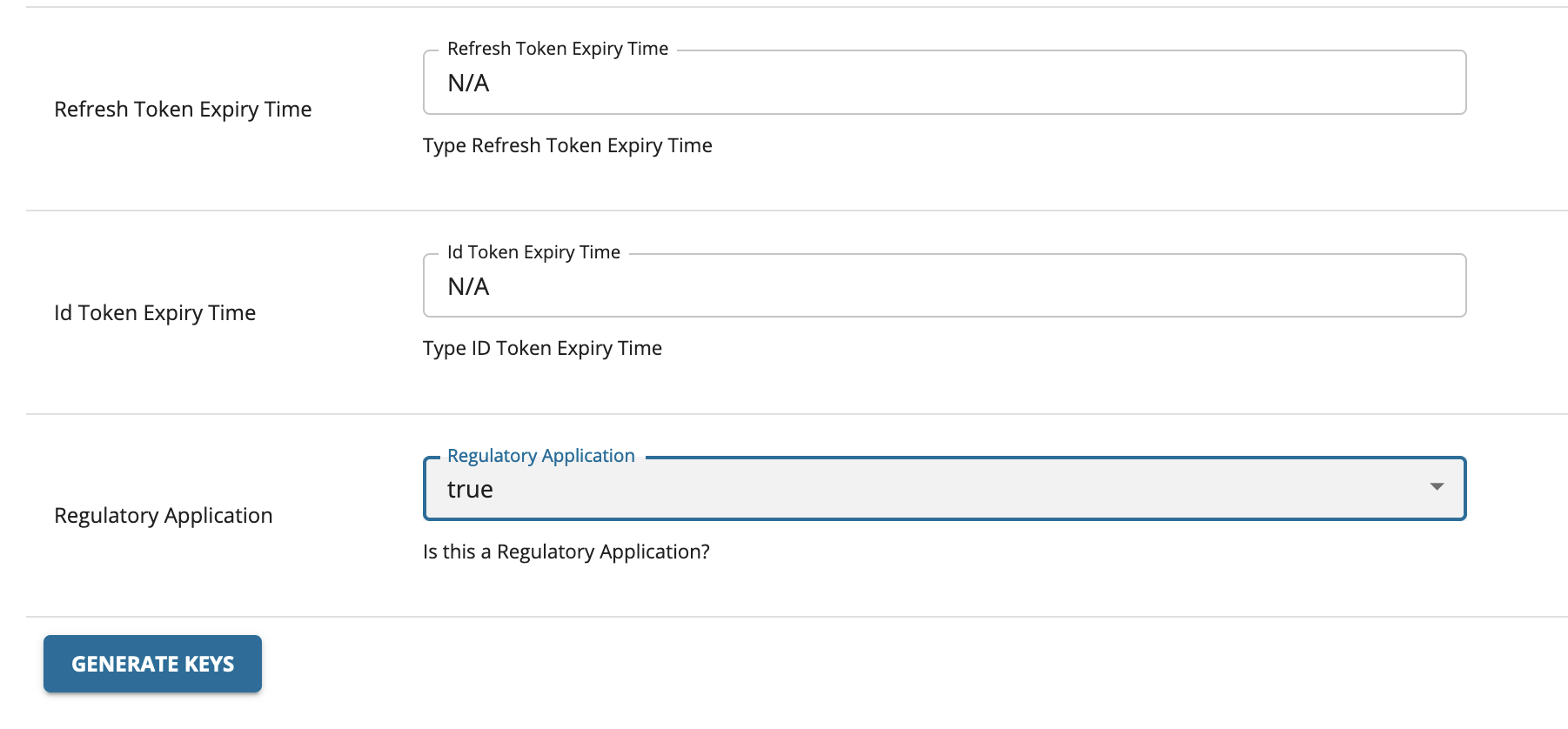
Provide the requested information as defined below:
| Field | Description |
|---|---|
| Grant Types | Determine the credentials that are used to generate the access token.
|
| Callback URL | The URL used by the TPP to receive the authorization code sent from the bank. The authorisation code can be used later to generate an OAuth2 access token. This is a mandatory field for the authorization code grant type. |
| Regulatory Application | The type of application. If your application is compliant with the NextGenPSD2XS2A framework, it is a Regulatory application. |
-
Click GENERATE KEYS to generate production or sandbox keys. It generates the consumer key and consumer secret.
-
Sign in to the Management Console at
https://<IS_HOST>:9446/carbon/.a. In the Main tab, click Identity -> Service Providers -> List.
b. Select the Service Provider of the created application, and click the corresponding Edit icon.
c. Under Select SP Certificate Type select Upload SP certificate and upload the certificate.

Certificates can be found in Public Certificate and Private Key.
d. Expand the Claim Configuration section.
e. Select http://wso2.org/claims/username from the Subject Claim URI list.
f. Click Update to save the configurations.
Was this page helpful?