Encrypt ID tokens
This page guides you through configuring token encryption for ID tokens.
Register an application
Register an application by following the instructions in the relevant guide based on your application type:
- Register a standard-based application
- Register an OIDC web application
- Register a single-page application
- Register a mobile application
Configure the application
Make the following changes to the registered application.
-
On the WSO2 Identity Server Console, go to Applications.
-
Select your application and go to its Protocol tab.
-
Enter the Authorized redirect URLs.
noteThe Authorized redirect URLs is the exact location in the application to which an access token will be sent. This URL should be the URL of the page that the user is redirected to after successful authentication.
-
Select Enable ID Token Encryption to enable ID token encryption.
Once you enable ID token encryption, two select boxes will be visible to choose your preferred encryption algorithm and encryption method.
-
Encryption Algorithm: Asymmetric encryption algorithm that is used to encrypt the Content Encryption Key (CEK), using the public key of the application.
-
Encryption Method: Symmetric encryption algorithm that is used to encrypt the JWT claims set using the CEK.
Leave these values as they are if you do not have any specific requirements.
-
-
Click Update.
Configure the public certificate
The following steps describe how to configure an application public certificate.
-
Create a new keystore.
keytool -genkey -alias wso2carbon -keyalg RSA -keysize 2048 -keystore testkeystore.jks -dname "CN=*.test.com,OU=test,O=test,L=MPL,ST=MPL,C=FR" -storepass wso2carbon -keypass wso2carbon -validity 10950 -
Create a file and name it as the client ID of the OAuth application. Export the public key of the new keystore to the file you created.
keytool -export -alias wso2carbon -file <client-id> -keystore testkeystore.jks -
Get the cert in X509 format.
keytool -printcert -rfc -file <client-id>You will see the public certificate in X509 format in the console.
-
Copy the content of the certificate. A sample output is shown below.
-----BEGIN CERTIFICATE-----MIIDVzCCAj+gAwIBAgIETCZA8zANBgkqhkiG9w0BAQsFADBcMQswCQYDVQQGEwJGUjEMMAoGA1UECBMDTVBMMQwwCgYDVQQHEwNNUEwxDTALBgNVBAoTBHRlc3QxDTALBgNVBAsTBHRlc3QxEzARBgNVBAMMCioudGVzdC5jb20wHhcNMTgwMjE0MDYzNjE3WhcNNDgwMjA3MDYzNjE3WjBcMQswCQYDVQQGEwJGUjEMMAoGA1UECBMDTVBMMQwwCgYDVQQHEwNNUEwxDTALBgNVBAoTBHRlc3QxDTALBgNVBAsTBHRlc3QxEzARBgNVBAMMCioudGVzdC5jb20wggEiMA0GCSqGSIb3DQEBAQUAA4IBDwAwggEKAoIBAQCzGc/BcXCiIagLhXs1g90H+PbfZyXLzwFJ+YmsKMikcffhyopDD+fnFjHb1+XXSnUh4XzQlFba6m2vIOK8uquMhZKMv/E7Vxkl/ADTuw/BgpZRut4p88Fn8OWZlrJfoi3ohvgfxSMratvxLMp1Qe0BzjwoBDB9r+h9pj8kCpHC824eUGIR0FZsW9lnoJP2LegLnAcOJuNBoeWC0wwNu0sgIJwjsKp3G3glm8B4GdZvbF8aW1QRAk36sh8+0GXrRnAzaGcRAqt7CjeZmt5Dsuy0lfp5i1xf5myPOH7MwKHqQQ56Wu9O479NdDVLkJ0xne2rZTCwMeGhQQH5hI+SYlxjAgMBAAGjITAfMB0GA1UdDgQWBBTzS+bja//25xb+4wcPgMN6cJZwoDANBgkqhkiG9w0BAQsFAAOCAQEAdhZ8romzQQKF9c8tJdIhUS4i7iJhoSjBzN+Ex9+OJcW6ubcLb8pai/J3hcvMadAybR1A17FkETLFmG9HkuEN9o2jfU7c9Yz5d0pqO8qNKXSqHky5c+zA4vzLZGsgKyDZ5a0p9Qpsat3wnA3UGZPRoVGV5153Mb0J1n1uubxGobEEzR2BXaKO9YEWAMQwGRdQCGBaIeGUOpqSUJMLYirDXL03je3gmYzWclLTEHpIYy+a66tmF9uTGgyys33LPm2pQ+kWd8FikWolKKBqp+IPU5QdUQi1DdFHsyNqrnms6EOQAY57Vnf91RyS7lnO1T/lVR6SDk9+/KDBEL1b1cy7Dg==-----END CERTIFICATE----- -
On the WSO2 Identity Server Console, go to Applications and select your application.
-
Go to the Advanced tab.
-
Select PEM Certificate under Certificate type.
-
Paste the certificate content copied in step 4 in the PEM Certificate field.
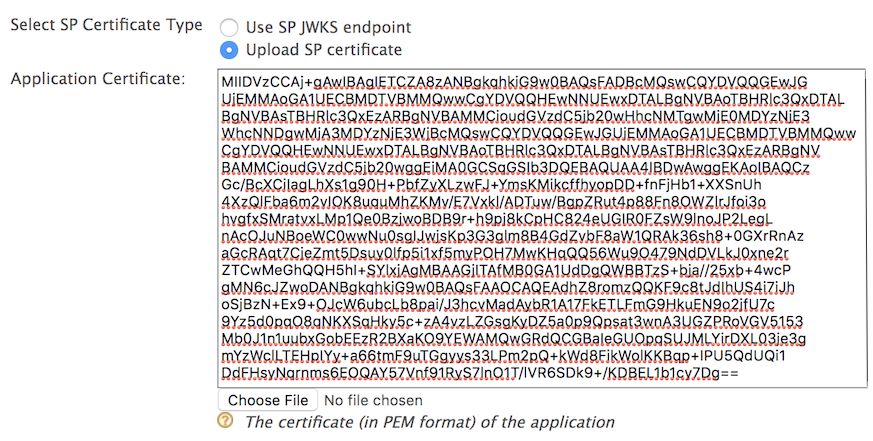 note
Instead of uploading the application certificate as shown above, you can choose to use the JWKS endpoint as shown below and add the relevant JWKS URI.
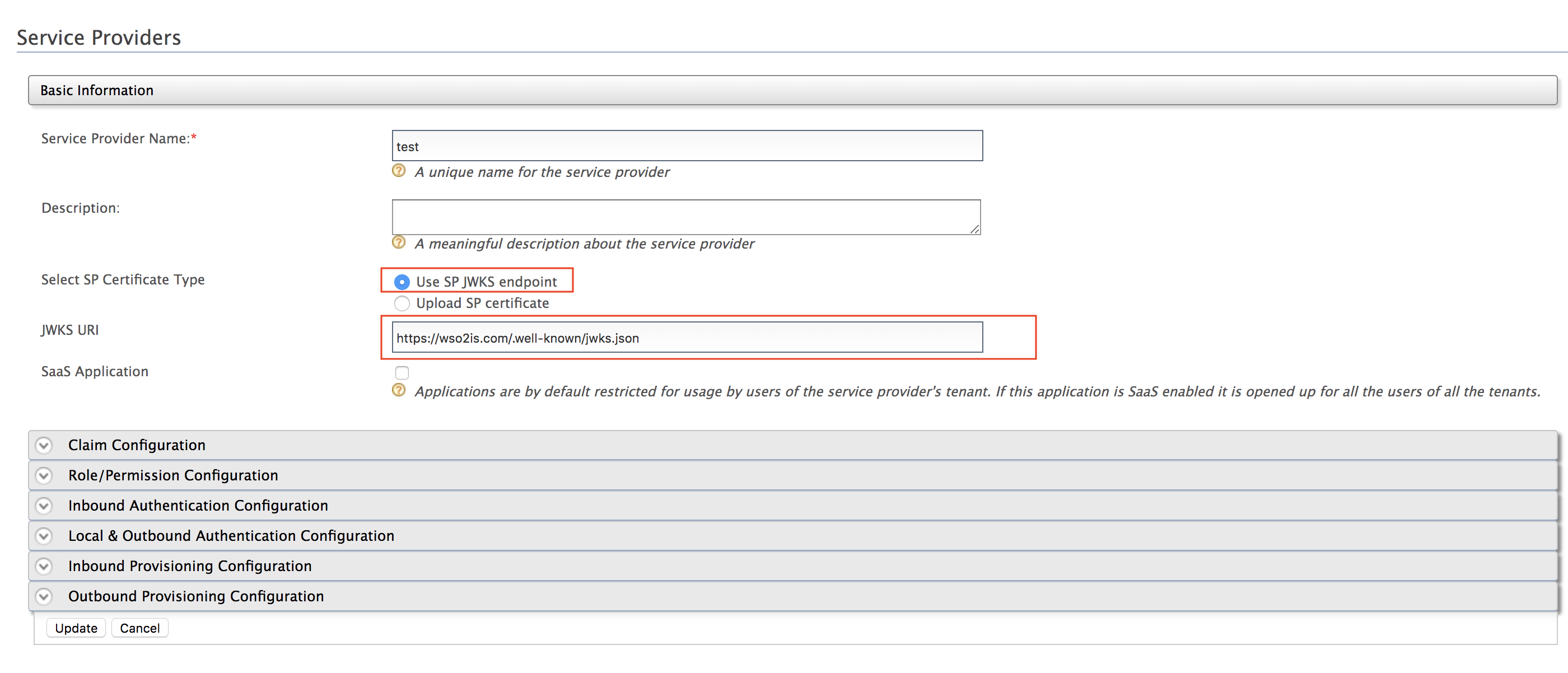
-
Click Update.
Try it
This section guides you through obtaining an encrypted ID token and decrypting it. Alternatively, you can use a simple Java program to decrypt the token. For instructions, see Decrypt the ID token.
-
See the relevant OIDC flow implementation guide and try out one of the grant types with the
openidscope to obtain an access token: -
You will receive an access token and an encrypted ID token.
-
To decrypt the ID token, provide the private key of the client.
-
Import JKS into a PKCS12 formatted store.
keytool -importkeystore -srckeystore testkeystore.jks -destkeystore testkeystore.p12 -srcstoretype JKS -deststoretype PKCS12 -srcstorepass wso2carbon -deststorepass wso2carbon -srcalias wso2carbon -destalias wso2carbon -srckeypass wso2carbon -destkeypass wso2carbon -
Extract the private key into a file named
key.pem.openssl pkcs12 -in testkeystore.p12 -out key.pem -passin pass:wso2carbon -passout pass:wso2carbon -nodes -nocerts -
Open the created
key.pemfile using a text editor and you will see the extracted private key. -
Copy only the key string as shown in the sample below.
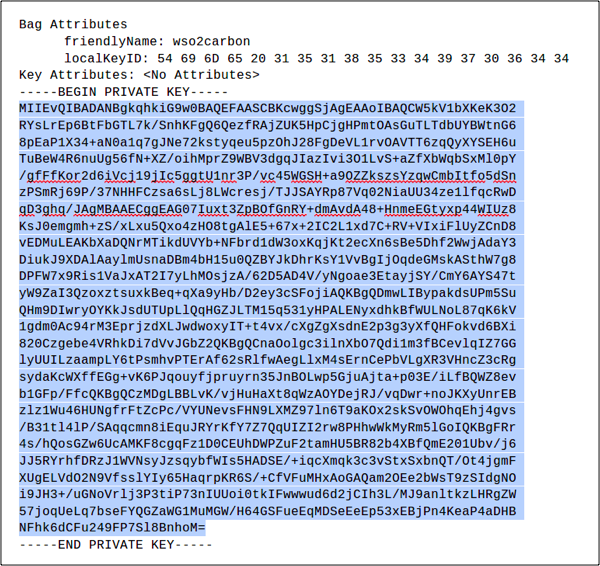
-
Use the private key to decrypt the ID token.
-
- Concept: ID Token
- Guide: Implement authorization code flow
- Guide: Decrypt the ID token
Was this page helpful?