Customize email templates
The following topics explain how you can customize email notifications that are sent to users of your WSO2 Identity Server organization.
Customize email branding
Once you publish your branding preferences on WSO2 Identity Server, the branding preferences are automatically applied to emails sent to the users of your organization.
If you have set up organizations, you can customize email templates to fit the branding needs of each organization. If you do not customize a specific email template, the default email template will be applied.
The branding variables that affect the email templates are as follows:
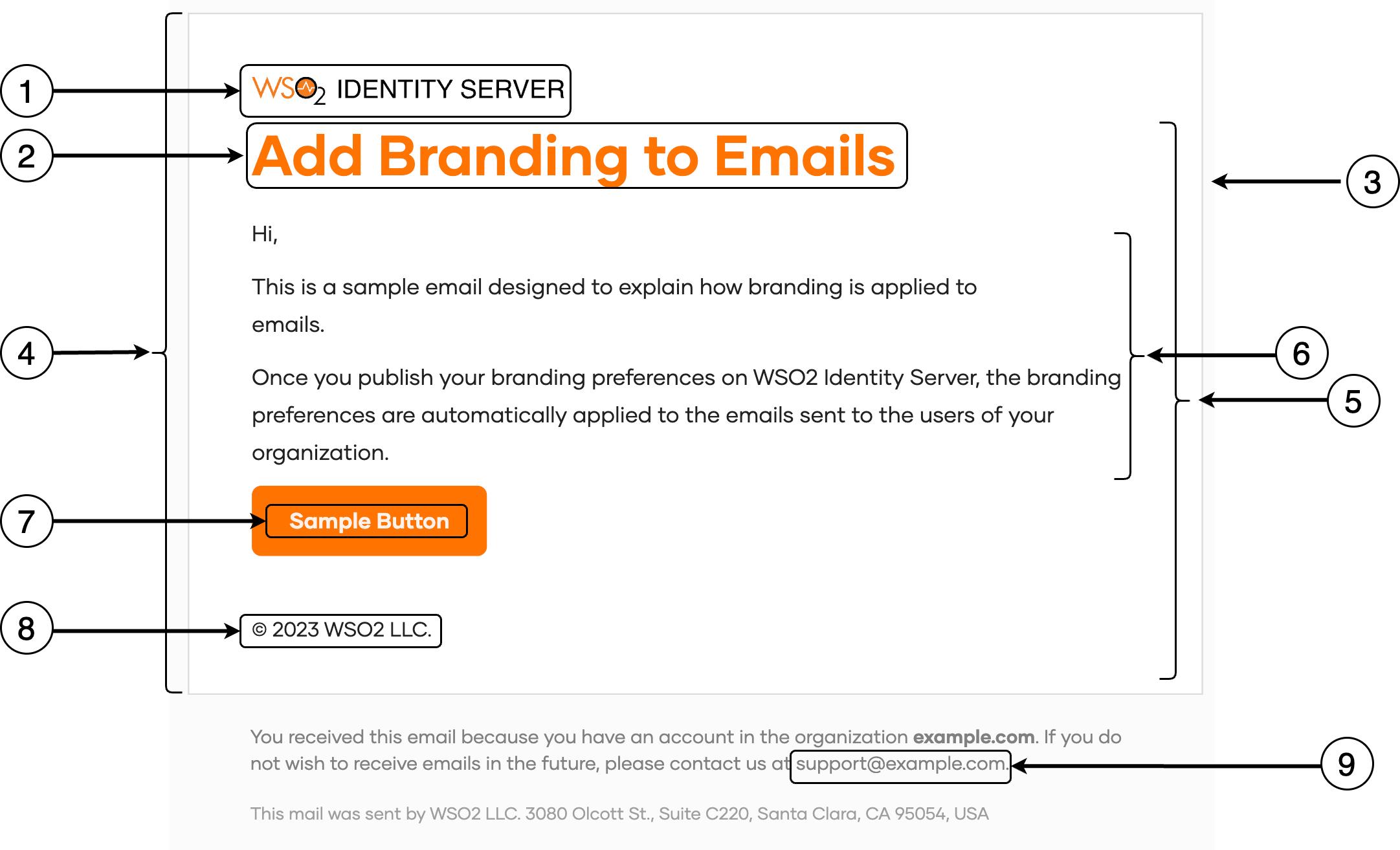
| Template variable | Branding preference | |
|---|---|---|
| 1 | Organization Logo | Design > Theme Preferences > Images > Logo URL |
| Logo alternative text | Design > Theme Preferences > Images > Logo Alt Text | |
| 2 | Primary color | Design > Theme Preferences > Color Palette > Primary Color |
| 3 | Email background color | Design > Theme Preferences > Color Palette > Body Background > Main Background Color |
| 4 | Email body color | Design > Theme Preferences > Color Palette > Surface Background > Main Surface Background Color |
| 5 | Email font | Design > Theme Preferences > Font > Font Family |
| 6 | Email body font color | Design > Theme Preferences > Color Palette > Text Colors > Primary Text Color |
| 7 | Email button font color | Design > Theme Preferences > Buttons > Primary Button > Font Color |
| 8 | Copyright text | General > Copyright Text |
| 9 | Support email | General > Contact Email |
Customize email content
You can tailor the subject, body, and footer of email notifications to your preferences by following the steps below.
This feature is only available for the most frequently used email templates. You can customize all available email templates using the Email Templates API.
-
On the WSO2 Identity Server, go to Branding > Email Templates.
-
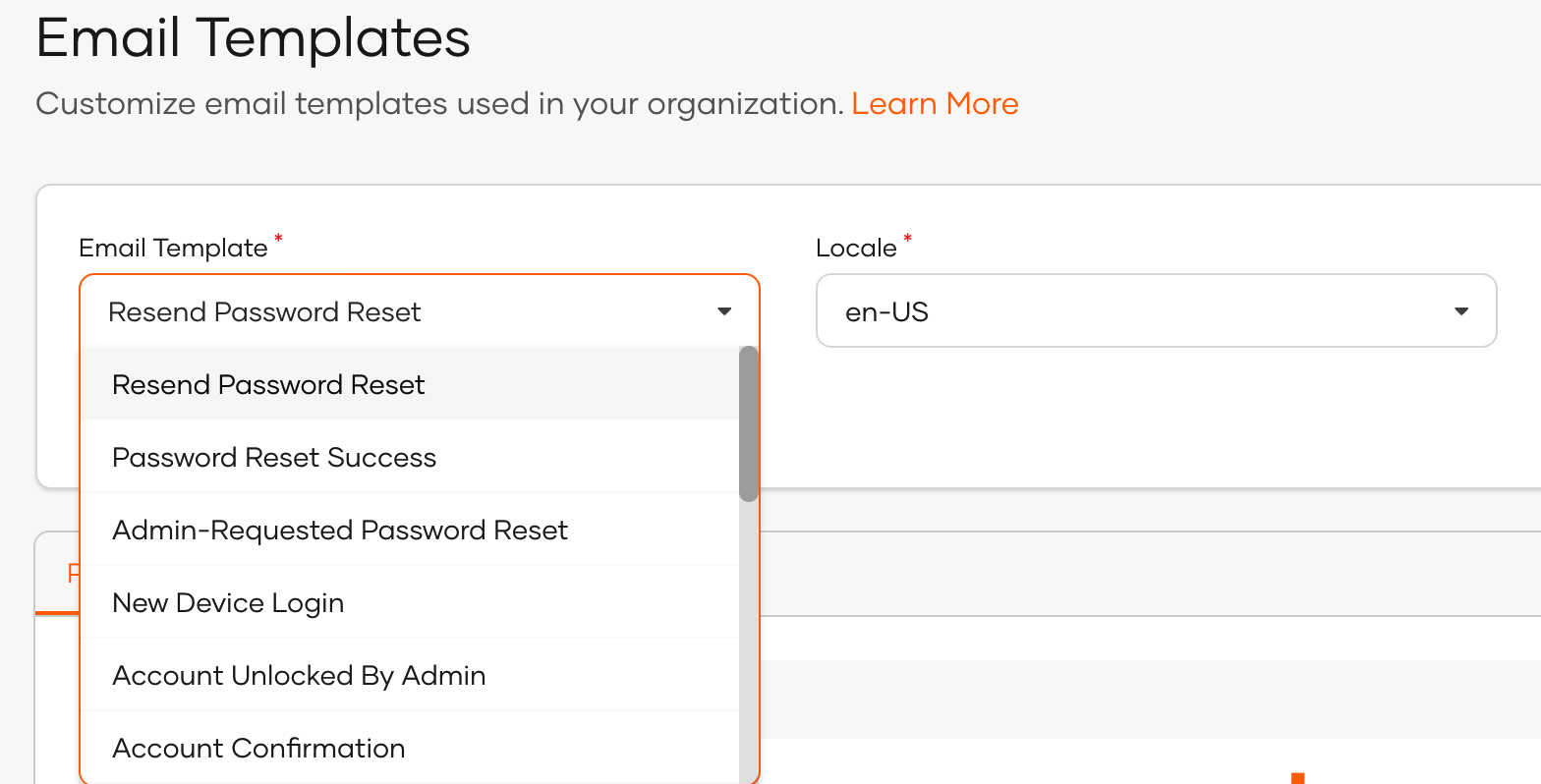
Select the email template and the relevant locale that you wish to modify.
noteWSO2 Identity Server gives you the option to automatically copy a template from one locale to another so that you don't have to create email templates from scratch. To do so, select a locale with an existing email template, switch over to the new locale and click confirm when the Replicate content? prompt appears.
-
Make your modifications in the Content tab and use the Preview tab for a real-time preview.
-
Click Save to publish your changes.
To apply these changes to each user's profile in your organization:
-
Display the
localattribute on the user's profile. Learn how to do so in updating user attributes. -
Update the
localattribute value with the required locale code. The value should be updated by,-
the admin, if the admin onboards the user to the organization.
-
the user, if the user self-registers to the organization.
-
Alternatively, you can customize the content of email templates using the Email Templates API provided by WSO2 Identity Server.
Was this page helpful?