Add MFA based on ELK-risk
The following guide shows you how to prepare WSO2 Identity Server for adaptive authentication using ELK analytics.
Prerequisite
Configure ELK Analytics in WSO2 Identity Server.
Configure the analytics engine in WSO2 IS
Follow the steps below to configure the analytics engine in WSO2 Identity Server that establishes the connection between WSO2 Identity Server and ELK.
-
On the WSO2 Identity Server console, go to Applications.
-
Select the relevant application and go to its Login Flow tab.
-
In the Predefined Flows > Conditional Login Flows section, click on the
settingsicon in the ELK-Risk-Based template. -
Configure the following properties.
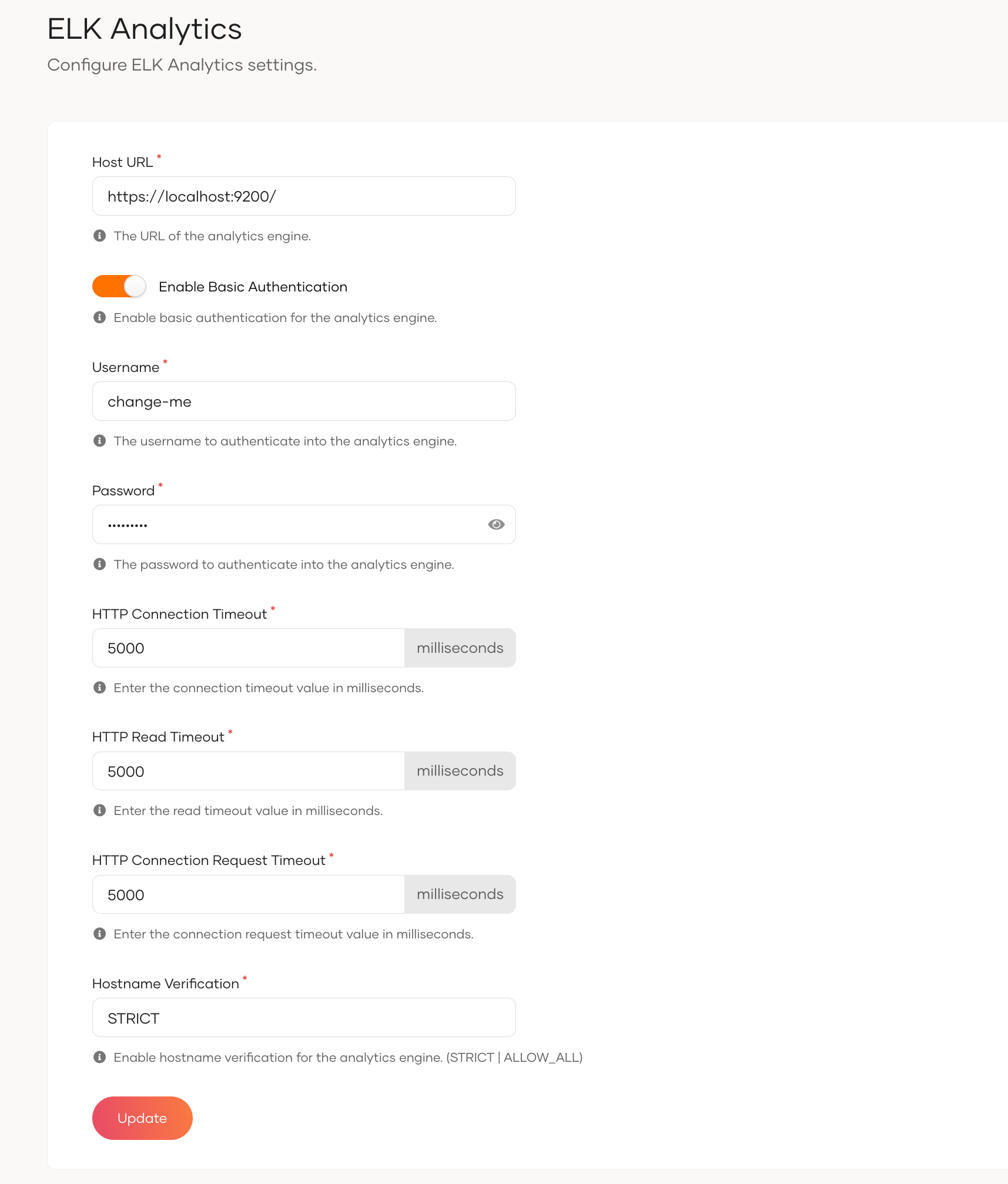
Property Description Host URL The target hostname and target port for Elasticsearch. Enable Basic Authentication Turn the toggle on to enable authentication with username and password credentials. Elasticsearch Username The username of the Elasticsearch admin user. Elasticsearch Password The password of the Elasticsearch admin user. HTTP Connection Timeout The connection timeout interval in milliseconds. If the endpoint does not respond within this time, the connection attempt fails. HTTP Read Timeout The timeout interval in milliseconds for each read()call on theInputStream. If the server does not respond with data within this time, the connection is terminated.HTTP Connection Request Timeout The timeout interval in milliseconds for requesting a connection with Elasticsearch. Hostname Verification Possible values are: STRICT or ALLOW_ALL.
STRICT - When this mode is enabled, hostnames will be strictly verified against the hostname specified in the product's SSL certificate. For example, if*.foo.comis specified as the hostname in the certificate, only this specific hostname is authorized by the server. That is, subdomains such asa.b.foo.com" or ip addresses such as127.10.11.1will not be authorized.
ALLOW_ALL - This option turns off hostname verification for the server. Note that this is not recommended in a production setup and should only be used for demonstrations and testing. -
Click Update to save the changes.
Add Elasticsearch certificate to WSO2 Identity Server
An HTTPS connection is used to communicate between WSO2 IS and Elasticsearch. Therefore the Elasticsearch certificate needs to be imported to the WSO2 IS.
To import the certificate, open a terminal window and run the following command.
keytool -trustcacerts -keystore <IS_HOME>/repository/resources/security/client-truststore.jks -storepass wso2carbon -importcert -alias elk -file <ELASTICSEARCH_HOME>/config/certs/http_ca.crt
This example uses the default keystores and certificates. Replace <IS_HOME> and <ELASTICSEARCH_HOME> accordingly. The default keystore password is wso2carbon.
What's Next?
Now that you have prepared WSO2 Identity Server for adaptive authentication using ELK analytics, try an ELK-based adaptive authentication scenario.
Was this page helpful?