Bot detection
This guide explains how you can enable bot detection for your applications to mitigate abuse from bots and other automated attacks. WSO2 Identity Server supports reCAPTCHA, a service provided by Google which can protect your applications from spam or other forms of internet abuse by distinguishing human requests from automated ones.
Types of reCAPTCHA
Google allows you to configure two types of reCAPTCHA.
reCAPTCHA v2
reCAPTCHA v2 does not require users to click a checkbox to prove that they are human. Instead, it uses an invisible reCAPTCHA badge that activates when the user clicks on an existing button on the website or through a JavaScript API call. Only the most suspicious traffic will be prompted to solve a puzzle.
reCAPTCHA v3
reCAPTCHA v3 returns a score for each request without requiring user interaction. It allows you to take action inside the context of your website, such as adding more authentication factors, flagging a post for moderation, or slowing down scraping bots.
In the WSO2 Identity Server implementation, you are required to select a threshold value by looking at the traffic at reCAPTCHA admin console. If the score is less than the threshold, the request will be blocked by the server. The default value for the threshold is 0.5.
Since reCAPTCHA v3 learns from actual traffic, the scores may vary between the development and production environments.
The following sections guide you through setting up reCAPTCHA with WSO2 Identity Server.
Configure API keys in Google
You need to register and create an API key pair in Google. The key pair consists of a site key which is used to invoke reCAPTCHA, and a secret key.
When a user interacts with your application, the reCAPTCHA service generates a response token, includes it in a new parameter called g-recaptcha-response and embeds the parameter into the request. From the server side, you can verify the submitted response by calling the Google API with the secret key.
To configure the API keys,
-
Go to the Google reCAPTCHA admin console.
-
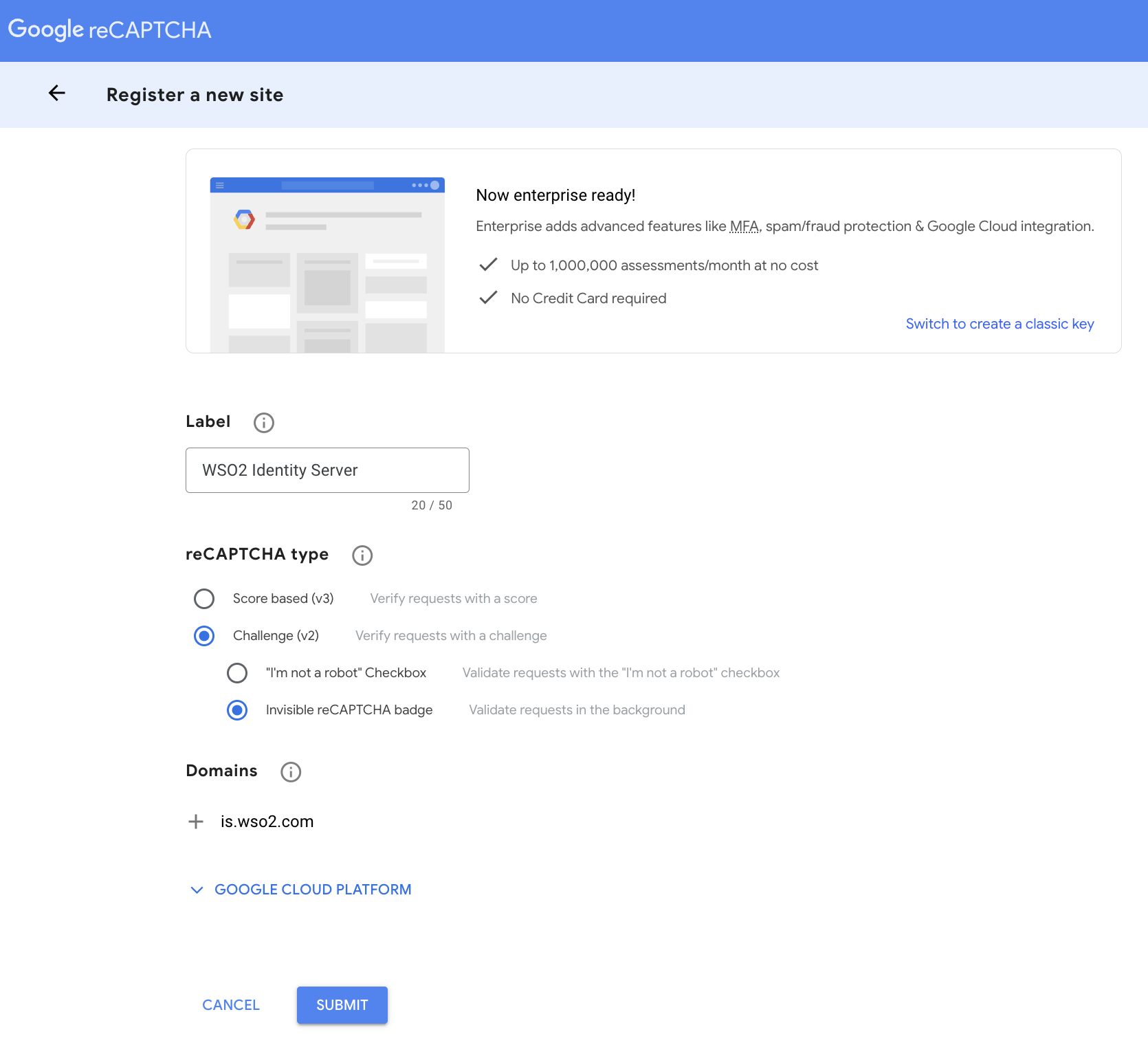
Fill in the fields to register your identity server domain. The following are sample values:
-
Label: WSO2 Identity Server
-
Select either the
Score based (v3)or theChallenge (v2)option. -
Domains: is.wso2.com
-
-
Click Submit.
-
Take note of the site key and secret that you receive.
For more information on reCAPTCHA, refer to the Google documentation.
Configure WSO2 Identity Server for reCAPTCHA
Follow the steps below to configure reCAPTHCA in WSO2 Identity Server.
-
Open the
deployment.tomlfile located in the<IS_HOME>/repository/conf/directory and uncomment the following configuration block underGoogle reCAPTCHA settings. Replacesite_keyandsecret_keywith the values you obtained from the above section.[recaptcha]enabled = trueapi_url = "https://www.google.com/recaptcha/api.js"verify_url = "https://www.google.com/recaptcha/api/siteverify"site_key = "<site_key>"secret_key = "<secret_key>"note-
For reCAPTCHA v3, WSO2 Identity Server sets a default value of 0.5. You can set a custom value using the
thresholdproperty.[recaptcha]...threshold="0.4"... -
Enter the
login.doURL paths (without the hostname) of any additional authorization endpoints that you wish to secure with reCAPTCHA as a comma-separated list inredirect_urlsunder[recaptcha].[recaptcha]...redirect_urls="/authenticationendpointone/login.do,/authenticationendpointtwo/login.do"...
-
-
Restart the WSO2 Identity Server server.
Enable reCAPTCHA from the Console
To enable bot detection, proceed with the following:
- On the WSO2 Identity Server Console, go to Login & Registration > Login Security > Bot Detection.
- Toggle the switch on to activate reCAPTCHA for your organization.
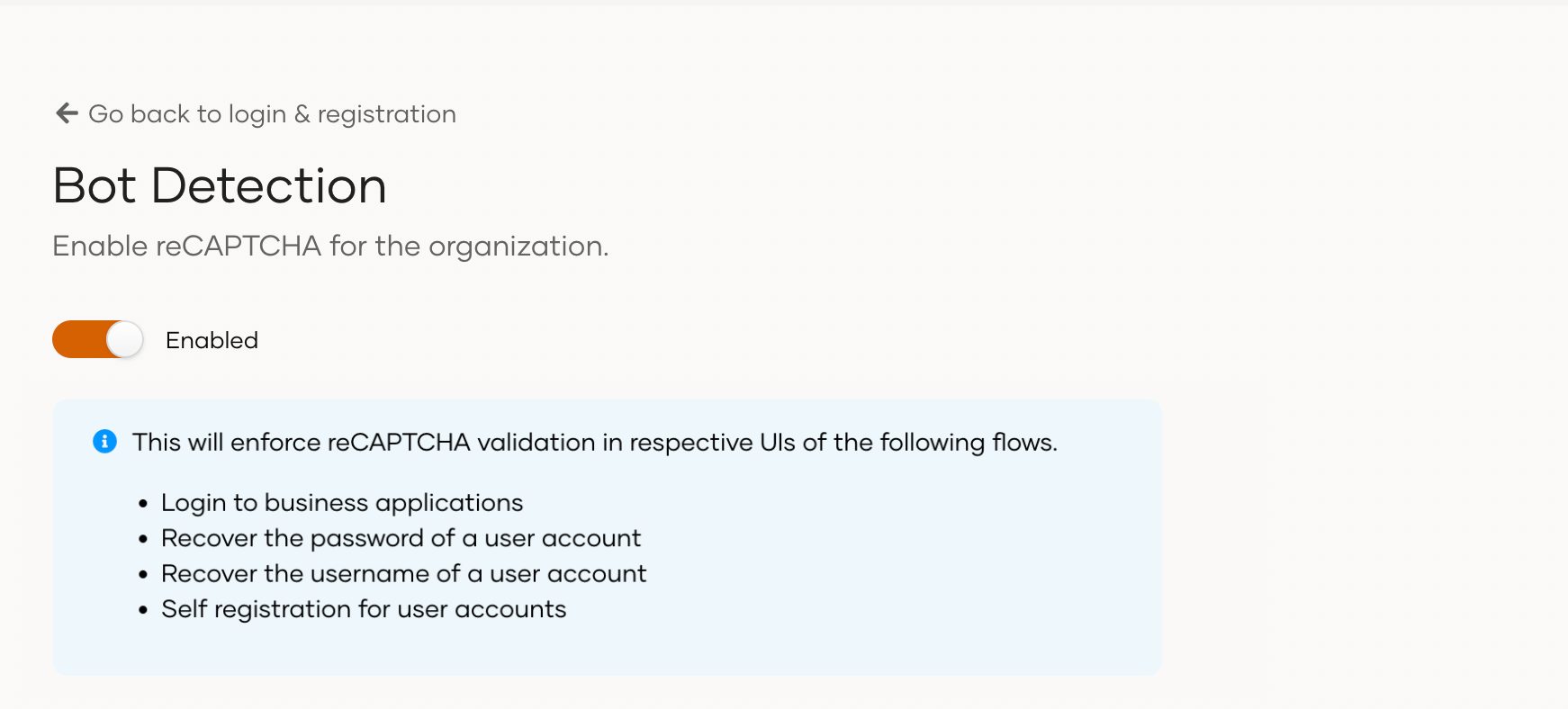
Bot detection enables reCAPTCHA for the following flows:
- Single sign-on (SSO)
- Self-registration
- Password recovery
- Account recovery
Was this page helpful?