Organization Insights
Looking for the analytics dashboards in the Insights section of the Console? See Insights for the identity insights WSO2 Identity Platform provides, and how to turn on Advanced Analytics.
WSO2 Identity Platform allows administrators and organization owners to view insights of the organizations they manage.
To check insights of your organization:
-
On the WSO2 Identity Platform Console, go to Insights.
-
Select one of the following activities to see insights related to it.
- Login - displays insights related to successful and failed user logins made to business applications and the My Account portal.
- Registration - displays insights related to user registrations via self sign-up and admin-initiated registration methods.
- M2M - displays insights related to machine-to-machine (M2M) token issuance.
-
Use the dropdown in the top right corner to adjust the duration.
noteWSO2 Identity Platform provides insights for up to a maximum of 30 days.
The example below shows insights related to login events of the organization for the past 7 days.
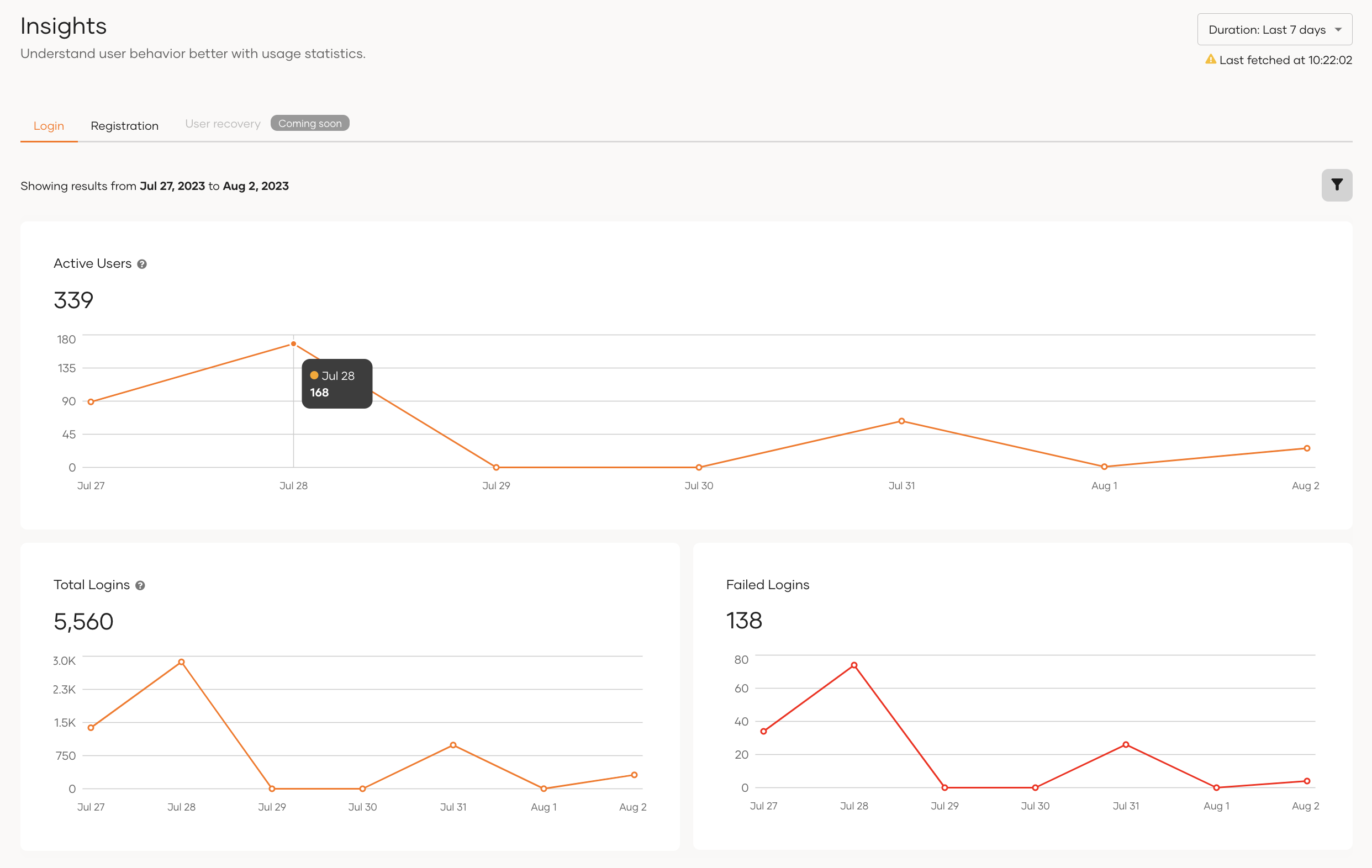
The statistics displayed in the graphs are not real-time.
Why?
There is a latency of up to 20 minutes between the user activity and insights. This delay ensures accurate data processing and allows for a more comprehensive analysis of all activities including logins, registrations, and M2M token usage.
User engagement metrics
This section will help you further understand the statistics shown in the graphs.
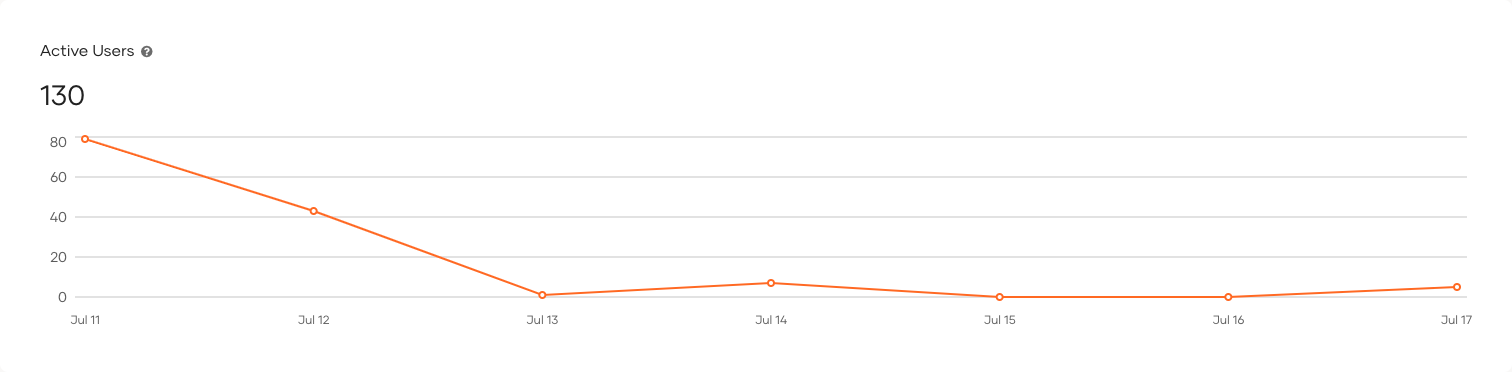
Active Users
This graph in login insights, represents the number of unique user logins within the selected duration. You can view each day's count by hovering your mouse over a point on the graph. This metric helps measure the daily engagement of users with the platform.
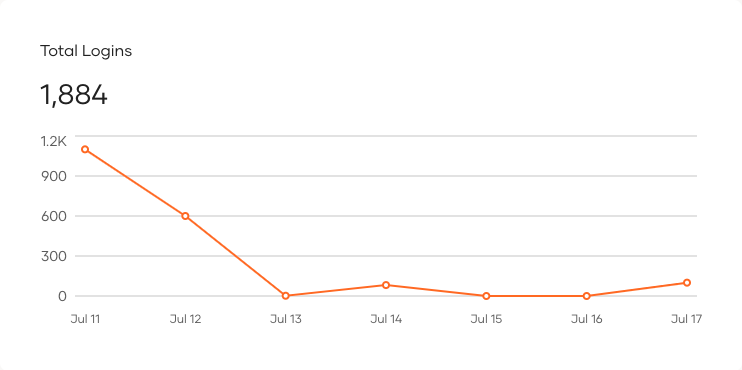
Total Logins
This graph in login insights, represents the total number of successful user logins within the selected duration. By hovering your mouse over a point on the graph, you can view the specific count of user logins for each day.
Failed Logins
This graph in login insights, represents the total number of failed logins within the selected duration. You can view each day's failed login attempt count by hovering your mouse over a point on the graph.
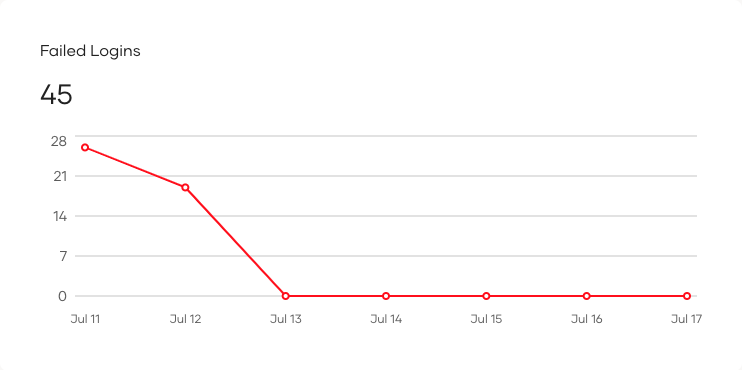
The graph does not include data related to failed login attempts made by the organization owner or administrators to either the WSO2 Identity Platform Console or the My Account portal.
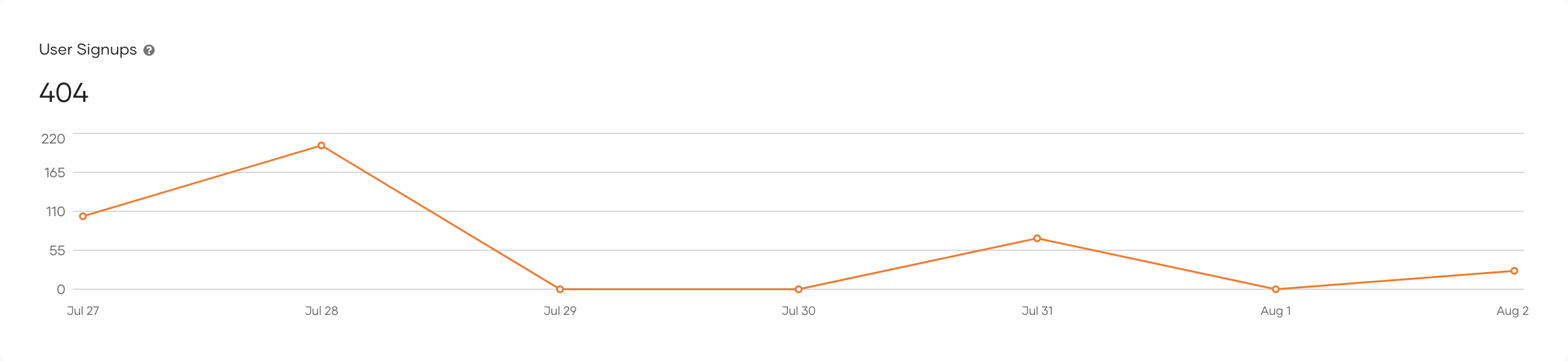
User Signups
This graph in registration insights, represents the total number of successful user signups within the selected duration. You can view each day's signup count by hovering your mouse over a point on the graph.
Machine-to-Machine (M2M) authentications
This graph in M2M insights represents the number of new M2M tokens issued to your organization within the selected duration. By hovering your mouse over a point on the graph, you can view the specific count of M2M token requests for each day.
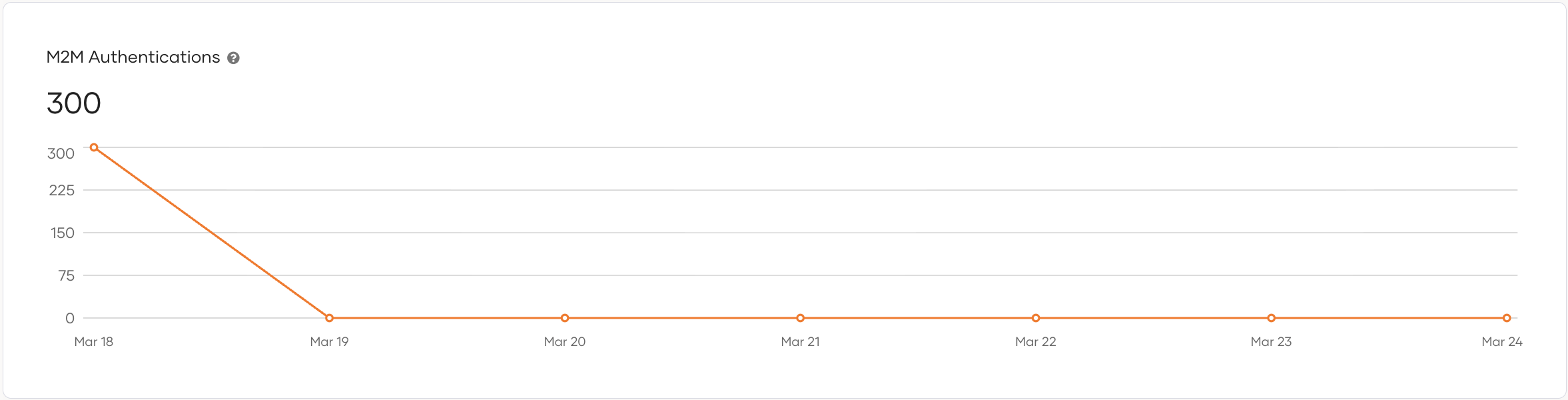
This graph only tracks tokens issued via the client credentials grant. Reissued tokens are not counted.
Filter insights
You can use filters to further narrow down insights related to login, registration, and M2M activities.
To filter insights,
-
On the WSO2 Identity Platform Console, go to Insights, and select an activity (Login, Registration, or M2M).
-
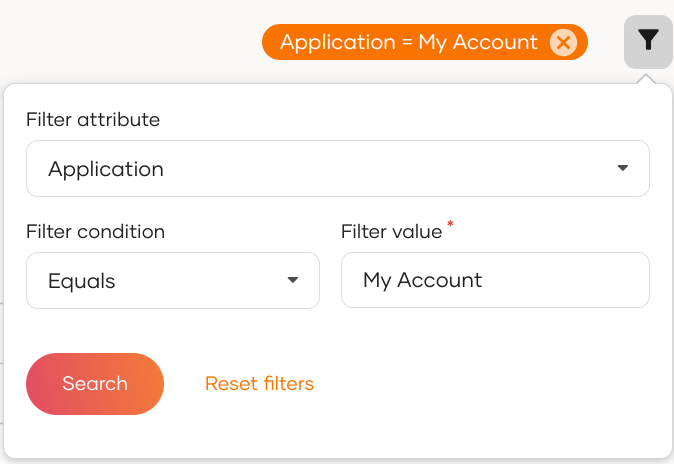
Click the filter icon and use the following fields to filter insights .
Filter attribute The attribute for which to filter insights. Filter condition The logical operator that must be satisfied between the filter attribute and the filter value.
(Currently, this is set to Equals)Filter value Value of the filter attribute. noteAll filter values are case sensitive.
The table below has detailed information on all the filtering options available for insights of your organization.
| User activity | Filter attribute | Description |
|---|---|---|
| Login | Application | Filter logins based on the name of an application in your organization. Examples for applications: My Account |
| User ID | Filter logins based on the user ID found in a user's profile. Example for a user ID: 1450ea7f-88db-49c2-b750-065e219a1fba | |
| User store | Filter logins based on the domain name of a user store in your organization. Examples for user stores: PRIMARY, DEFAULT | |
| Connection Type | Filter logins based on the method of user login. For example, you can select Google to filter insights for users who logged in with Google. | |
| Connection ID | Filter logins based on the UUID of the connection used for login. (You can find the UUID of a connection from the URL that appears when you select the connection from the Connections section on the WSO2 Identity Platform Console.) For example, if you have multiple Google connections configured, you can filter based on one of them by entering its UUID. | |
| Registration | Onboarding Method | Filter registrations based on the method of user onboarding.
|
| User ID | Filter registrations based on the user ID found in a user's profile. Example for a user ID: 1450ea7f-88db-49c2-b750-065e219a1fba | |
| M2M | Client ID | Filter M2M token requests based on the client ID of an M2M application in your organization. (You can find the client ID of an application from the Protocol section of the application on the WSO2 Identity Platform Console.) Example for a client ID: rXJ4z9k2mL8pQvN5wX1aB3 |
| Organization | Filter M2M token requests based on the organization. You can search and select the organization from the dropdown list. |
Was this page helpful?