Build an AI Agent
- Time: Under 10 minutes
- What you'll build: An AI agent that connects to an LLM, uses tools, and responds to user queries in chat.
An AI agent uses an LLM to understand user queries, reason about them, and call tools to retrieve information or perform actions. This quick start walks you through the full process: creating a project, adding an AI Chat Agent artifact, configuring its instructions, and testing the agent in the built-in chat panel.
Prerequisites
A working WSO2 Integrator environment.
- Local setup: Install and launch WSO2 Integrator on your machine.
- WSO2 Cloud Account: For AI assisted development and WSO2 Cloud deployments.
Step 1: Create the integration
If you're using the cloud editor, a project is already open, so you can skip this step 1 and go directly to Step 2: Add an AI chat agent.
-
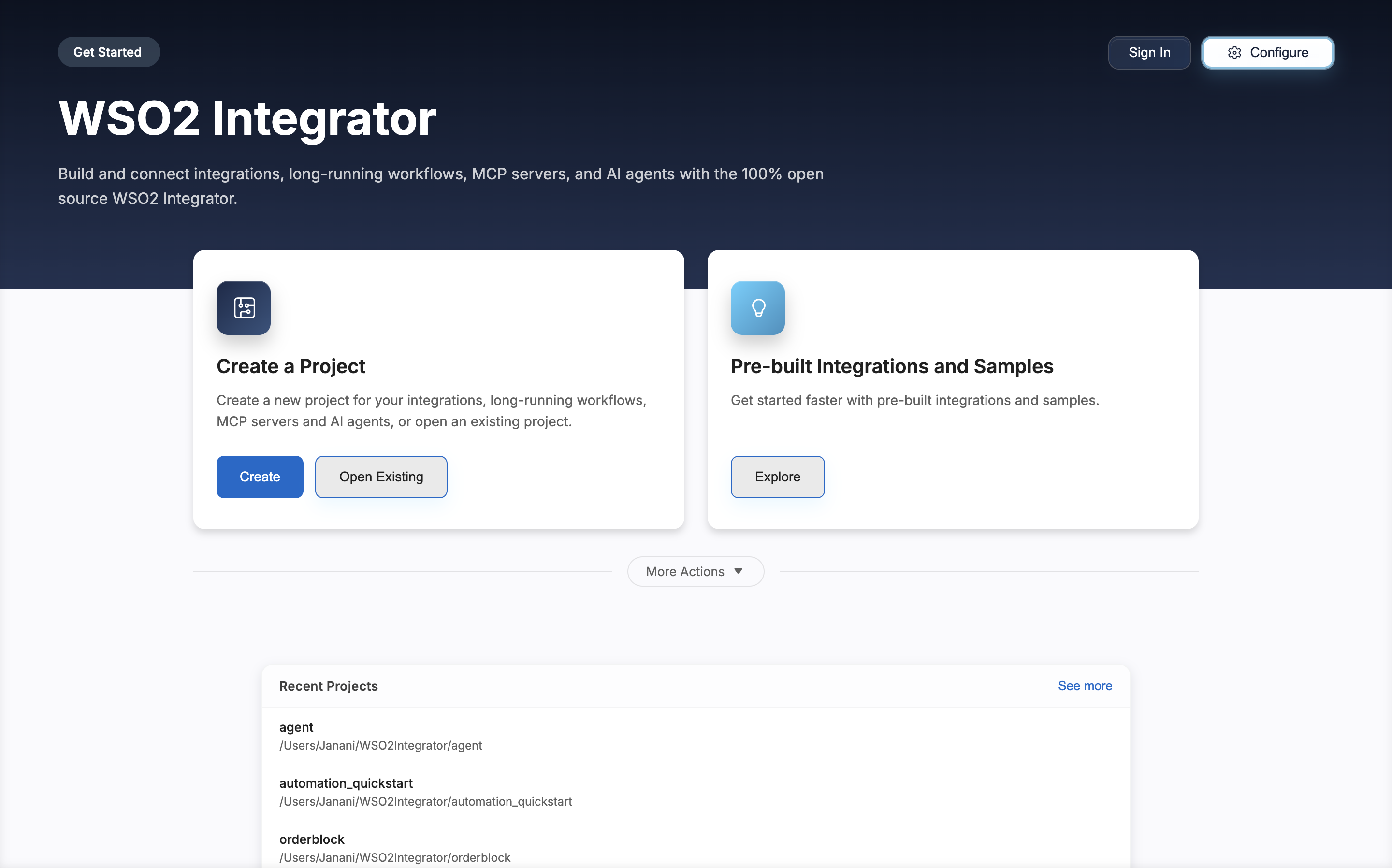
Open WSO2 Integrator.
-
Click Create in the Create a Project card.
-
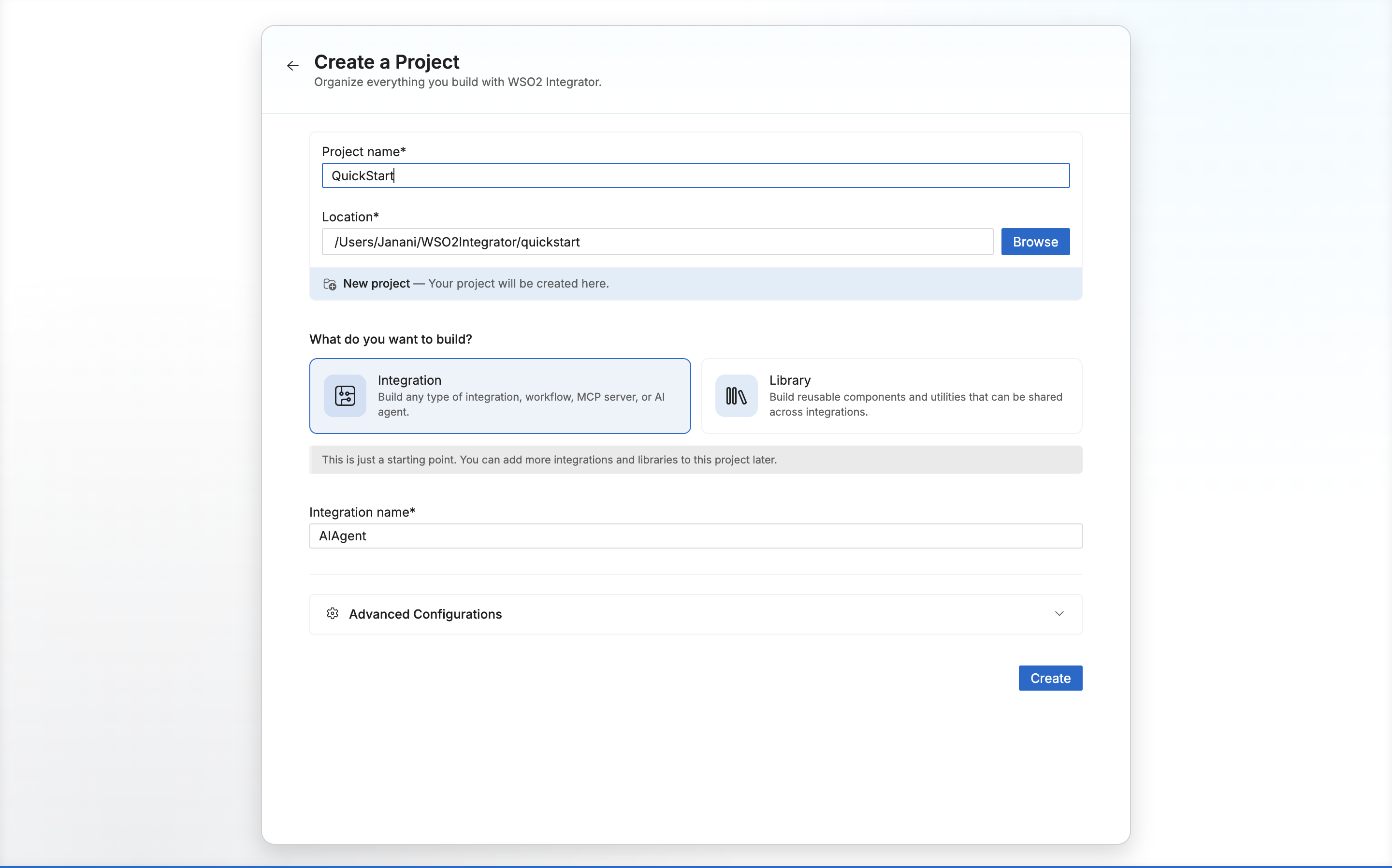
Set Project Name to
QuickStart. -
Set Integration Name to
AIAgent. -
Click Create.
Step 2: Add an AI chat agent
-
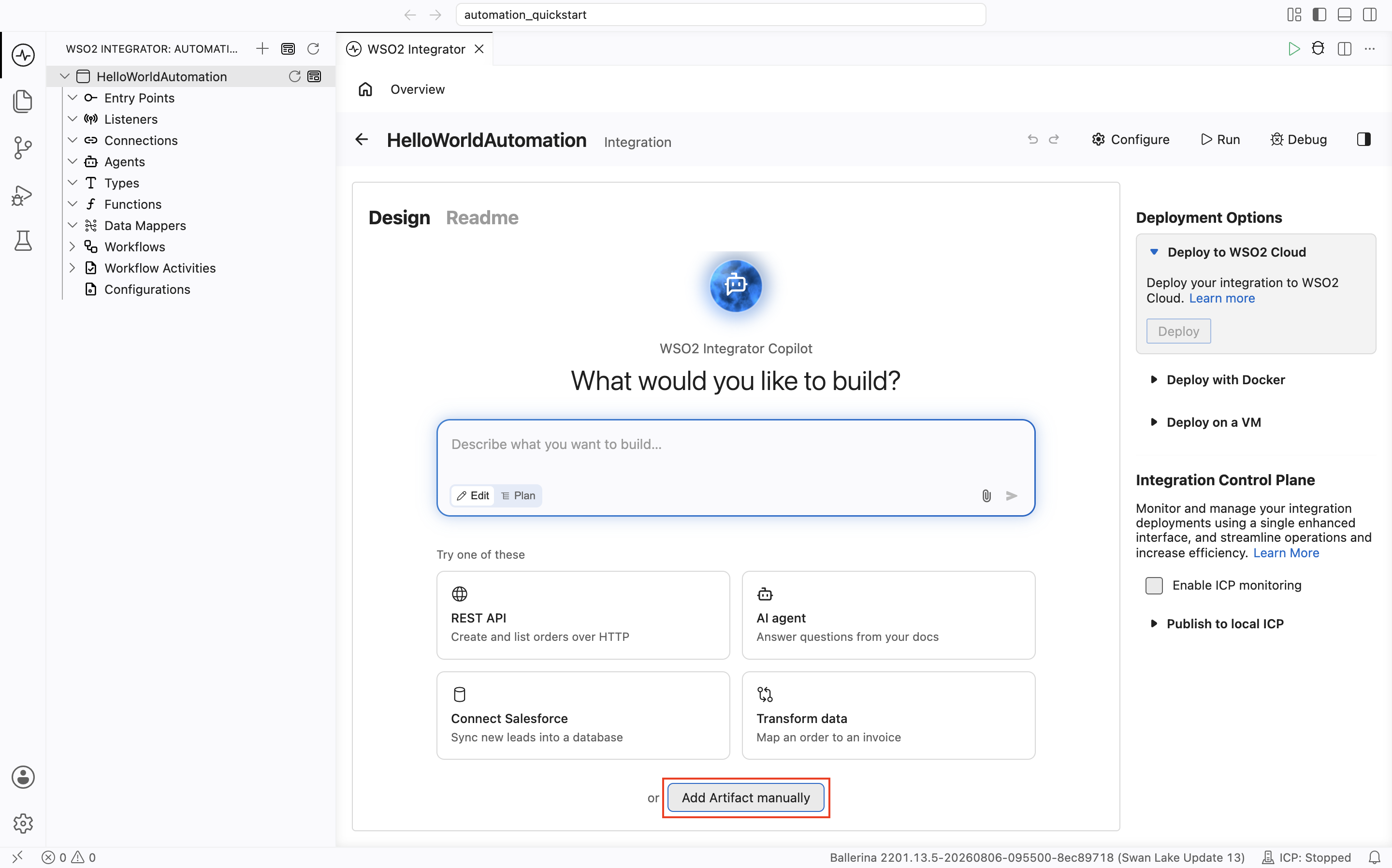
Select your integration from the project overview canvas.
-
In the design view, click Add Artifact Manually.
-
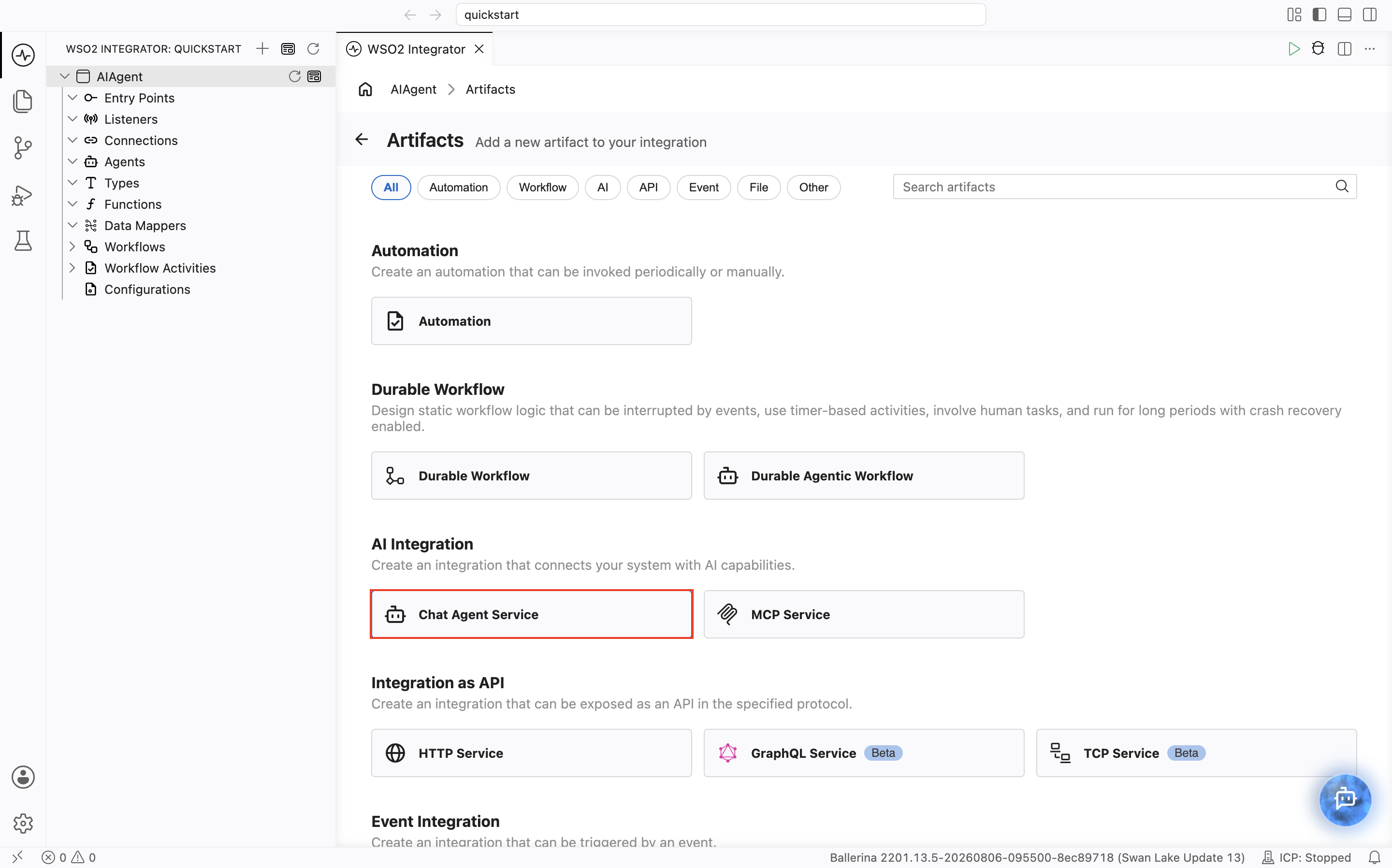
Select Chat Agent Service under AI Integration.
-
The Create Chat Agent Service form opens.
-
Set Role to
Wso2IntegratorAssistant. -
Set Instructions to:
You are a highly skilled WSO2 Integration Architect. Your goal is to assist developers in building, debugging, and optimizing integration flows.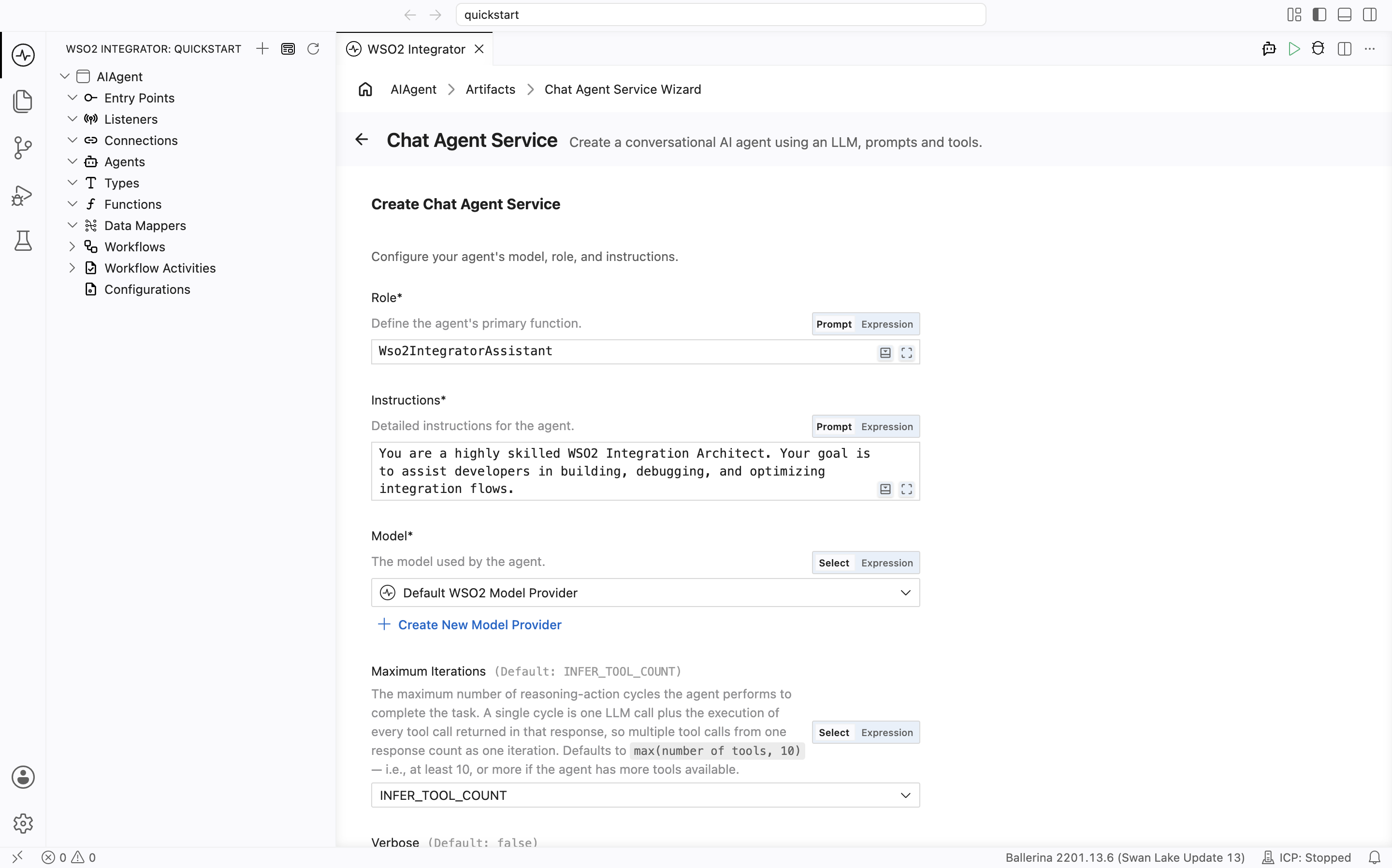
-
Leave the remaining configuration fields at their default values.
-
Under Advanced Configurations, set Agent Name to
Wso2IntegratorAssistant. -
Click Create.
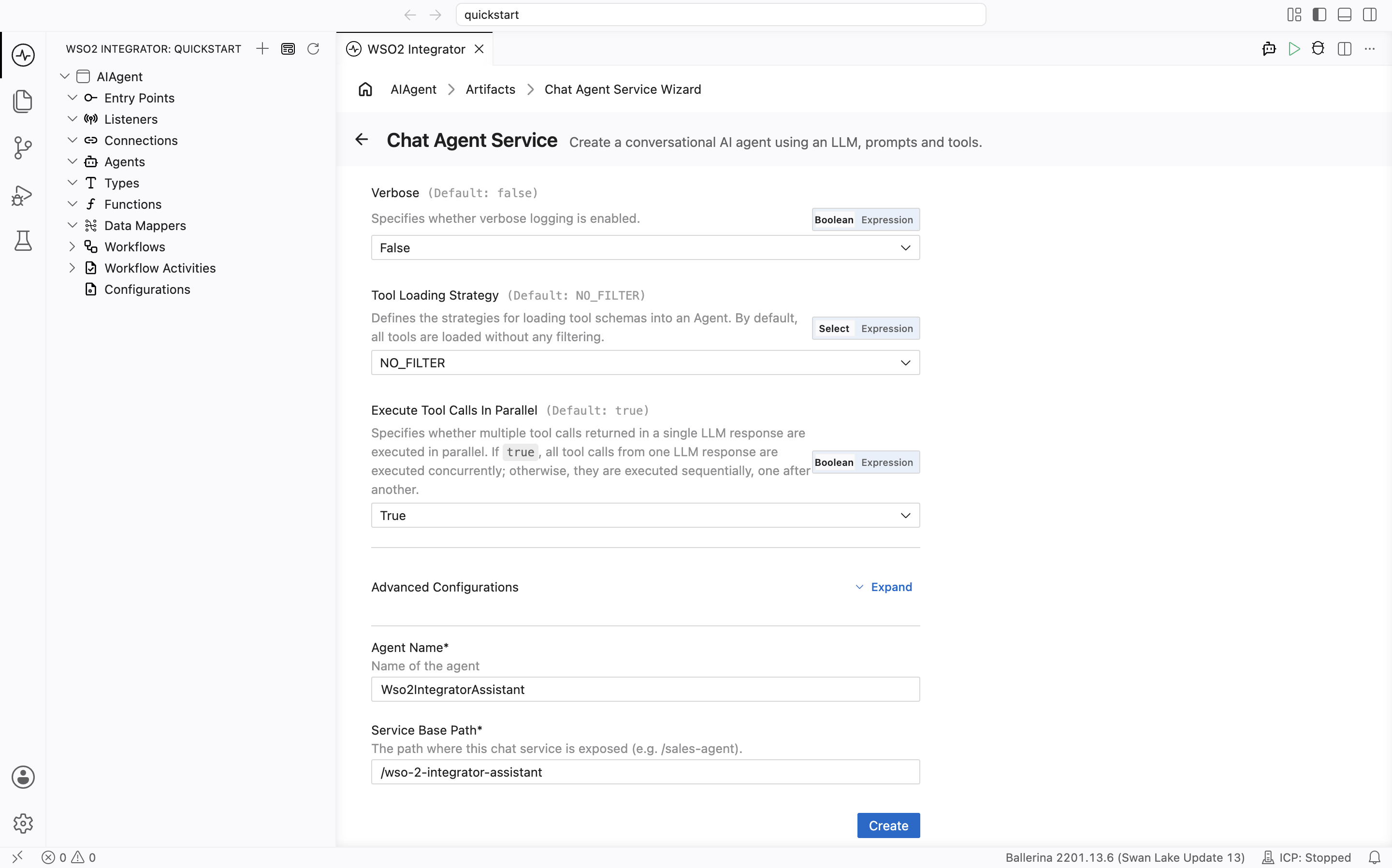
By default, the agent is configured to use the WSO2 model provider. If you want to use a different LLM, see Model providers for the full list of supported providers (OpenAI, Azure OpenAI, Anthropic, and others).
If you are using the WSO2 model provider, the access token is obtained through WSO2 Integrator Copilot. If you have not already signed in, you will be prompted to do so.
Step 3: Run and test
-
Click Run.
-
Click Chat from the Chat Agent Service title bar or click Test from the pop-up.
-
Type
Helloto check if it works.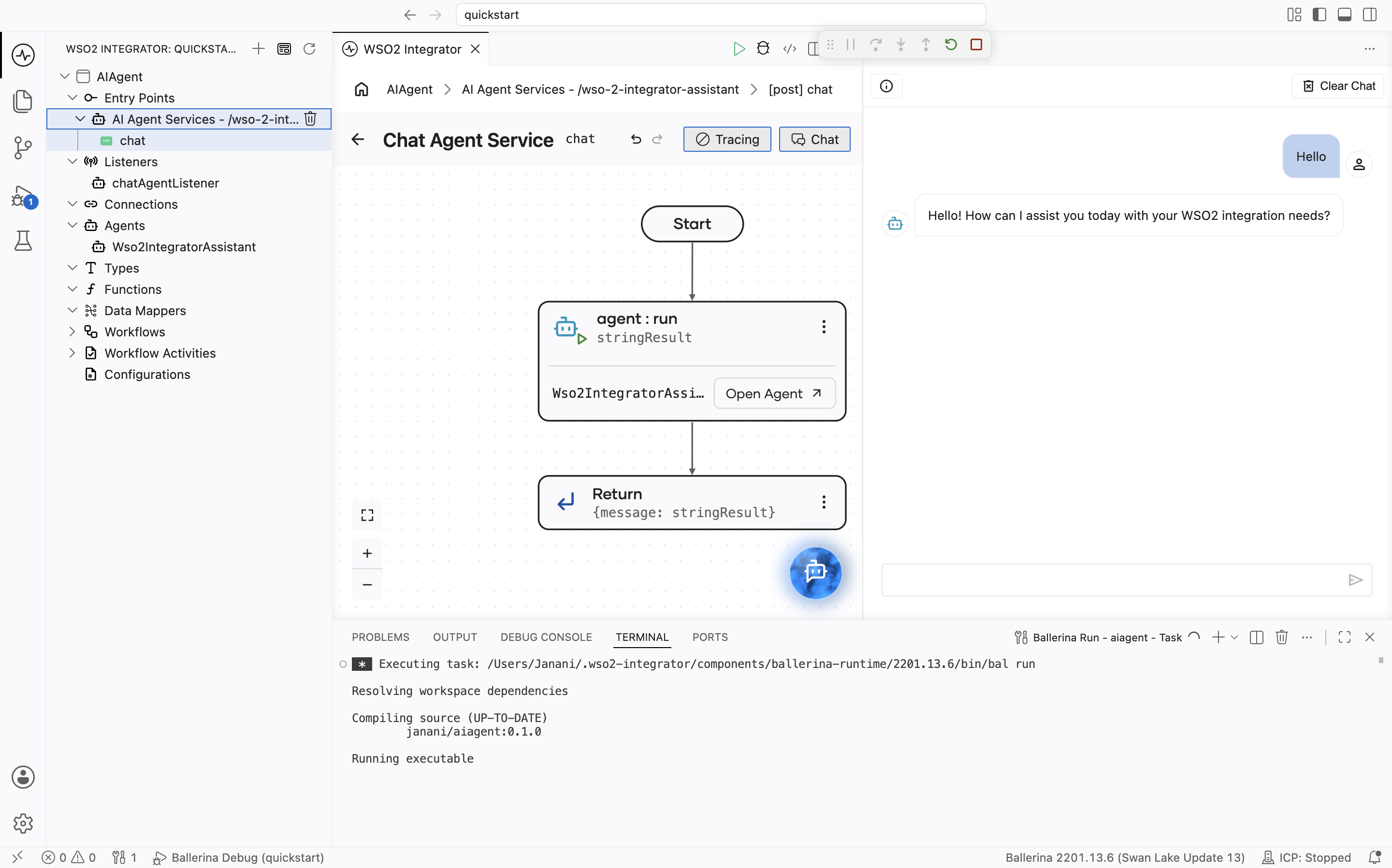
Step 4: Deploy to WSO2 Cloud
Deploy your integration to WSO2 Cloud - Integration Platform in any of the following ways:
- If you're using the cloud editor, see Save and deploy.
- If you're using WSO2 Integrator on your machine, see Deploy from WSO2 Integrator.
Rather not build it yourself? One-click deploy the AIAgent sample straight to WSO2 Cloud.

Source code
View the generated Ballerina code
The steps above generate the following complete, runnable Ballerina program. It has two files: agents.bal for the agent definition and main.bal for the listener and service.
agents.bal
import ballerina/ai;

final ai:Agent wso2IntegratorAssistantAgent = check new (
   systemPrompt = {
       role: string `Wso2IntegratorAssistant`,
       instructions: string `You are a highly skilled WSO2 Integration Architect. Your goal is to assist developers in building, debugging, and optimizing integration flows.`
   },
   model = wso2ModelProvider,
   tools = []
);
main.bal
import ballerina/ai;
import ballerina/http;

listener ai:Listener chatAgentListener = new (listenOn = check http:getDefaultListener());

service /wso2IntegratorAssistant on chatAgentListener {
   resource function post chat(@http:Payload ai:ChatReqMessage request) returns ai:ChatRespMessage|error {
       string stringResult = check wso2IntegratorAssistantAgent.run(request.message, request.sessionId);
       return {message: stringResult};
   }
}
What's next
- Build an automation — Build a scheduled job
- Build an Integration as API — Build an HTTP service
- Build an event-driven integration — React to messages from brokers
- Build a file-driven integration — Process files from FTP or local directories
- AI agents — Learn how to build production-grade AI agents with tools, memory, and evaluations
Was this page helpful?