Add LinkedIn login
You can add LinkedIn login to your applications using WSO2 Identity Platform and enable users to log in with their LinkedIn accounts.
Follow this guide for instructions.
Register WSO2 Identity Platform on LinkedIn
You need to register WSO2 Identity Platform as an OAuth2.0 application on LinkedIn.
-
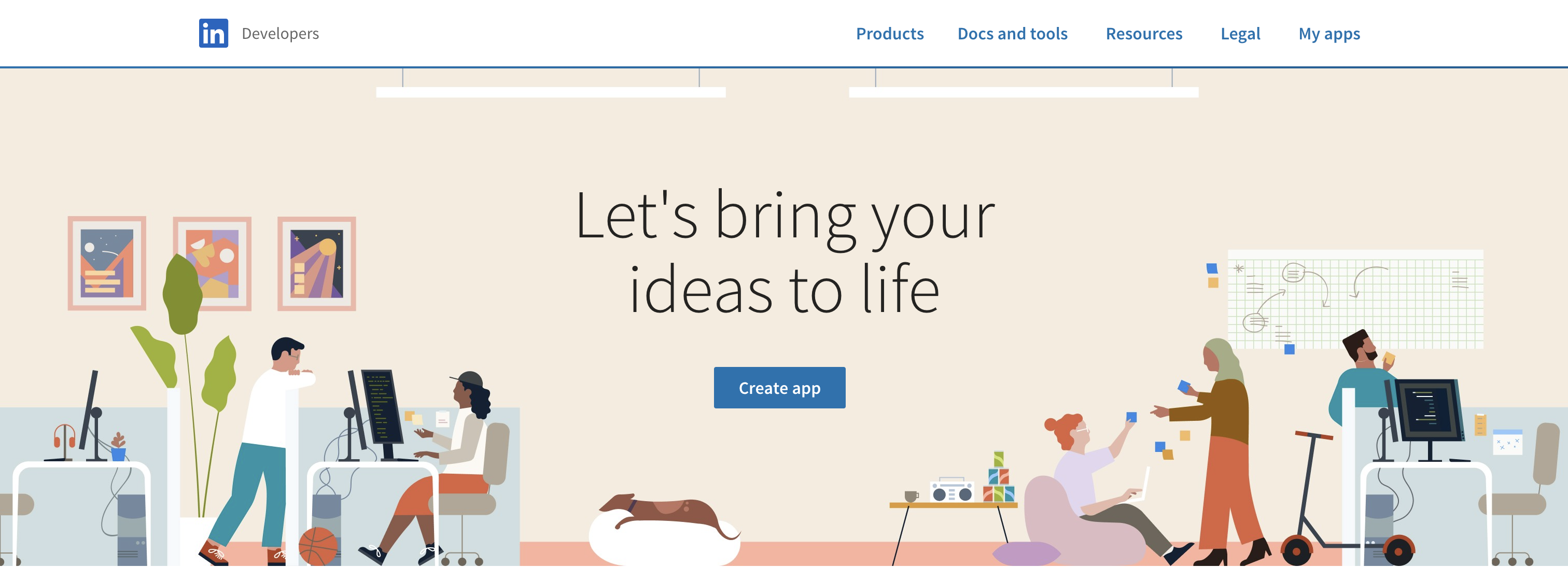
Go to the LinkedIn Developer console, click on Create app button to create a new application.
-
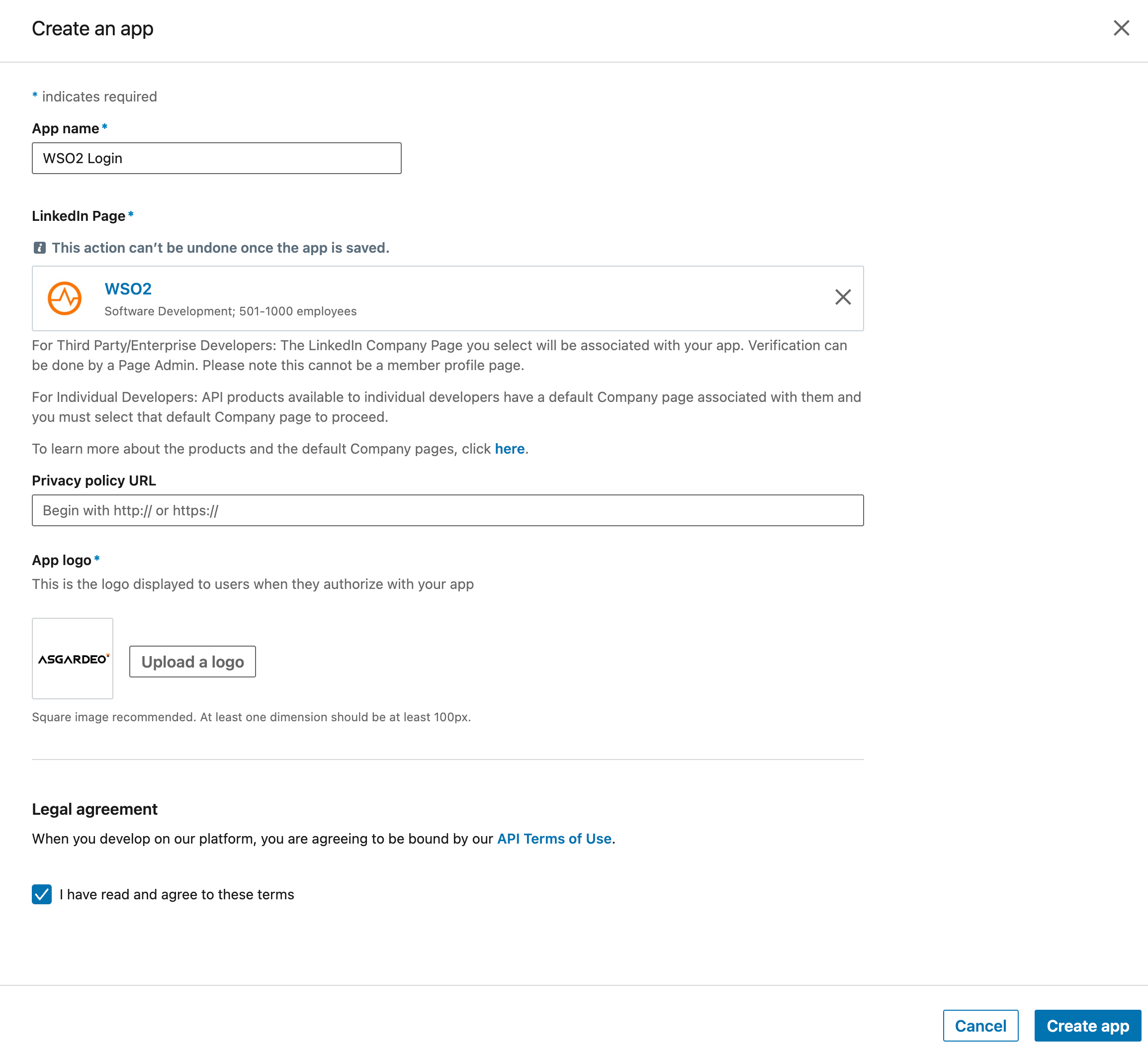
Provide the App name, LinkedIn Page, and App logo for your application. Accept the Legal agreement and click on Create app to complete the application creation process.
-
In the Products tab, request access for Sign In with LinkedIn using OpenID Connect.

-
Navigate to the Auth tab and add the following URL as the Authorized Redirect URL for your app.
https://api.asgardeo.io/t/{organization_name}/commonauth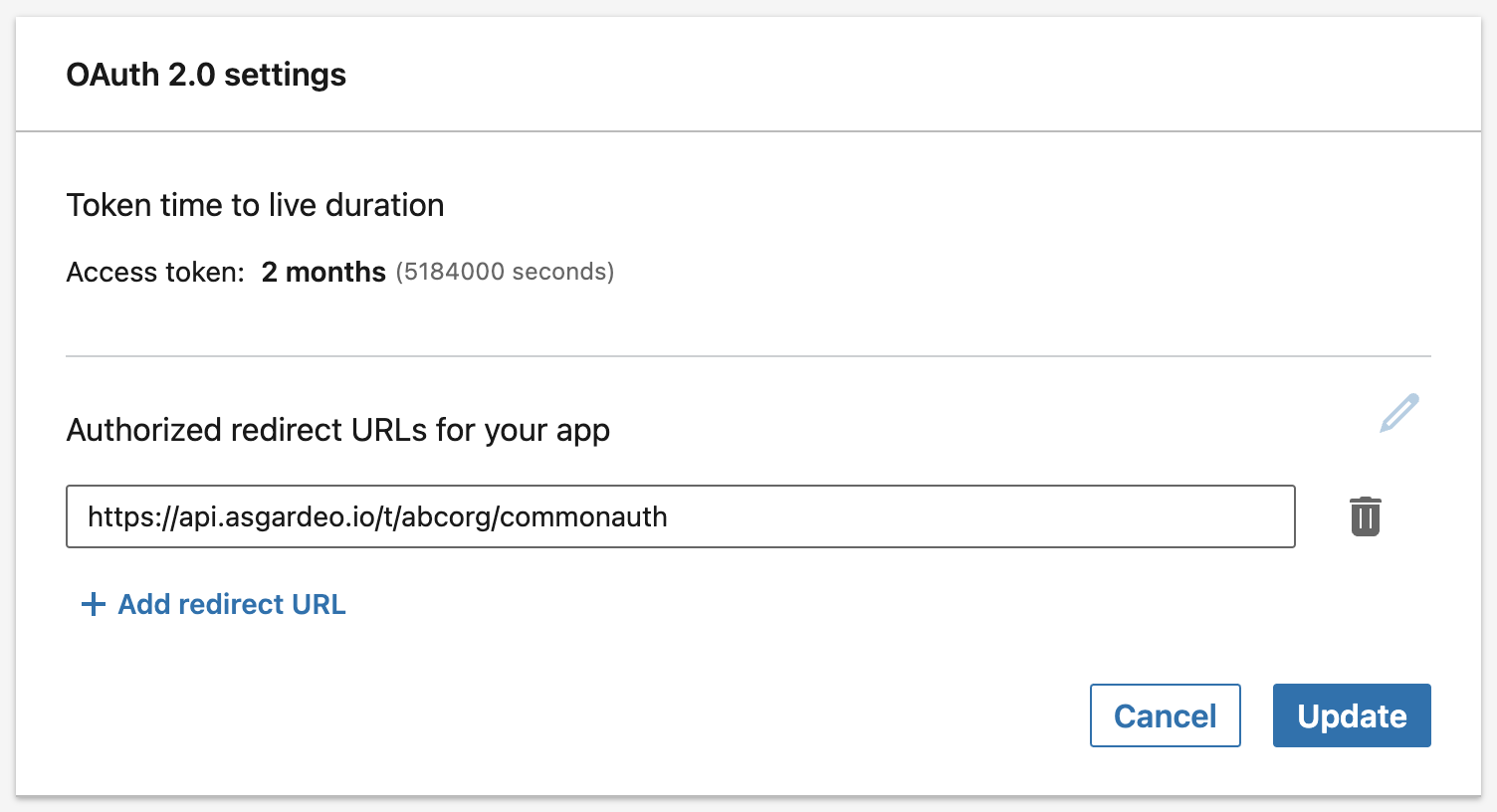
-
Take note of the client ID and client secret generated for the application from the Auth tab.
Register the LinkedIn IdP
Now, let's register the LinkedIn IdP in WSO2 Identity Platform.
-
On the WSO2 Identity Platform Console, go to Connections.
-
Click New Connections and select LinkedIn.
-
Enter the following details of the LinkedIn identity provider and click Create:
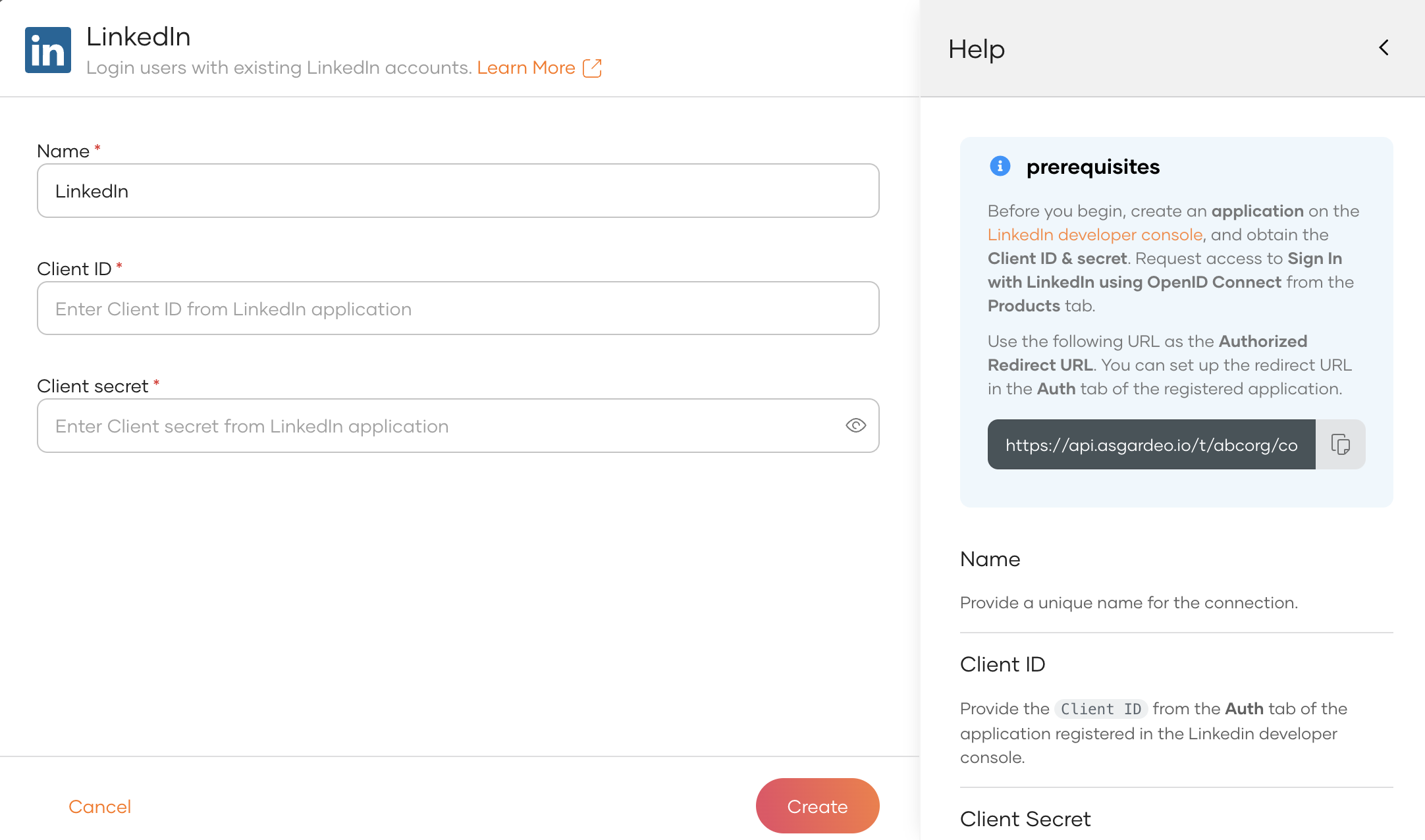
Parameter Description Name A unique name for this LinkedIn identity provider. Client ID The client ID obtained from LinkedIn. Client secret The client secret obtained from LinkedIn.
Enable LinkedIn login
You need to register an application with WSO2 Identity Platform. You can register your own application or use one of the sample applications provided.
-
On the WSO2 Identity Platform Console, go to Applications.
-
Select your application, go to the Login Flow tab and add LinkedIn login from your preferred editor:
- Classic Editor
- Visual Editor
To add LinkedIn login using the Classic Editor:
-
If you haven't already defined a sign-in flow, click Start with Default configuration to get started.
-
Click Add Authentication on the step, select your LinkedIn identity provider, and click Add.
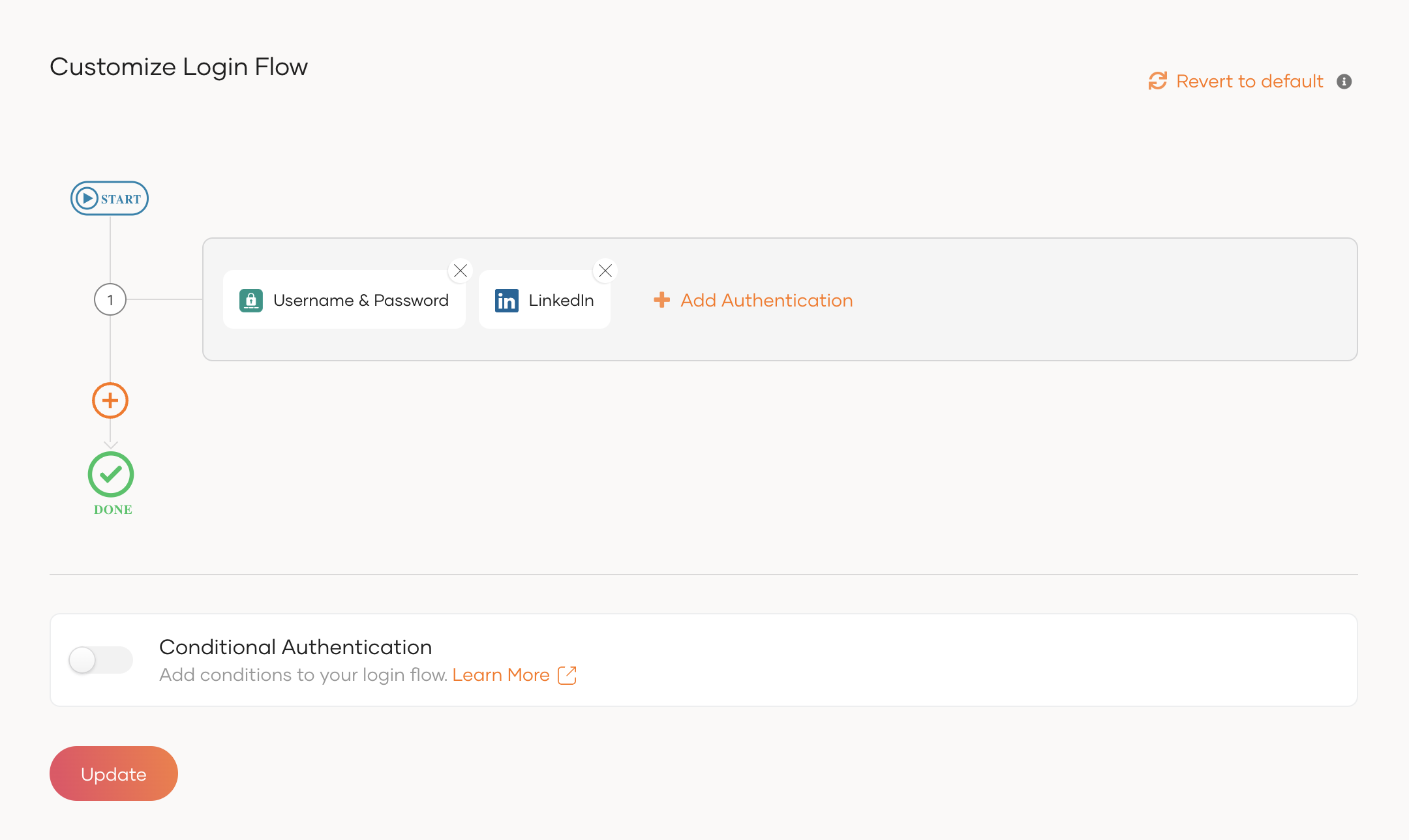
To add LinkedIn login using the Visual Editor:
-
Switch to the Visual Editor tab, by default the
Username & Passwordlogin flow will be added onto the Visual Editor's workspace. -
Click on
+ Add Sign In Optionto add a new authenticator to the same step and select your LinkedIn connection.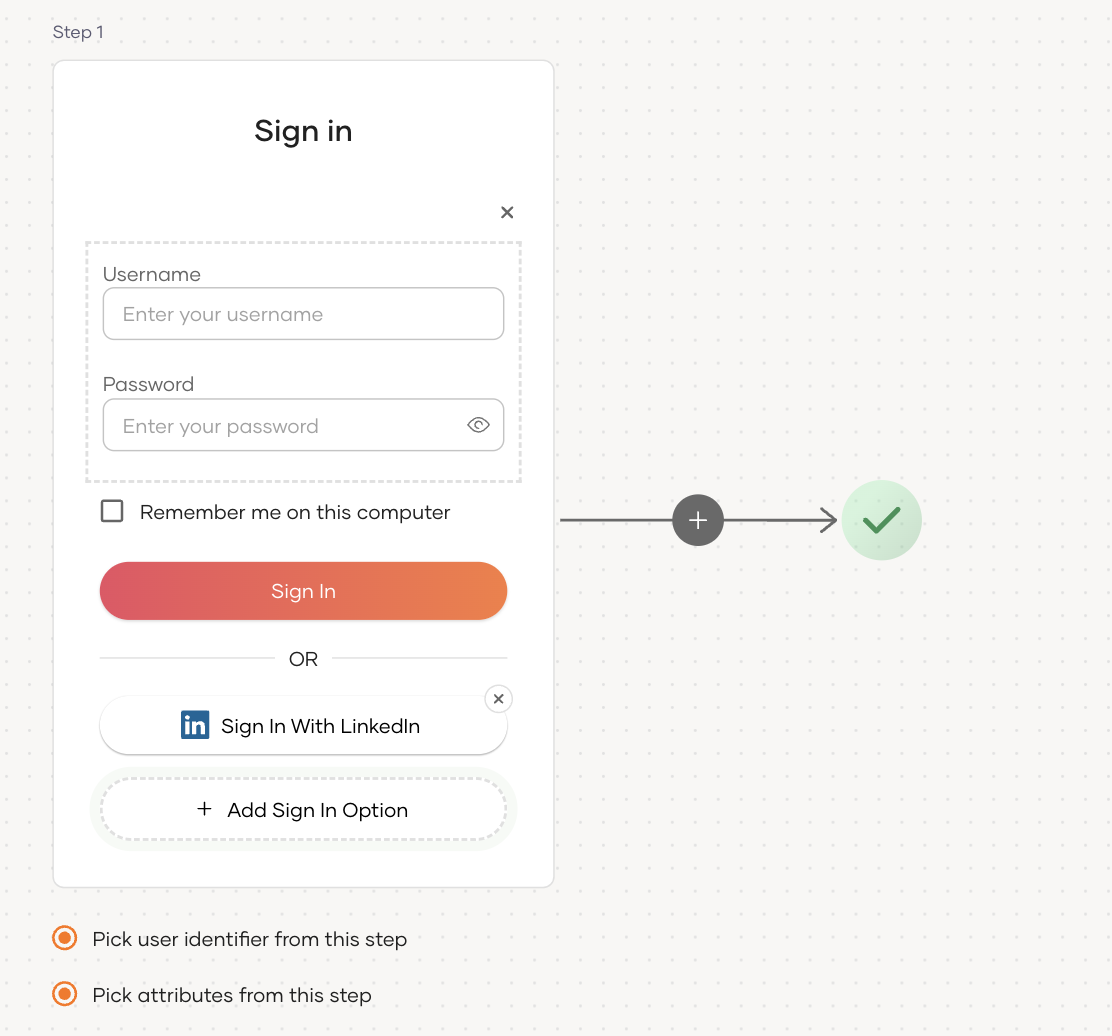
RecommendationsIt is recommended to add your social and enterprise connections to the first authentication step as they are used for identifying the user.
-
Click Update to save your changes.
Try it out
Follow the steps given below.
-
Access the application URL.
-
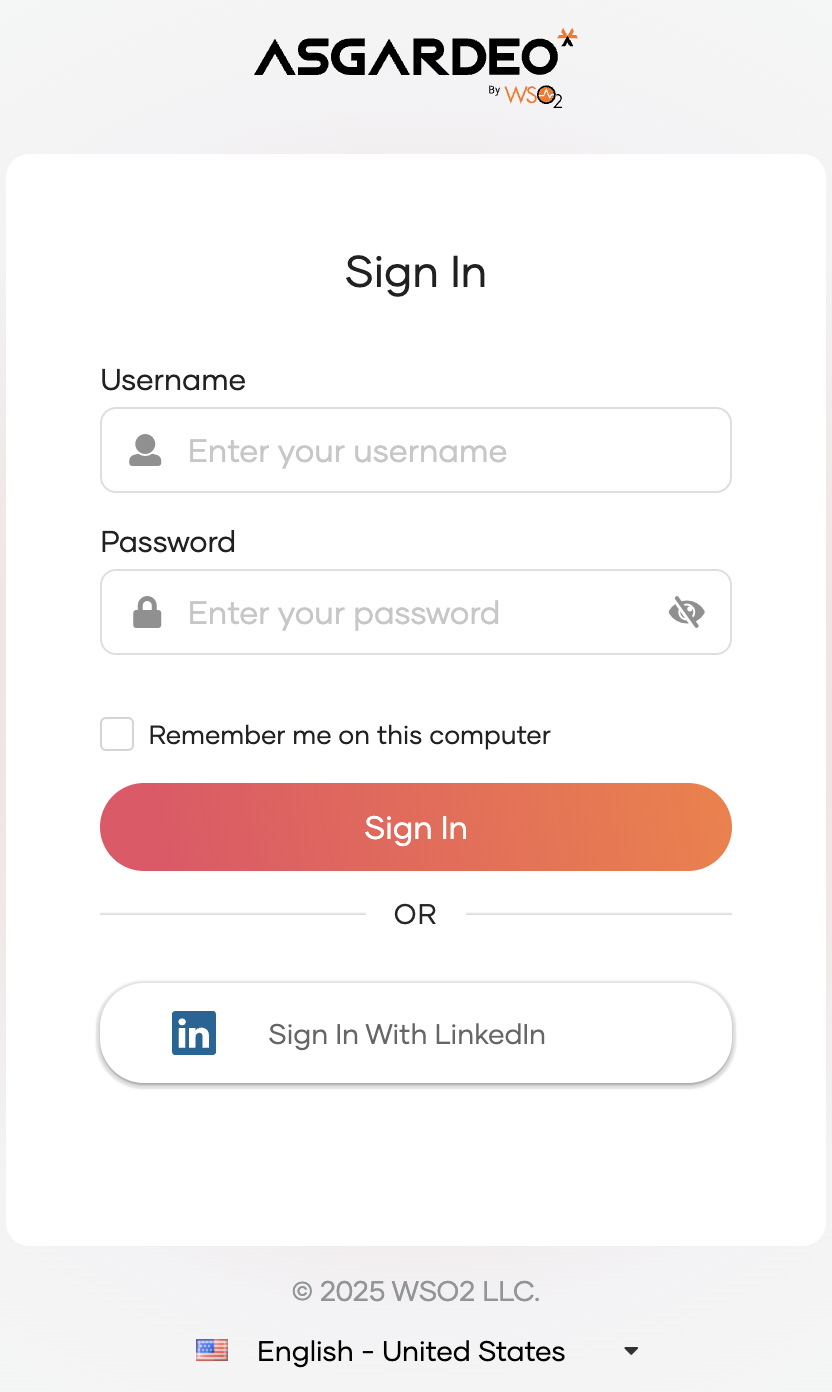
Click Login to open the WSO2 Identity Platform login page.
-
On the WSO2 Identity Platform login page, Sign in with LinkedIn.
-
Log in to LinkedIn with an existing user account.
When a user successfully logs in with LinkedIn for the first time, a user account is created in the WSO2 Identity Platform Console with the LinkedIn email. This new user account will be managed by LinkedIn.
Configure connection
To learn more about other configurations available for the connection, refer to the add federated login documentation.
Was this page helpful?