Receive IDocs over HTTP from SAP S/4HANA Private Cloud
Time: About 45 minutes | What you'll build: An HTTP service that receives the MATMAS IDocs SAP sends whenever a material is distributed, converts the IDoc XML into typed records, maps it to a simple material record with the Data Mapper, logs it, and acknowledges the IDoc to SAP.
SAP usually sends IDocs to an external system over transactional RFC, which needs the SAP JCo libraries on the receiving side, as shown in Call RFC Function Modules and Receive IDocs with SAP S/4HANA Private Cloud. SAP can also send IDocs as XML documents over plain HTTP, through an XML HTTP port. The integration is then an ordinary HTTP service: there are no SAP libraries to download, no SAP gateway to register with, and the same service works behind any load balancer or API gateway.
How it works
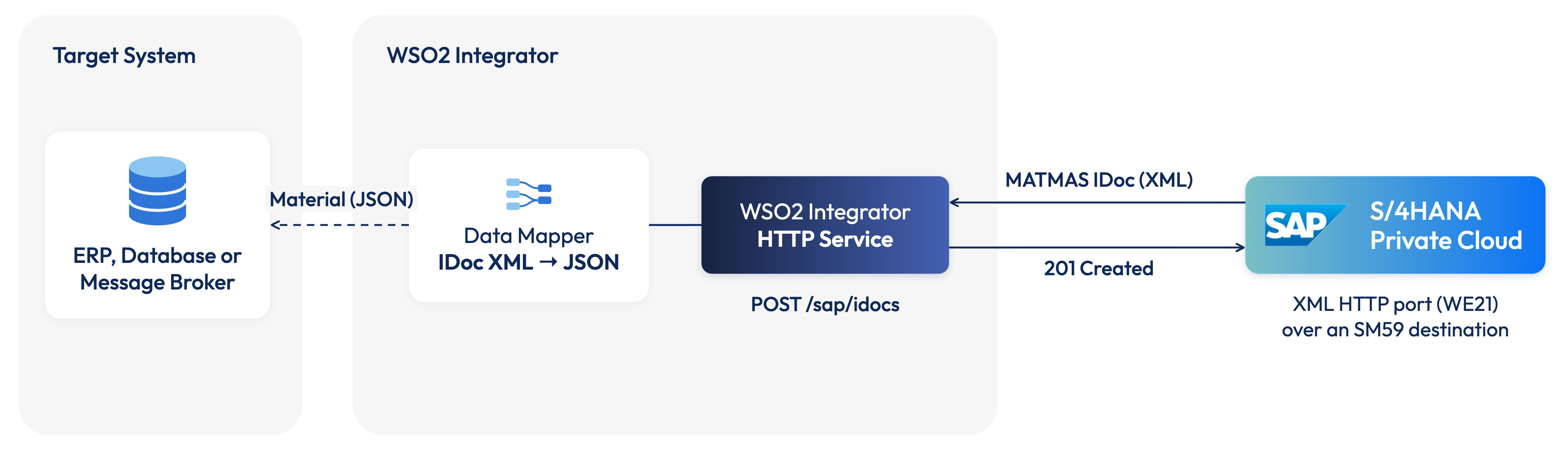
- A material is distributed in SAP, for example with transaction
BD10, or automatically through change pointers. - ALE builds a
MATMAS05IDoc for the receiving partner and hands it to the partner's XML HTTP port. - The port turns the IDoc into IDoc XML and sends it with an HTTP
POSTto the URL defined in an SM59 HTTP connection to an external server. - The integration's
POST /sap/idocsresource receives the XML, converts it into aMATMAS05record, maps it to aMaterialEventrecord with the Data Mapper, logs it, and returns201 Created. - Because the HTTP call returned a
2xxstatus, SAP sets the IDoc to status03(data passed to port OK). Any other status, or no response, leaves the IDoc in an error status, from where it can be sent again.
Before you begin
- A URL for the integration that the SAP system can reach over the network, for example through your API gateway or load balancer.
- Access to the SAP GUI transactions
SM59,WE21,BD54,WE20,BD64andBD10, or a colleague from your SAP Basis team who can run them for you. - A material that exists in your SAP client. The examples in this guide use material
FG233in client100.
Build the integration
Build the service first, so that it is running when you test the connection from SAP.
- Visual Designer
- Ballerina Code
Step 1: Create the integration and the HTTP service
-
Create a new integration named
SapIdocReceiverin a project namedSapIdocReceiver.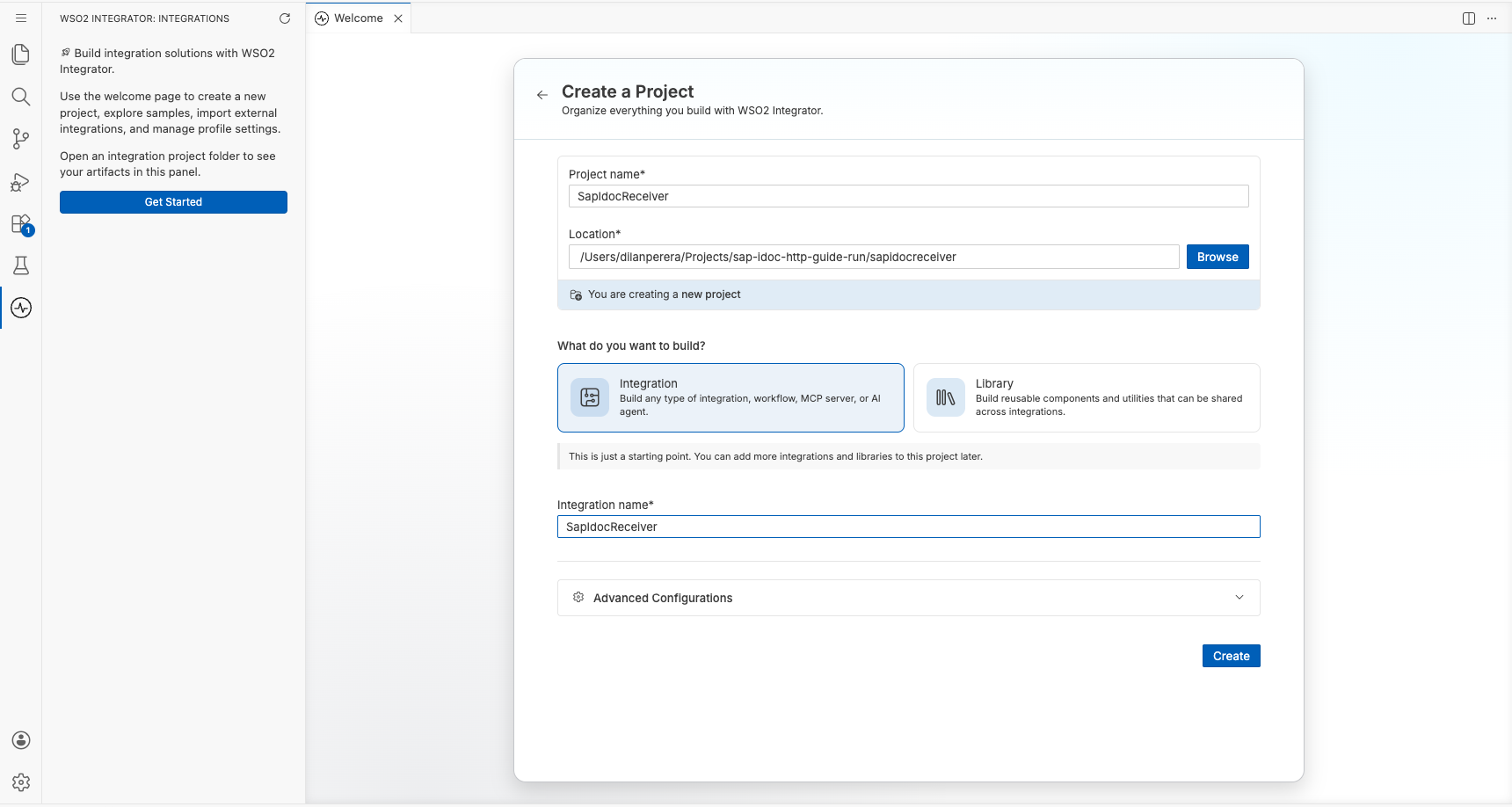
-
On the integration overview, select Add Artifact manually. On the Artifacts page, select HTTP Service under Integration as API.
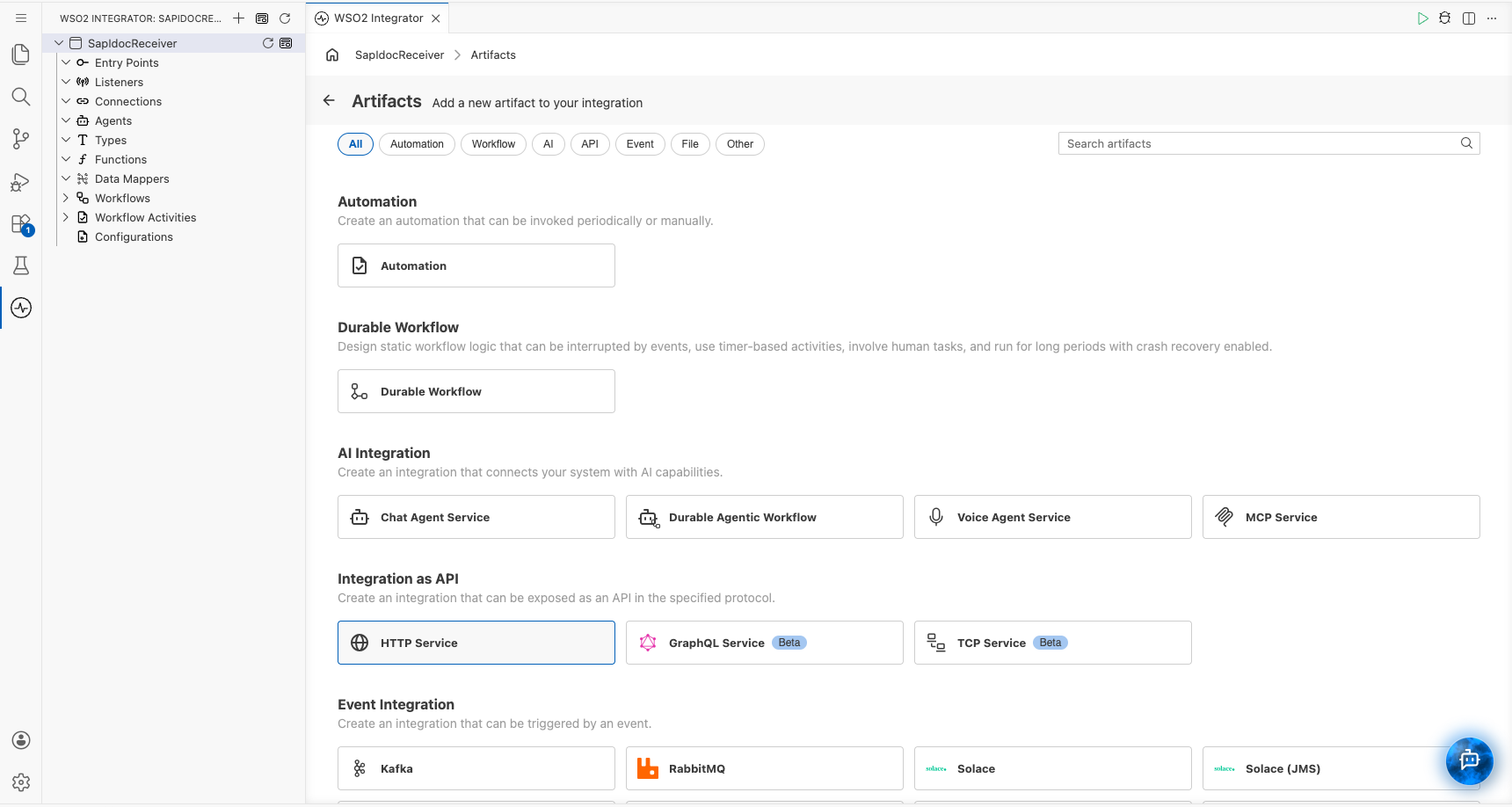
-
Keep Design From Scratch, set Service Base Path to
/sap, and select Create.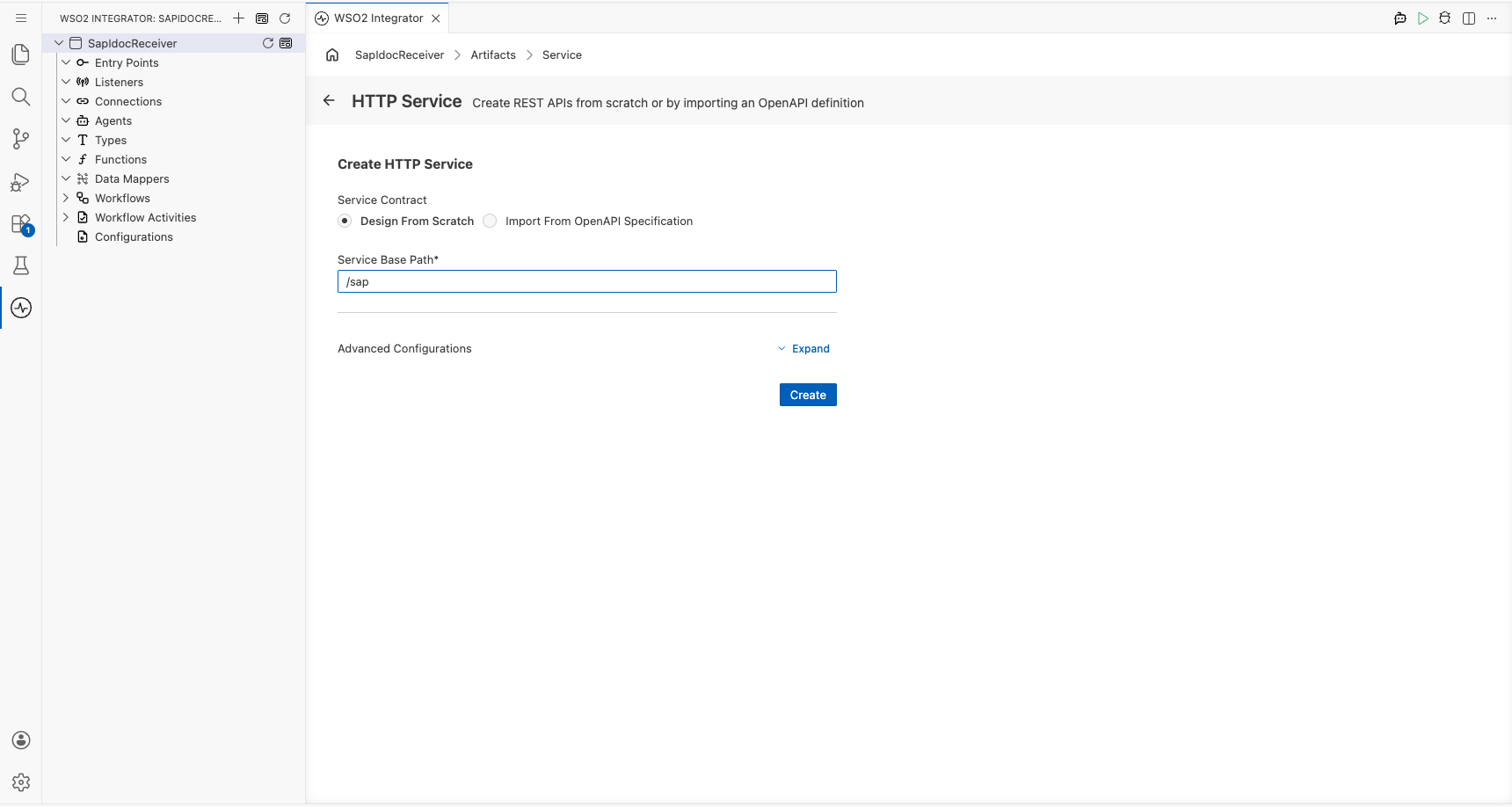
Step 2: Add the IDoc resource
SAP posts each IDoc as an XML document, so the resource takes an xml payload.
-
Select Add Resource, then POST, and set Resource Path to
idocs. -
Select Define Payload, open Browse Existing Types, search for
xml, select xml, and select Save.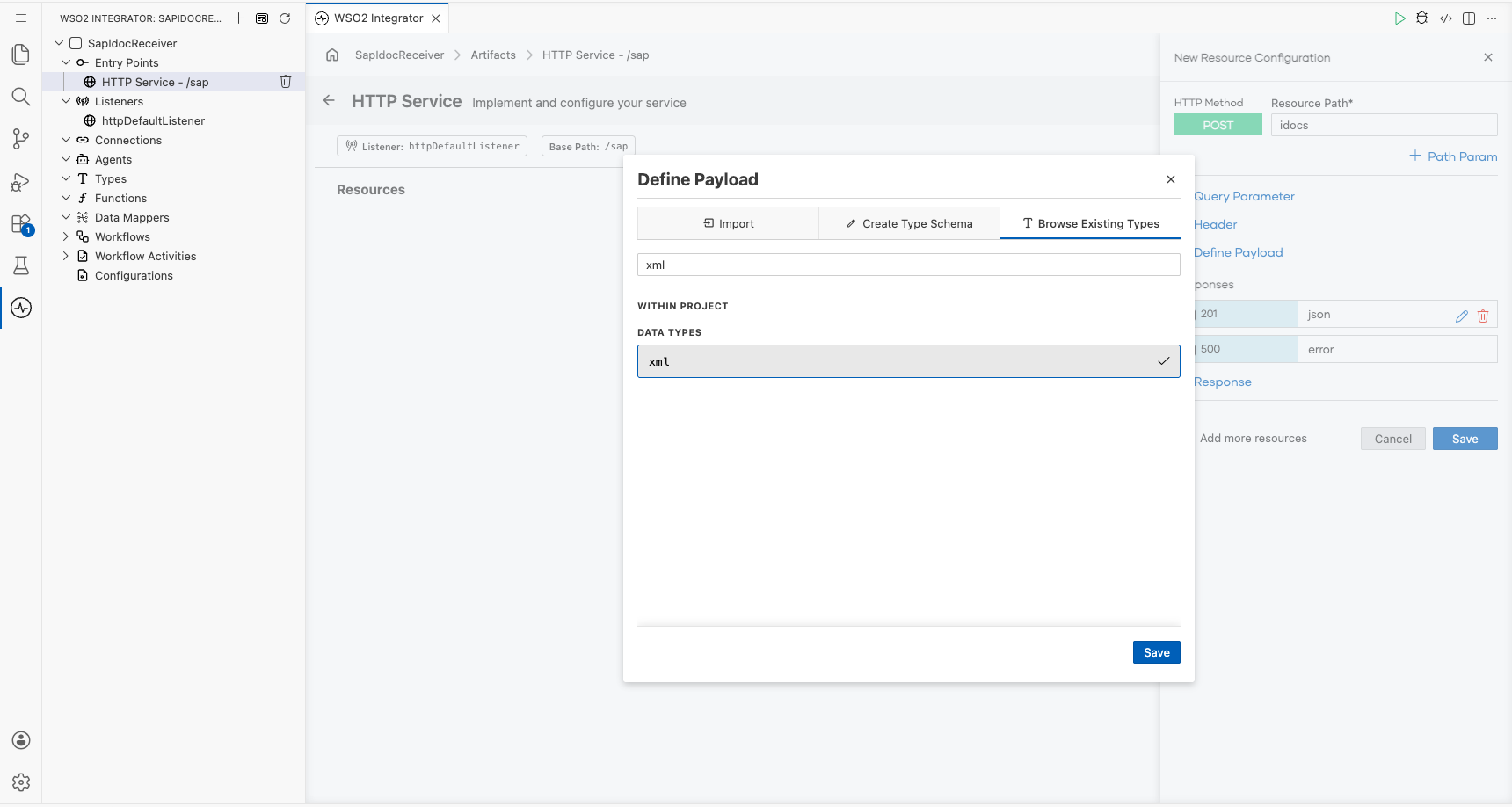
-
Select the edit icon on the payload, change Name to
idoc, and select Save. Keep the default responses (201withjson,500witherror) and select Save.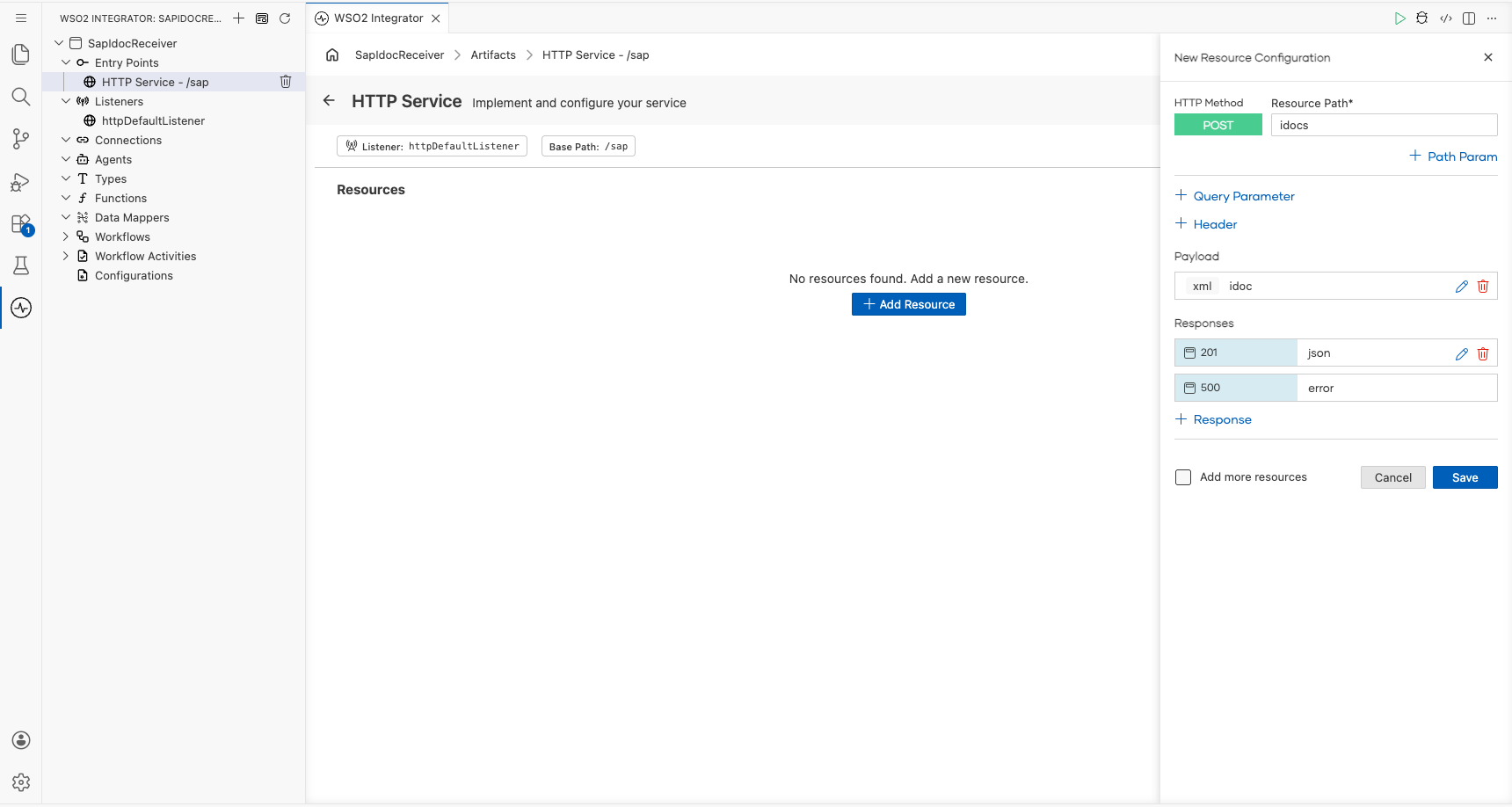
Step 3: Create the IDoc types
The XML that SAP sends has the IDoc type as its root element, for example <MATMAS05>, with one <IDOC> element. Inside it, EDI_DC40 is the control record and every other element is a segment. Creating record types for this structure lets the Data Mapper show the IDoc fields.
-
In the project explorer, select + next to Types, then select Add Type. In the New Type panel, open the Import tab and set Format to XML.
-
Paste a sample
MATMAS05IDoc and select Import. Include only the segments and fields you need; the import creates one record type per element, and segments and fields that are not in a type are ignored when an IDoc is converted:<MATMAS05>
<IDOC BEGIN="1">
<EDI_DC40 SEGMENT="1">
<DOCNUM>0000000000057020</DOCNUM>
<MESTYP>MATMAS</MESTYP>
<IDOCTYP>MATMAS05</IDOCTYP>
<SNDPRN>S4HCLNT100</SNDPRN>
<RCVPRN>WSO2HTTP</RCVPRN>
</EDI_DC40>
<E1MARAM SEGMENT="1">
<MATNR>FG233</MATNR>
<MTART>FERT</MTART>
<MATKL>L004</MATKL>
<MEINS>ST</MEINS>
</E1MARAM>
</IDOC>
</MATMAS05>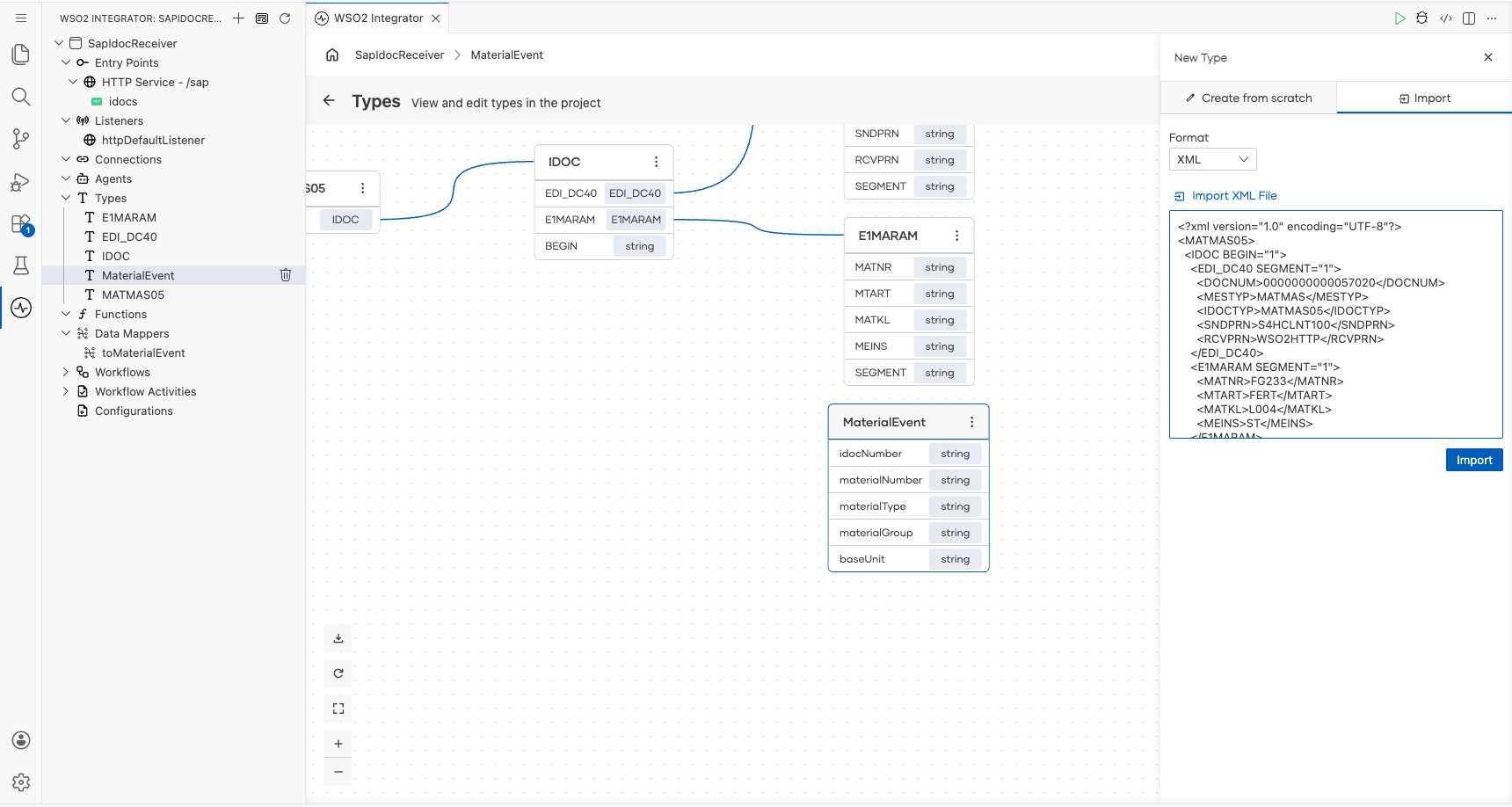
-
The import infers
DOCNUMasint, which would drop the leading zeros of the IDoc number. In the type diagram, open the ⋮ menu on the EDI_DC40 card and select Edit. Change the type ofDOCNUMtostring, and select Save.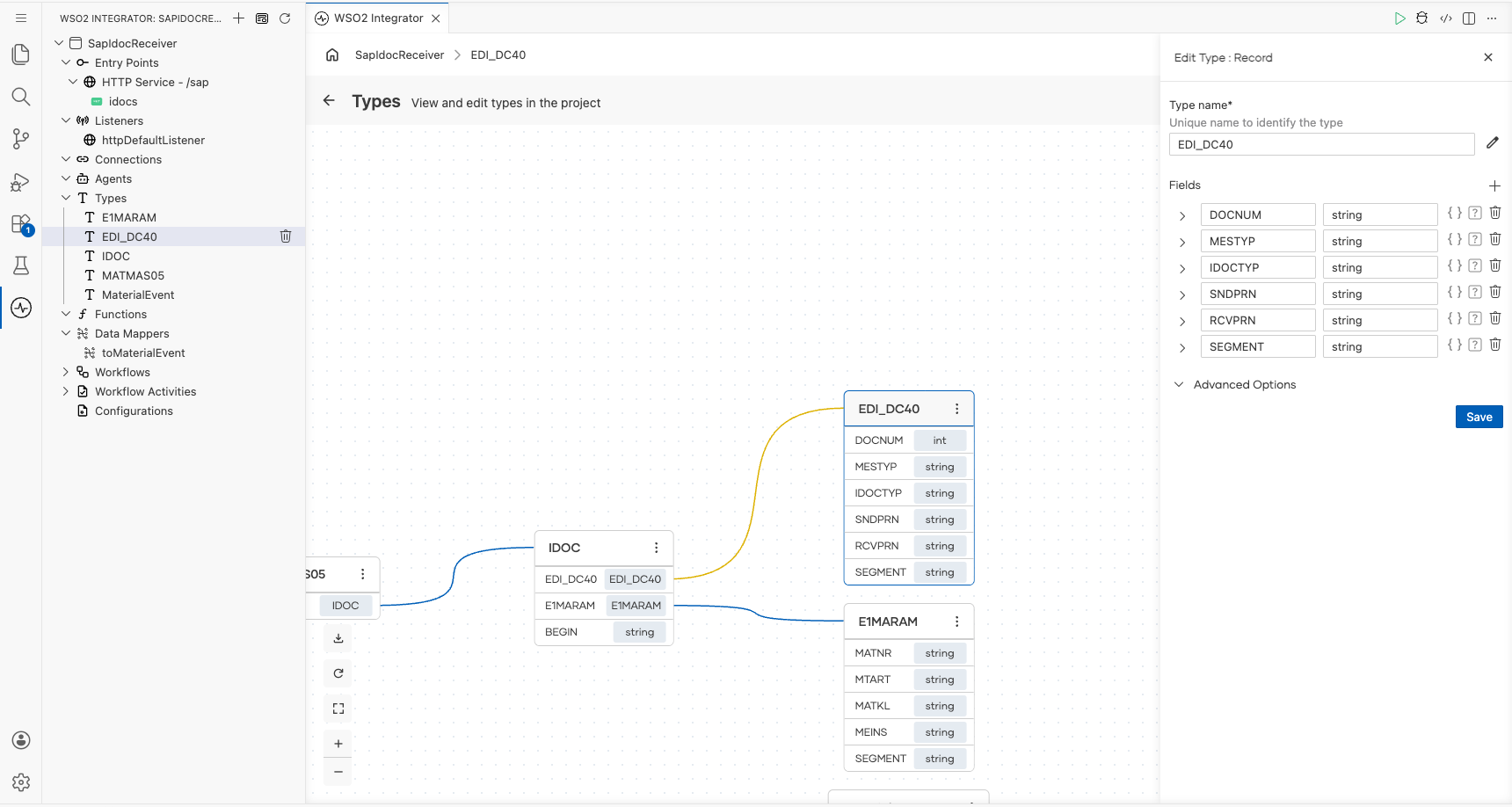
-
Create the output type. Select Add Type, keep Create from scratch, name it
MaterialEvent, and add fivestringfields:idocNumber,materialNumber,materialType,materialGroupandbaseUnit. Select Save.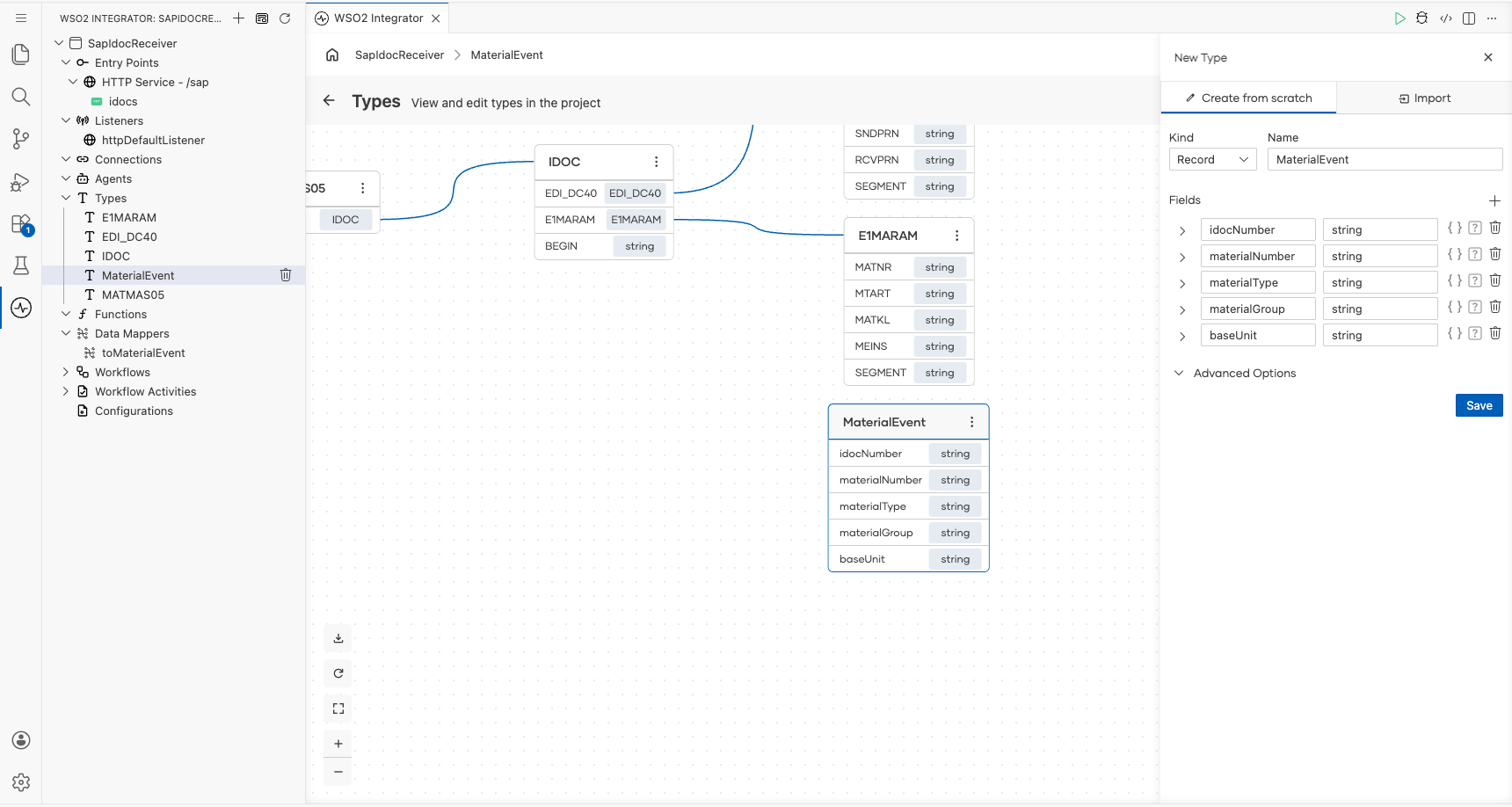
Step 4: Convert the payload to the IDoc type
-
Open the
idocsresource. Select the + below Start, then Declare Variable. Name itmatmasand set Type toMATMAS05. -
In Expression, open the helper pane, select Functions, search for
parseAsType, and select parseAsType() under data.xmldata. This adds theballerina/data.xmldataimport. Then set the expression to:check xmldata:parseAsType(idoc, {}, MATMAS05)parseAsTypeconverts the XML payload into aMATMAS05record. If the XML does not match the type, the step fails, the Error Handler returns500, and SAP keeps the IDoc in an error status.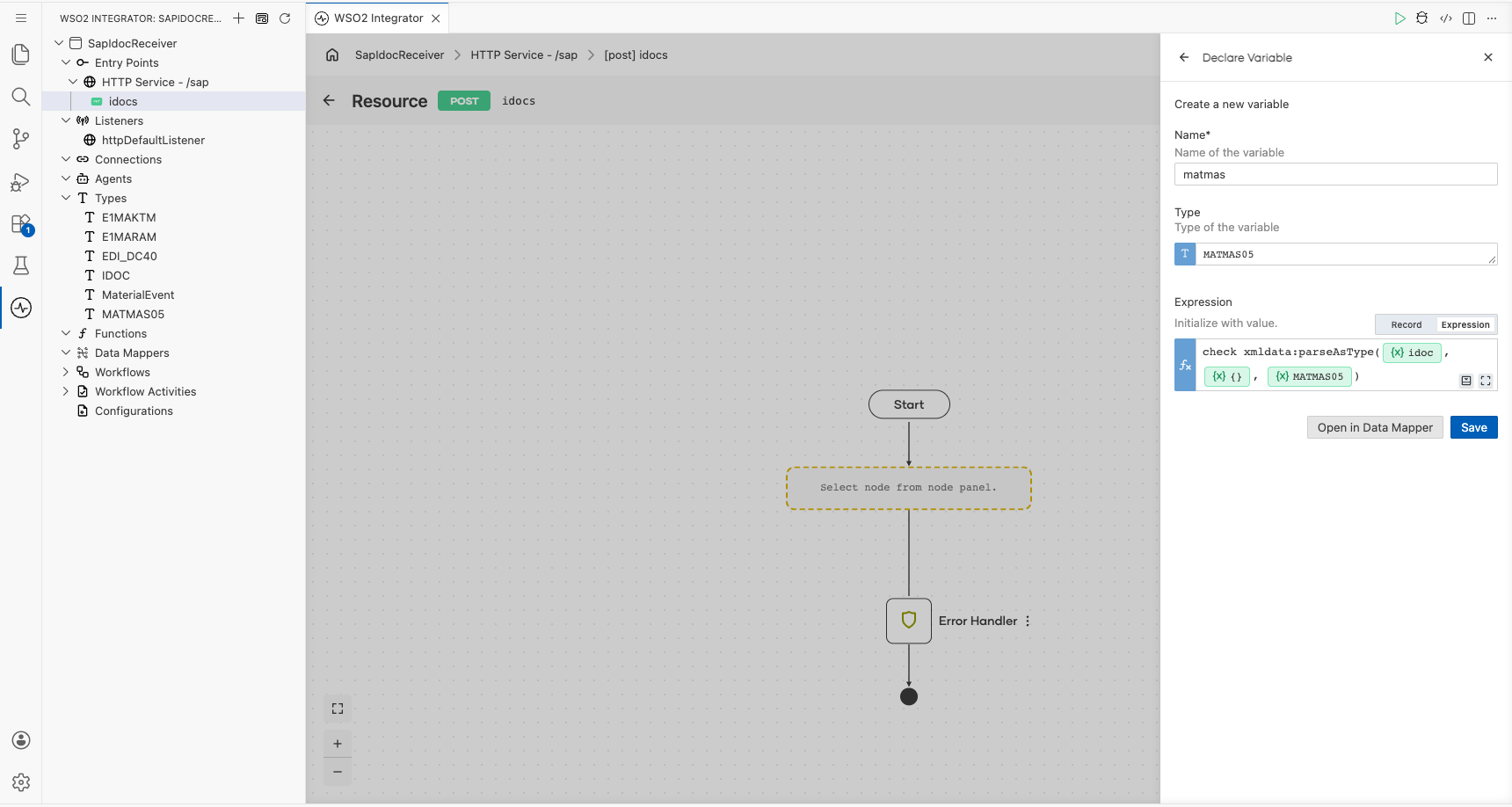
-
Select Save.
Step 5: Map the IDoc with the Data Mapper
-
Select the + after the conversion step, then Map Data. Expand Within Project and select Create Data Mapper.
-
Name the data mapper
toMaterialEvent. Under Inputs, select Add Argument, entermatmas, and select Add. Set Output toMaterialEventand Result tomaterialEvent, then select Open in Data Mapper.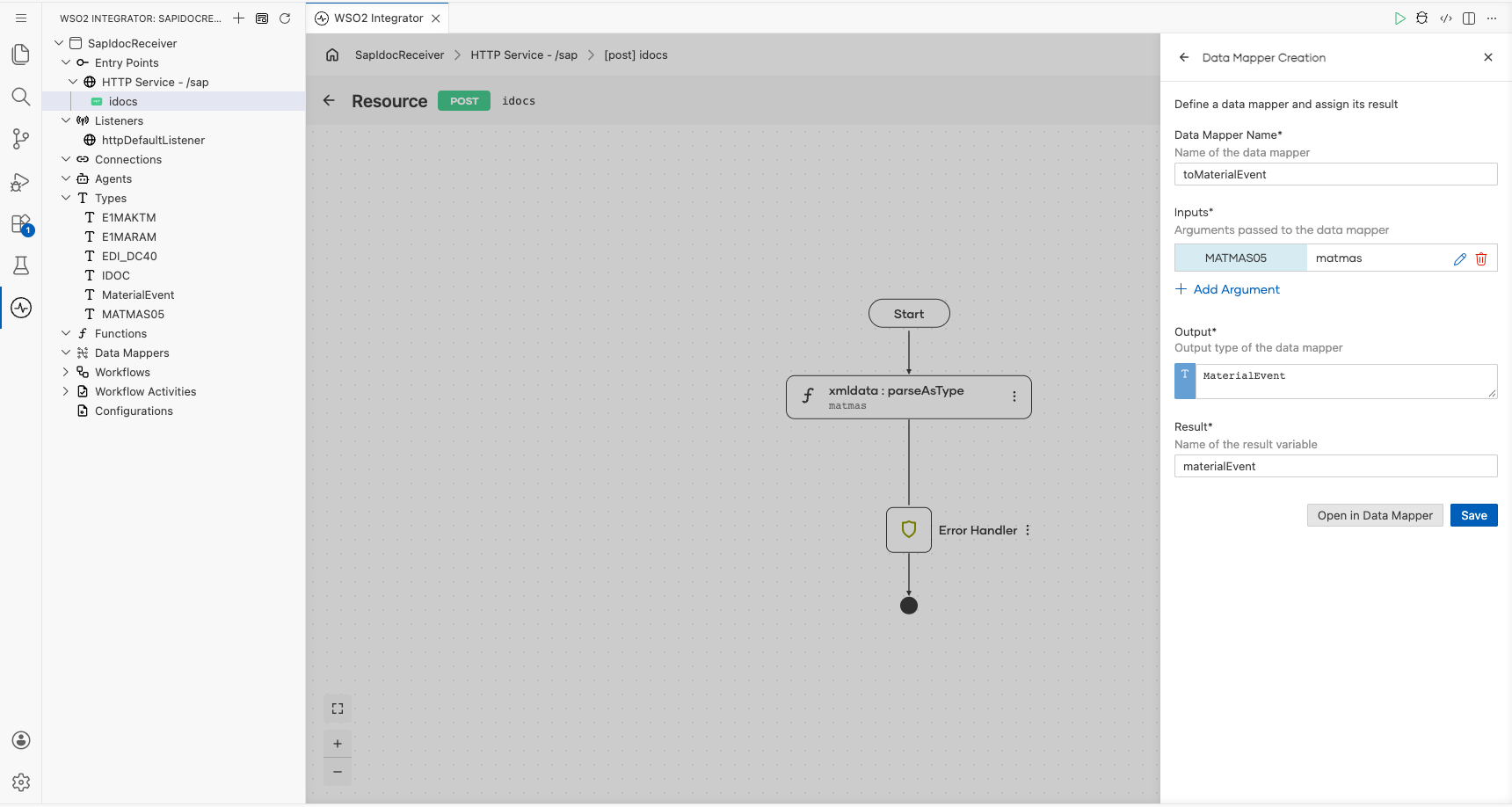
-
Draw a line from each input field to its output field:
Input ( matmas)Output ( MaterialEvent)IDOC.EDI_DC40.DOCNUMidocNumberIDOC.E1MARAM.MATNRmaterialNumberIDOC.E1MARAM.MTARTmaterialTypeIDOC.E1MARAM.MATKLmaterialGroupIDOC.E1MARAM.MEINSbaseUnit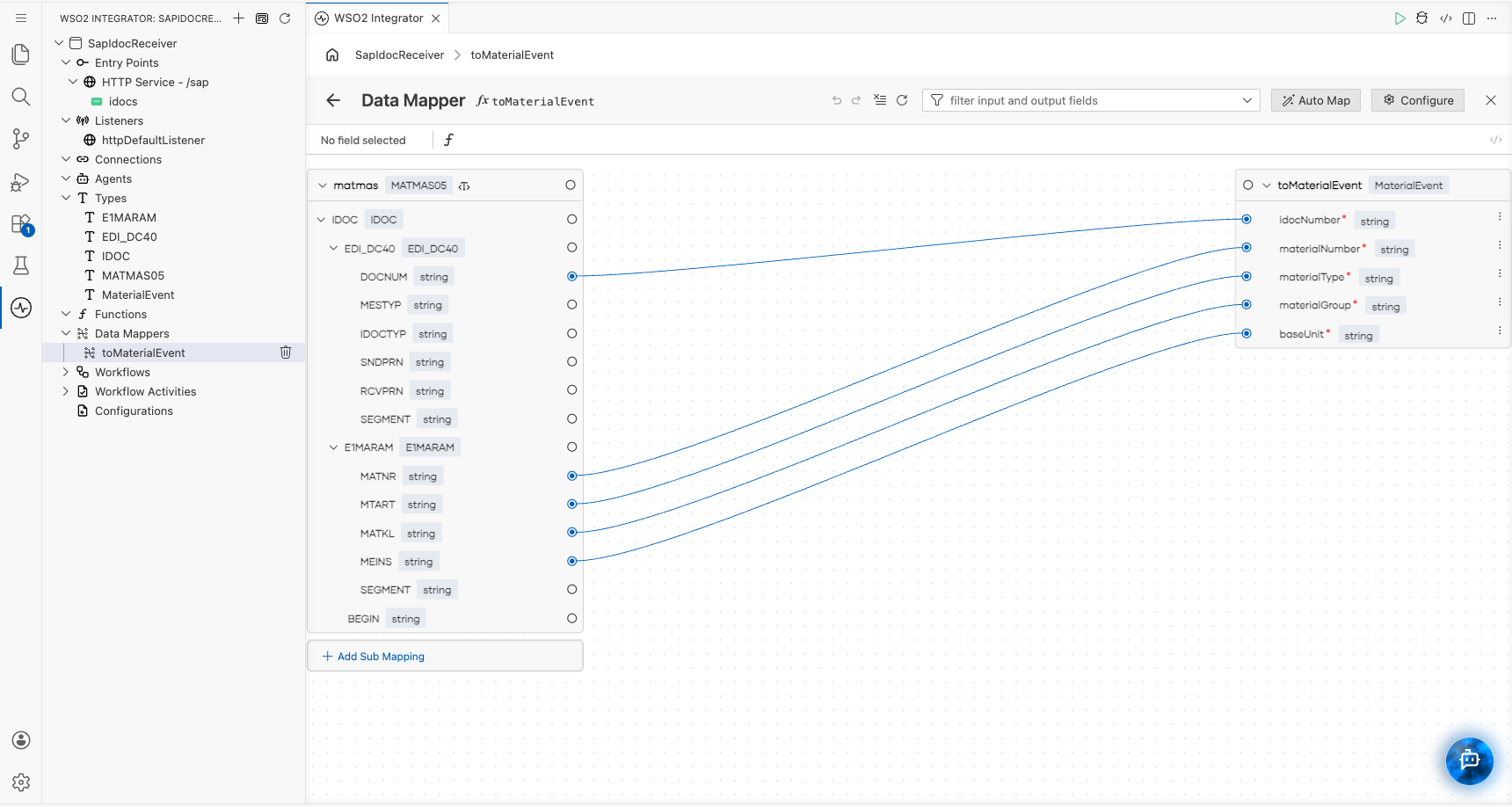
-
Go back to the resource. The flow now has a Map Data step that produces
materialEvent.
Step 6: Log and acknowledge the IDoc
SAP treats any 2xx response as a successful delivery.
-
Add a Log Info step after Map Data, switch Msg to Expression, and enter:
string `IDoc ${materialEvent.idocNumber} received over HTTP for material ${materialEvent.materialNumber}`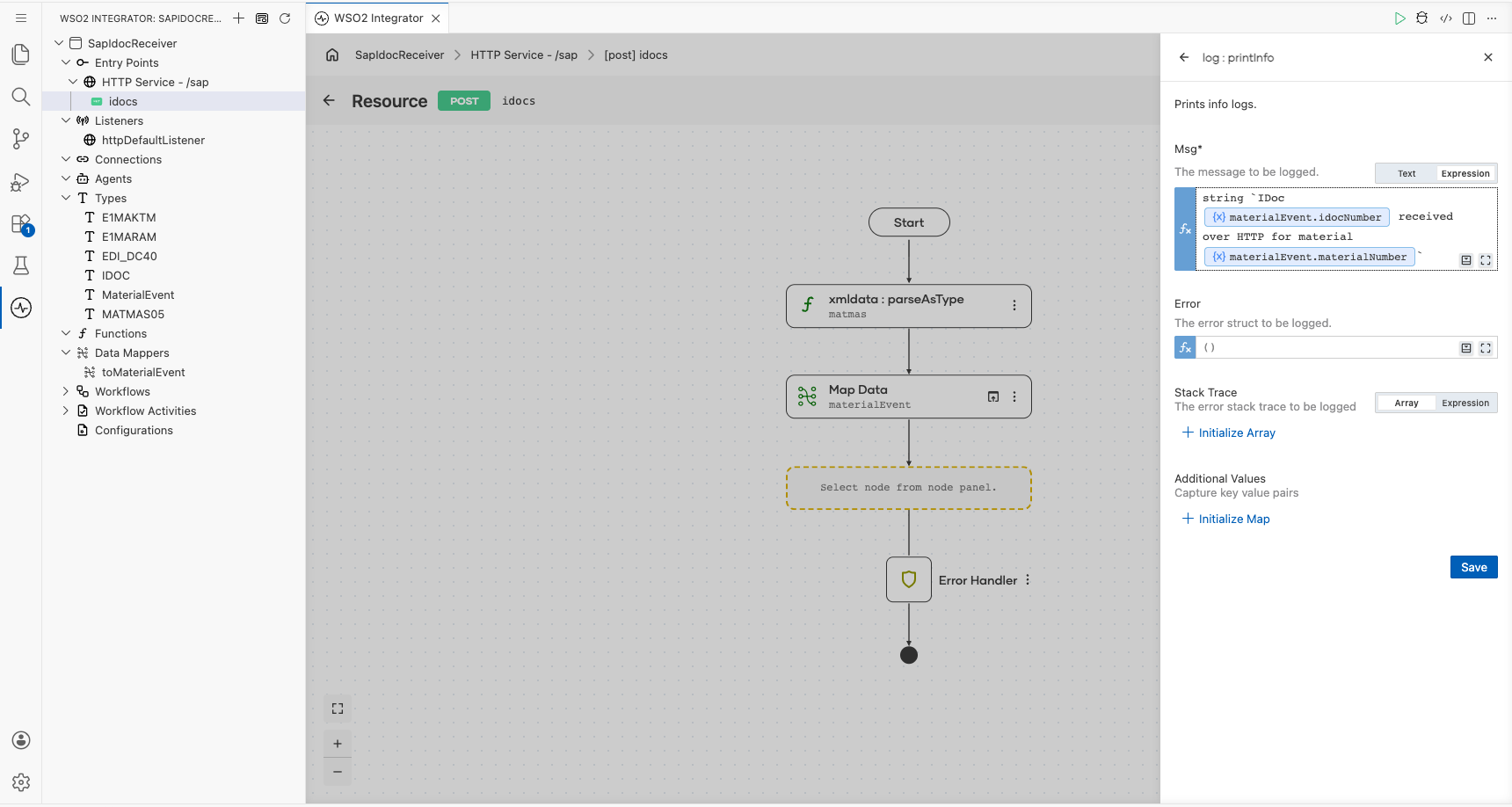
-
Add a Return step and enter
materialEvent, then select Save. The resource returns201 Createdwith the mapped material.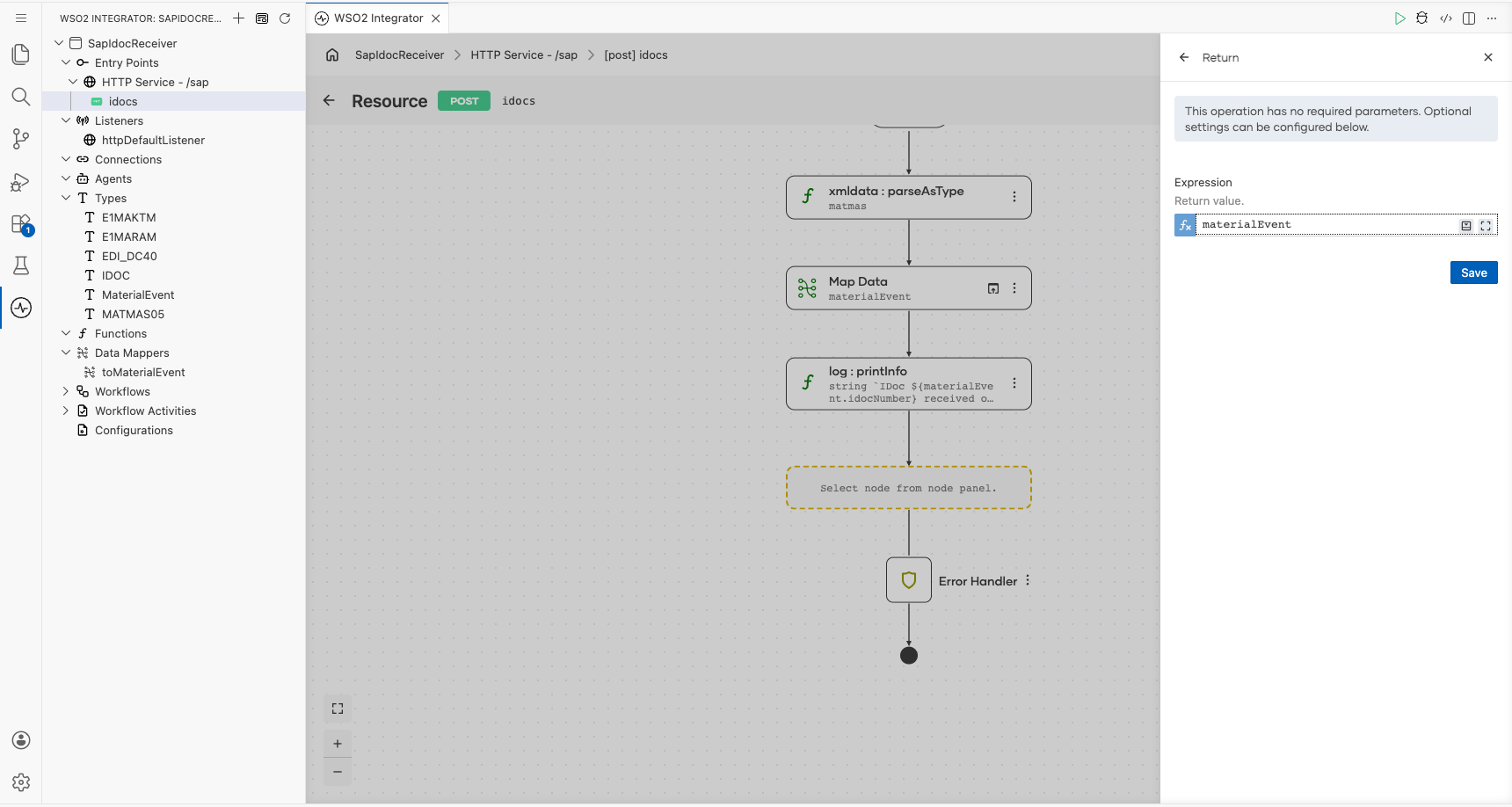
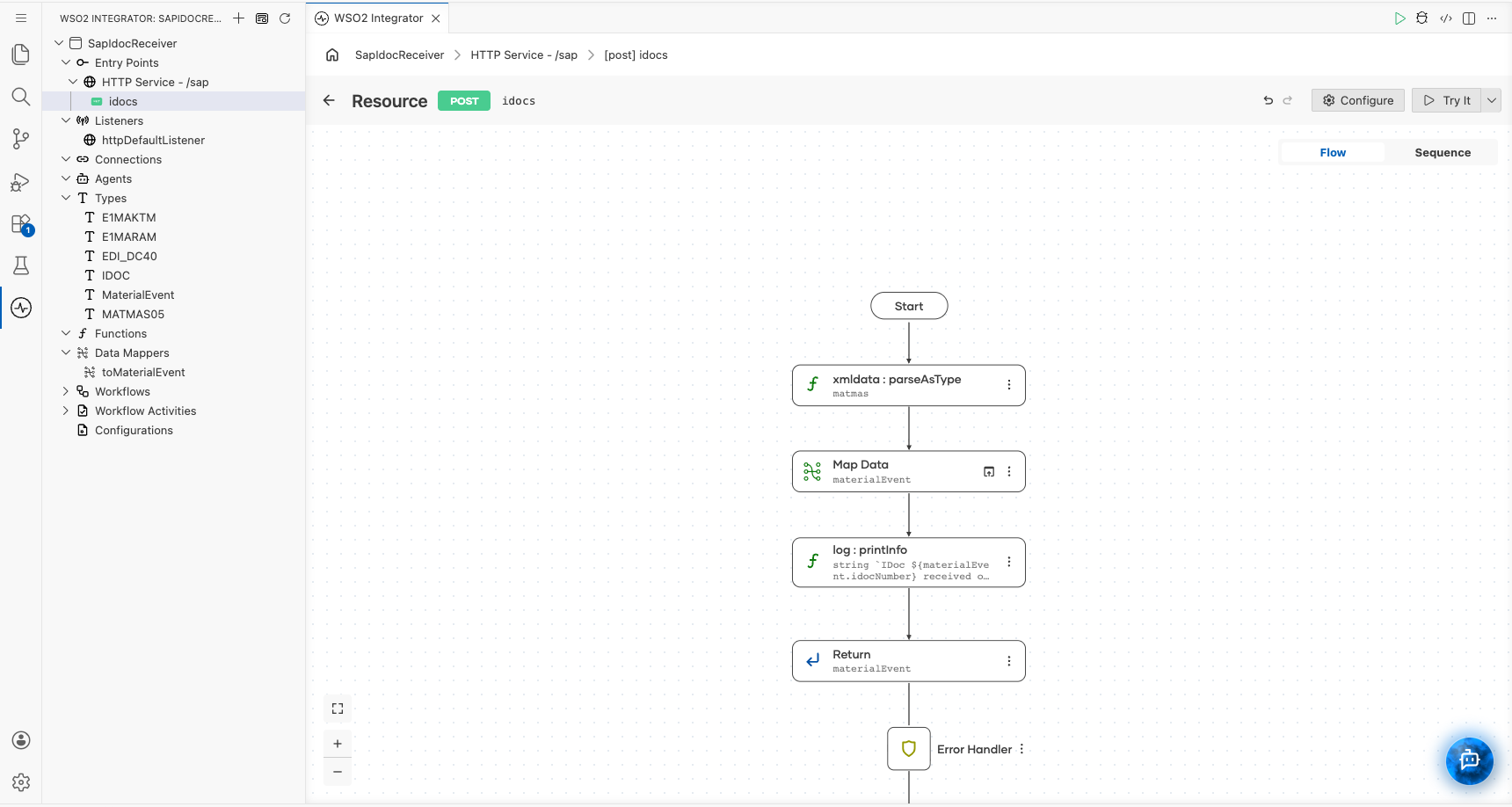
The completed resource converts the IDoc, maps it, logs it and acknowledges it. In a real integration, this is where you would send materialEvent on to the target system before returning.
// types.bal
import ballerina/data.xmldata;

type EDI_DC40 record {
    string DOCNUM;
    string MESTYP;
    string IDOCTYP;
    string SNDPRN;
    string RCVPRN;
    @xmldata:Attribute
    string SEGMENT;
};

type E1MARAM record {
    string MATNR;
    string MTART;
    string MATKL;
    string MEINS;
    @xmldata:Attribute
    string SEGMENT;
};

type IDOC record {
    EDI_DC40 EDI_DC40;
    E1MARAM E1MARAM;
    @xmldata:Attribute
    string BEGIN;
};

type MATMAS05 record {
    IDOC IDOC;
};

type MaterialEvent record {|
    string idocNumber;
    string materialNumber;
    string materialType;
    string materialGroup;
    string baseUnit;
|};
// data_mappings.bal
function toMaterialEvent(MATMAS05 matmas) returns MaterialEvent => {
    idocNumber: matmas.IDOC.EDI_DC40.DOCNUM,
    materialNumber: matmas.IDOC.E1MARAM.MATNR,
    materialType: matmas.IDOC.E1MARAM.MTART,
    materialGroup: matmas.IDOC.E1MARAM.MATKL,
    baseUnit: matmas.IDOC.E1MARAM.MEINS
};
// main.bal
import ballerina/data.xmldata;
import ballerina/http;
import ballerina/log;

listener http:Listener httpDefaultListener = http:getDefaultListener();

service /sap on httpDefaultListener {
    resource function post idocs(@http:Payload xml idoc) returns json|error {
        do {
            MATMAS05 matmas = check xmldata:parseAsType(idoc, {}, MATMAS05);
            MaterialEvent materialEvent = toMaterialEvent(matmas);
            log:printInfo(string `IDoc ${materialEvent.idocNumber} received over HTTP for material ${materialEvent.materialNumber}`);
            return materialEvent;
        } on fail error err {
            // handle error
            return error("unhandled error", err);
        }
    }

}
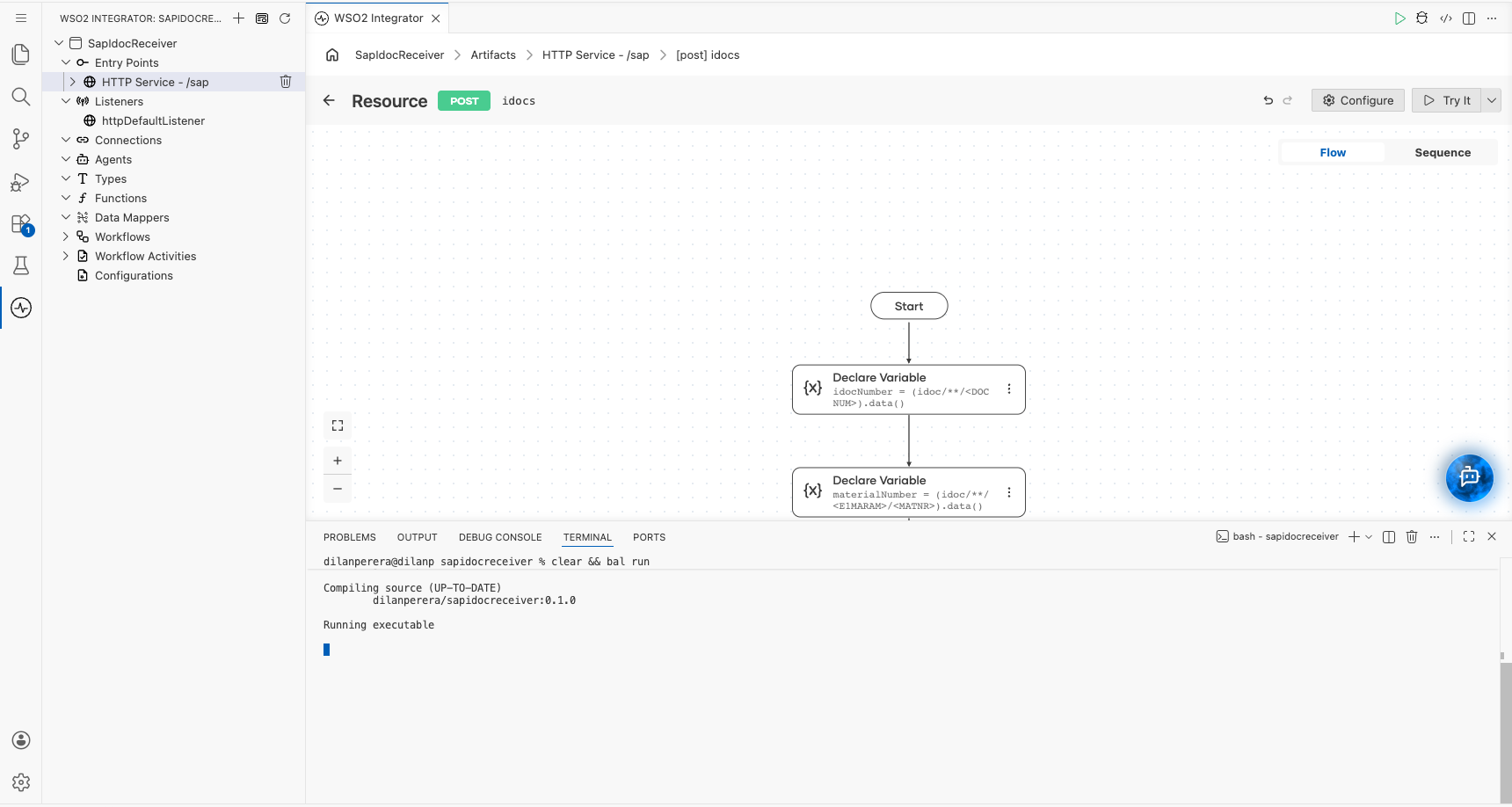
Select Run. The service starts on port 9090, so the IDoc endpoint is http://<integration-host>:9090/sap/idocs.
Set up SAP
SAP needs three things: an HTTP destination that points at the integration, an XML HTTP port that uses it, and a partner profile and distribution model that route MATMAS IDocs to the port.
Create the HTTP destination
-
Start transaction
SM59, select HTTP Connections to External Server, and select Create. EnterWSO2_IDOC_HTTPas the Destination, keep connection type G, and confirm. -
Enter a description. On Technical Settings, set Host to the integration host, Port to the port SAP should connect to, and Path Prefix to
/sap/idocs.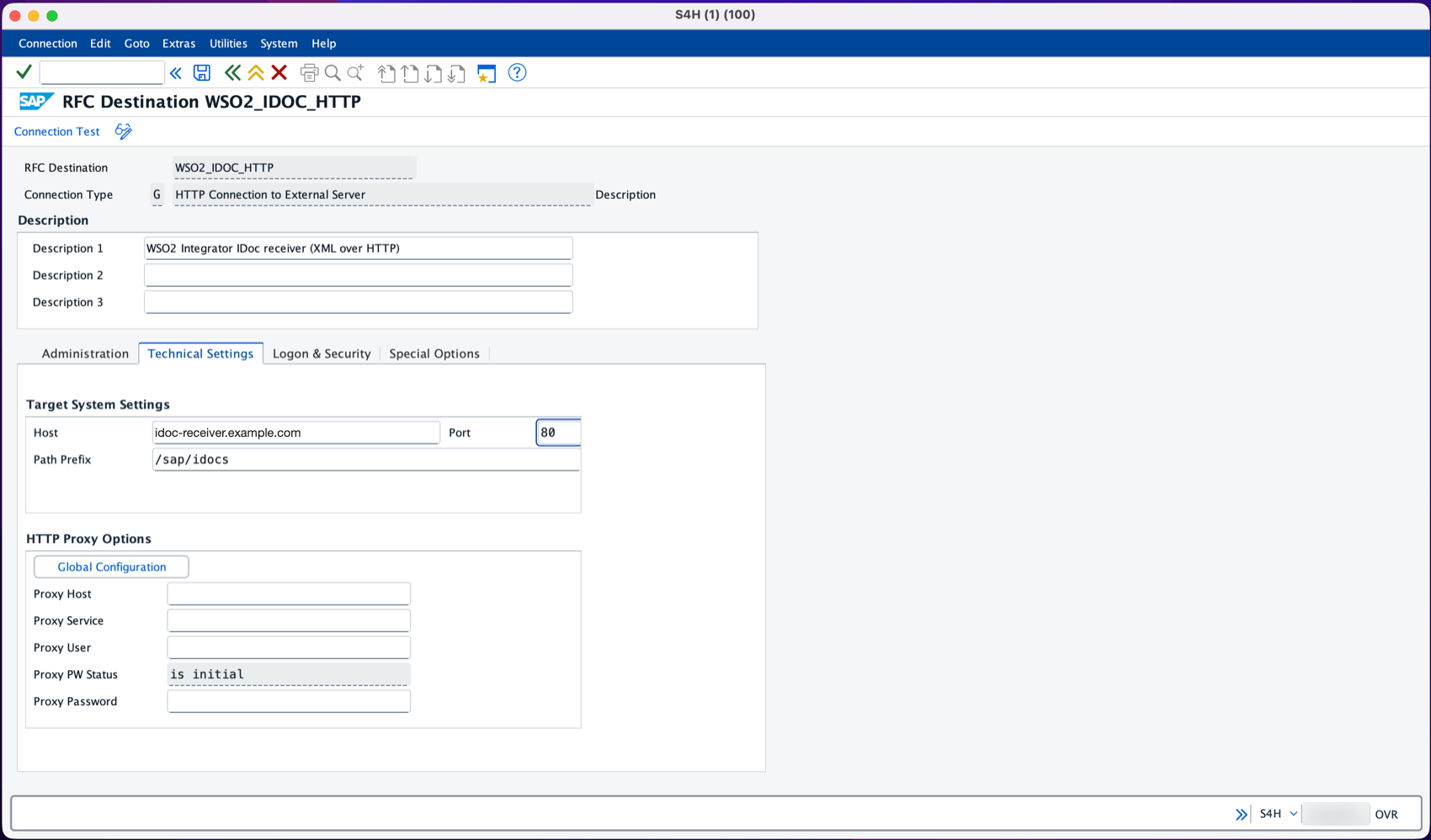
-
On Logon & Security, keep Do Not Use a User if the endpoint does not check credentials, or select Basic Authentication with the user and password your API gateway or service expects. For HTTPS, select SSL Active under Security Options with an SSL client PSE, and set Port to
443.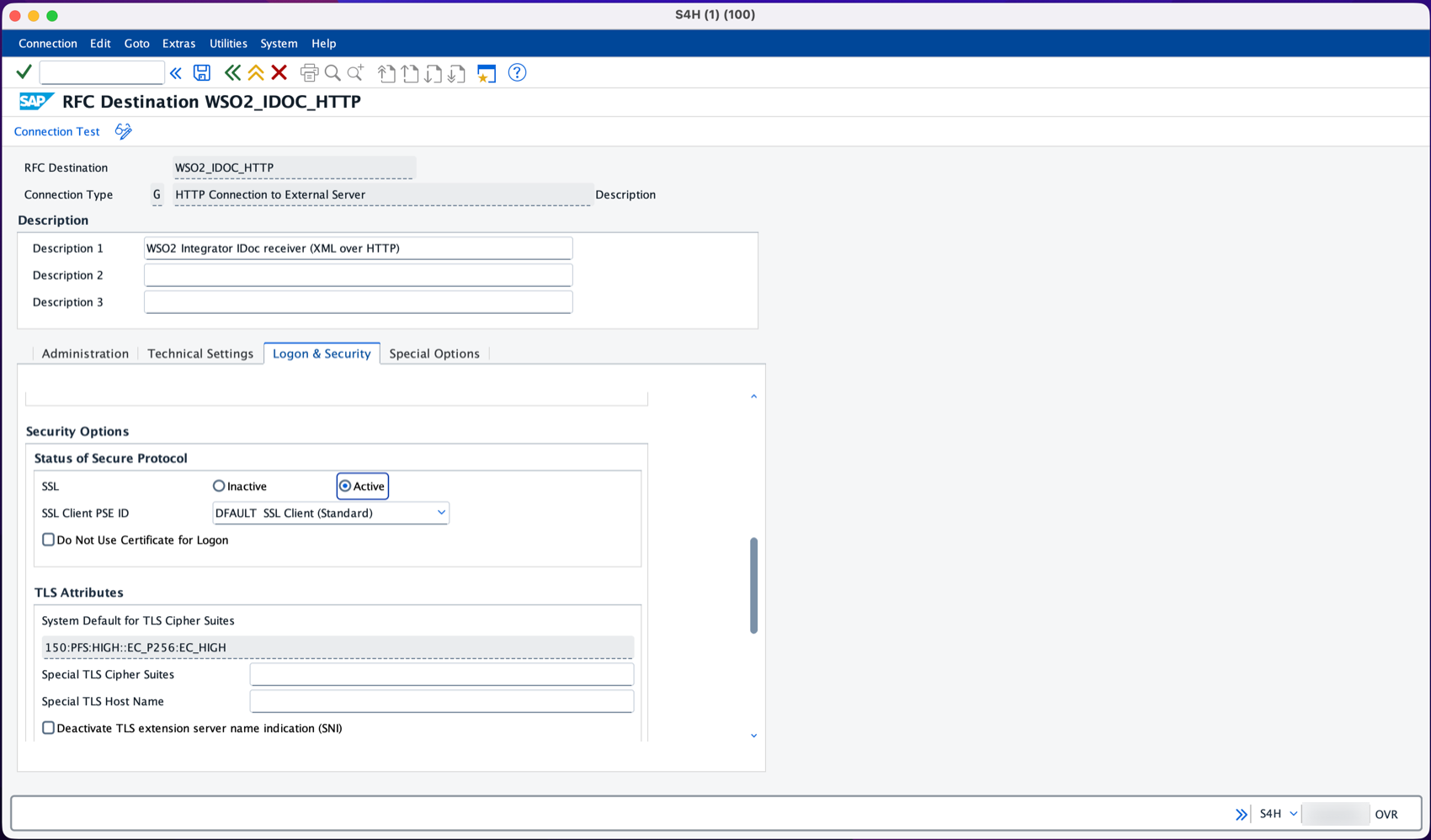 Trust the integration's certificate
With SSL Active, SAP checks the integration's certificate against the SSL client PSE. If the root certificate authority of that certificate is not in the PSE, the connection test fails with
SSSLERR_PEER_CERT_UNTRUSTED. Import the root certificate into the PSE with transactionSTRUST, or ask your SAP Basis team to do it. -
Select Save, then Connection Test. The test sends an HTTP
GET, and the service only acceptsPOST, so a405 Method Not Allowedresponse means SAP reached the integration.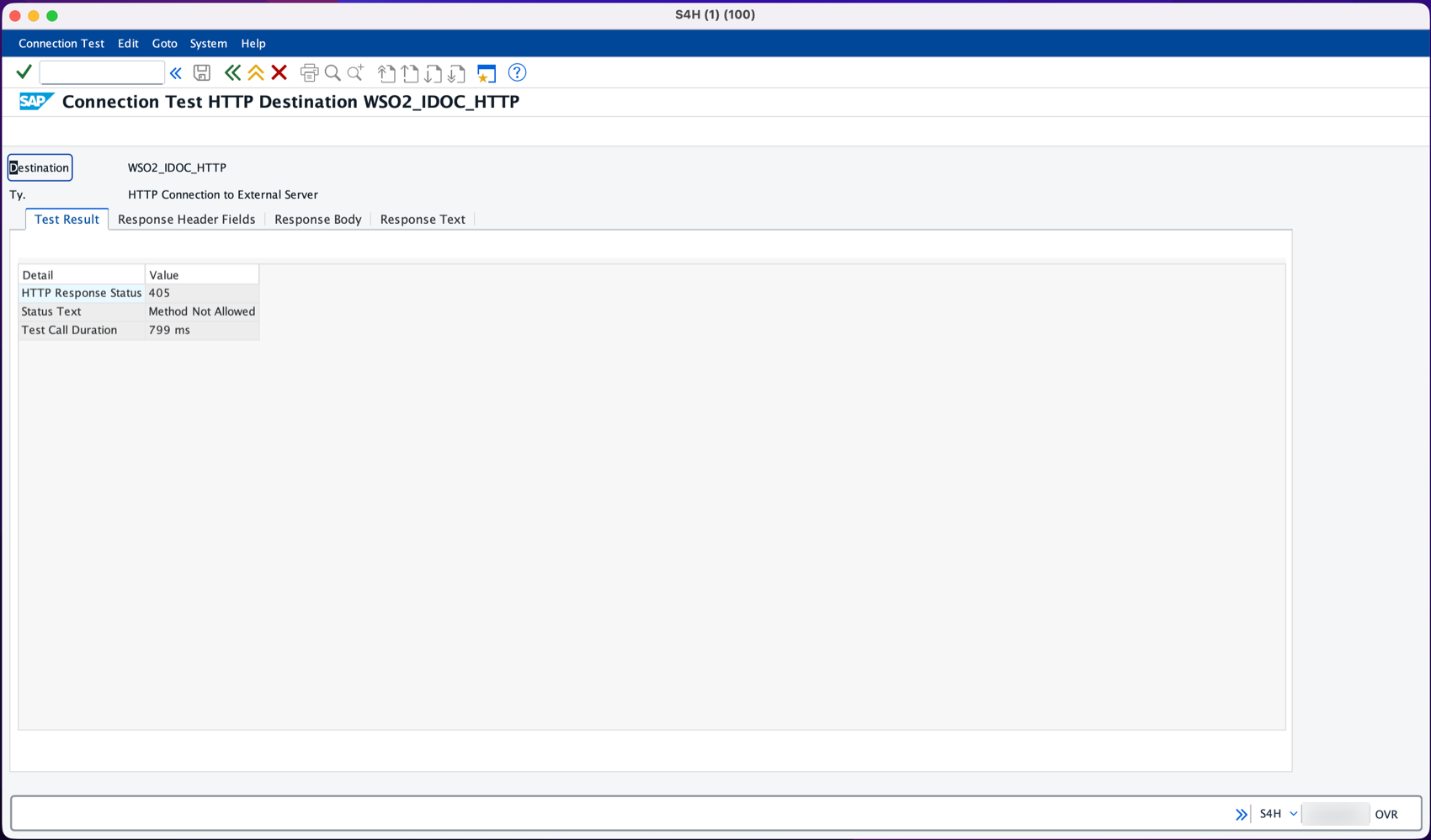
Create the XML HTTP port
-
Start transaction
WE21, select XML HTTP, and select Create. -
Enter a port name, for example
WSO2_HTTP, a description, and set RFC destination toWSO2_IDOC_HTTP. Keep the content type Text/XML, then Save.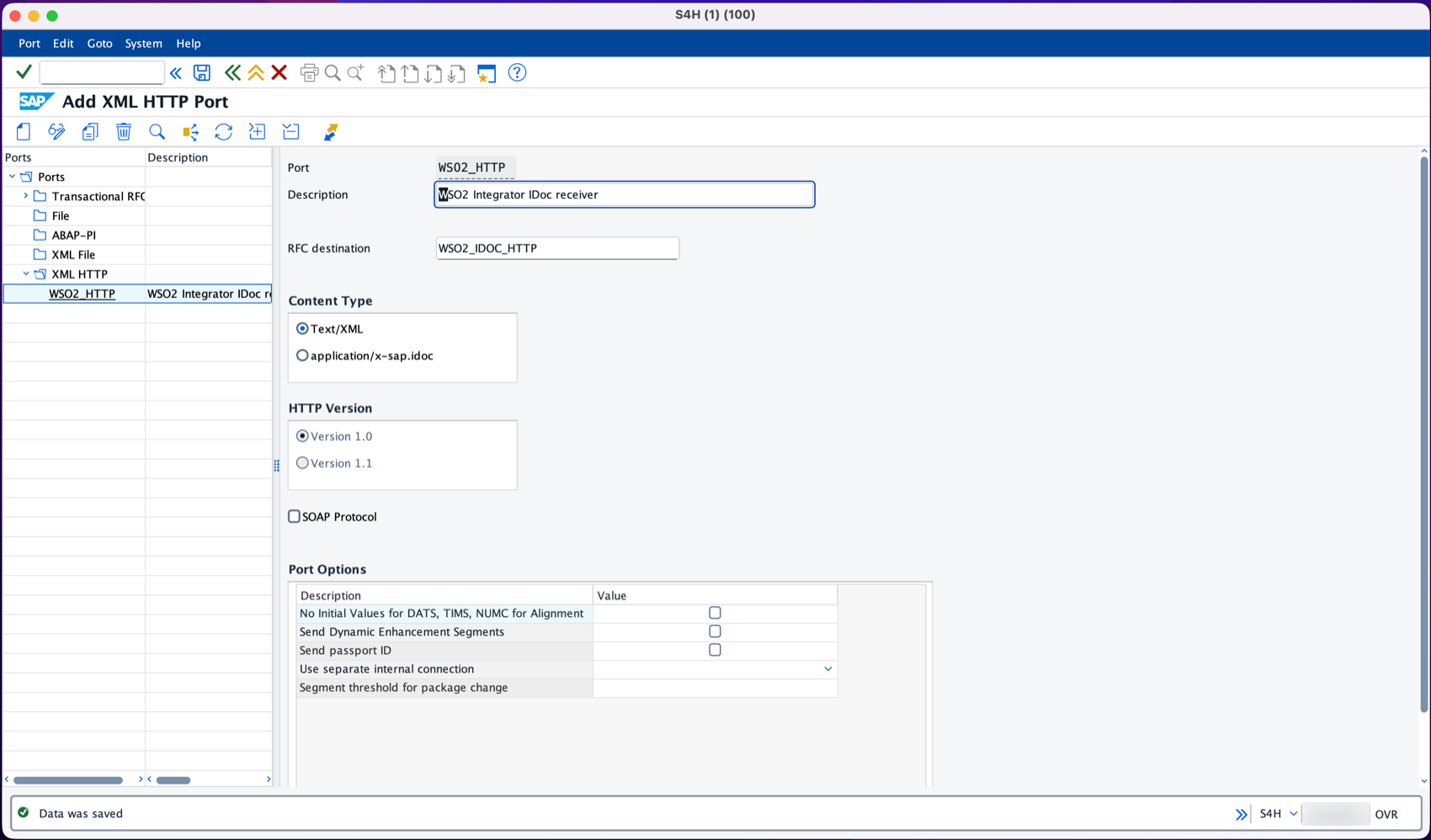
Create the logical system and partner profile
-
Start transaction
BD54, select New Entries, add a logical system for the integration, for exampleWSO2HTTP, and Save. Logical systems are cross-client, so SAP asks for a workbench request.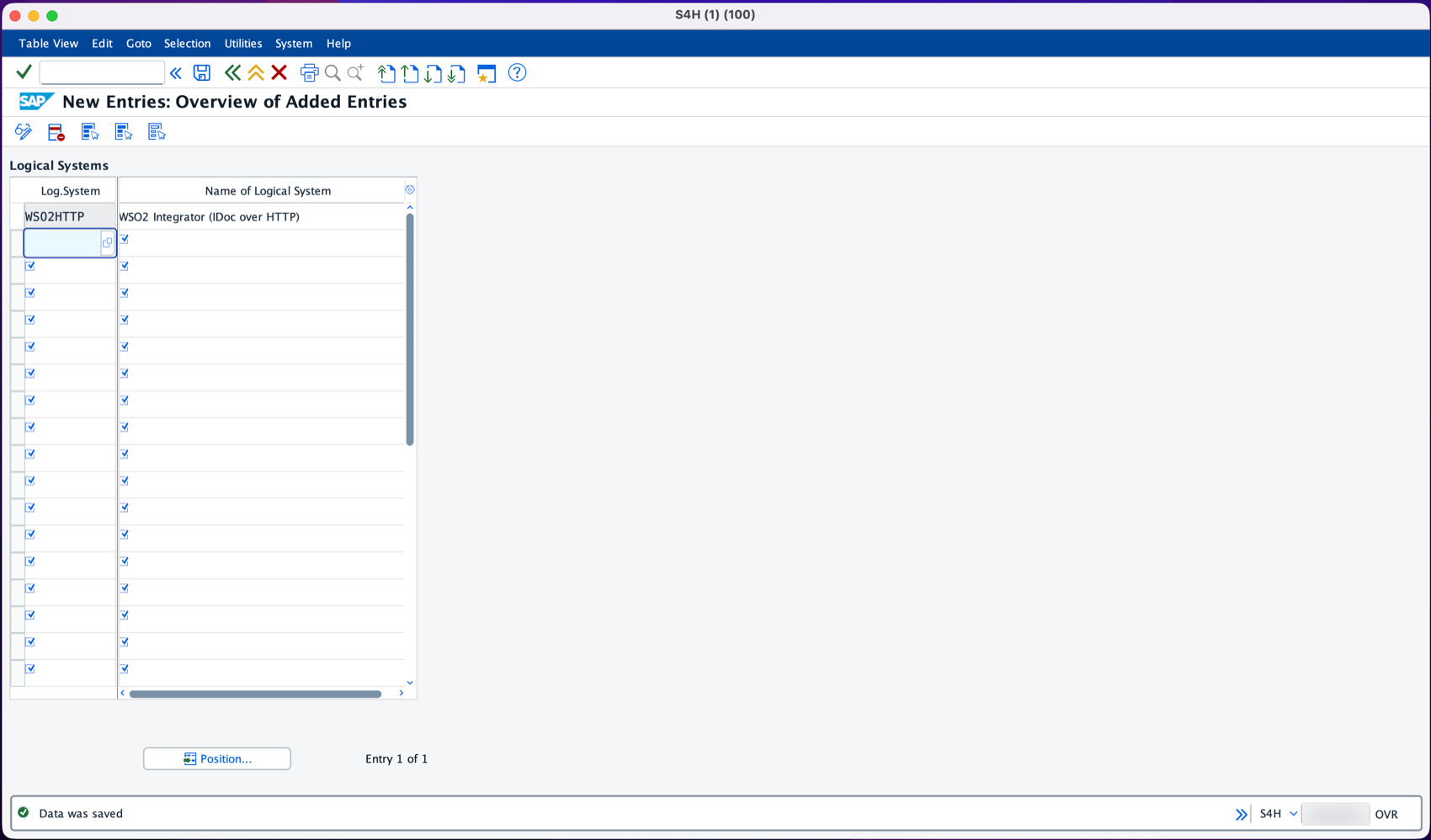
-
Start transaction
WE20, select Partner Type LS, and create a partner profile forWSO2HTTP. Under Outbound, add message typeMATMASwith the XML HTTP port as Receiver port, output mode Pass IDoc Immediately, and basic typeMATMAS05, then Save.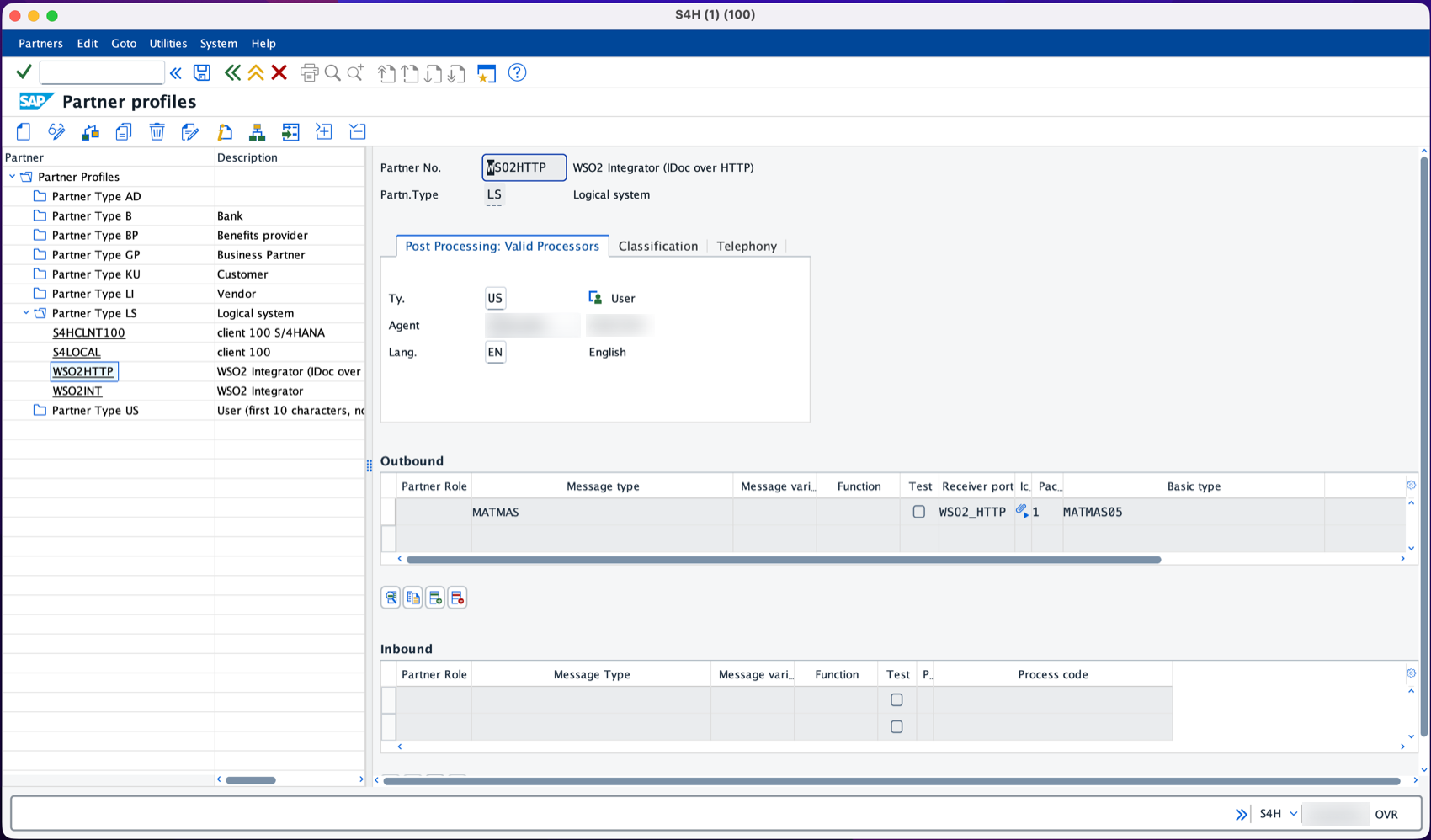
Add MATMAS to the distribution model
-
Start transaction
BD64, switch to change mode, and select Create Model View. -
Select the new model view, then Add Message Type, with the logical system of your SAP client as Sender,
WSO2HTTPas Receiver, andMATMASas Message Type, then Save.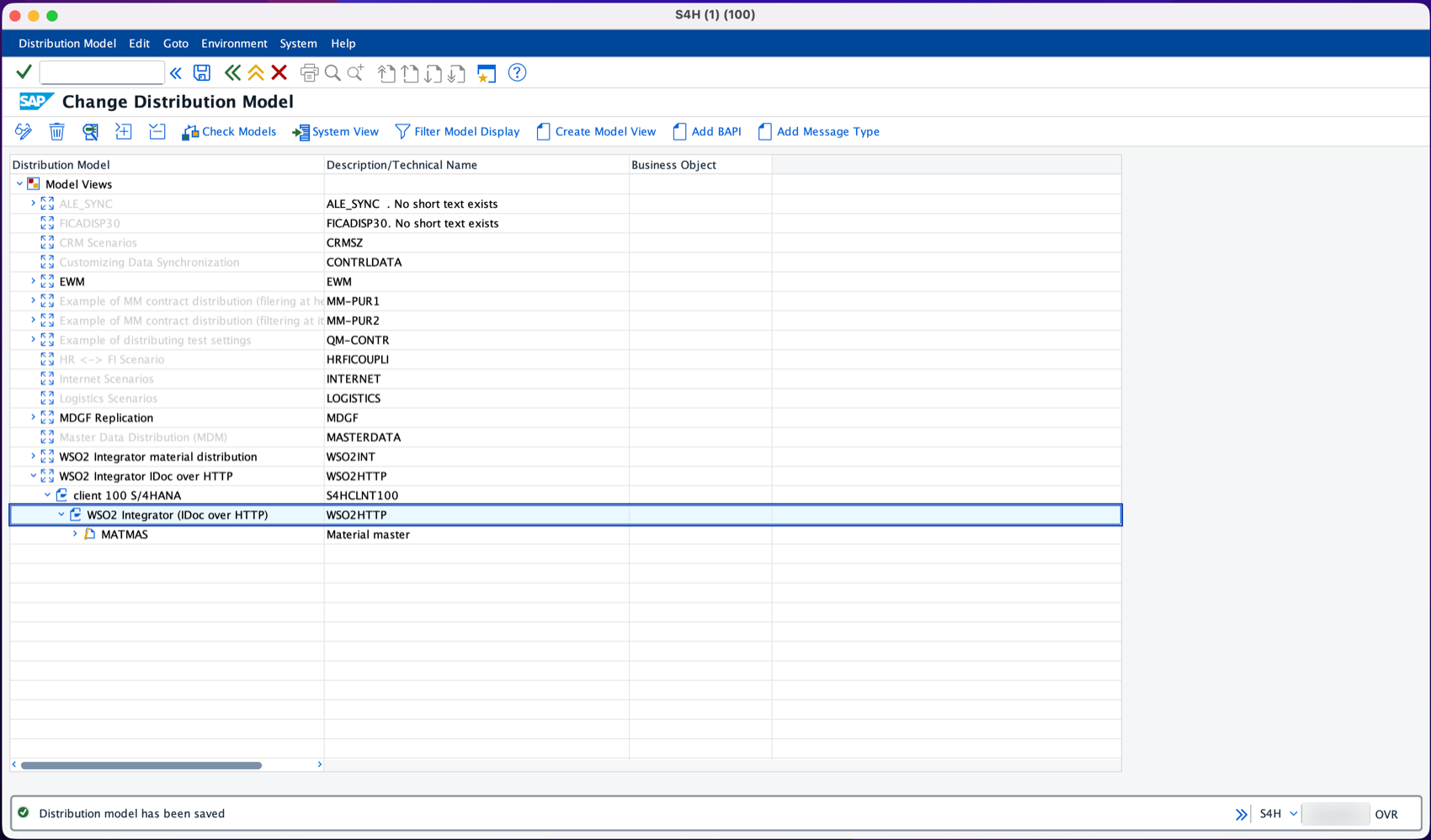
Run and verify
-
With the integration running, start transaction
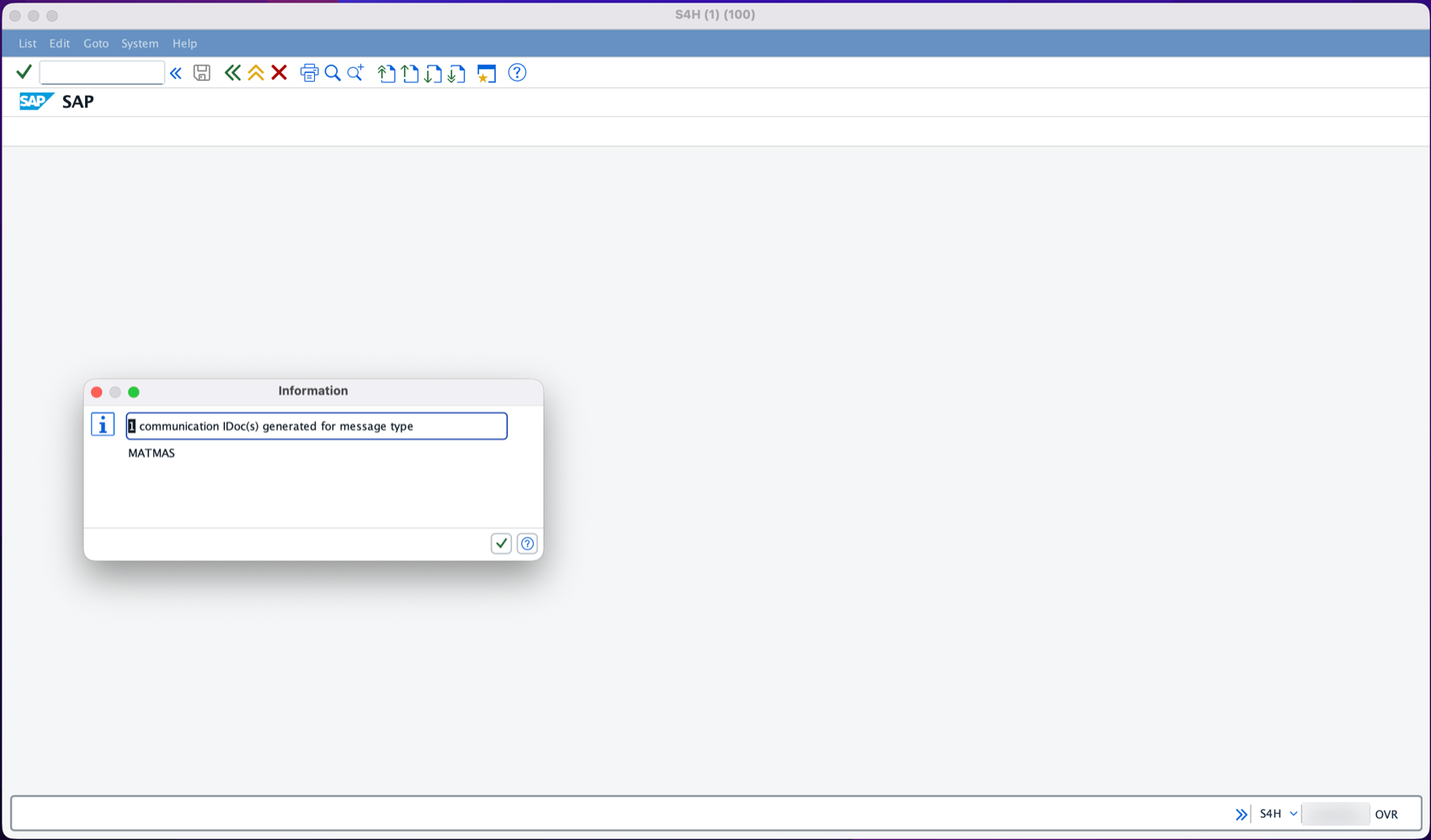
BD10in SAP, enter materialFG233, message typeMATMASand logical systemWSO2HTTP, and select Execute.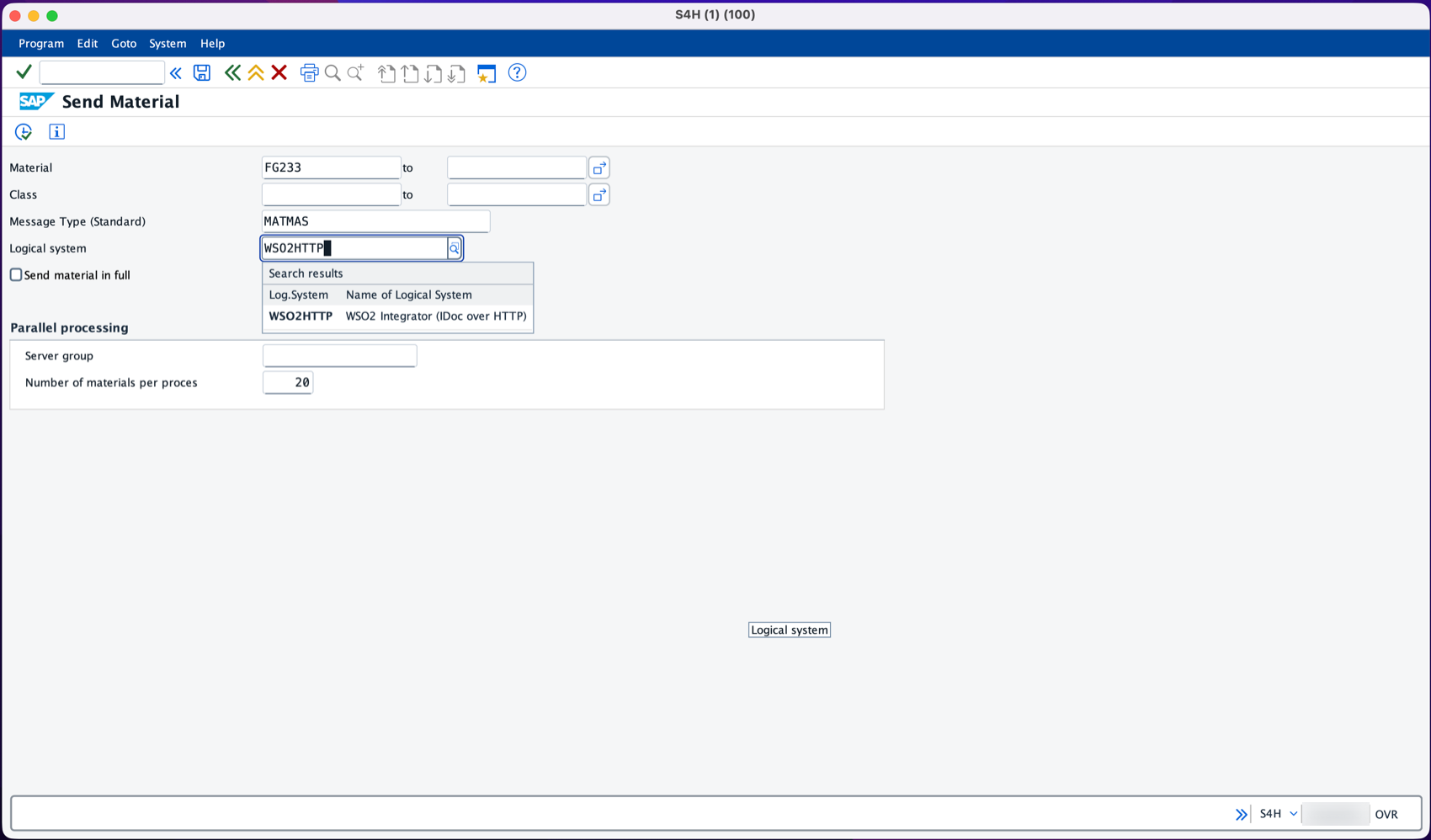
SAP confirms that it generated one communication IDoc.
-
The integration logs the IDoc and returns the mapped material to SAP. To see the response yourself, post a saved IDoc XML file to the service, for example with
curl -X POST -H "Content-Type: text/xml" --data-binary @matmas05.xml http://localhost:9090/sap/idocs: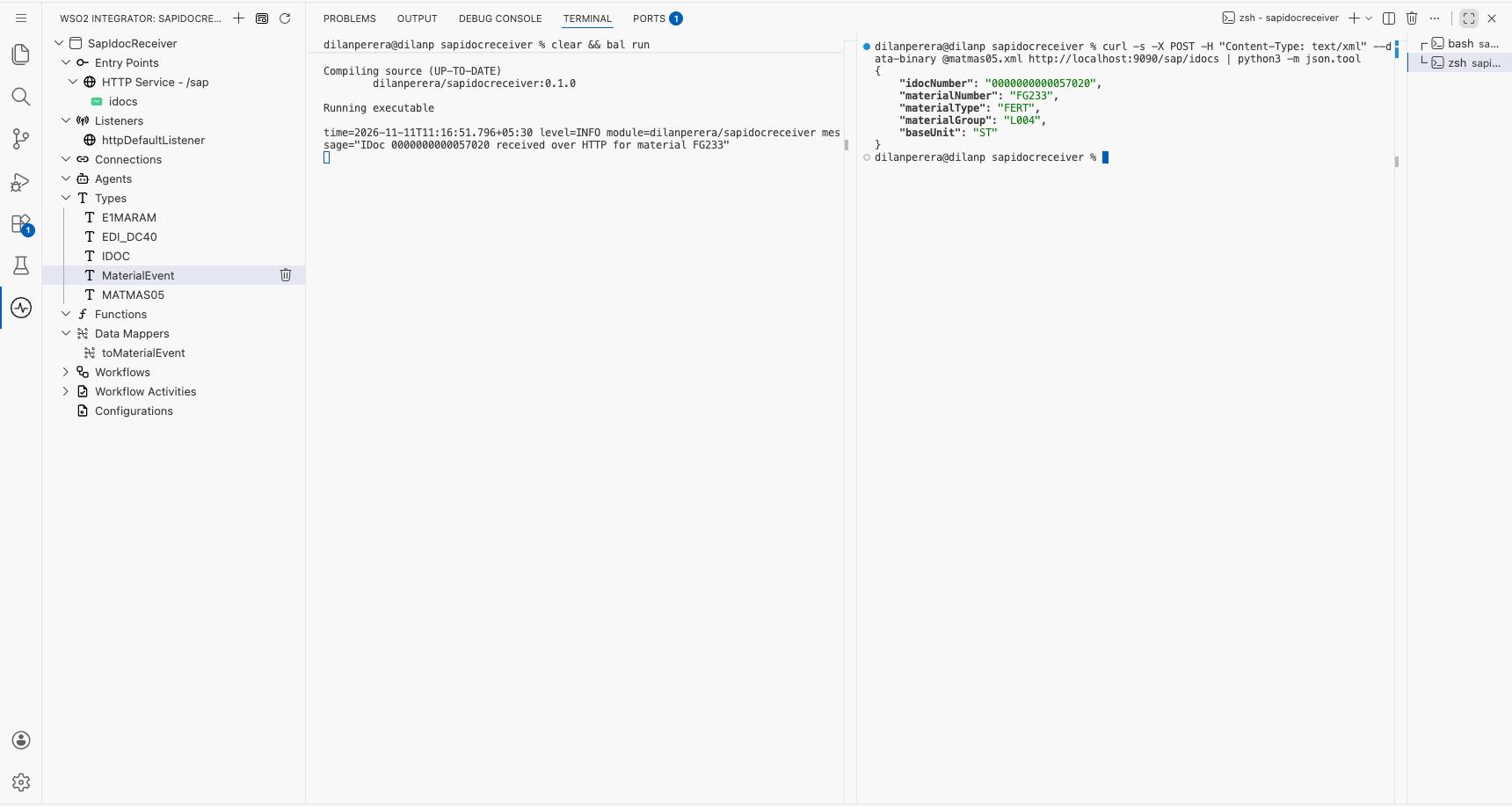
{
    "idocNumber": "0000000000057020",
    "materialNumber": "FG233",
    "materialType": "FERT",
    "materialGroup": "L004",
    "baseUnit": "ST"
} -
In transaction
WE02, filter on partner numberWSO2HTTP. The IDoc has status03, and its status text reads IDoc sent by HTTP in XML format.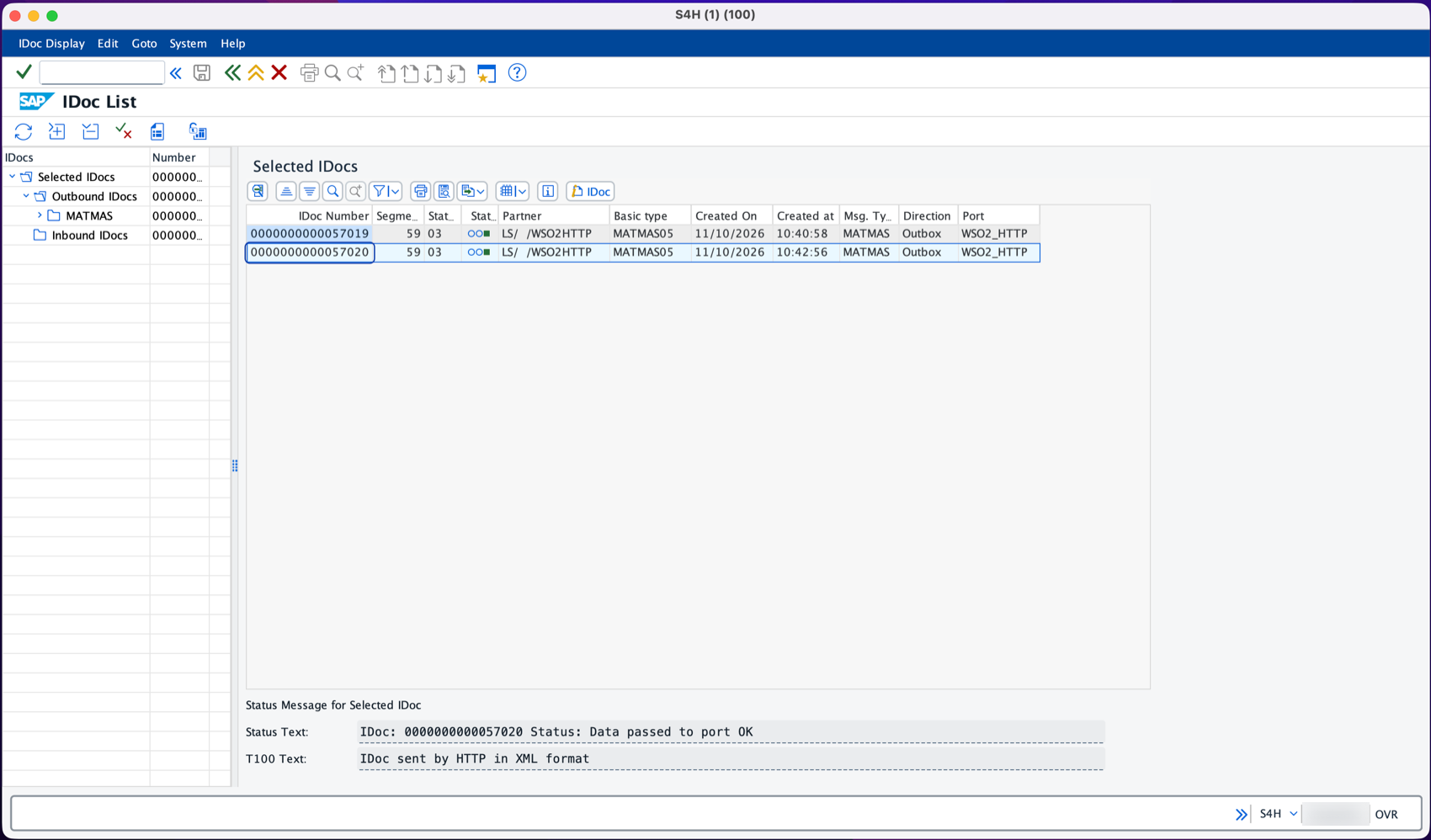
Troubleshooting
| Symptom | Cause and fix |
|---|---|
The SM59 connection test fails with SSSLERR_PEER_CERT_UNTRUSTED | The SSL client PSE does not trust the integration's certificate. Import its root certificate authority with transaction STRUST. |
The SM59 connection test fails with a timeout or ICM_HTTP_CONNECTION_FAILED | SAP cannot reach the integration host and port. Check the host, port and firewall from the SAP network, and that the integration is running. |
The IDoc status is 02 (error passing data to port) | The service did not return a 2xx status. Check the integration log for the error, fix the cause, and resend the IDoc with transaction BD87. |
BD10 reports 0 communication IDoc(s) generated | The distribution model has no MATMAS entry for the receiver. Add it in Add MATMAS to the distribution model. |
400 Bad Request in the integration log | The request body is not well-formed XML. Check that the port's content type is Text/XML. |
500 Internal Server Error and a conversion error in the log | The IDoc does not match the record types, for example a required field is missing or a segment the types expect once appears more than once. Edit the record types to match the IDoc, for example by making a field optional or changing a segment to an array. |
What's next
- Secure the endpoint. Put the service behind your API gateway, or add basic authentication to the HTTP service, and set the matching credentials in the SM59 destination.
- Deploy it. Ship it to WSO2 Cloud, a Docker container, Kubernetes, or a virtual machine.
- Receive other IDocs. Add outbound parameters for more message types in
WE20, such asDEBMASfor customers orORDERSfor purchase orders, and route on theMESTYPfield ofEDI_DC40. - Use the RFC route instead. To also call BAPIs or answer RFC calls from SAP, use the SAP JCo connector, as shown in Call RFC Function Modules and Receive IDocs with SAP S/4HANA Private Cloud.