Call RFC Functions and Receive IDocs with SAP S/4HANA Private Cloud
Time: About 60 minutes | What you'll build: One integration that talks to SAP in both directions. An HTTP API calls the BAPI_MATERIAL_GET_DETAIL function module over RFC and returns a material as JSON. An IDoc listener registers with the SAP gateway and receives the MATMAS IDocs that SAP sends whenever a material is distributed.
How it works
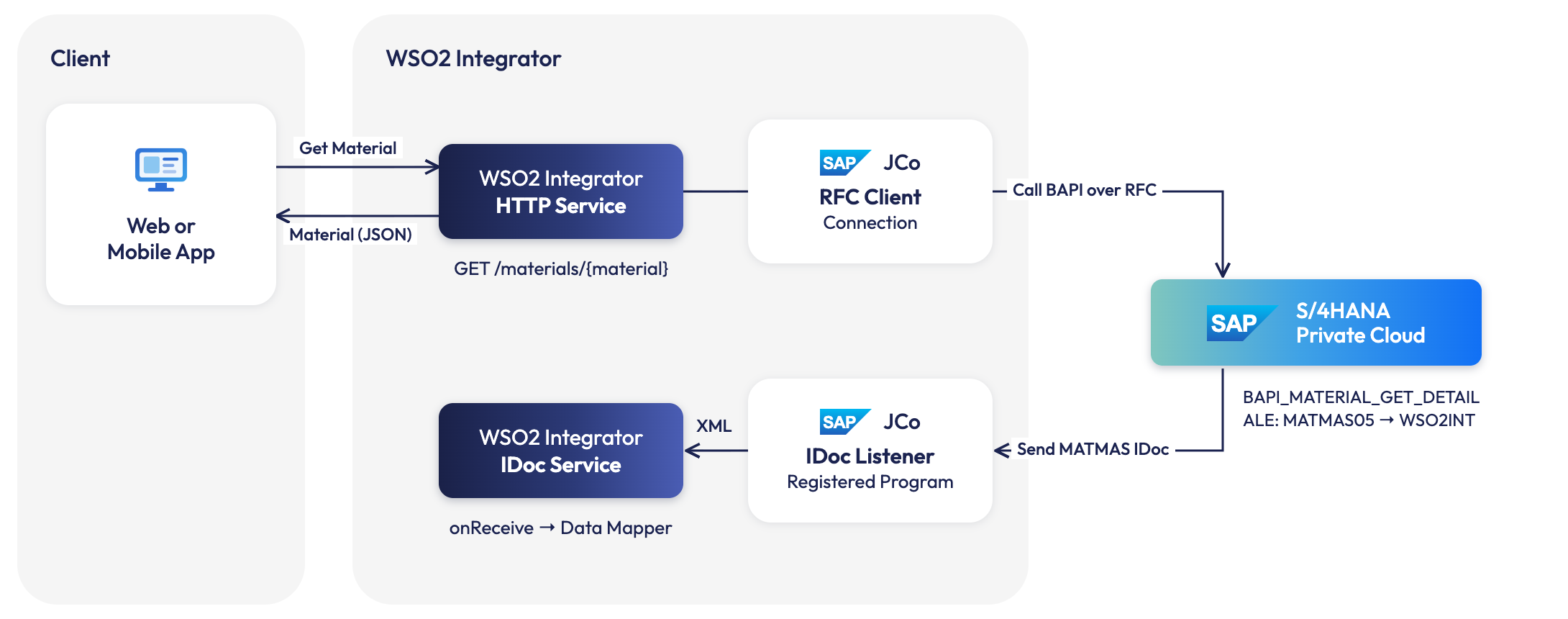
The integration has two independent paths that share the same SAP credentials.
- RFC path (you call SAP). A client calls
GET /materials/{material}. The HTTP service callsBAPI_MATERIAL_GET_DETAILthrough the SAP JCo client, picks the general data out of the result, and returns it as JSON. - IDoc path (SAP calls you). The SAP JCo listener registers at the SAP gateway as an external server program. When SAP distributes a material, ALE builds a
MATMASIDoc and sends it over transactional RFC (tRFC) to that registered program. The listener renders the IDoc as XML and passes it to theonReceivehandler, which parses the XML into typed records, maps the material fields with the Data Mapper, and logs the result.
Before you begin
- The SAP Java Connector (SAP JCo) 3.1 and the SAP Java IDoc Class Library 3.1, downloaded from the SAP Support Portal (an SAP user ID is required). You need
sapjco3.jar,sapidoc3.jar, and the native JCo library for your operating system (libsapjco3.dylibon macOS,libsapjco3.soon Linux,sapjco3.dllon Windows). Keep the native library in the same folder assapjco3.jar. - Network access from the machine that runs the integration to the SAP application server (port
32<NN>) and the SAP gateway (port33<NN>), where<NN>is the SAP instance number. - An SAP user that can log on with RFC and call
BAPI_MATERIAL_GET_DETAIL(authorization objectS_RFC), and read material master data. - Access to the SAP GUI transactions
SM59,SMGW,WE21,BD54,WE20,BD64andBD10, or a colleague from your SAP Basis team who can run them for you. - A material number that exists in your SAP client. The examples in this guide use material
FG233in client100.
Find your SAP connection details
The integration needs five values to log on to SAP, and two more for the IDoc listener. You can read all of them from SAP GUI.
- Application server host (
sapHost): the Application Server of the system entry in SAP Logon, or ask your SAP Basis team for the host name or IP address reachable from the integration. - System (instance) number (
sapSystemNumber): the Instance Number of the system entry in SAP Logon. It is also the last two digits of the server name in System > Status. - Client (
sapClient): Client in System > Status. - User and password (
sapUser,sapPassword): an SAP user that is allowed to log on with RFC. - Gateway service (
sapGatewayService):sapgwfollowed by the instance number, for examplesapgw00(port3300). TransactionSMGWshows the gateway of the instance. - Program ID (
sapProgramId): the name you choose in Create the RFC destination.
-
In any SAP GUI session, choose System > Status. Client and User are under Usage data. Under Host data, Server name has the form
<host>_<system ID>_<instance number>, so a server name such assaphost_S4H_00means instance number00.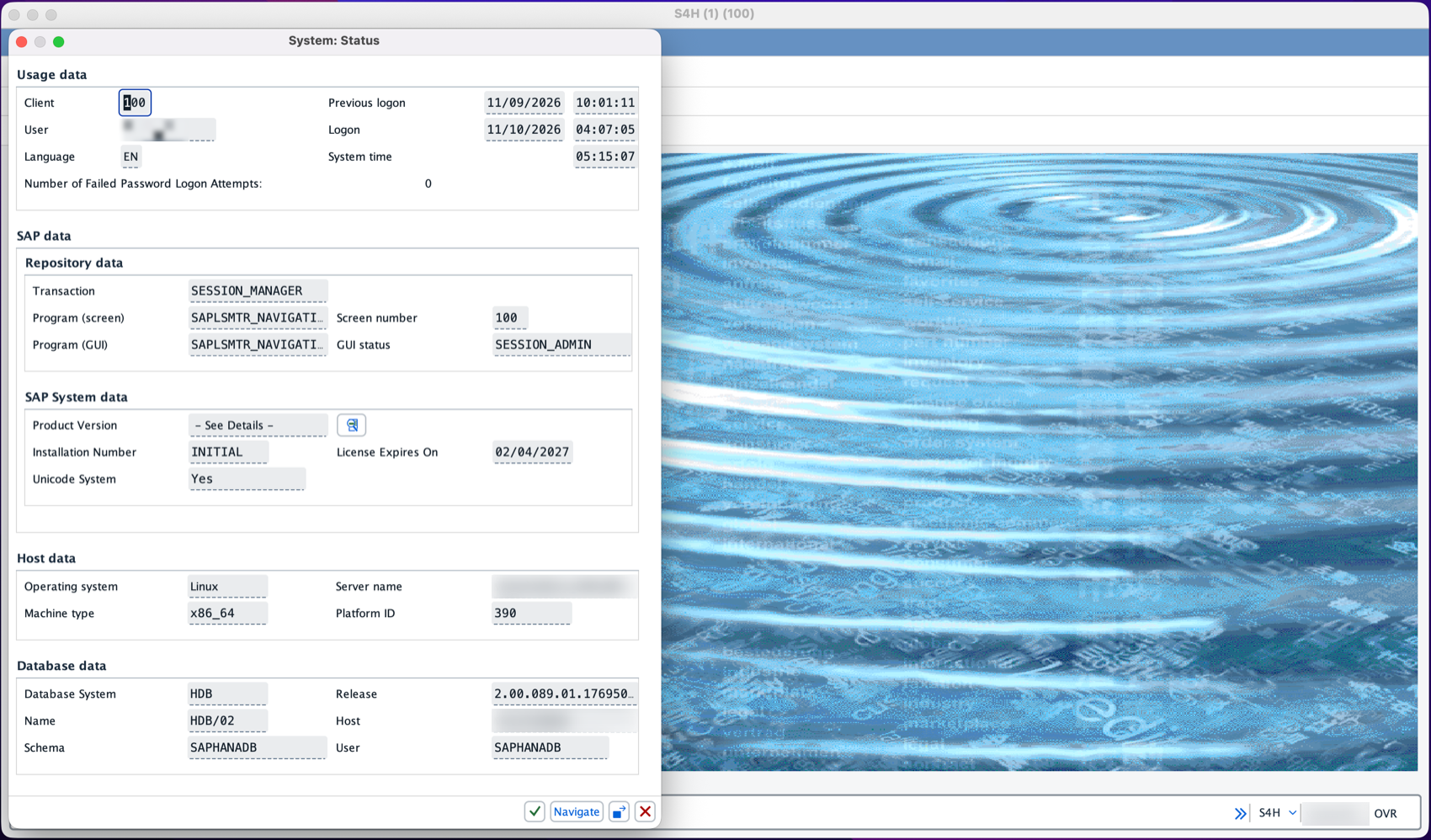
-
Start transaction
SMGW. The title shows the instance the gateway belongs to. With instance number00, the gateway service issapgw00.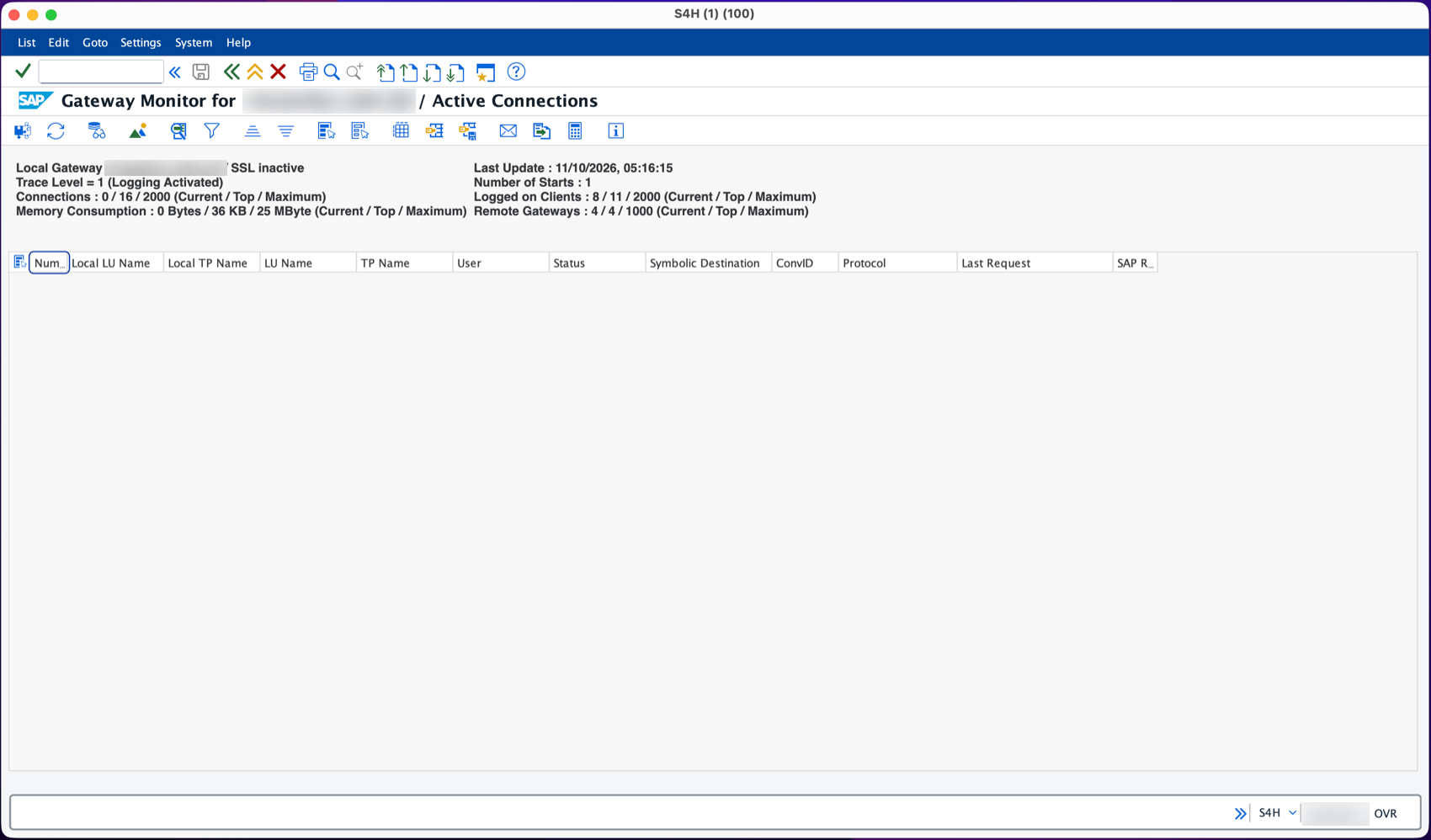
Set up SAP
Before SAP can send IDocs to the integration, SAP needs to know where to send them: an RFC destination that points at the integration's registered program ID, a port that uses that destination, and a partner profile that routes MATMAS IDocs to the port. The RFC path needs none of this, only the SAP user.
These are SAP GUI transactions. On SAP S/4HANA you can also start them from the SAP Fiori launchpad, where they open as SAP GUI for HTML, but the setup is usually done by the SAP Basis team in SAP GUI.
Create the RFC destination
-
Start transaction
SM59, select TCP/IP Connections, and select Create. -
Enter
WSO2_INTEGRATORas the Destination and a description such asWSO2 Integrator (registered server program). -
On Technical Settings, select Registered Server Program and enter
WSO2_INTEGRATORas the Program ID. The program ID is the name the integration registers under at the gateway, so it must match thesapProgramIdvalue you configure later.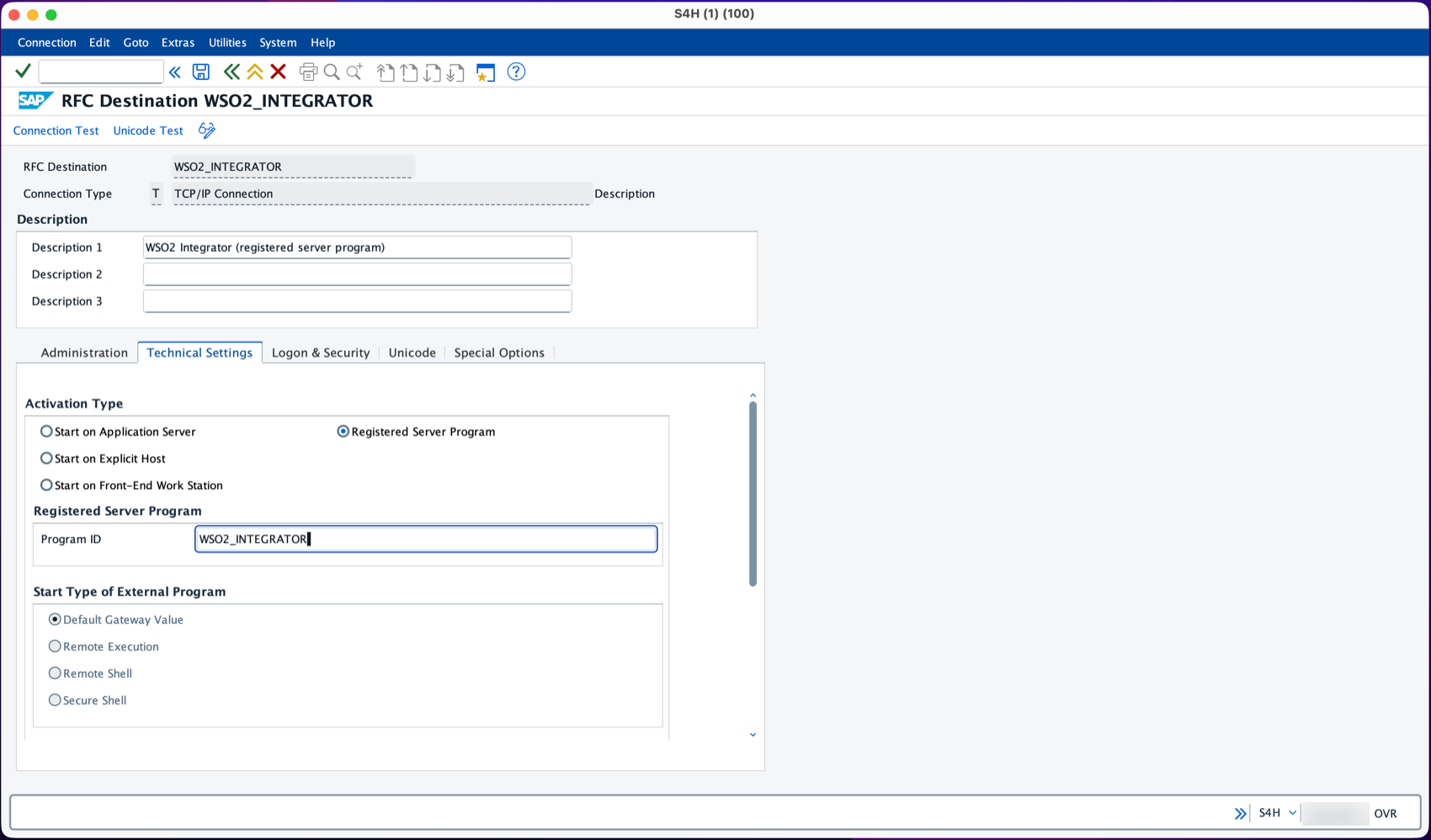
-
On the Unicode tab, select Unicode, then Save.
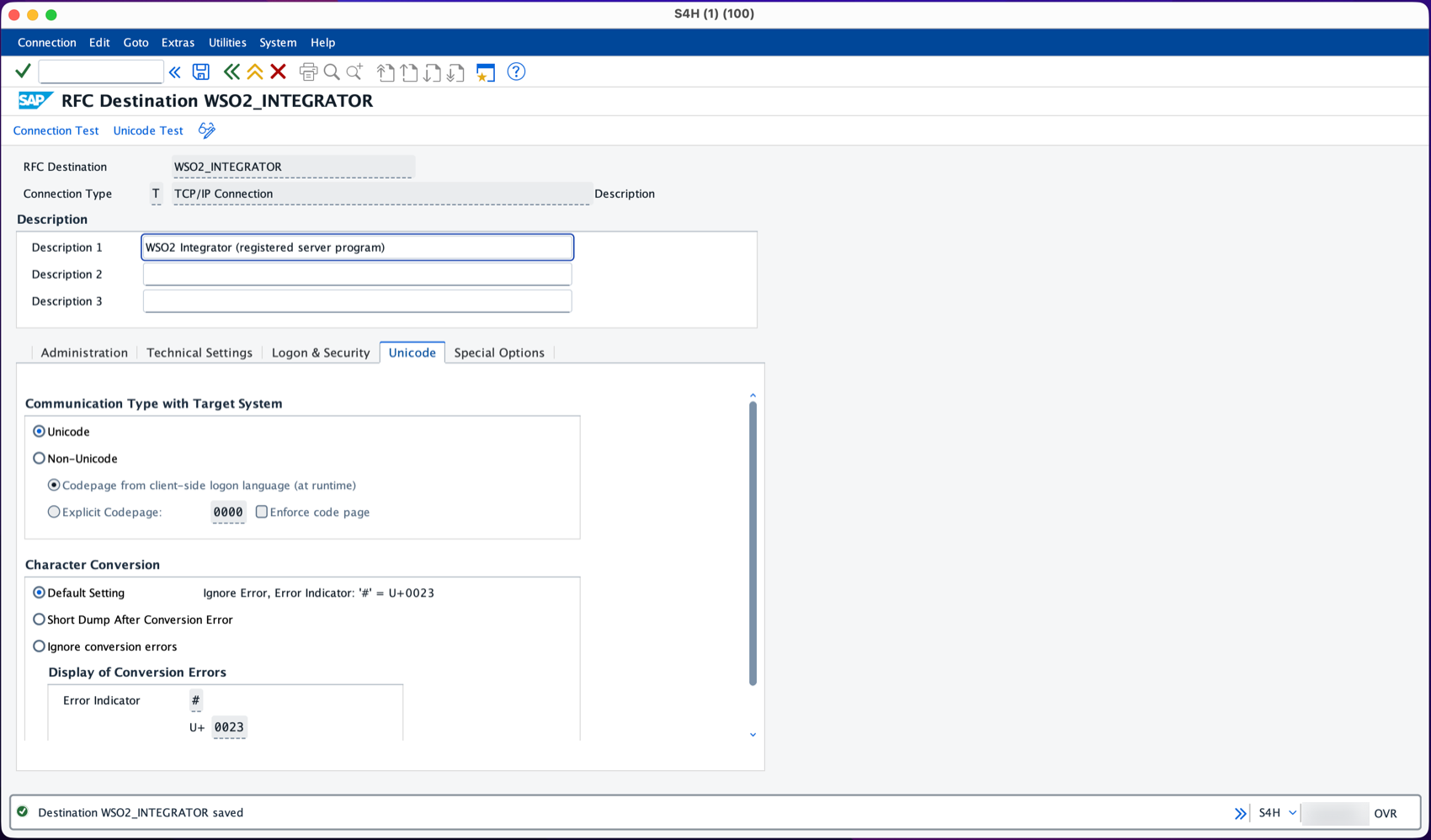 Use a Unicode destination
SAP JCo is a Unicode program. With a non-Unicode destination, SAP sends the IDoc control record in the wrong code page, and the listener fails with
IDOC_ERROR_METADATA_UNAVAILABLE.
Allow the program to register at the gateway
The SAP gateway only accepts registrations that its reginfo access control list allows. By default it allows programs from the SAP server itself only, so a registration from the integration host is refused with JCO_ERROR_REGISTRATION_DENIED ... registration of tp WSO2_INTEGRATOR from host ... not allowed.
-
Start transaction
SMGWand choose Goto > Expert Functions > External Security > Maintenance of ACL Files. -
On the Reginfo File tab, insert this line, replacing
<integration-host>with the host name or IP address the SAP gateway sees for the machine that runs the integration:P TP=WSO2_INTEGRATOR HOST=<integration-host> ACCESS=internal CANCEL=internalACCESS=internalandCANCEL=internalmean that only the SAP system itself may call the registered program or cancel its registration. -
Select Save, confirm, and choose Local (or Global on a system with several application servers) so the gateway reloads the file.
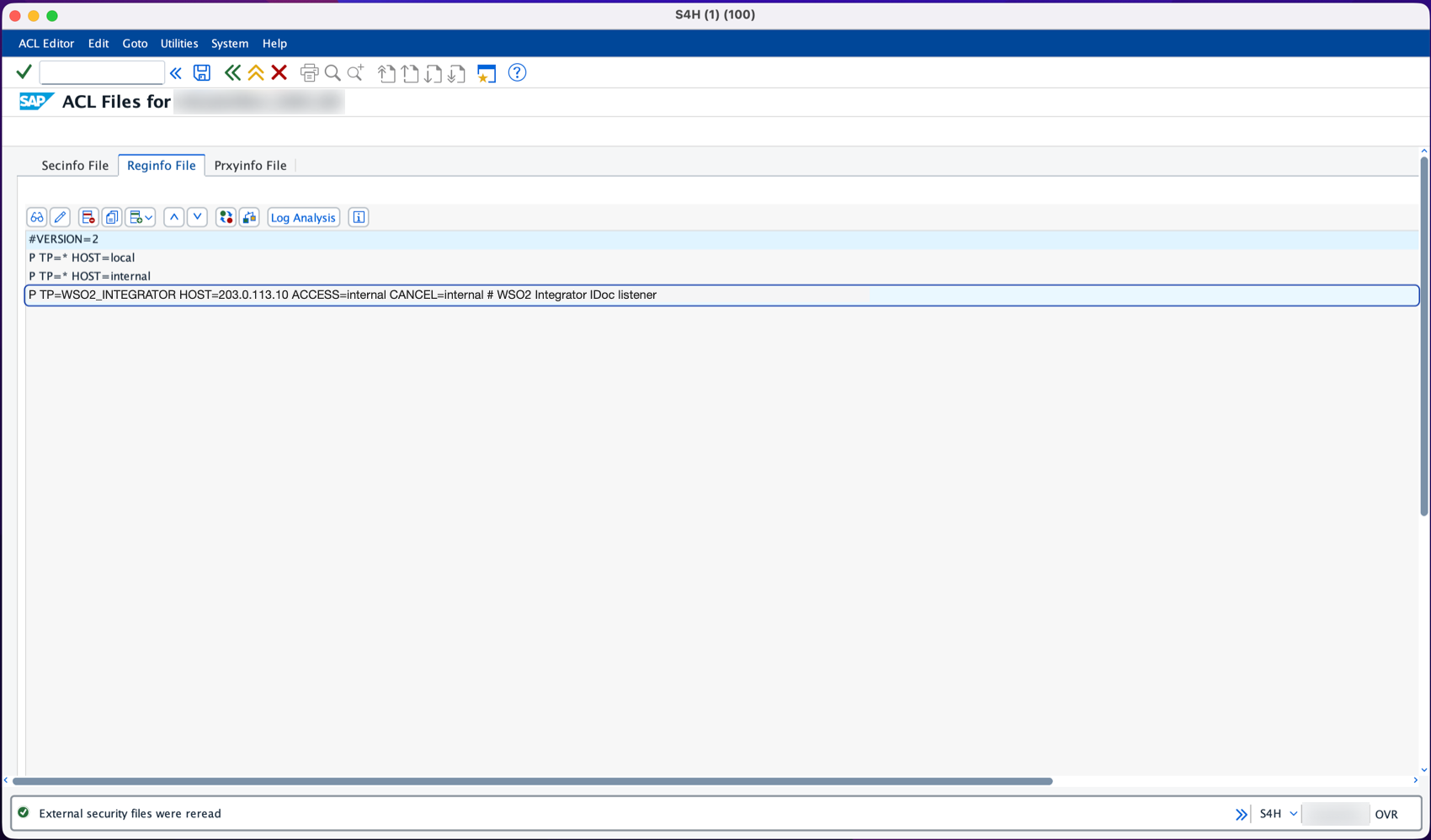
Create the tRFC port
-
Start transaction
WE21, select Transactional RFC, and select Create. -
Let SAP generate the port name, enter a description, and set RFC destination to
WSO2_INTEGRATOR. Keep IDoc record types SAP Release 4.x, then Save.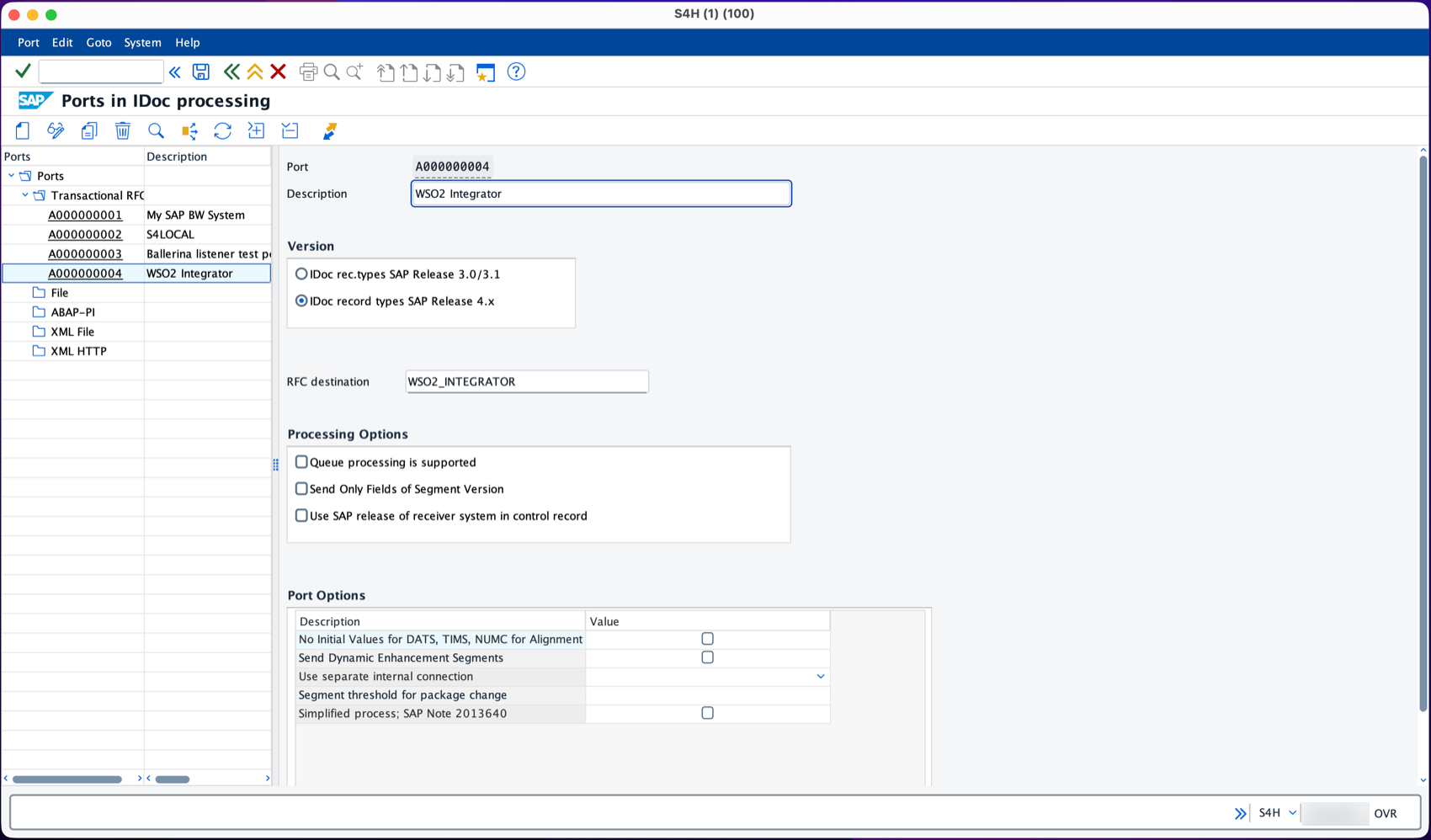
Create the logical system and partner profile
SAP addresses IDocs to a partner. For an external system such as the integration, the partner is a logical system.
-
Start transaction
BD54, select New Entries, enter a logical system name for the integration, for exampleWSO2INT, and a description, then Save. Logical systems are cross-client, so SAP asks for a workbench request; create one or pick an existing one.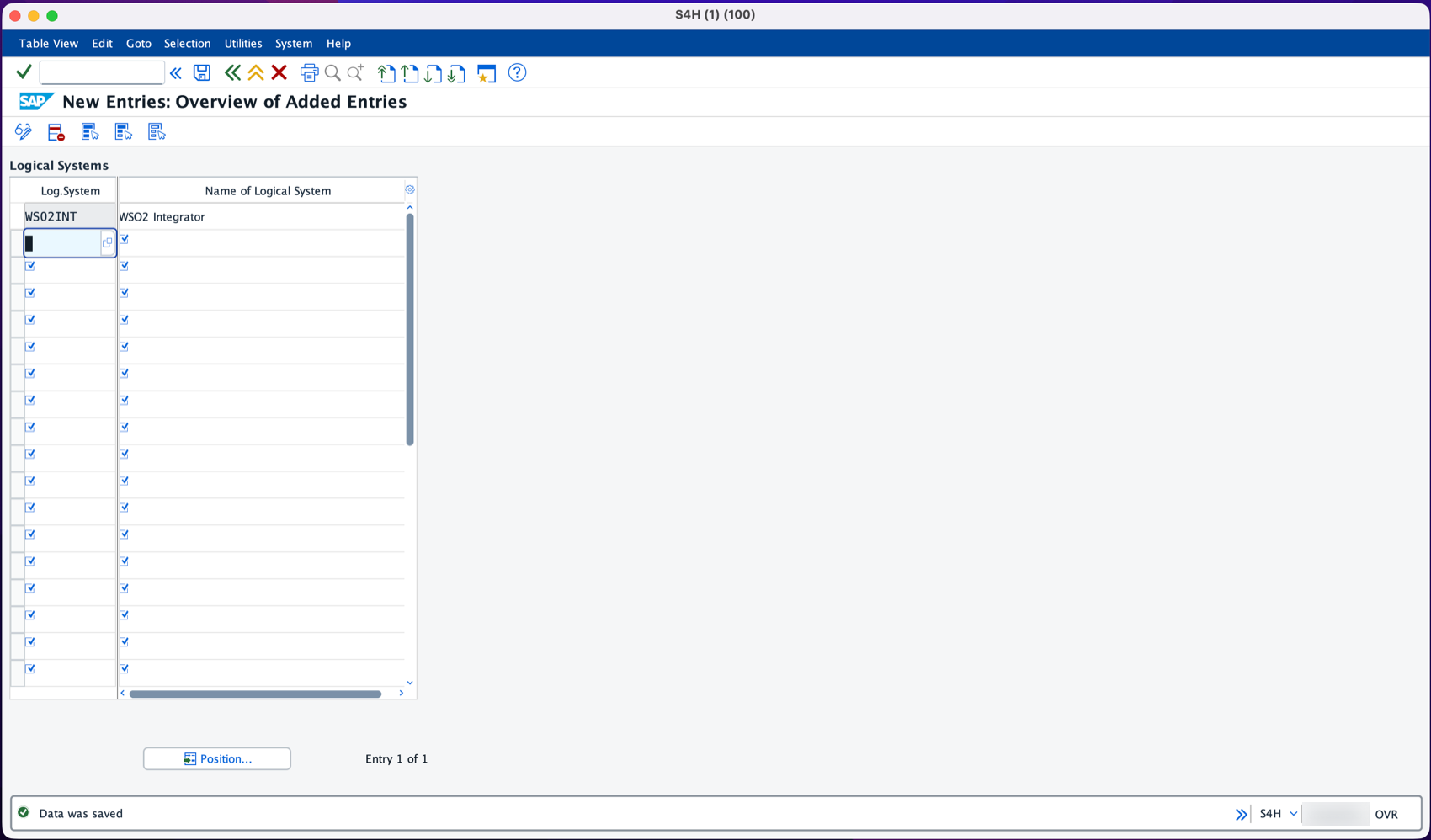
-
Start transaction
WE20, select Partner Type LS, and select Create. EnterWSO2INTas the partner number, and a user under Post Processing: Valid Processors who is notified about IDoc errors. -
Under Outbound, add a line with message type
MATMAS, the port you created as Receiver port, output mode Pass IDoc Immediately, and basic typeMATMAS05, then Save.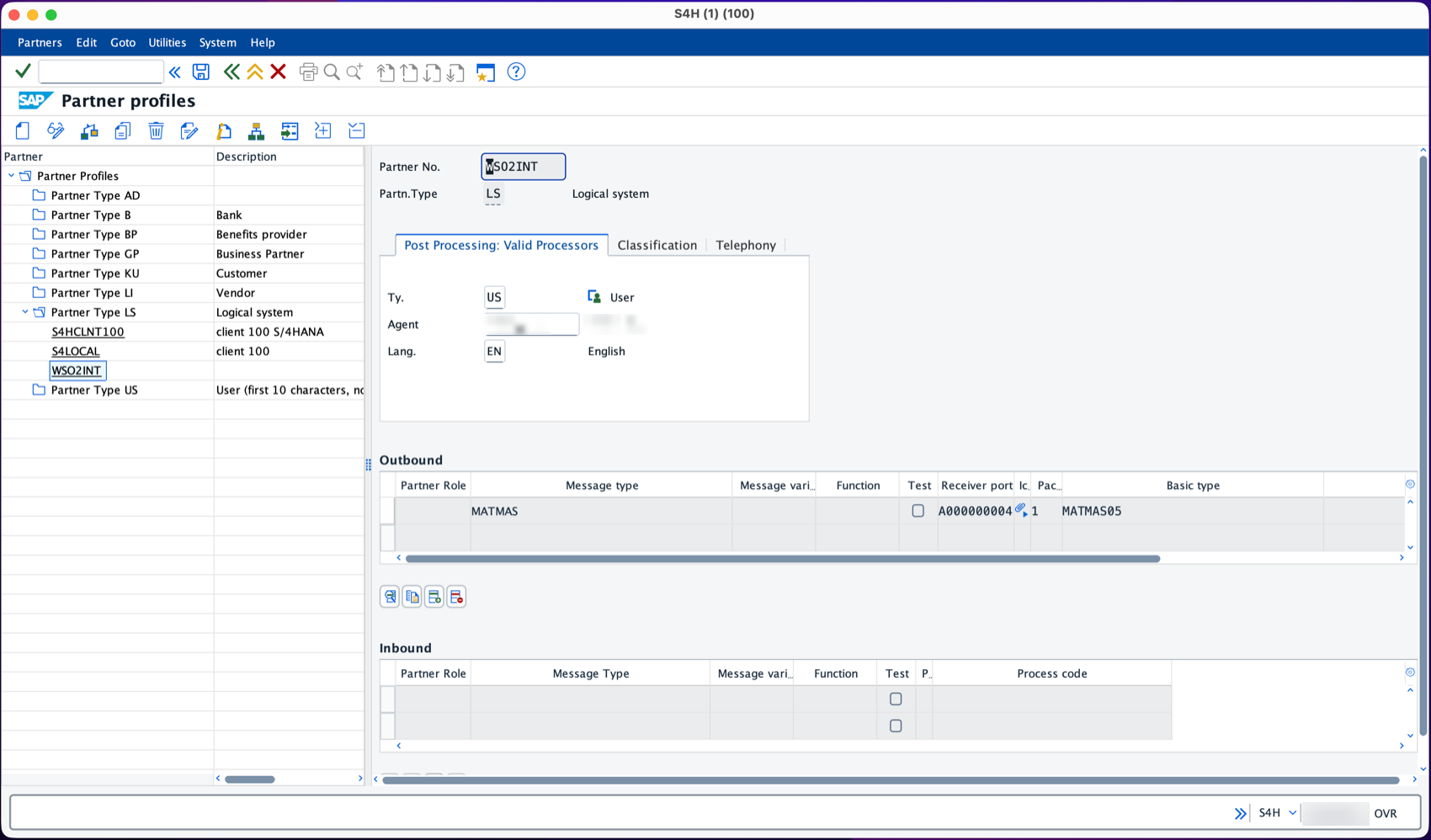
Add MATMAS to the distribution model
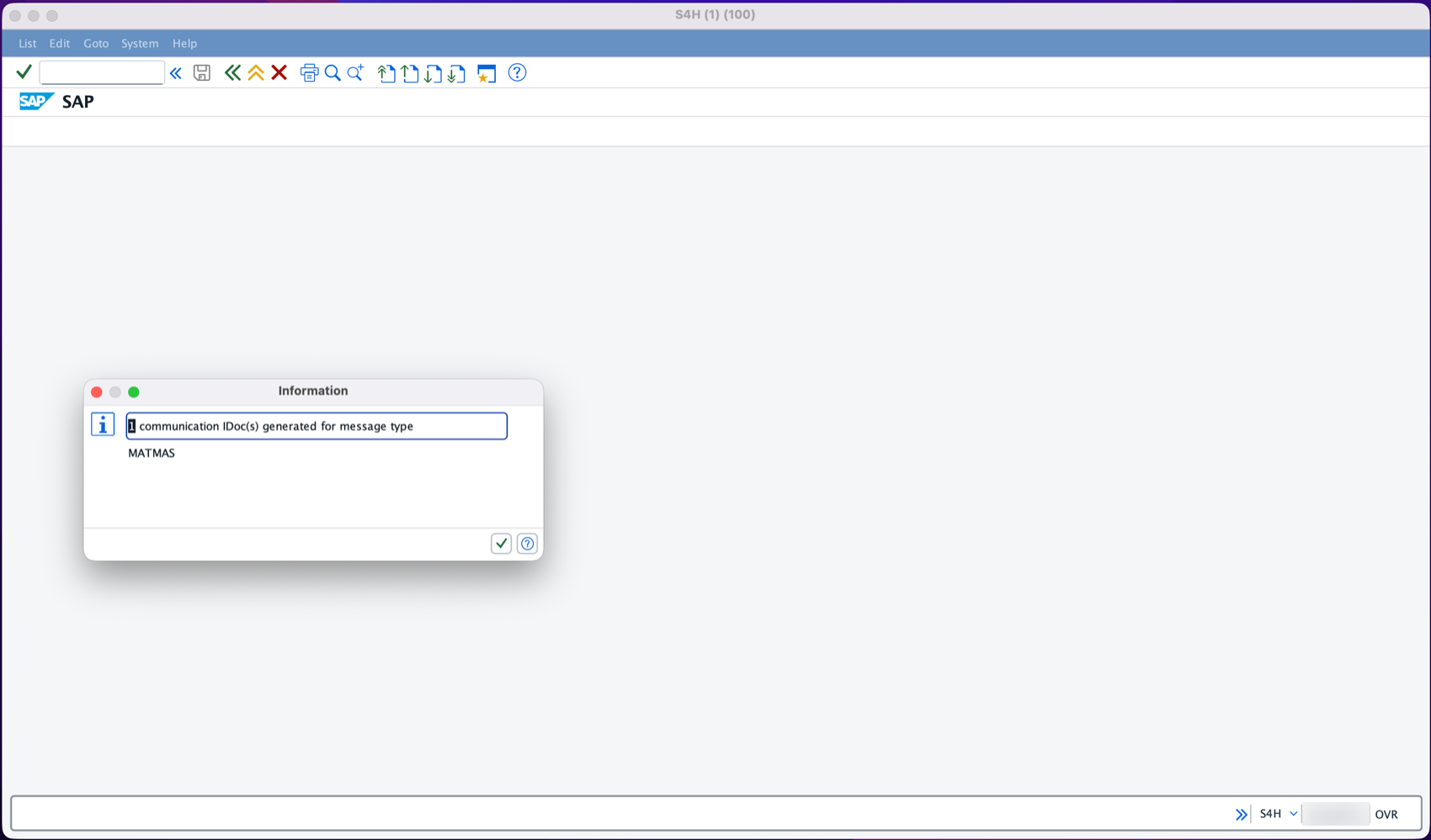
BD10 and the change pointers only create IDocs for receivers that the ALE distribution model names. Without an entry, BD10 reports 0 communication IDoc(s) generated.
-
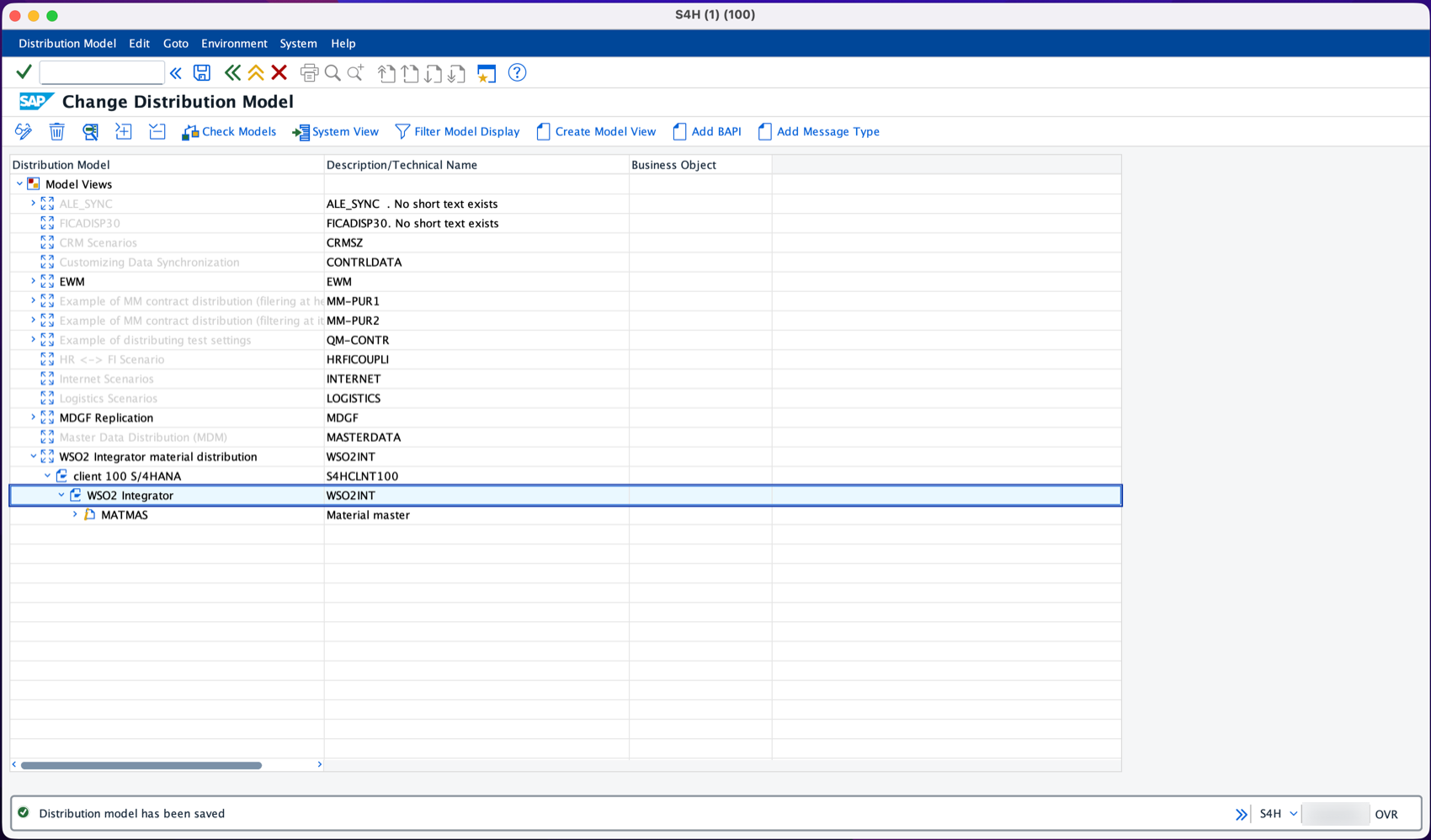
Start transaction
BD64and switch to change mode. -
Select Create Model View, enter a short text and a technical name, for example
WSO2INT. -
Select the new model view, then Add Message Type. Set Sender to the logical system of your SAP client (for example
S4HCLNT100, shown in transactionSCC4), Receiver toWSO2INT, and Message Type toMATMAS. -
Save the distribution model.
Build the integration
Build the flow in the Visual Designer, or switch to the Ballerina Code tab to see the equivalent source the designer generates for you.
- Visual Designer
- Ballerina Code
Step 1: Create the integration and the HTTP service
-
Create a new integration named
SapMaterialsin a project namedSapMaterials.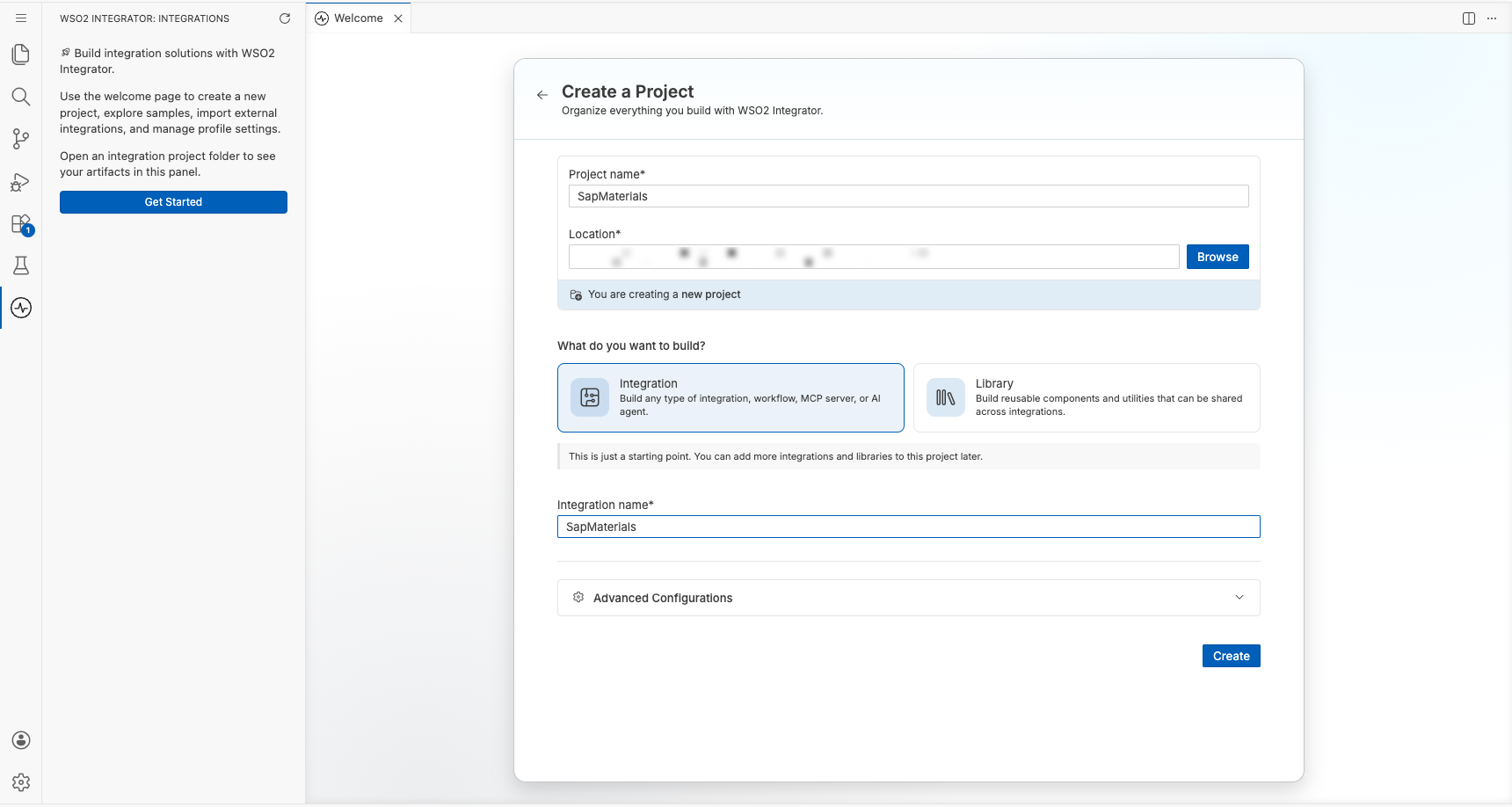
-
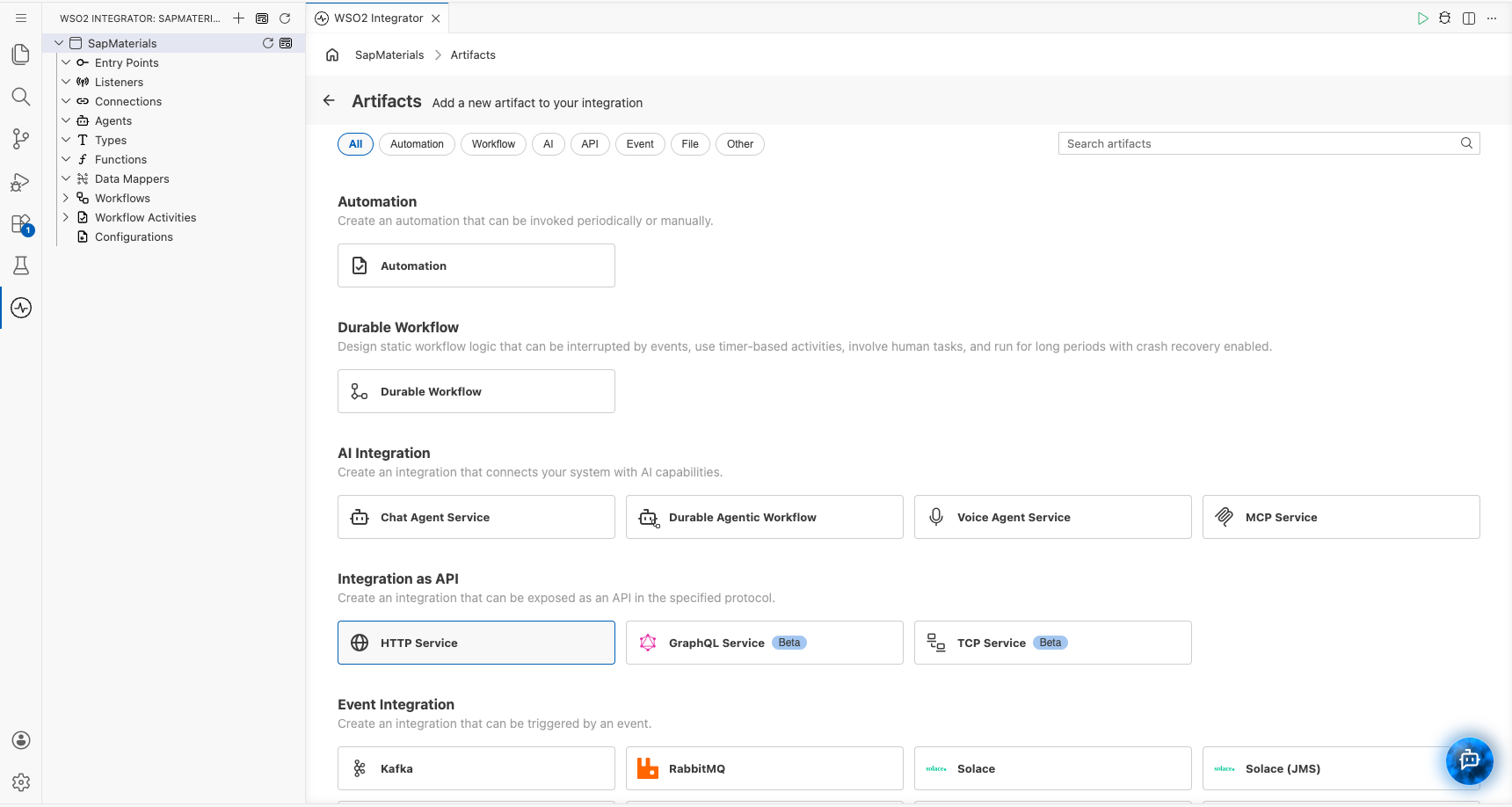
The integration opens on the What would you like to build? page. Select Add Artifact manually, then select HTTP Service under Integration as API.
-
Keep Design From Scratch, set Service Base Path to
/materials, and select Create.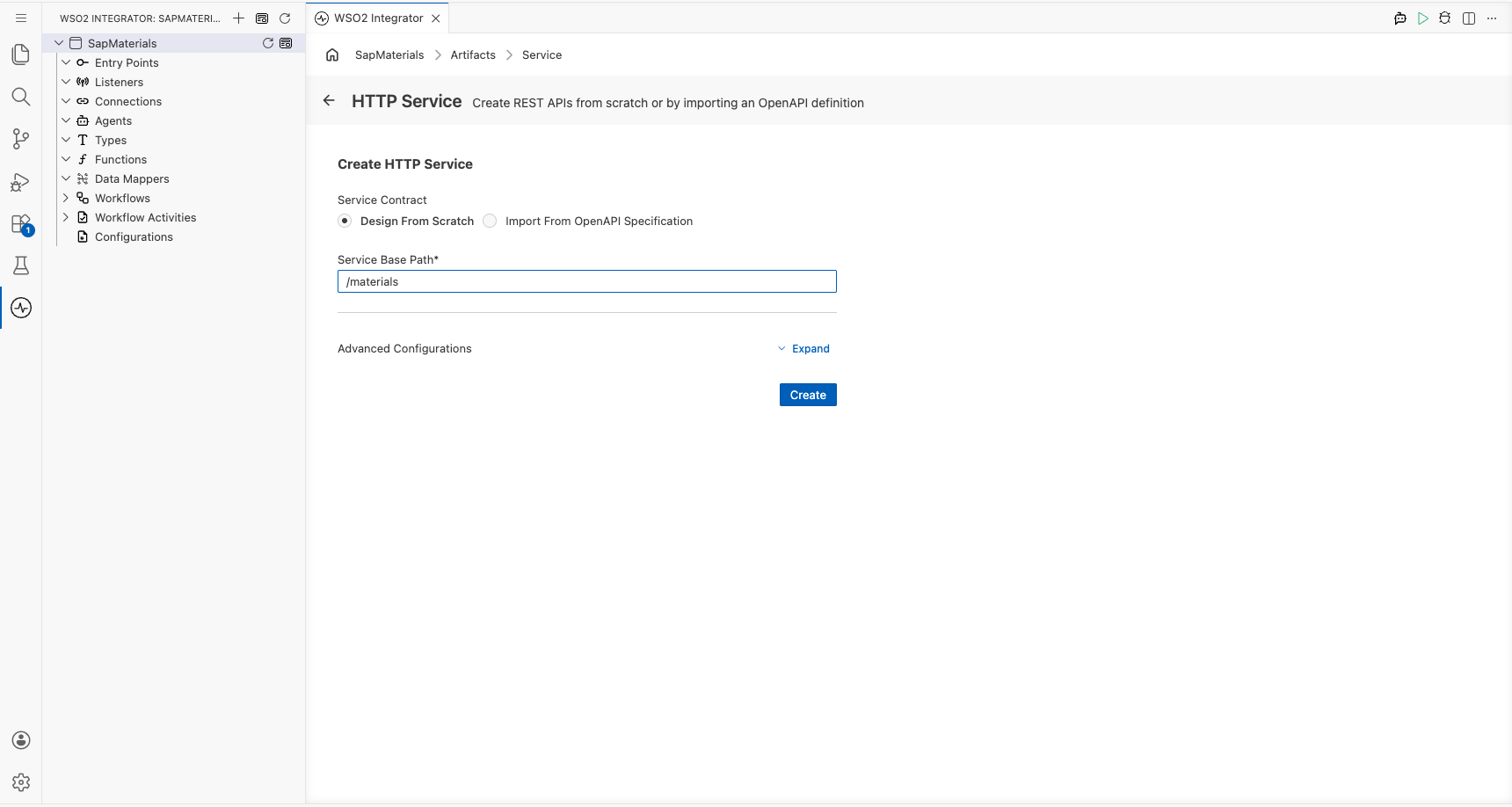
Step 2: Add the material resource
-
Select Add Resource, then GET.
-
Set Resource Path to
[string material]. The part in square brackets is a path parameter, so the material number arrives as thematerialvariable. -
Keep the default responses (
200withjson,500witherror) and select Save.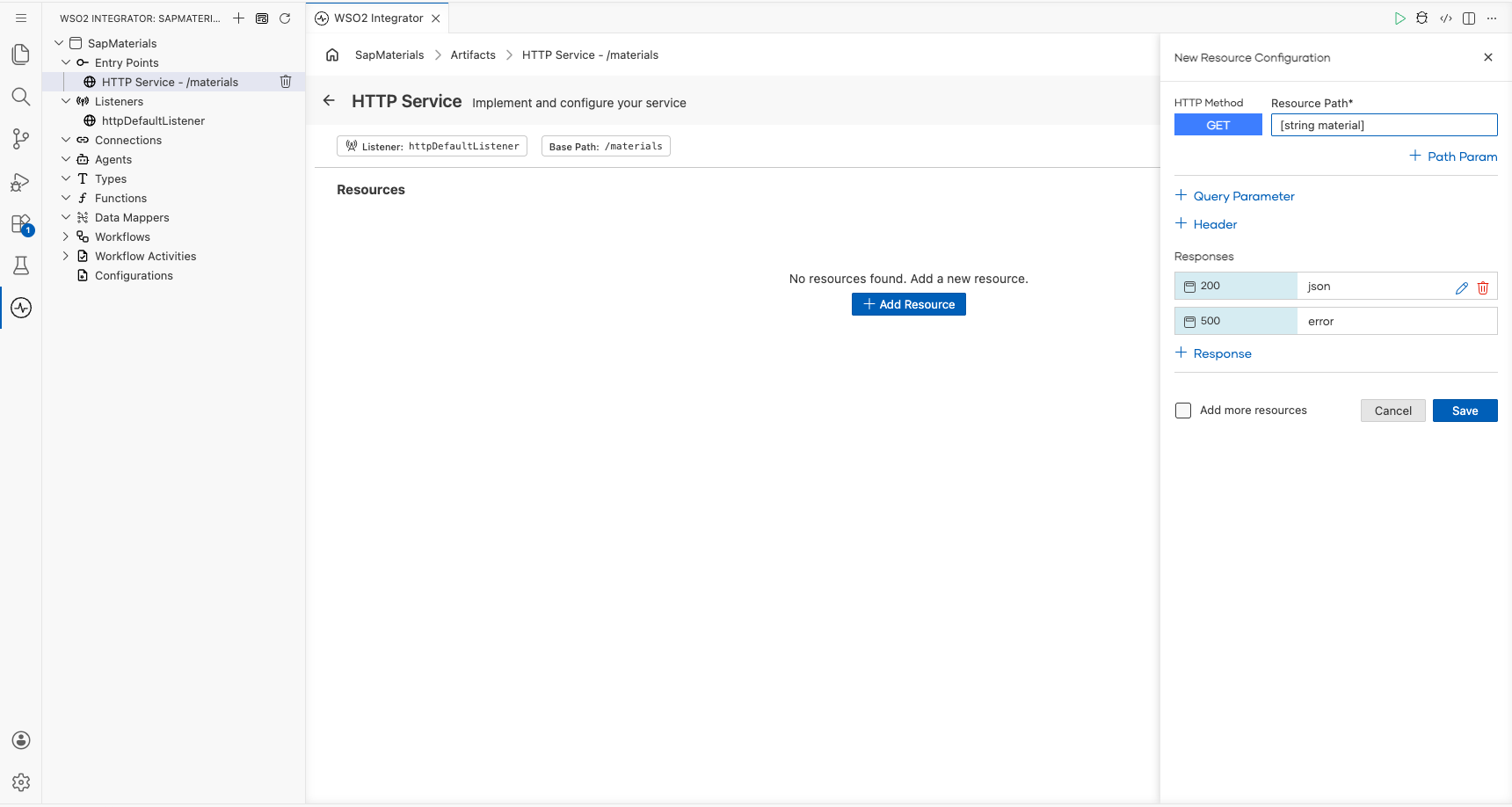
The resource opens in the flow designer, with Start, an empty step and the Error Handler.
Step 3: Connect to SAP
-
Select the + below Start, then Add Connection. Search for
jcoand select the SAP Jco connector (ballerinax/sap.jco).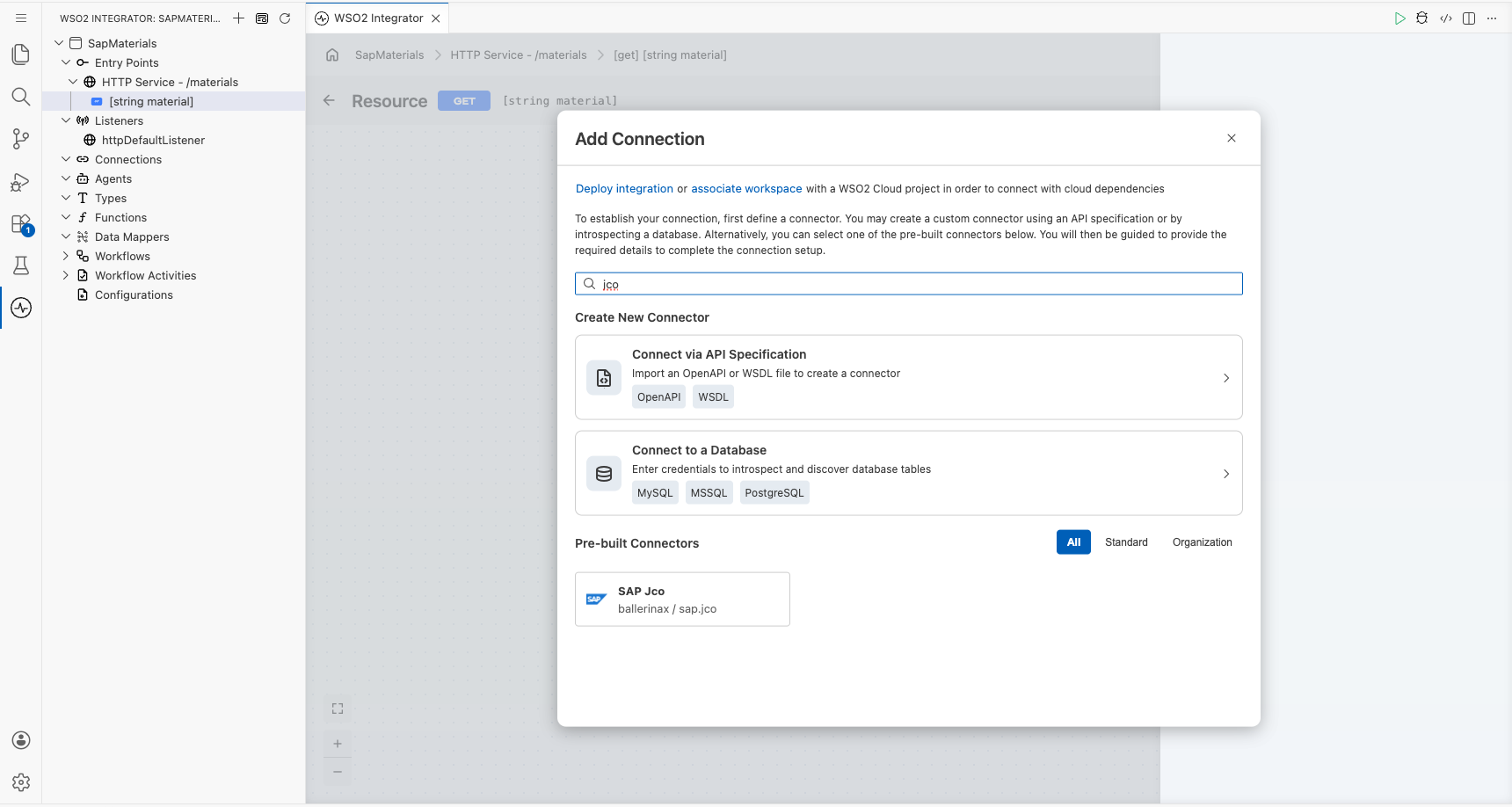
-
Create five
stringconfigurables, so the SAP logon details are supplied at runtime instead of stored in the flow: in a field's Expression editor helper pane, select Configurables, then New Configurable. Name themsapHost(the application server host),sapSystemNumber(the instance number, for example00),sapClient(the SAP client, for example100),sapUserandsapPassword. -
Switch Config to Expression and enter:
<jco:DestinationConfig>{ashost: sapHost, sysnr: sapSystemNumber, jcoClient: sapClient, user: sapUser, passwd: sapPassword}The connector accepts either a
jco:DestinationConfigrecord or a map of raw JCo properties (jco:AdvancedConfig). A record of strings matches both, so the<jco:DestinationConfig>type cast tells the connector which one you mean. -
Keep the connection name
jcoClientand select Save Connection.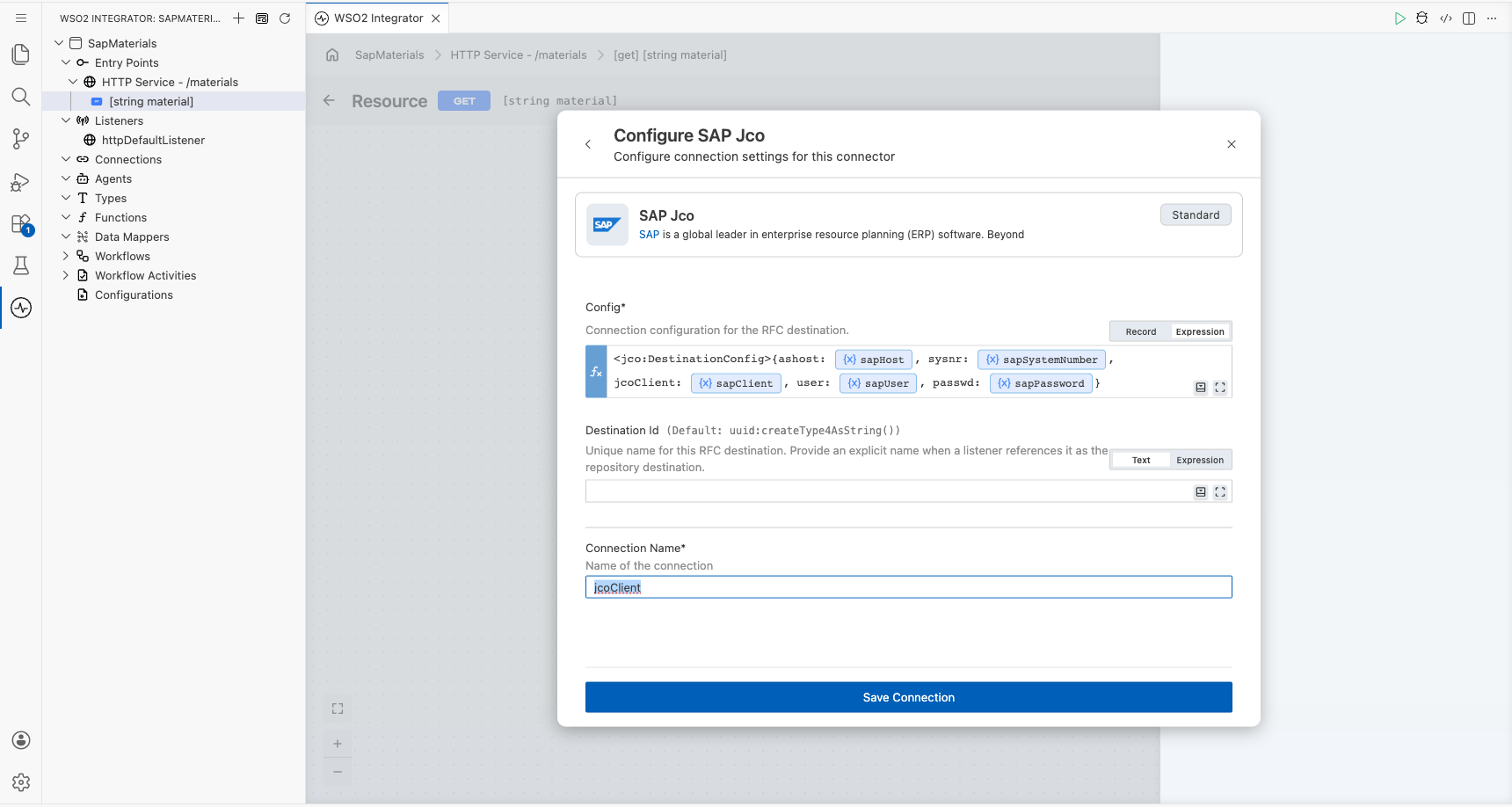
Step 4: Call the BAPI
BAPI_MATERIAL_GET_DETAIL takes a material number and returns the material's general data in the MATERIAL_GENERAL_DATA structure, plus a RETURN structure with any message.
-
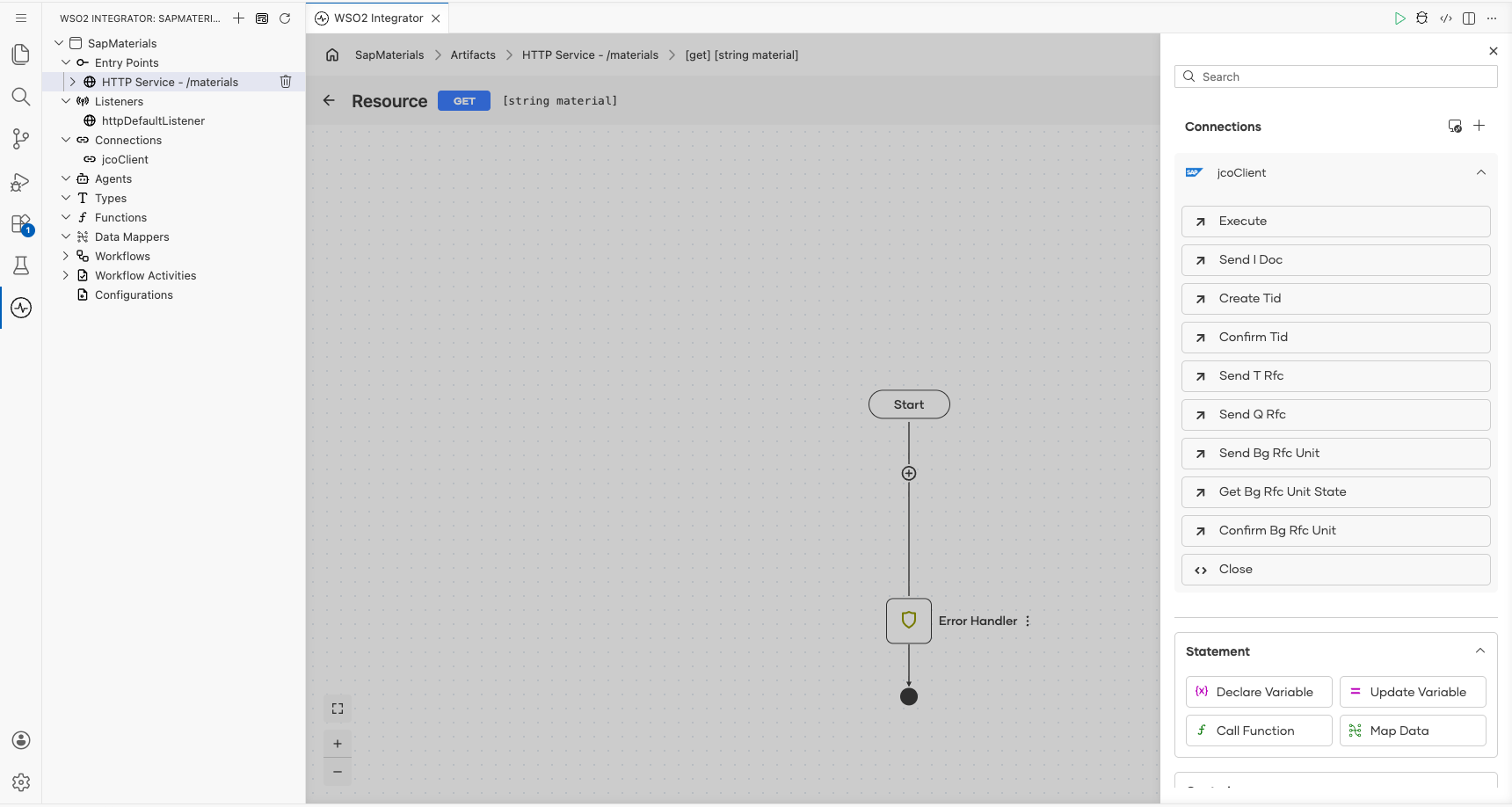
In the node panel, expand jcoClient under Connections and select Execute. Execute calls any RFC-enabled function module and returns its export and table parameters.
-
Set Function Name to
BAPI_MATERIAL_GET_DETAIL. -
Switch Parameters to Expression and enter the import parameters. SAP parameter names are not Ballerina identifiers, so write them as quoted keys:
{importParameters: {"MATERIAL": material}} -
Set Result to
materialDetailand Return Type tojco:RfcRecord, then select Save.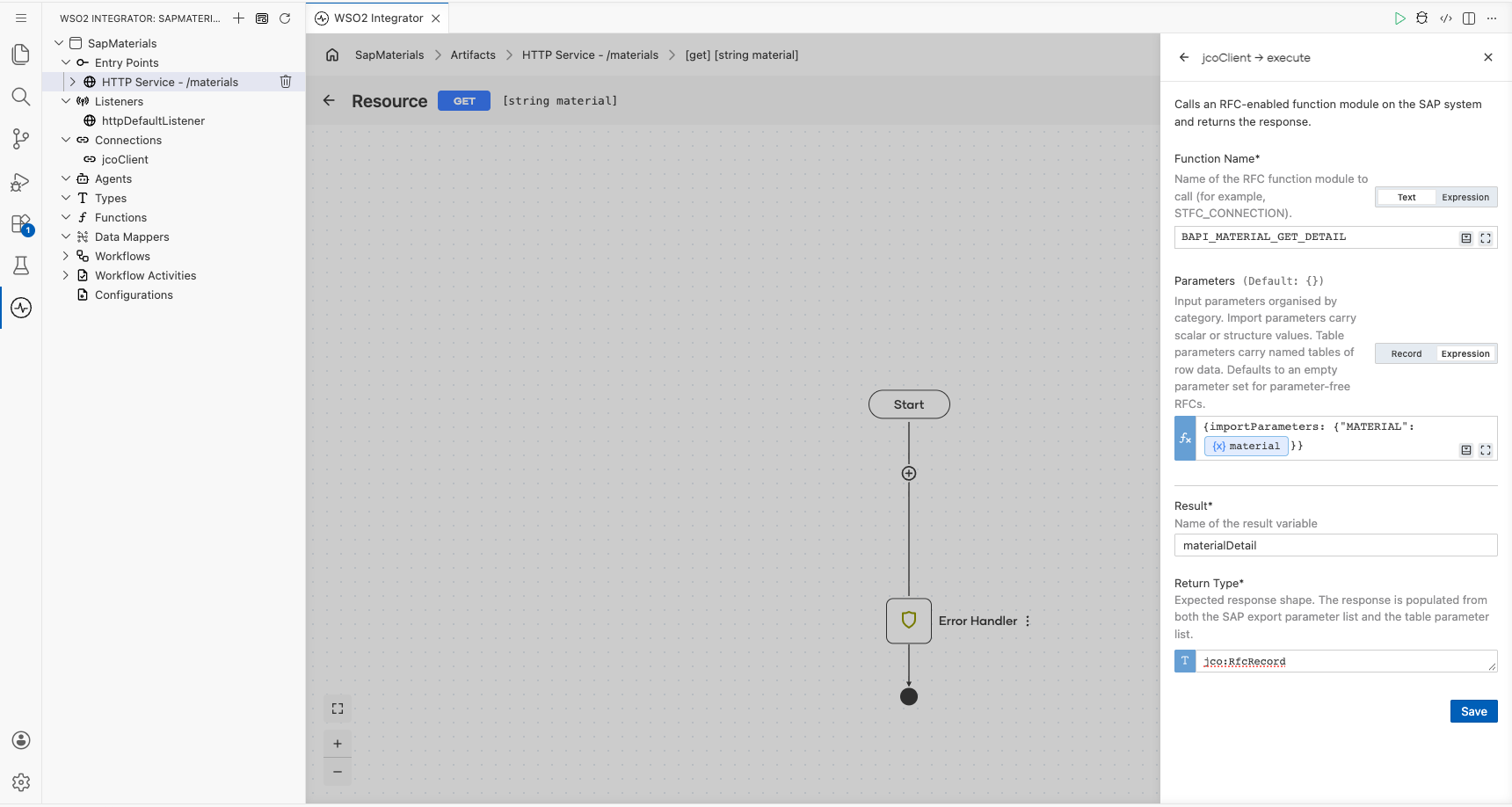
Step 5: Return the material
The result is a record keyed by the SAP parameter names. Structures, such as MATERIAL_GENERAL_DATA, are nested records keyed by SAP field names.
-
Select the + after the execute step, then Declare Variable. Name it
generalData, set Type tojco:RfcRecord, and enter:check materialDetail["MATERIAL_GENERAL_DATA"].ensureType()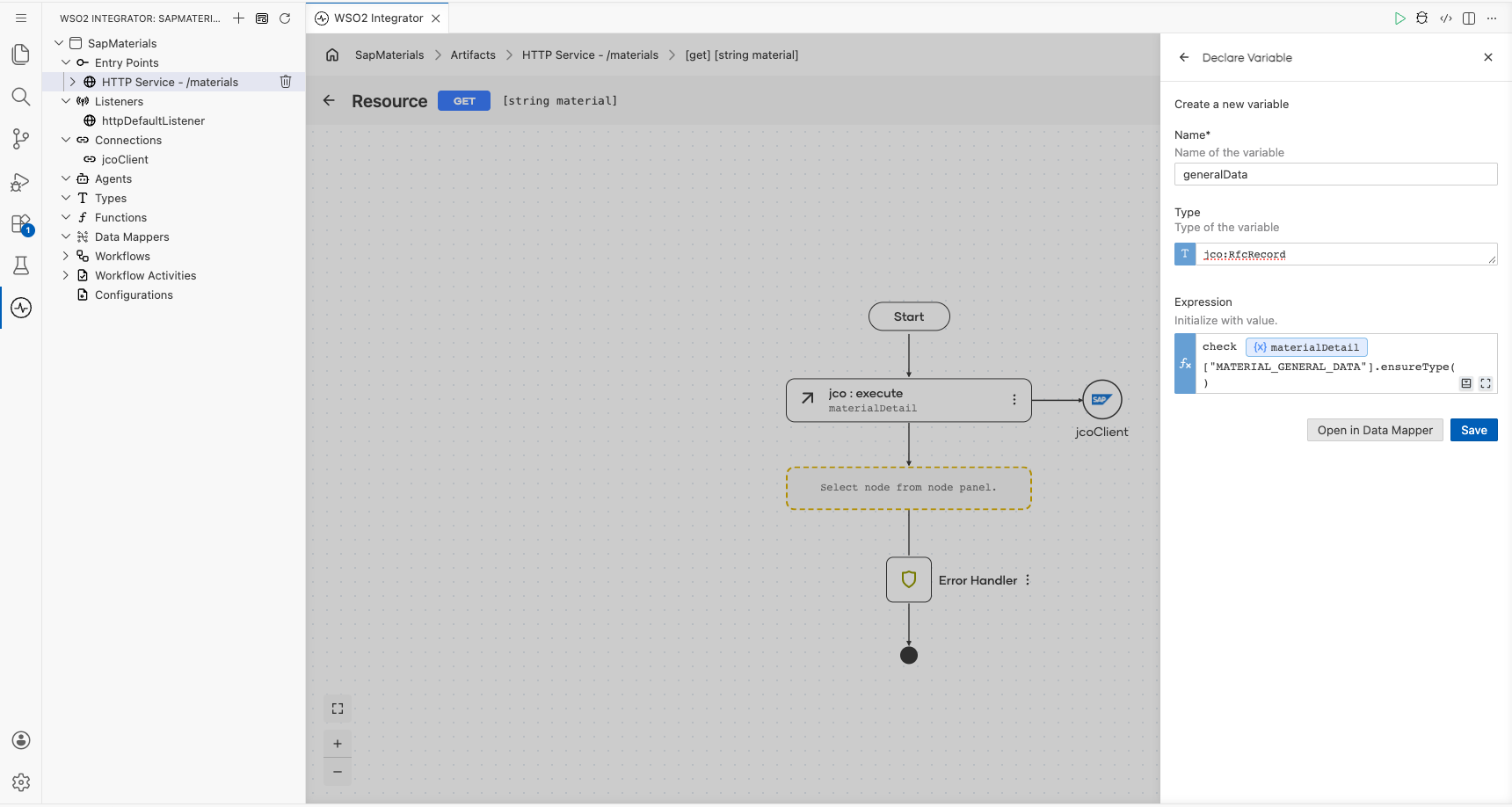
-
Add a Return step after it and enter:
{material: material, description: generalData["MATL_DESC"].toString(), materialType: generalData["MATL_TYPE"].toString(), materialGroup: generalData["MATL_GROUP"].toString(), baseUnit: generalData["BASE_UOM"].toString()}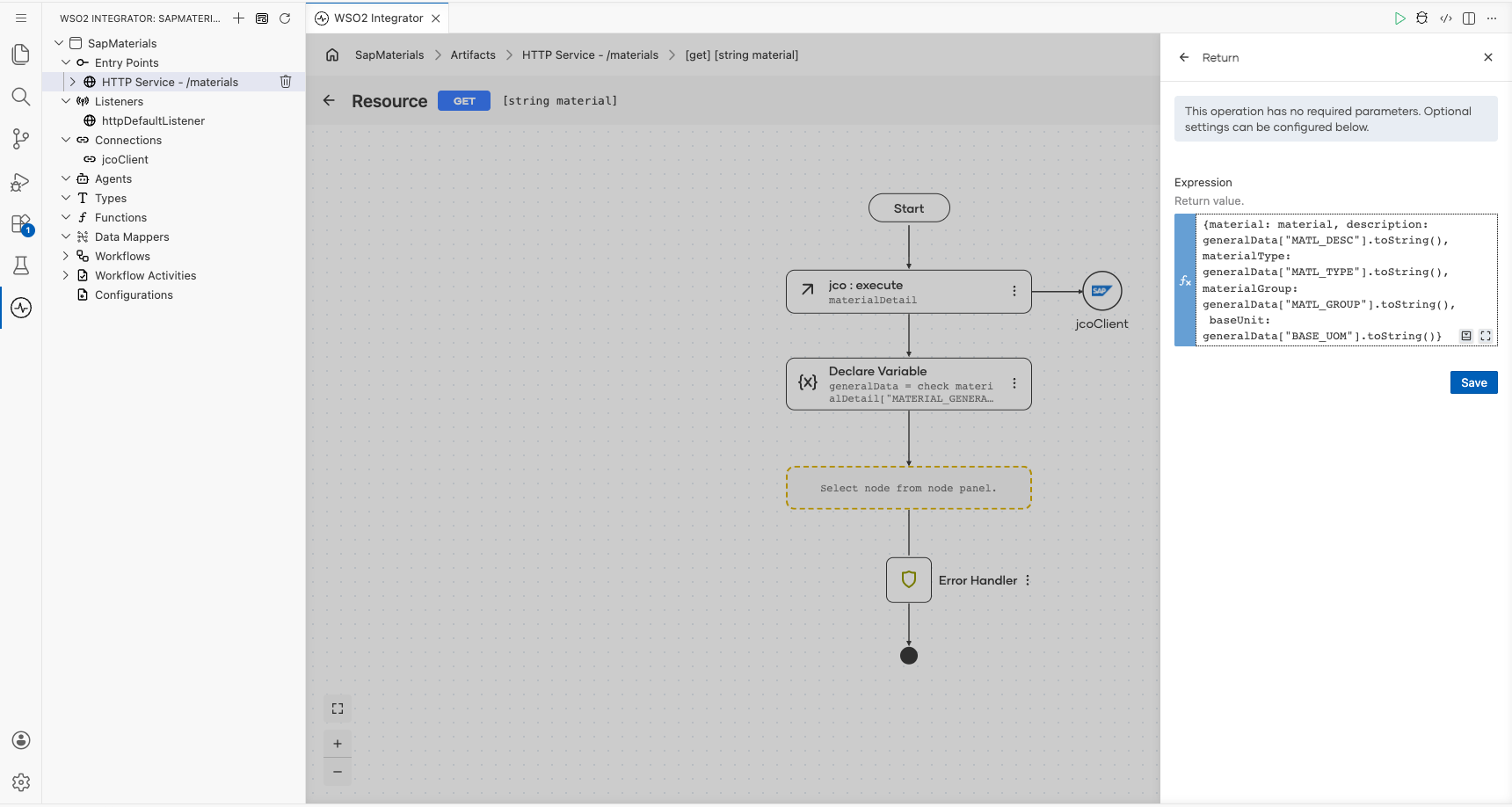
-
Select Save. The completed resource calls the BAPI, extracts the general data and returns it.
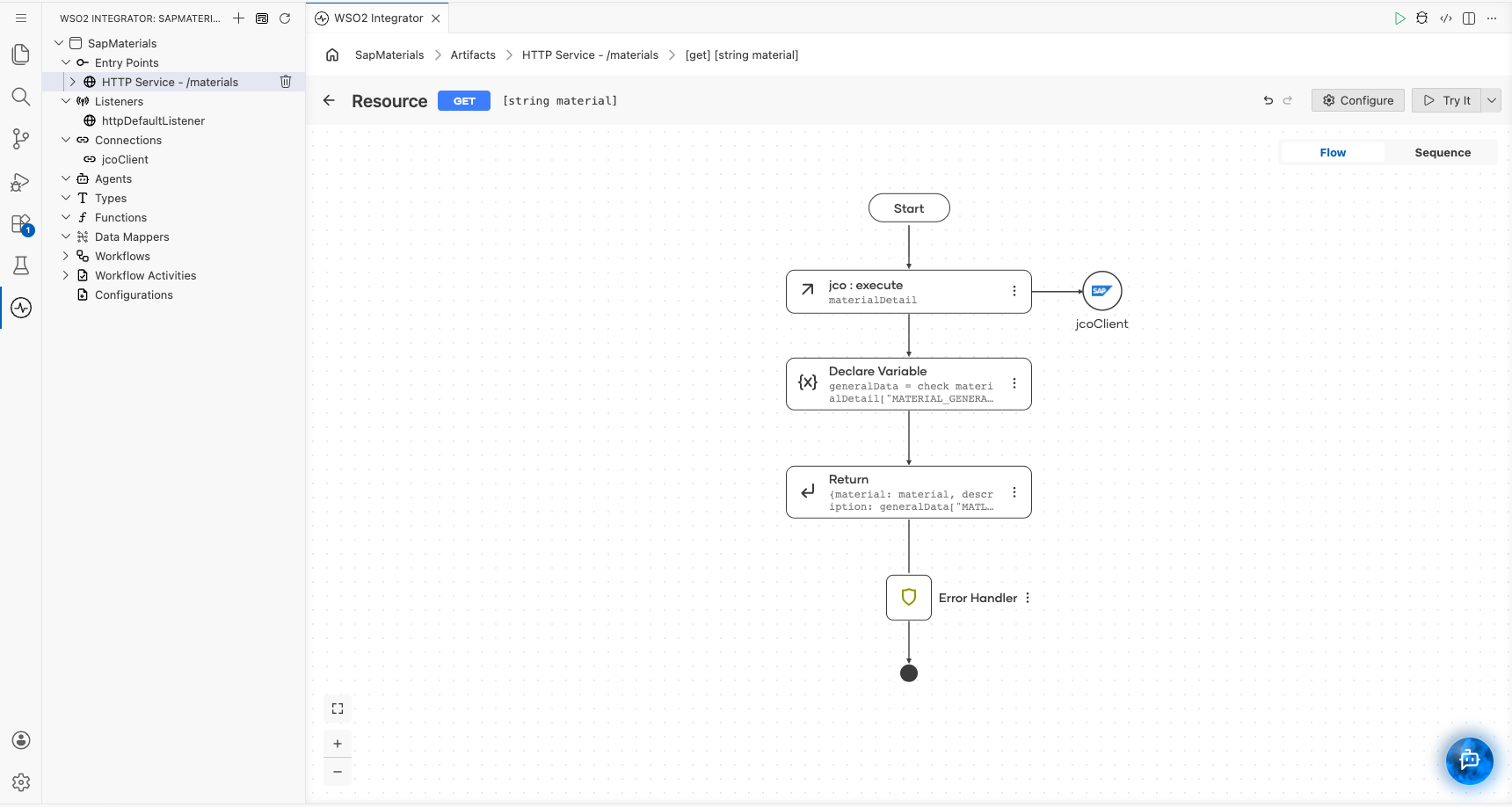
If SAP cannot be reached or rejects the logon, execute returns an error, the Error Handler returns it, and the client receives 500 Internal Server Error.
Step 6: Add the IDoc listener
-
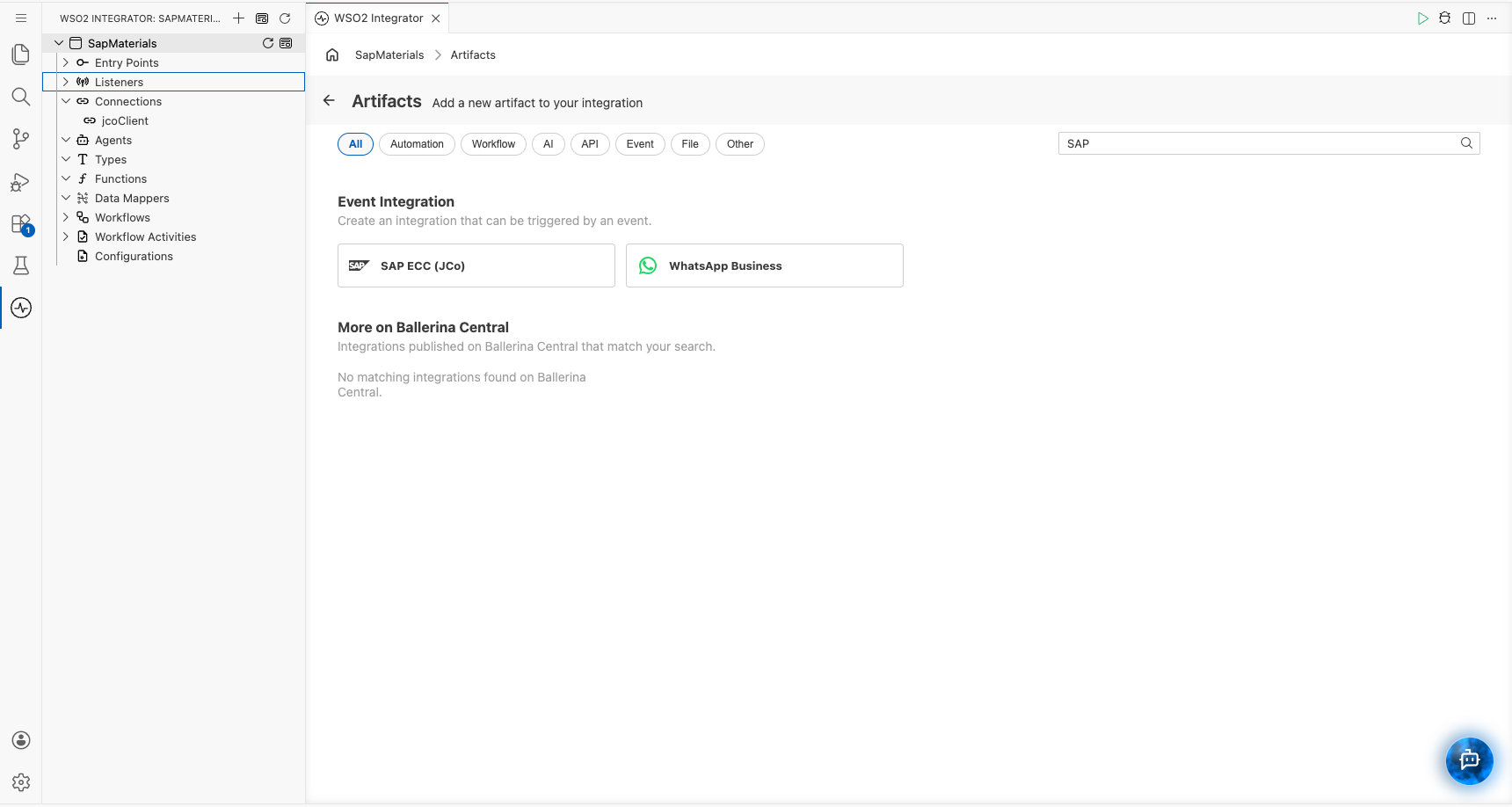
Go back to the integration overview, select Add Artifact, and select SAP ECC (JCo) under Event Integration. The same event integration works for SAP S/4HANA.
-
Keep Create New Listener and name it
sapListener. Keep Server Configuration, and fill in where the listener registers. Create two morestringconfigurables,sapGatewayServiceandsapProgramId, and switch each field to Expression:Field Value Gateway Host sapHost(the gateway usually runs on the application server)Gateway Service sapGatewayService(for examplesapgw00, or the port3300)Program ID sapProgramId(the program ID from the RFC destination,WSO2_INTEGRATOR)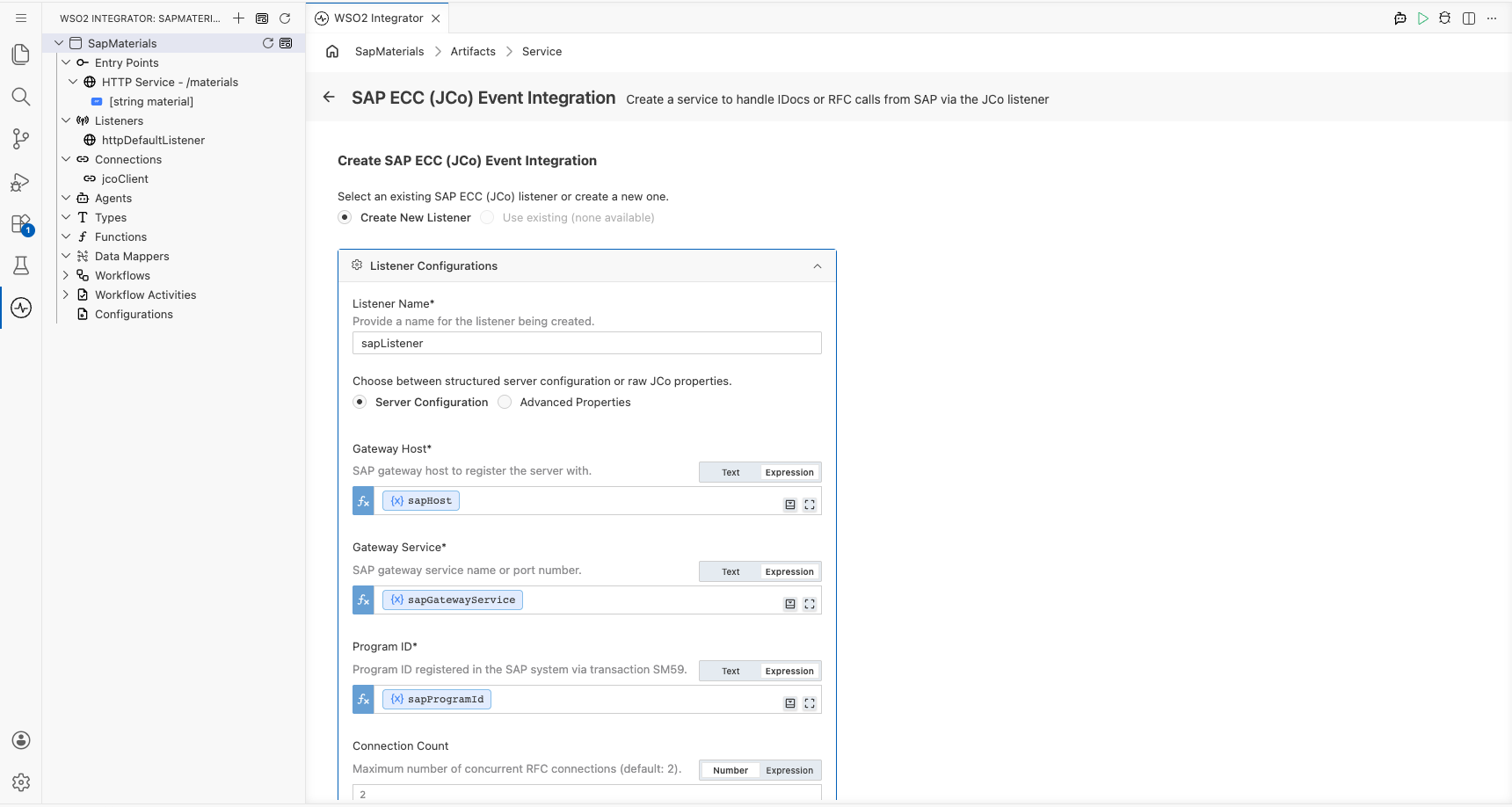
-
Under the repository destination, keep Destination Configurations and bind Application Server Host, System Number, Client Number, User and Password to
sapHost,sapSystemNumber,sapClient,sapUserandsapPassword. The listener logs on with these details to read the IDoc type definitions it needs to turn an incoming IDoc into XML.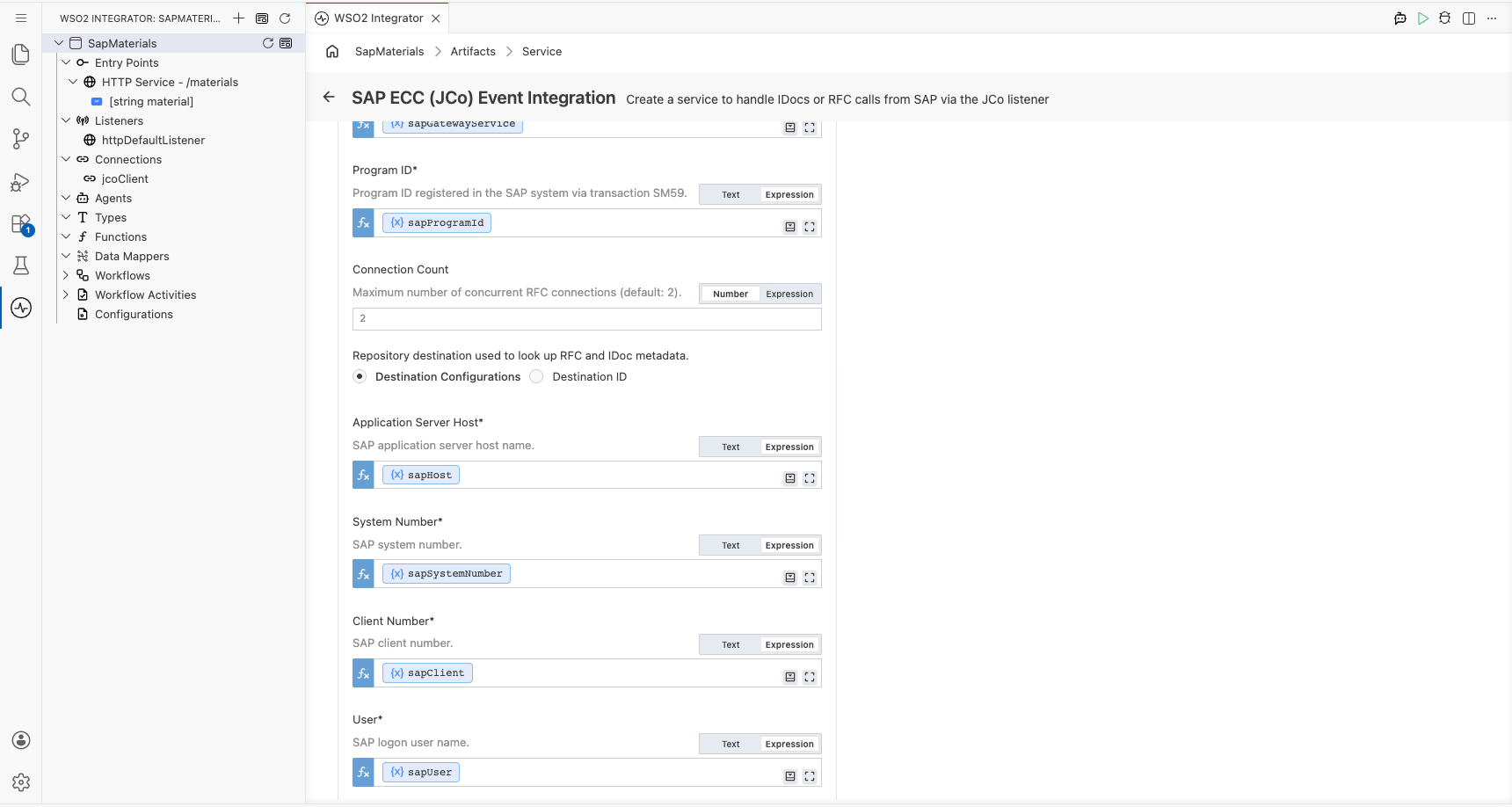
-
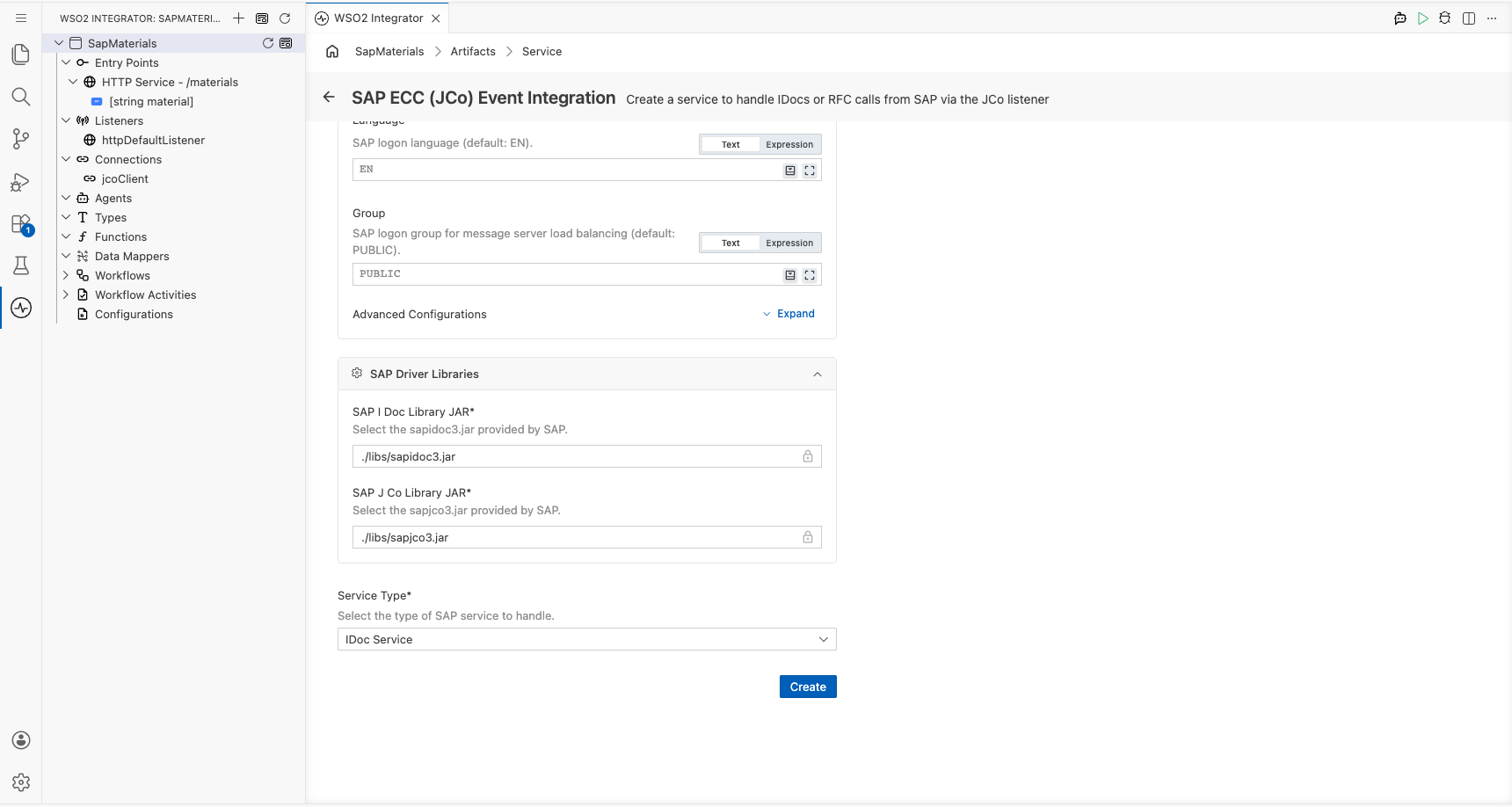
Under SAP Driver Libraries, select
sapidoc3.jarandsapjco3.jarwith Select File. WSO2 Integrator copies them into the integration'slibsfolder and adds them toBallerina.tomlwithprovidedscope, because SAP does not allow redistributing them. Copy the native JCo library into the samelibsfolder. -
Keep Service Type as IDoc Service and select Create.
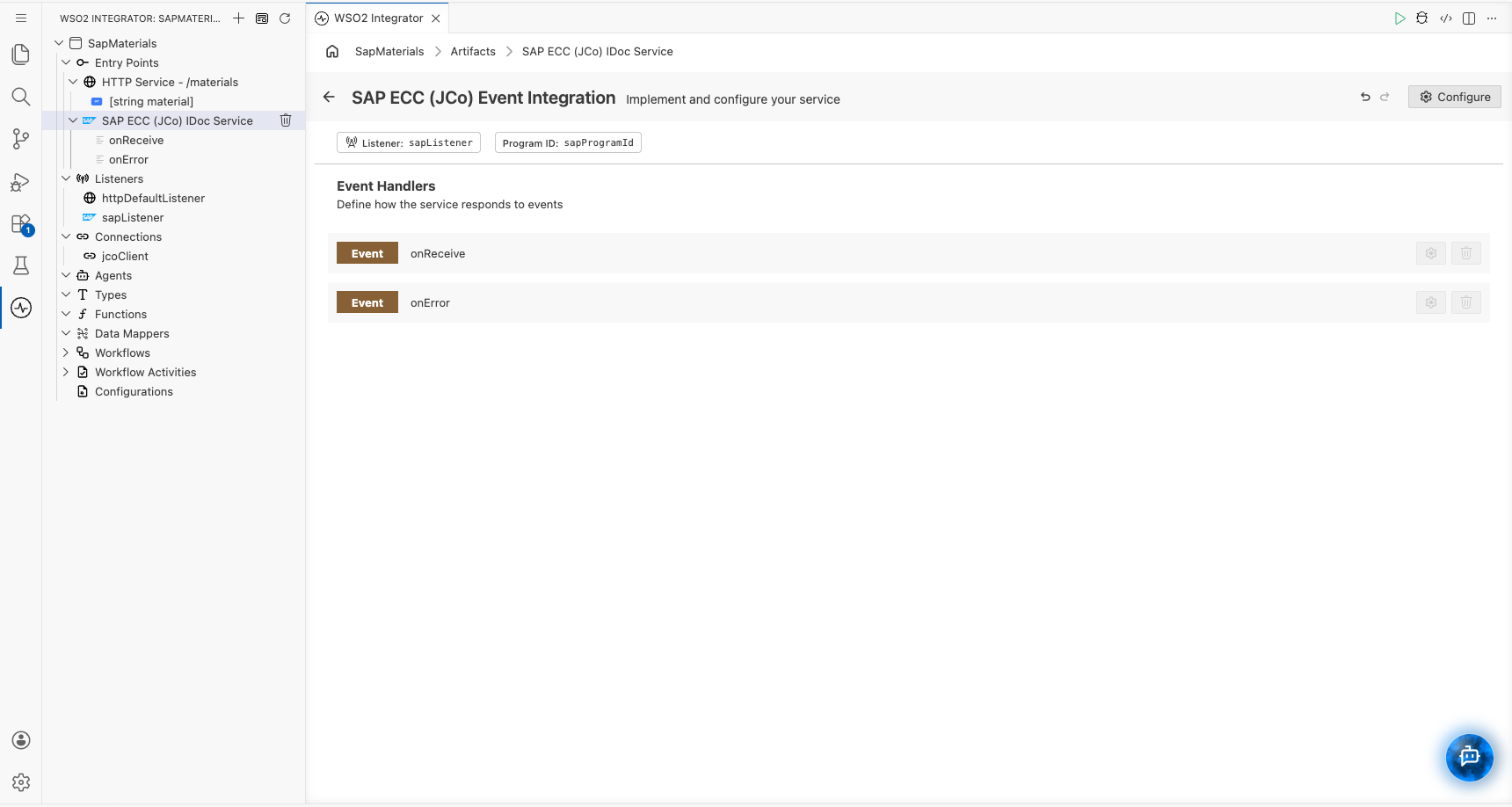
SAP ECC (JCo) IDoc Service appears under Entry Points in the project tree, with two event handlers: onReceive for incoming IDocs and onError for listener errors.
Step 7: Handle incoming IDocs
onReceive gets each IDoc as XML: the control record in EDI_DC40, then one element per segment. A MATMAS05 IDoc keeps the material in E1MARAM and its descriptions in E1MAKTM. In this step you turn the XML into typed records, map them to a flat MaterialUpdate record with the Data Mapper, and log the result. The listener confirms the IDoc to SAP after onReceive returns.
Create the IDoc types
-
In the project tree, hover over Types and select the + next to it. In the New Type panel, open the Import tab and set Format to XML.
-
Paste a sample
MATMAS05IDoc and select Import. This sample has the fields that the guide uses:<MATMAS05>
<IDOC BEGIN="1">
<EDI_DC40 SEGMENT="1">
<DOCNUM>0000000000058002</DOCNUM>
<IDOCTYP>MATMAS05</IDOCTYP>
<MESTYP>MATMAS</MESTYP>
<SNDPRN>S4HCLNT100</SNDPRN>
</EDI_DC40>
<E1MARAM SEGMENT="1">
<MATNR>FG233</MATNR>
<MTART>FERT</MTART>
<MATKL>L004</MATKL>
<MEINS>ST</MEINS>
<NTGEW>9.000</NTGEW>
<GEWEI>KG</GEWEI>
<E1MAKTM SEGMENT="1">
<SPRAS_ISO>EN</SPRAS_ISO>
<MAKTX>FERT 233, PD, Repetitive Manuf.</MAKTX>
</E1MAKTM>
</E1MARAM>
</IDOC>
</MATMAS05>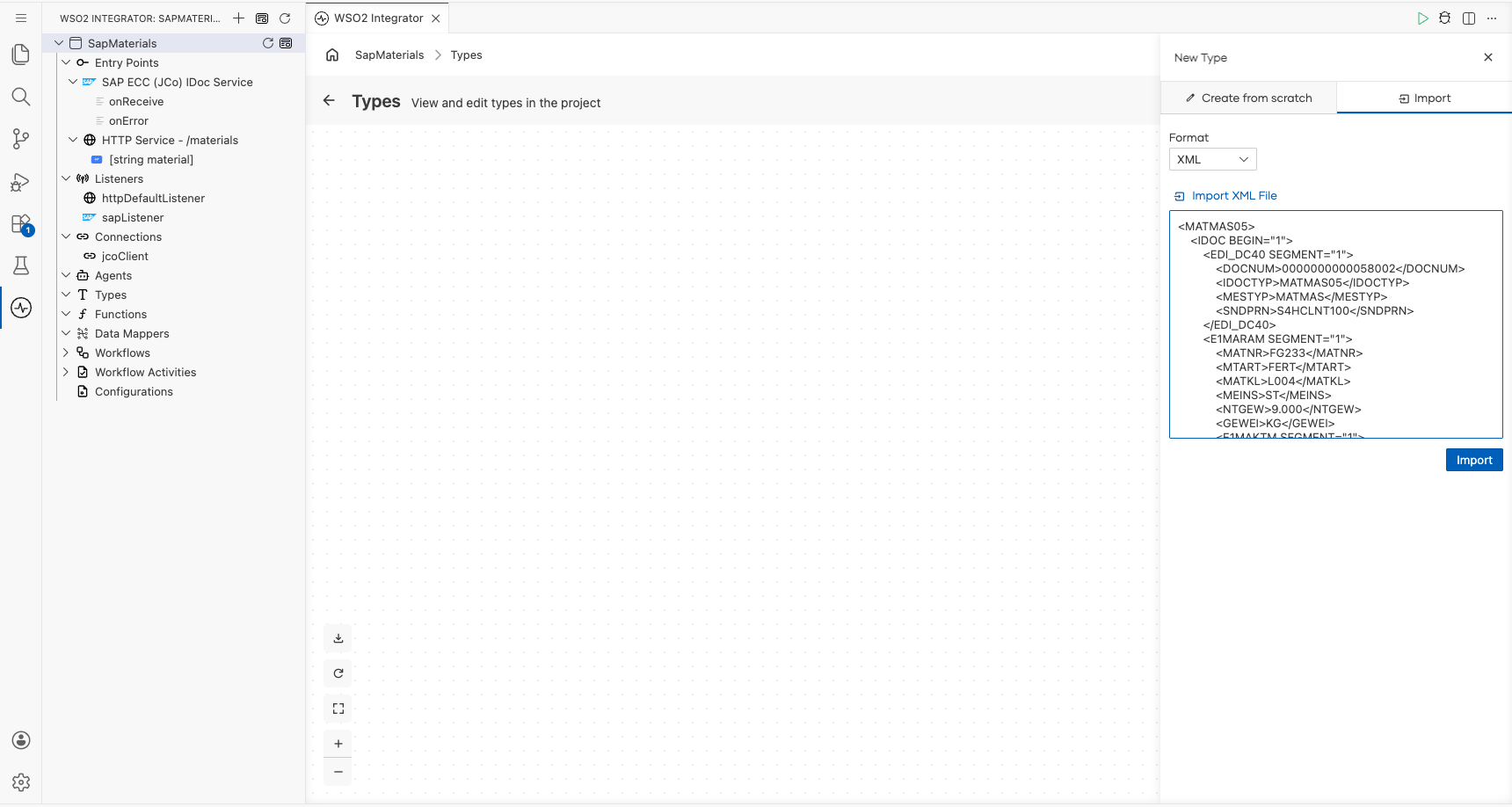
WSO2 Integrator creates one record type per element:
MATMAS05,IDOC,EDI_DC40,E1MARAMandE1MAKTM. -
Adjust the types the import inferred from the sample values, so that every real IDoc parses. Open each type from the Types diagram, change the field, and select Save:
EDI_DC40: setDOCNUMtostring. As anint, the IDoc number would lose its leading zeros.E1MARAM: setNTGEWtostring, because SAP pads numeric IDoc fields with spaces, and setE1MAKTMtoE1MAKTM[], because a material has one description segment per language.
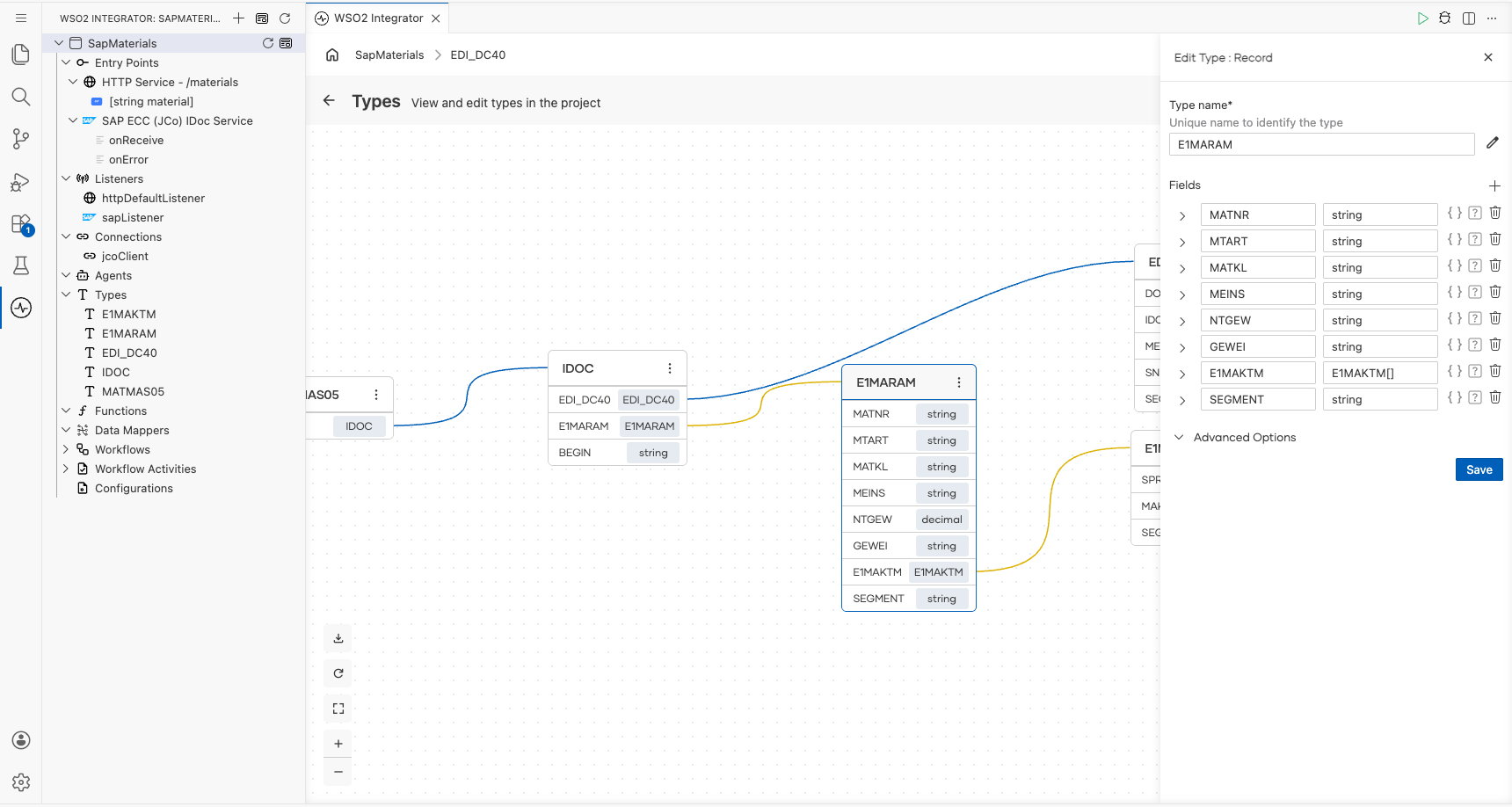
-
In the Types view, select Add Type and, on the Create from scratch tab, create the output record
MaterialUpdatewith eightstringfields:idocNumber,material,description,materialType,materialGroup,baseUnit,netWeightandweightUnit.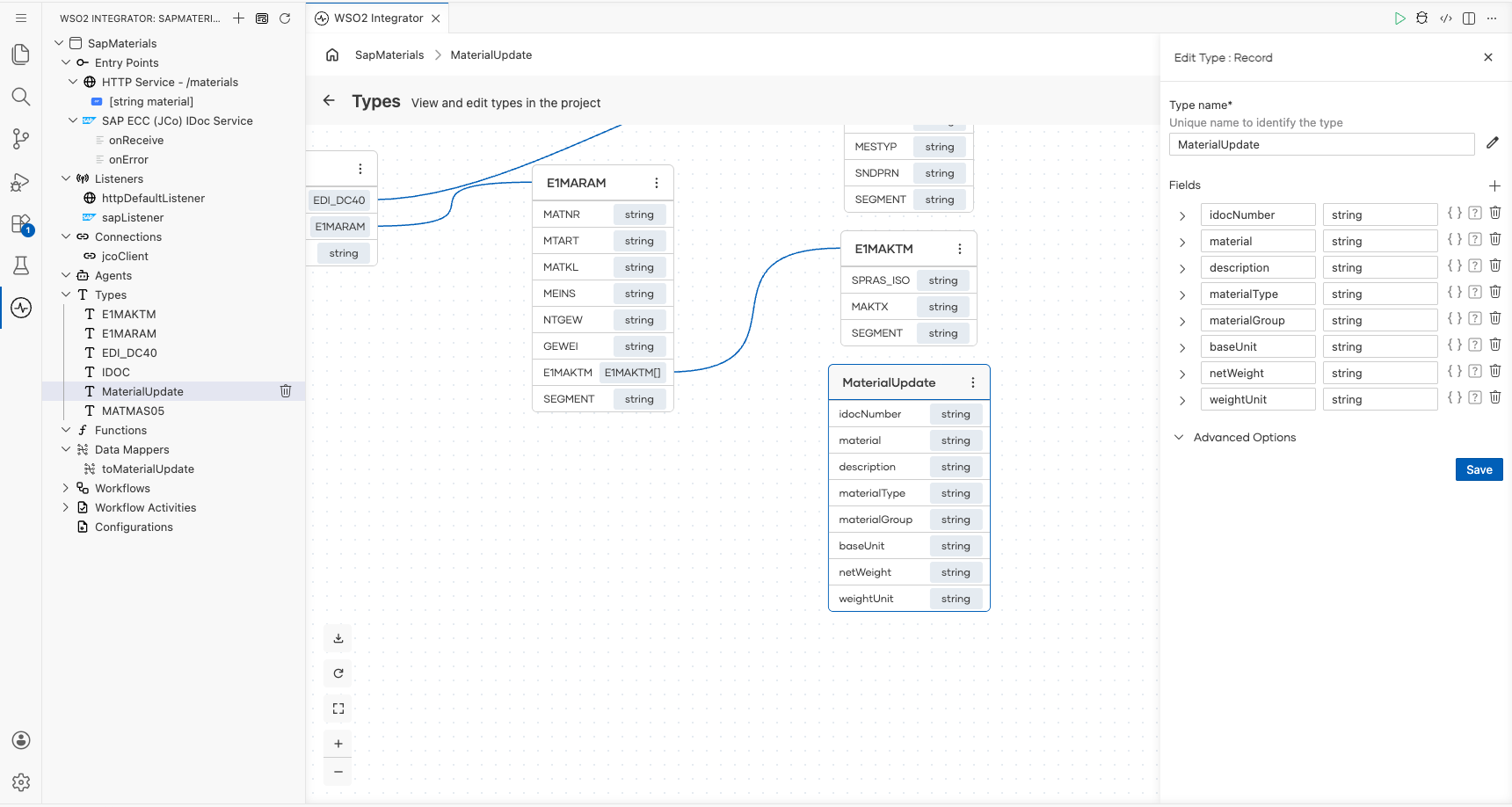
Map the IDoc
-
Select onReceive. Select the + below Start, then Call Function, search for
parseAsType, and select it underdata.xmldata. Set V toiDoc, Result tomatmas, and T toMATMAS05, and select Save. The function reads the XML into aMATMAS05record and ignores the IDoc fields that the type does not declare.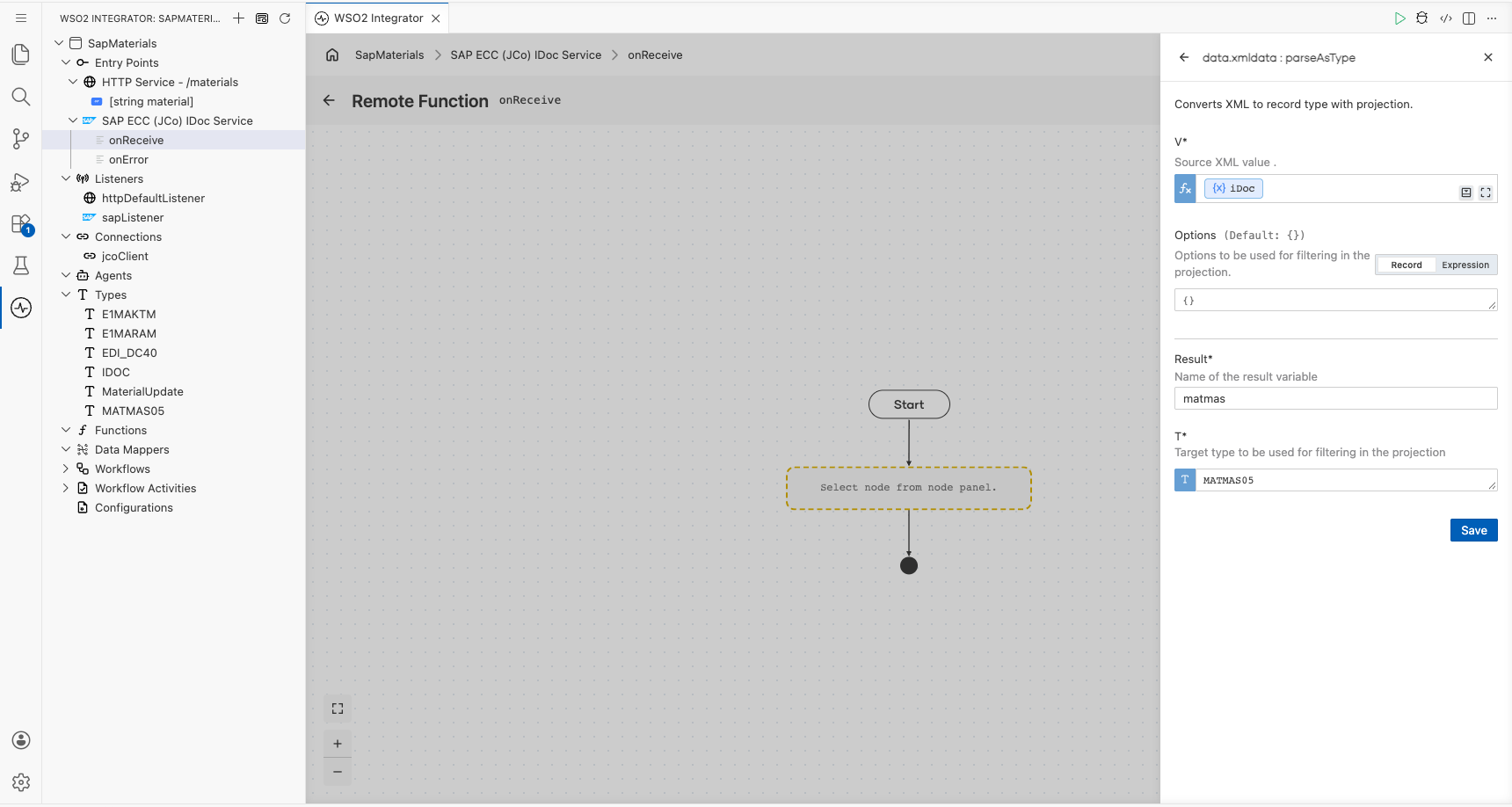
-
Select the + below the new step, then Map Data, and select Create Data Mapper. Name it
toMaterialUpdate. Under Inputs, select Add Argument, open the helper pane, pickmatmasunder Variables so the input gets theMATMAS05type, and select Add. Set Output toMaterialUpdateand Result tomaterialUpdate, and select Open in Data Mapper.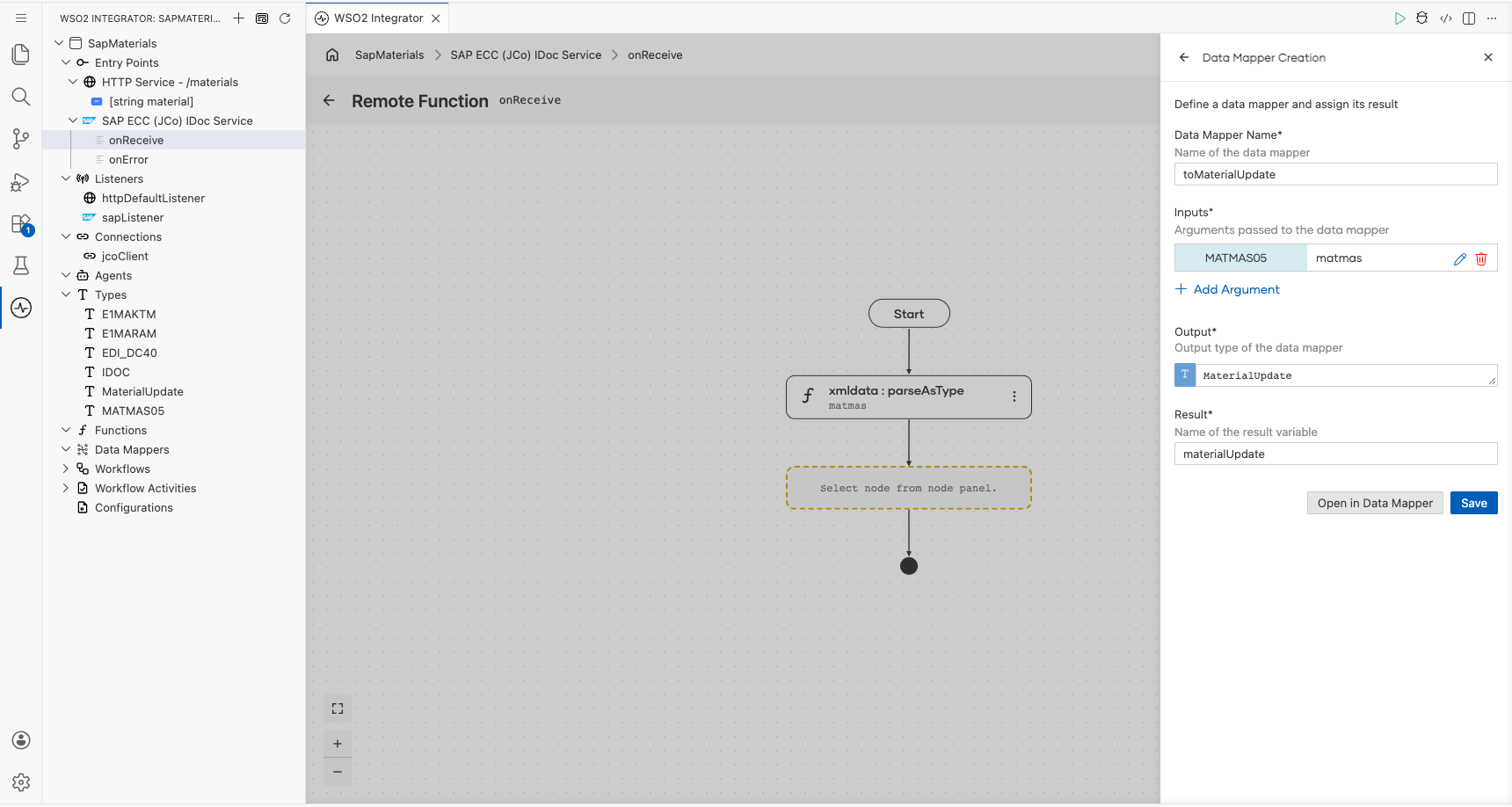
-
In the Data Mapper, expand
matmasand draw a line from each source field to its target field:Source field Target field IDOC.EDI_DC40.DOCNUMidocNumberIDOC.E1MARAM.MATNRmaterialIDOC.E1MARAM.E1MAKTMdescriptionIDOC.E1MARAM.MTARTmaterialTypeIDOC.E1MARAM.MATKLmaterialGroupIDOC.E1MARAM.MEINSbaseUnitIDOC.E1MARAM.NTGEWnetWeightIDOC.E1MARAM.GEWEIweightUnitWhen you link the
E1MAKTMarray to thedescriptionstring, select Extract Single Element from Array. This adds an[0]index node that picks the first description segment (see Array to single value). Selectdescriptionand, in the expression bar, set its expression tomatmas.IDOC.E1MARAM.E1MAKTM[0].MAKTX. Then selectnetWeightand set its expression tomatmas.IDOC.E1MARAM.NTGEW.trim()to drop the padding.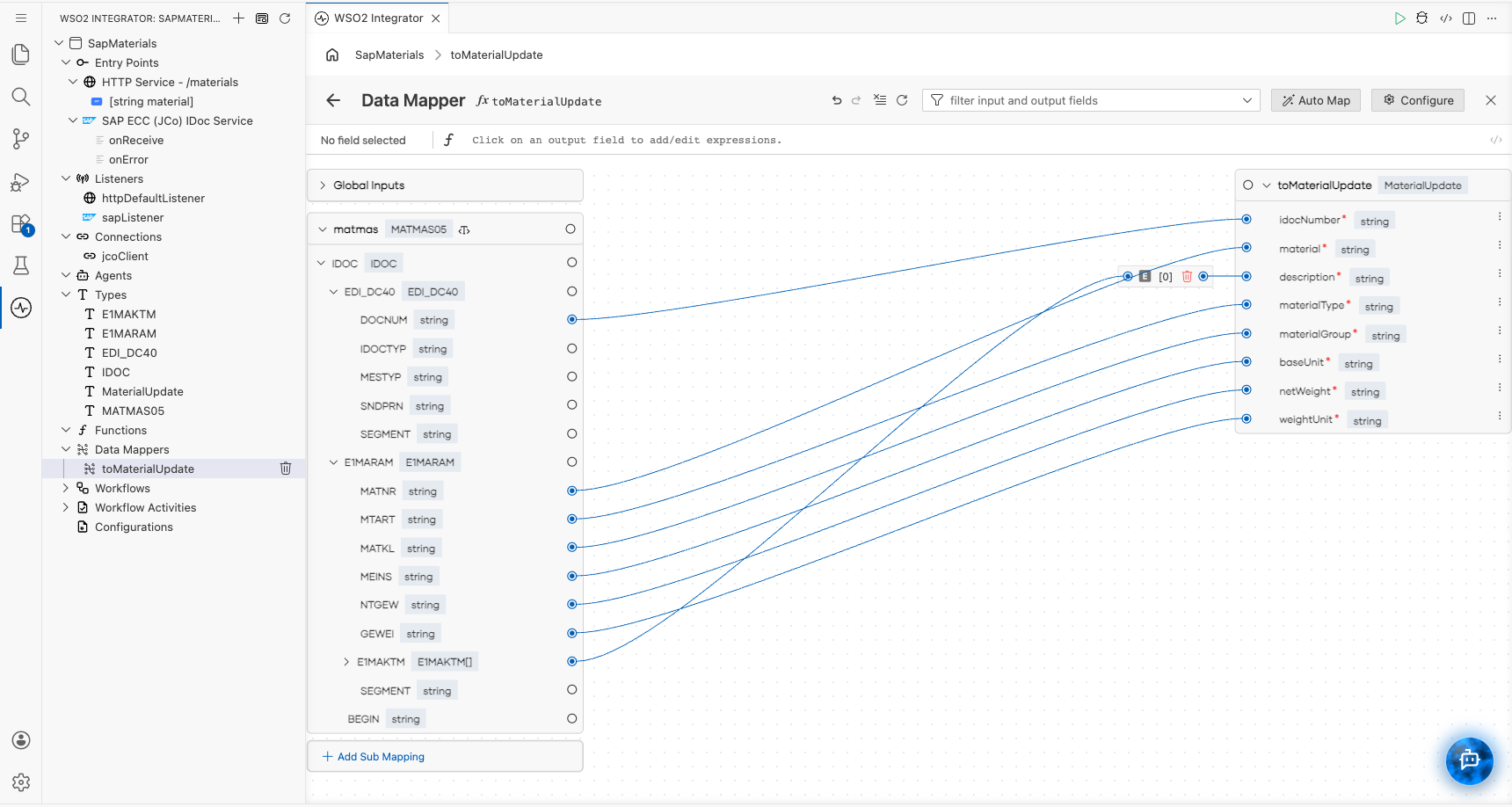
-
Go back to onReceive. Below Map Data, add a Log Info step, switch Msg to Expression, and enter:
string `IDoc ${materialUpdate.idocNumber} mapped: ${materialUpdate.toJsonString()}`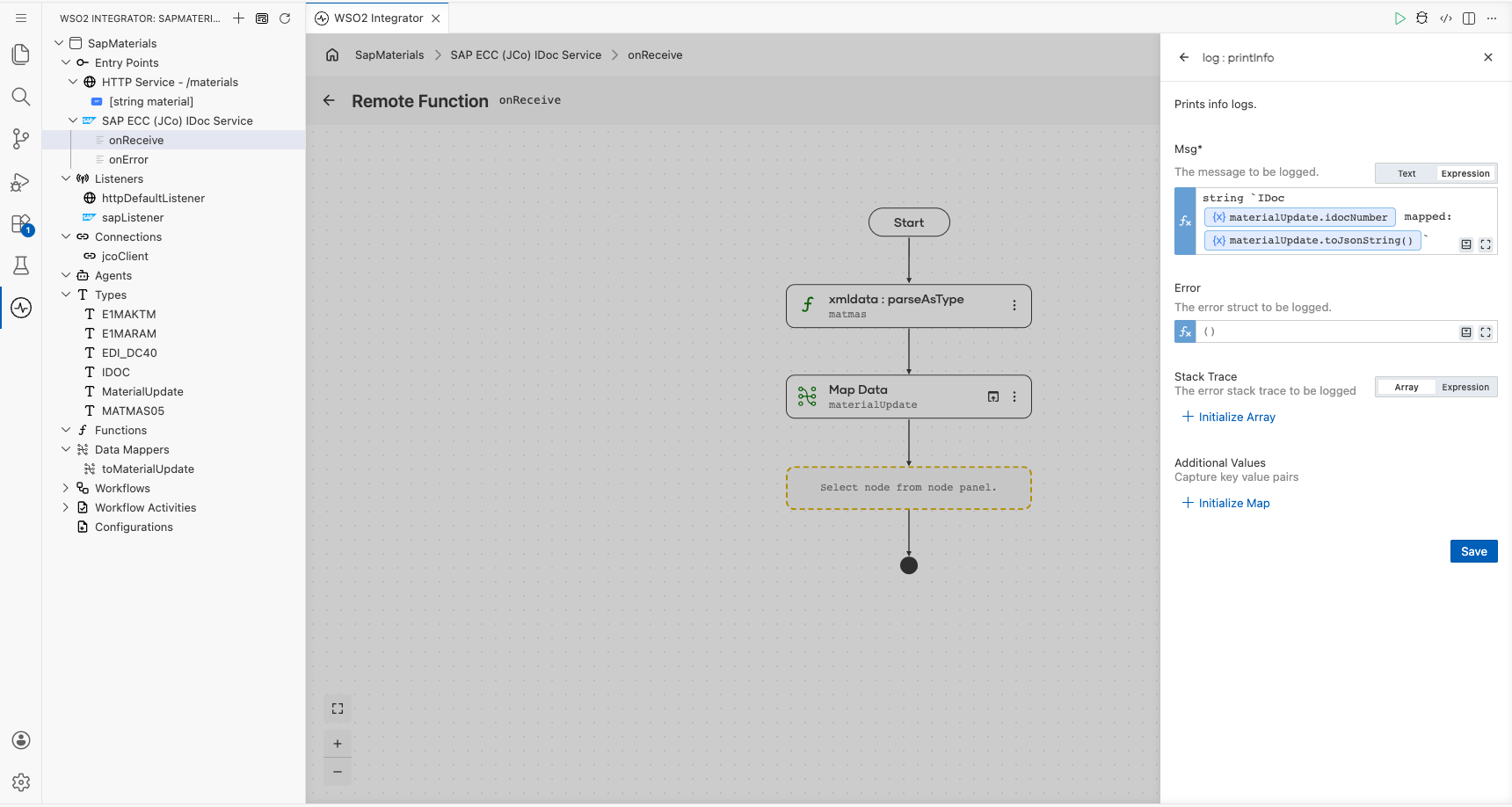
-
Select Save. In a real integration, you would send
materialUpdateto the target system here instead of logging it. IfparseAsTypefails,onReceivereturns the error.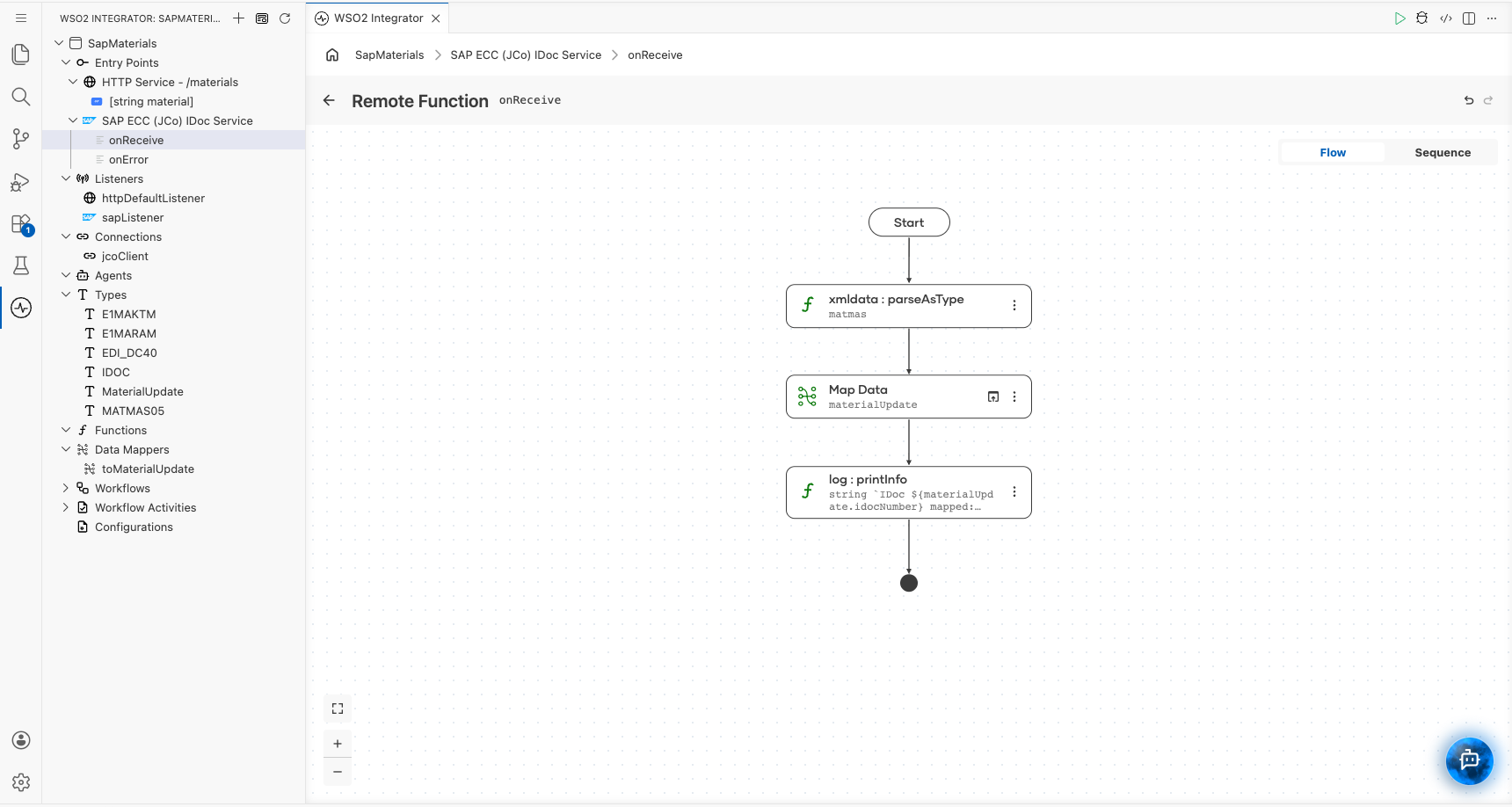
Step 8: Log listener errors
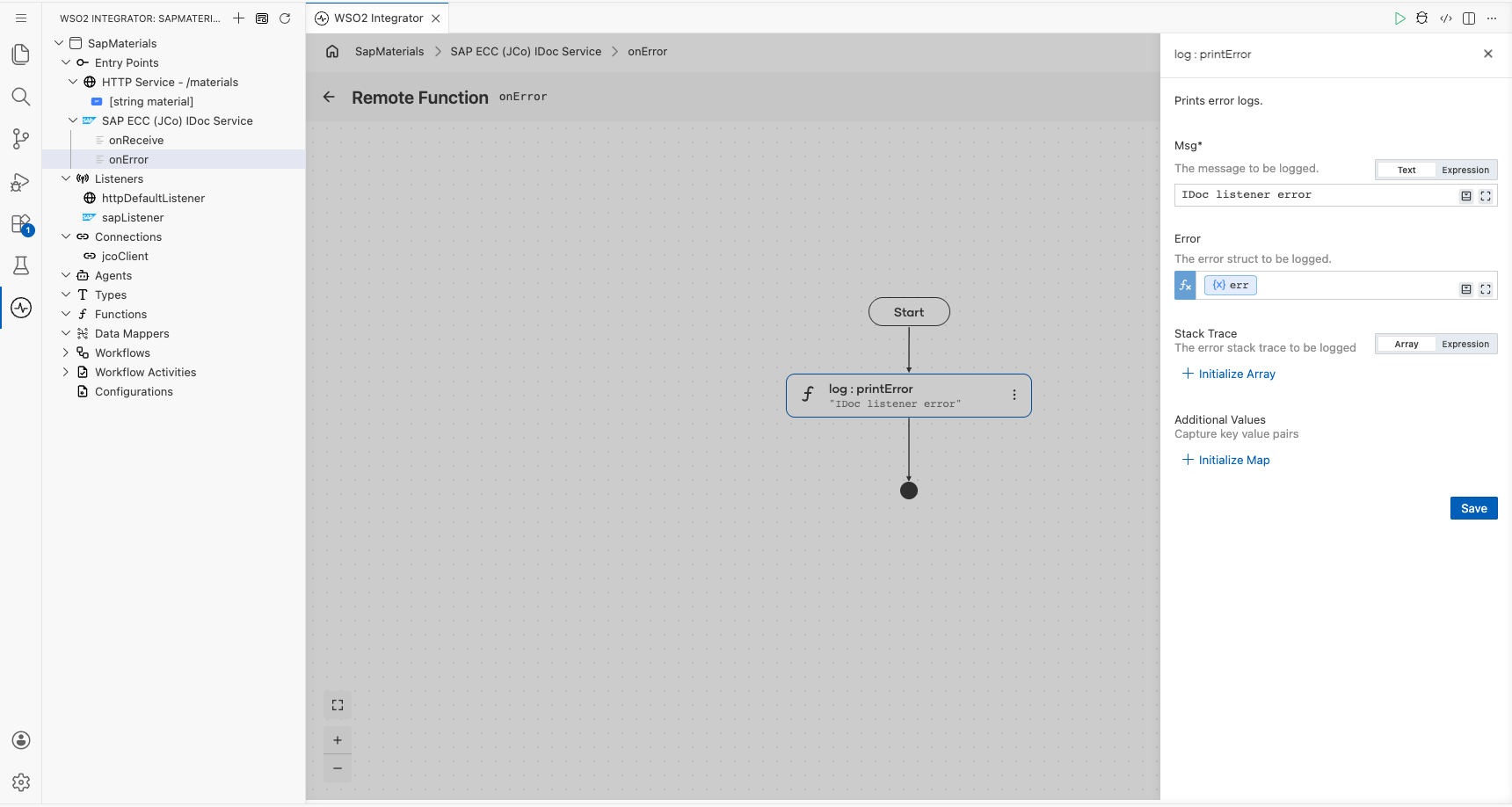
Select onError, add a Log Error step, set Msg to IDoc listener error and Error to err, and select Save. The listener calls onError when it cannot register at the gateway or cannot turn an incoming IDoc into XML.
// config.bal
configurable string sapHost = ?;
configurable string sapSystemNumber = ?;
configurable string sapClient = ?;
configurable string sapUser = ?;
configurable string sapPassword = ?;
configurable string sapGatewayService = ?;
configurable string sapProgramId = ?;
// connections.bal
import ballerinax/sap.jco;

final jco:Client jcoClient = check new (<jco:DestinationConfig>{ashost: sapHost, sysnr: sapSystemNumber, jcoClient: sapClient, user: sapUser, passwd: sapPassword});
// types.bal
import ballerina/data.xmldata;

type EDI_DC40 record {
    string DOCNUM;
    string IDOCTYP;
    string MESTYP;
    string SNDPRN;
    @xmldata:Attribute
    string SEGMENT;
};

type E1MAKTM record {
    string SPRAS_ISO;
    string MAKTX;
    @xmldata:Attribute
    string SEGMENT;
};

type E1MARAM record {
    string MATNR;
    string MTART;
    string MATKL;
    string MEINS;
    string NTGEW;
    string GEWEI;
    E1MAKTM[] E1MAKTM;
    @xmldata:Attribute
    string SEGMENT;
};

type IDOC record {
    EDI_DC40 EDI_DC40;
    E1MARAM E1MARAM;
    @xmldata:Attribute
    string BEGIN;
};

type MATMAS05 record {
    IDOC IDOC;
};

type MaterialUpdate record {|
    string idocNumber;
    string material;
    string description;
    string materialType;
    string materialGroup;
    string baseUnit;
    string netWeight;
    string weightUnit;
|};
// data_mappings.bal
function toMaterialUpdate(MATMAS05 matmas) returns MaterialUpdate => {
    idocNumber: matmas.IDOC.EDI_DC40.DOCNUM,
    material: matmas.IDOC.E1MARAM.MATNR,
    description: matmas.IDOC.E1MARAM.E1MAKTM[0].MAKTX,
    materialType: matmas.IDOC.E1MARAM.MTART,
    materialGroup: matmas.IDOC.E1MARAM.MATKL,
    baseUnit: matmas.IDOC.E1MARAM.MEINS,
    netWeight: matmas.IDOC.E1MARAM.NTGEW.trim(),
    weightUnit: matmas.IDOC.E1MARAM.GEWEI
};
// main.bal
import ballerina/data.xmldata;
import ballerina/http;
import ballerina/log;
import ballerinax/sap.jco;

listener http:Listener httpDefaultListener = http:getDefaultListener();

service /materials on httpDefaultListener {
    resource function get [string material]() returns json|error {
        do {
            jco:RfcRecord materialDetail = check jcoClient->execute("BAPI_MATERIAL_GET_DETAIL", {importParameters: {"MATERIAL": material}});
            jco:RfcRecord generalData = check materialDetail["MATERIAL_GENERAL_DATA"].ensureType();
            return {material: material, description: generalData["MATL_DESC"].toString(), materialType: generalData["MATL_TYPE"].toString(), materialGroup: generalData["MATL_GROUP"].toString(), baseUnit: generalData["BASE_UOM"].toString()};
        } on fail error err {
            // handle error
            return error("unhandled error", err);
        }
    }

}

listener jco:Listener sapListener = new ({gwhost: sapHost, gwserv: sapGatewayService, progid: sapProgramId, repositoryDestination: {ashost: sapHost, sysnr: sapSystemNumber, jcoClient: sapClient, user: sapUser, passwd: sapPassword}});

service jco:IDocService on sapListener {
    remote function onReceive(xml iDoc) returns error? {
        MATMAS05 matmas = check xmldata:parseAsType(iDoc);
        MaterialUpdate materialUpdate = toMaterialUpdate(matmas);
        log:printInfo(string `IDoc ${materialUpdate.idocNumber} mapped: ${materialUpdate.toJsonString()}`);
    }

    remote function onError(error err) returns error? {
        log:printError("IDoc listener error", err);
    }
}
# Ballerina.toml (added by the SAP Driver Libraries step)
[[platform.java21.dependency]]
path = "./libs/sapjco3.jar"
groupId = "com.sap"
artifactId = "com.sap.conn.jco"
version = "3.1.*"
scope = "provided"

[[platform.java21.dependency]]
path = "./libs/sapidoc3.jar"
groupId = "com.sap"
artifactId = "com.sap.conn.idoc"
version = "3.1.*"
scope = "provided"
Run and verify
-
Open Configurations and supply values for the seven configurables, or add them to
Config.tomlwith Edit Config.toml. See Configurations. KeepConfig.tomlout of source control.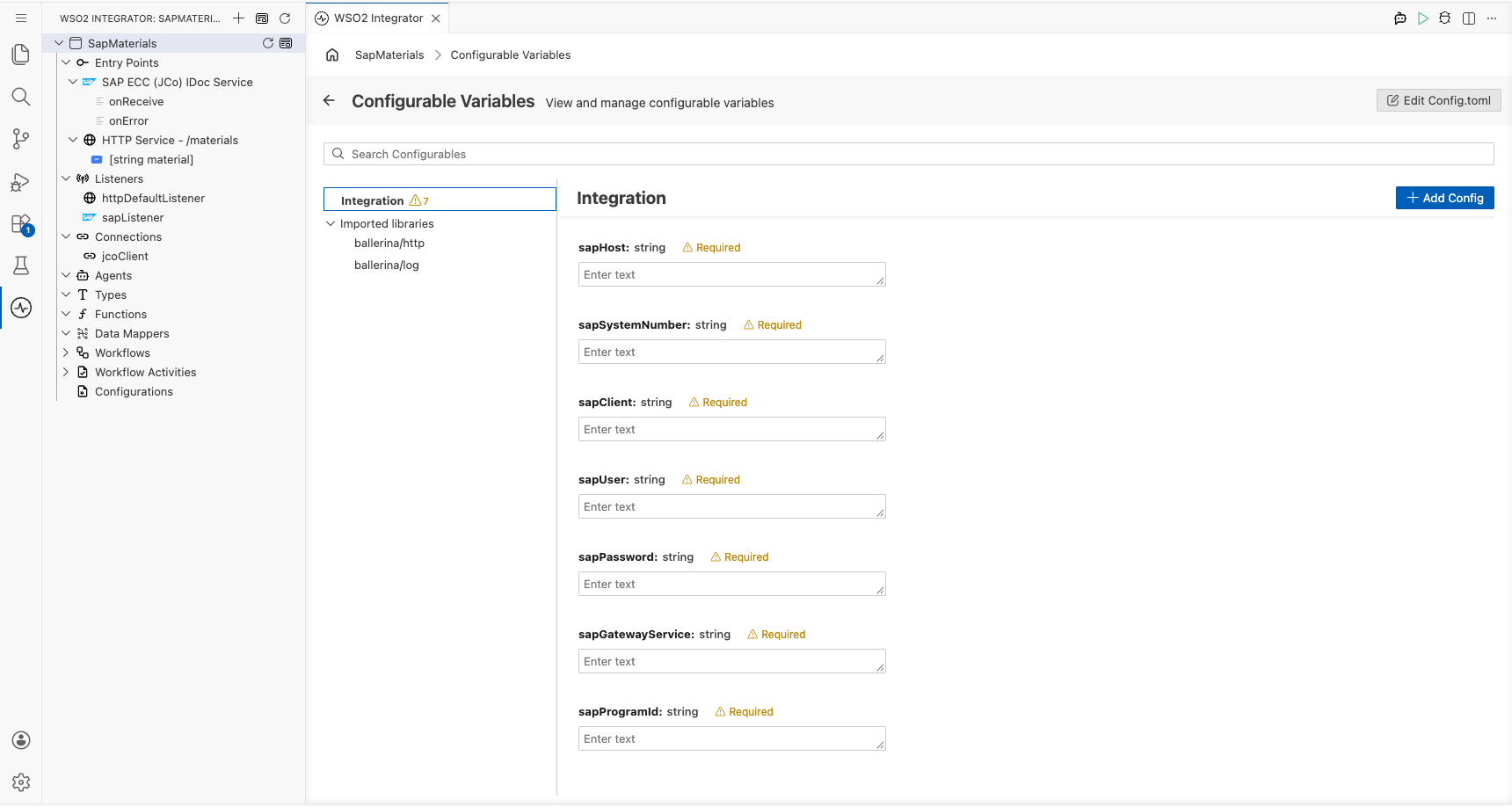
sapHost = "sap.example.com"
sapSystemNumber = "00"
sapClient = "100"
sapUser = "<SAP user>"
sapPassword = "<SAP password>"
sapGatewayService = "sapgw00"
sapProgramId = "WSO2_INTEGRATOR" -
Select Run. The HTTP service starts on port
9090, and the listener registers at the SAP gateway. -
Call the RFC path. On the resource, select Try It, enter the material number, and run the request, or use any HTTP client:
curl http://localhost:9090/materials/FG233
{
    "material": "FG233",
    "description": "FERT 233, PD, Repetitive Manuf.",
    "materialType": "FERT",
    "materialGroup": "L004",
    "baseUnit": "ST"
} -
Check the registration from SAP. In
SM59, openWSO2_INTEGRATORand select Connection Test. The test succeeds only while the integration is running and registered.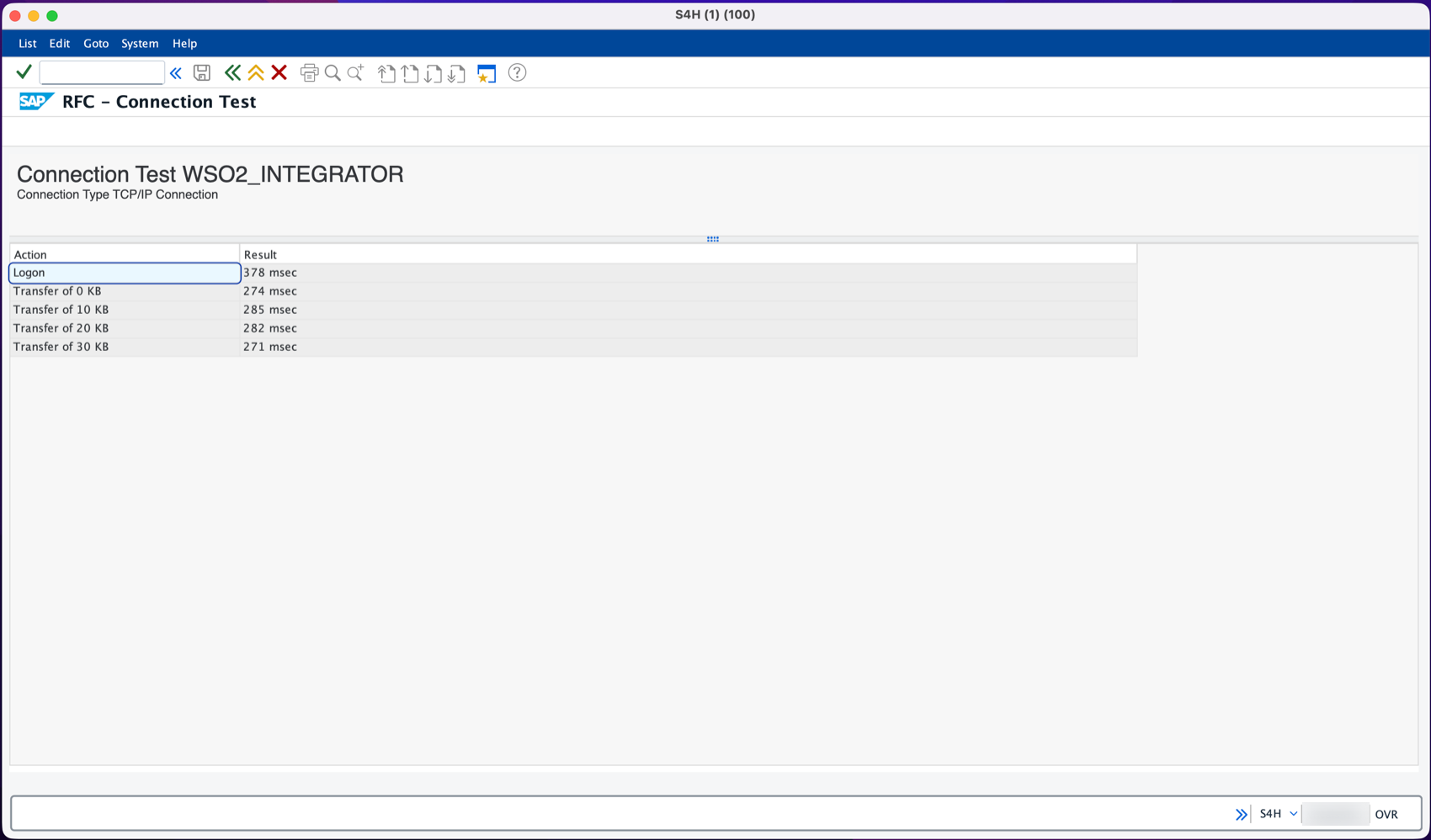
-
Send a material from SAP. Start transaction
BD10, enter the materialFG233, message typeMATMASand the logical systemWSO2INT, and select Execute. SAP creates aMATMAS05IDoc and sends it to the integration straight away.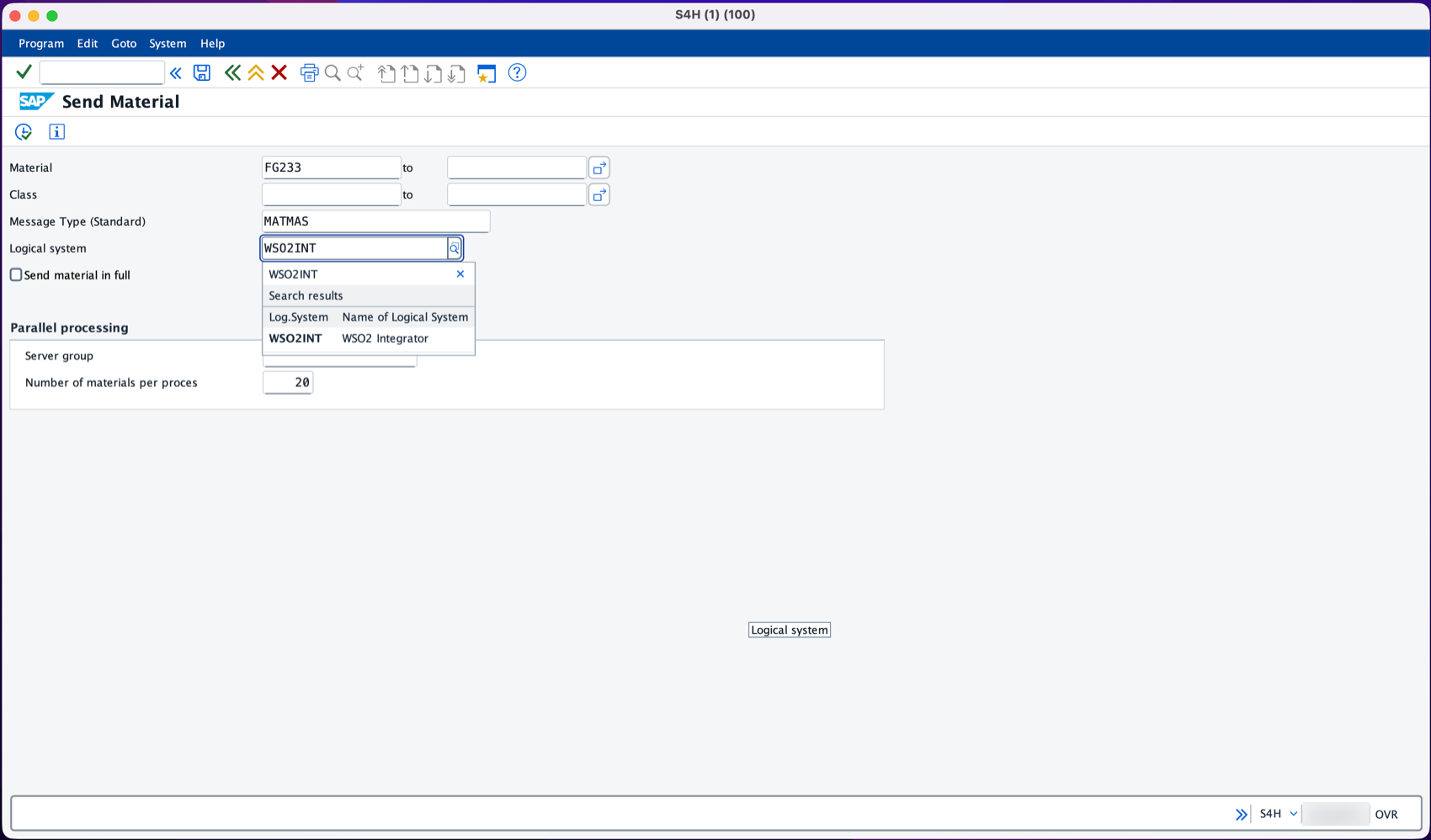
SAP confirms that it generated one communication IDoc.
-
The integration parses the IDoc, maps it, and logs the
MaterialUpdaterecord in the console: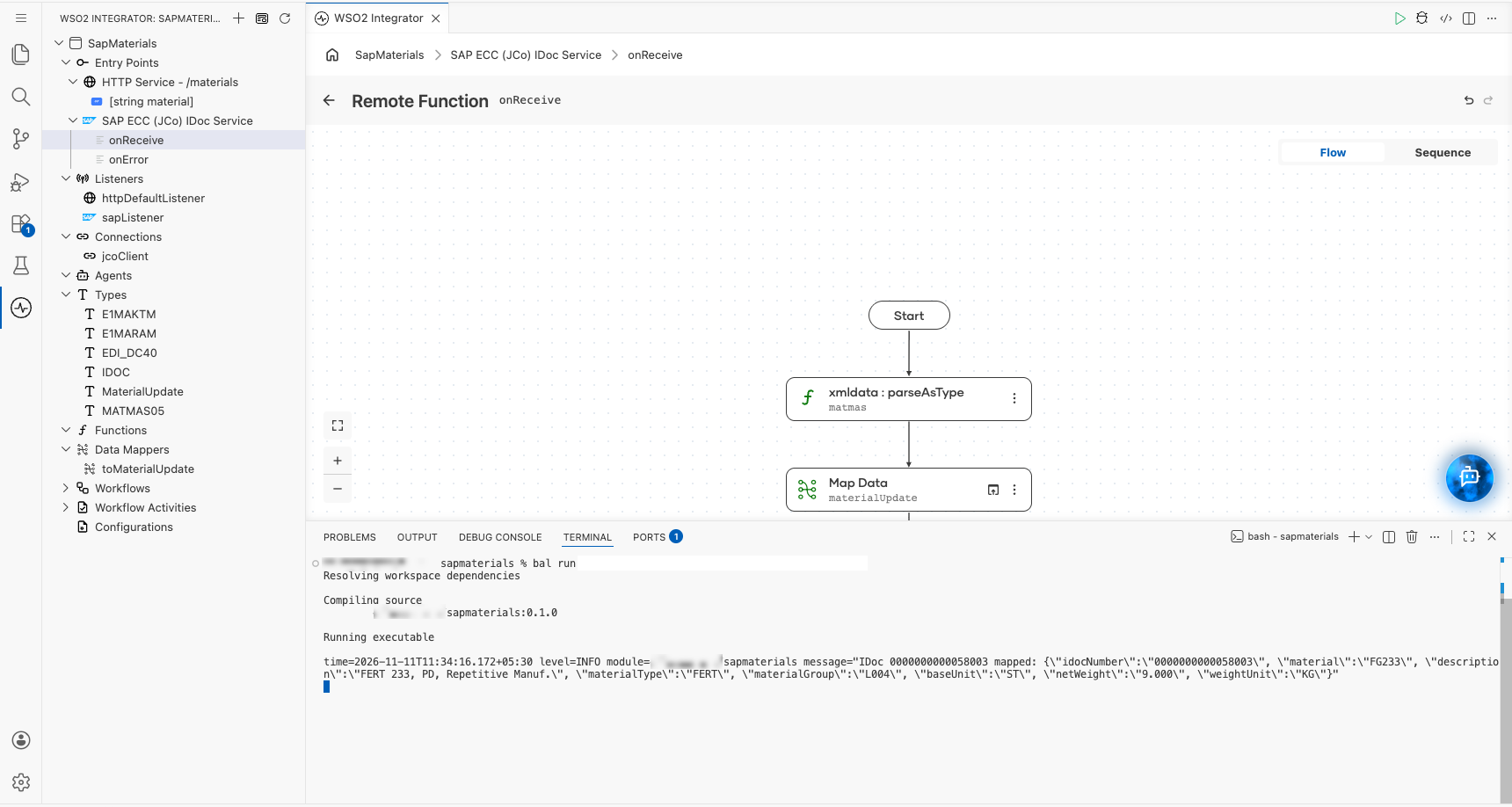
time=2026-11-11T11:34:16.172+05:30 level=INFO module=<org>/sapmaterials message="IDoc 0000000000058003 mapped: {\"idocNumber\":\"0000000000058003\", \"material\":\"FG233\", \"description\":\"FERT 233, PD, Repetitive Manuf.\", \"materialType\":\"FERT\", \"materialGroup\":\"L004\", \"baseUnit\":\"ST\", \"netWeight\":\"9.000\", \"weightUnit\":\"KG\"}"In transaction
WE02, the outbound IDoc has status03(data passed to port OK).
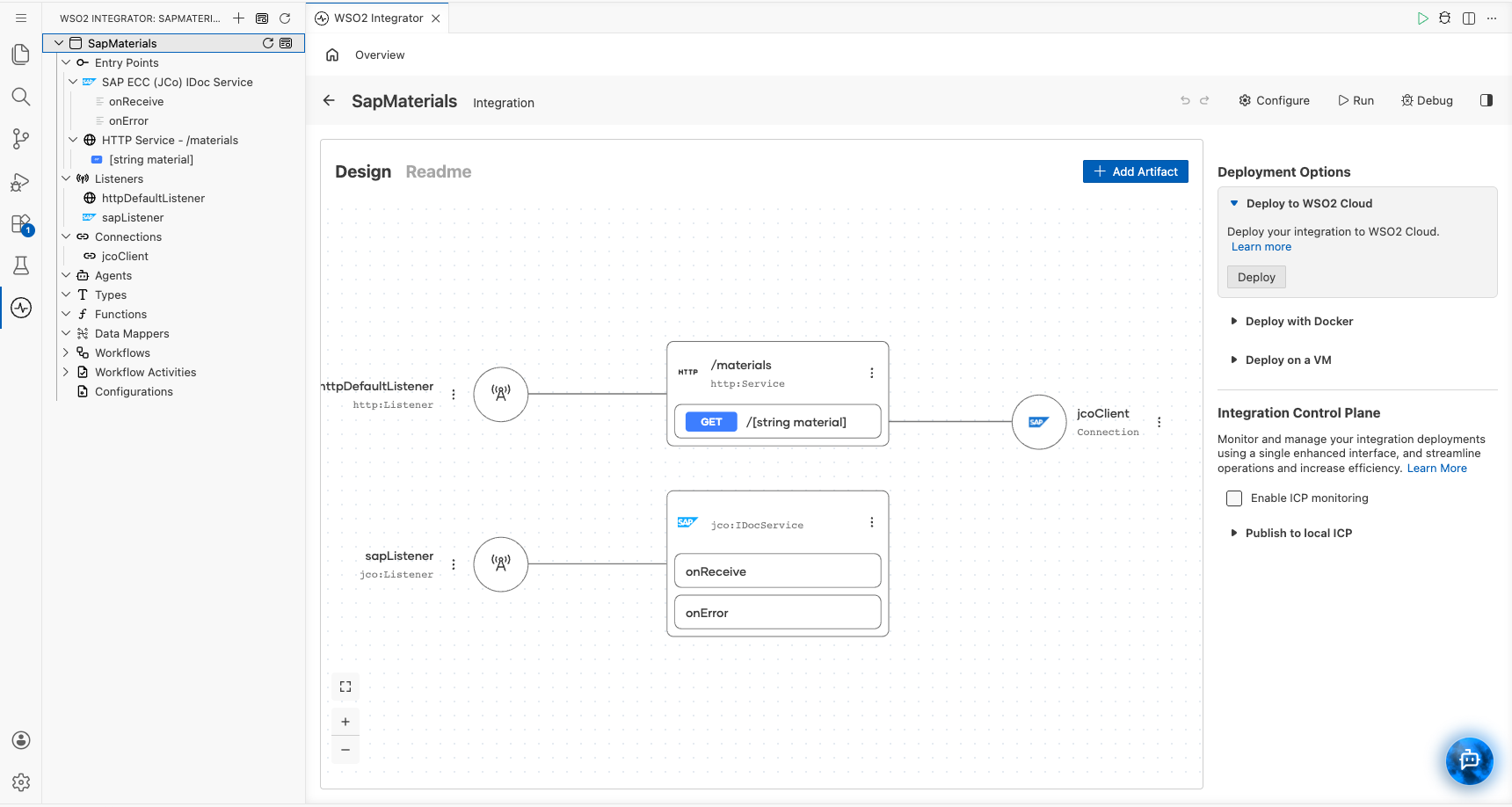
The integration overview now shows both paths: the HTTP service that uses the SAP JCo connection, and the IDoc service on the SAP JCo listener.
Troubleshooting
| Symptom | Cause and fix |
|---|---|
JCO_ERROR_REGISTRATION_DENIED ... registration of tp WSO2_INTEGRATOR from host ... not allowed | The gateway reginfo list does not allow the program from this host. Add the line from Allow the program to register at the gateway, with the host the error message names. |
IDOC_ERROR_METADATA_UNAVAILABLE with an unreadable IDoc type in the message | The RFC destination in SM59 is non-Unicode. Switch it to Unicode. |
BD10 reports 0 communication IDoc(s) generated | The distribution model has no MATMAS entry for the receiver. Add it in Add MATMAS to the distribution model. |
The IDoc stays in SM58 with status SYSFAIL | SAP could not deliver the IDoc, or the integration rejected it. Check the integration console, fix the cause, and select Execute LUW in SM58 to send it again. |
no sapjco3 in java.library.path or a similar native library error | The native JCo library is missing or not next to sapjco3.jar in the libs folder. |
What's next
- Deploy it. Ship it to WSO2 Cloud, a Docker container, Kubernetes, or a virtual machine. The SAP gateway must allow the deployed host in
reginfo, and the image or VM needs the SAP JCo libraries. - Handle BAPI messages. BAPIs report business errors, such as an unknown material, in the
RETURNstructure instead of failing the call. CheckRETURN.TYPEforEand return404 Not Found. - Receive other IDocs. Add outbound parameters for more message types in
WE20, such asDEBMASfor customers orORDERSfor purchase orders, and route onMESTYPinonReceive. - Let SAP call your logic. Select RFC Service as the service type to answer function module calls from ABAP. See SAP ECC.
- Explore the connector. The SAP JCo action reference covers every client operation, including sending IDocs and transactional RFC to SAP.