Add HYPR login
HYPR is a passwordless authentication method that allows users to log in to applications using biometrics on their devices. As a FIDO-certified platform, HYPR eliminates risks prevalent in password-based authentication such as phishing, and password reuse.
This guide explains how you can use HYPR to add passwordless login to applications registered in your WSO2 Identity Platform organization.
Prerequisites
-
To get started, you need to register an application with WSO2 Identity Platform. You can register your own application or use one of the sample applications provided.
-
You need to have a user account in WSO2 Identity Platform. If you don't already have one, create a user account in WSO2 Identity Platform.
noteYou cannot use an administrator account to log in to an application.
-
You need to configure the HYPR environment and have access to the HYPR control center. Learn how to do it in the HYPR documentation.
Register application in HYPR
Follow the steps below to register your application in the HYPR control center.
You can follow the HYPR documentation for detailed instructions.
-
Go to the HYPR control center and click Add Application.
-
Select Web as the channel and click Next.
-
Select Custom Solution as the IdP provider and click Next.
-
Enable push notifications and click Next.
-
Add your Firebase configurations and click Next.
noteTo enable push notifications, you need to configure Firebase and obtain a project ID and an API key. To learn how to do this, follow the guide in HYPR.
-
Complete the app details form and click Done to create the application.
-
Select your application from the Choose an App menu and note down the App ID.
Create an API token in HYPR
When you register HYPR as a connection in WSO2 Identity Platform, you need to provide an API token, which WSO2 Identity Platform can use to access HYPR APIs.
Follow the steps below to obtain an API token.
-
Go to the HYPR control center and select your application.
-
Under Advanced Config, click Access Tokens.
-
Click Create Token, provide a unique name for your token, select API Token as the token type, and click Next.
-
Select User Management and Authentication as the permission types and click Next.
-
Take a note of the API token that you have created.
warningThe token is only shown once.
Register HYPR in WSO2 Identity Platform
Follow the steps below to register HYPR as a connection in WSO2 Identity Platform.
-
On the WSO2 Identity Platform Console, go to Connections.
-
Click Create Connection and select HYPR.
-
Enter the following details and click Finish:
Parameter Description Name A unique name to identify the connection. Relying Party App ID The App ID you receive when you register your app in HYPR. Base URL The base URL of your HYPR server deployment. API Token The token you receive when you create an API token in HYPR.
Enable HYPR login
You need to register an application with WSO2 Identity Platform. You can register your own application or use one of the sample applications provided.
-
On the WSO2 Identity Platform Console, go to Applications.
-
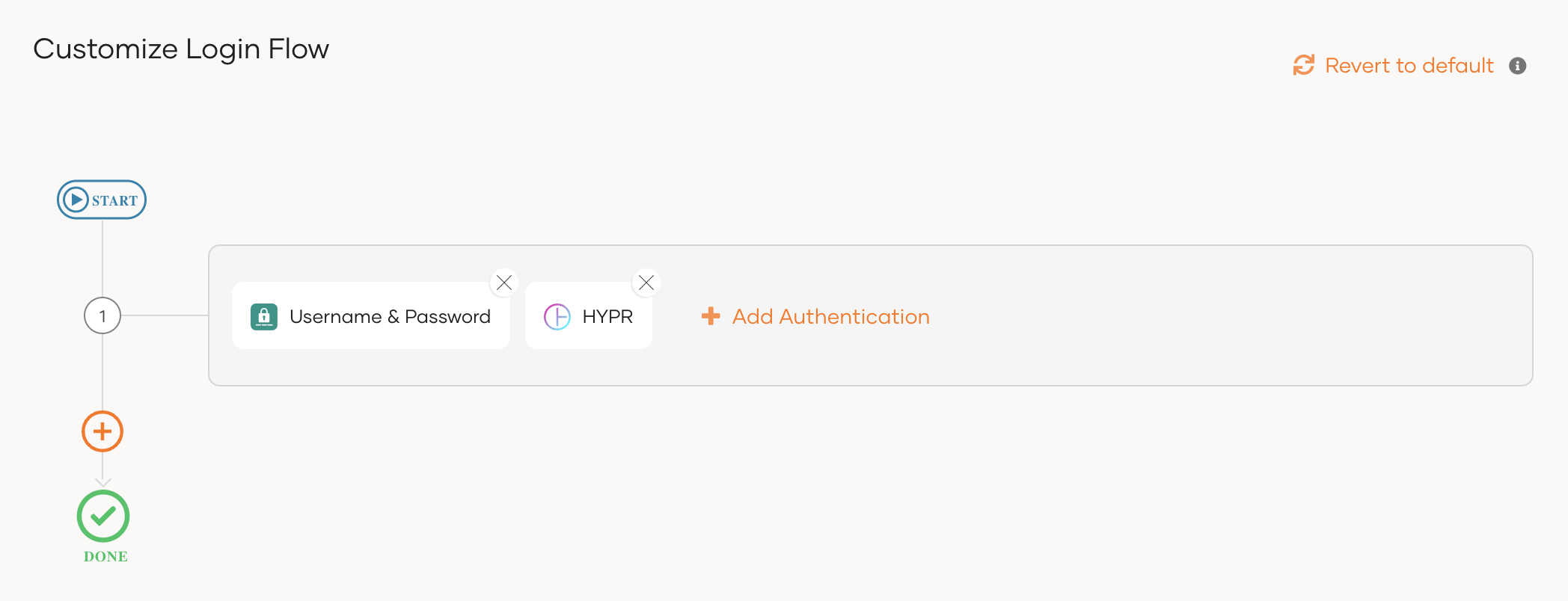
Go to the Login Flow tab of the application and add HYPR login from your preferred editor:
- Classic Editor
- Visual Editor
-
If you haven't already defined a sign-in flow, click Start with Default configuration to get started.
-
Click Add Authentication on the same step and select your HYPR connection.
-
Enable Conditional Authentication and add the following script.
var onLoginRequest = function onLoginRequest(context) {var fedUser;executeStep(1,{onSuccess: function (context) {var idpName = context.steps[1].idp;if (idpName === "HYPR") {fedUser = context.currentKnownSubject;var associatedUser = getAssociatedLocalUser(fedUser);if (associatedUser == null) {var claimMap = {};claimMap["http://wso2.org/claims/username"] = fedUser.username;var storedLocalUser = getUniqueUserWithClaimValues(claimMap, context);if (storedLocalUser !== null) {doAssociationWithLocalUser(fedUser, storedLocalUser.username,storedLocalUser.tenantDomain, storedLocalUser.userStoreDomain);}}}}});};
To add passwordless login with HYPR using the Visual Editor:
-
Switch to the Visual Editor tab, by default the
Username & Passwordlogin flow will be added onto the Visual Editor's workspace. -
Click on
+ Add Sign In Optionto add a new authenticator to the same step and select your HYPR connection.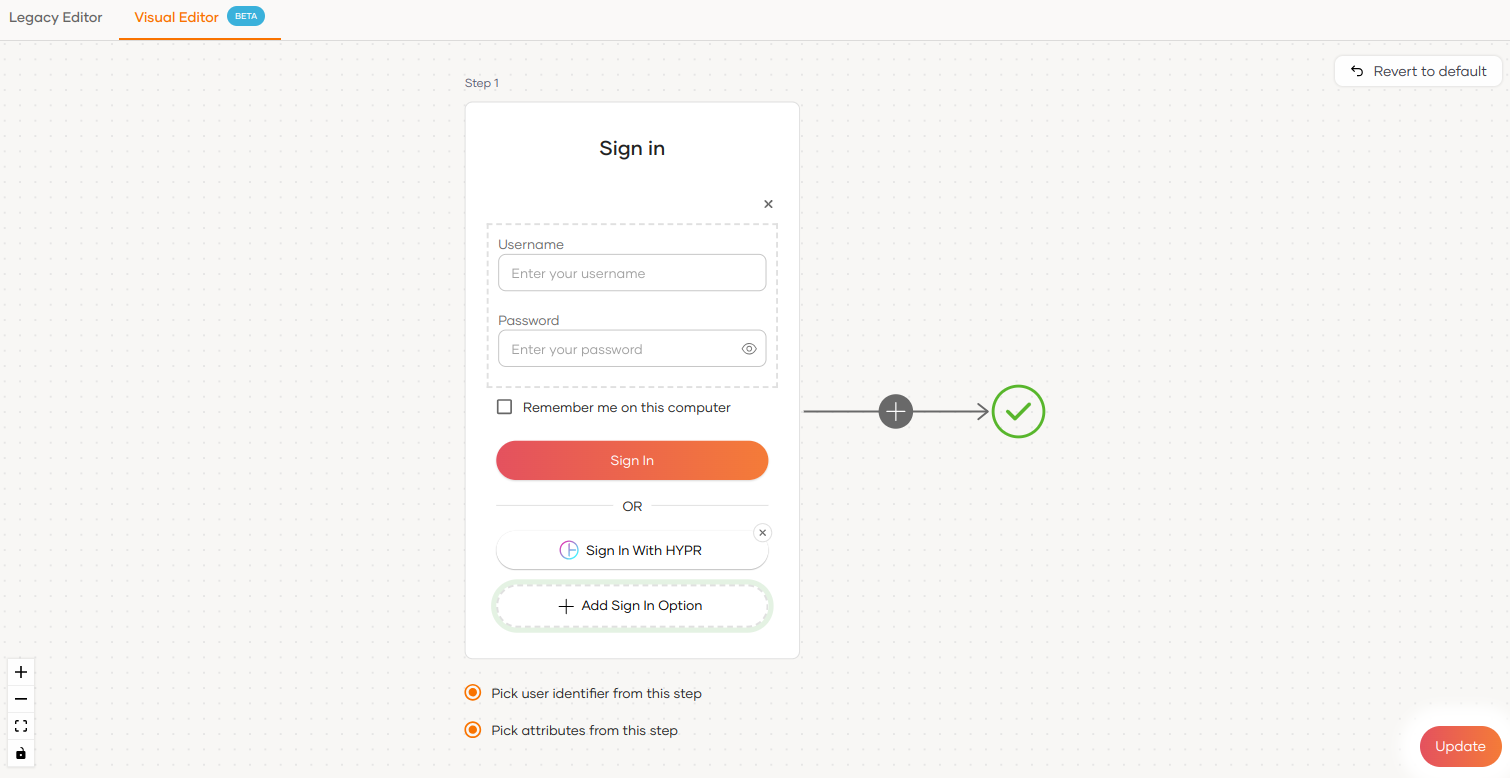
-
Expand the Script Editor and add the following script.
var onLoginRequest = function onLoginRequest(context) {var fedUser;executeStep(1,{onSuccess: function (context) {var idpName = context.steps[1].idp;if (idpName === "HYPR") {fedUser = context.currentKnownSubject;var associatedUser = getAssociatedLocalUser(fedUser);if (associatedUser == null) {var claimMap = {};claimMap["http://wso2.org/claims/username"] = fedUser.username;var storedLocalUser = getUniqueUserWithClaimValues(claimMap, context);if (storedLocalUser !== null) {doAssociationWithLocalUser(fedUser, storedLocalUser.username,storedLocalUser.tenantDomain, storedLocalUser.userStoreDomain);}}}}});};
-
Click Update to save the sign-in flow.
Try it out
- Make sure you have a user account in the application registered in the HYPR control center.
- Download the HYPR app to your mobile device and pair the device to your user account in HYPR.
See HYPR documentation for more details.
Follow the steps given below:
-
Access the application URL.
-
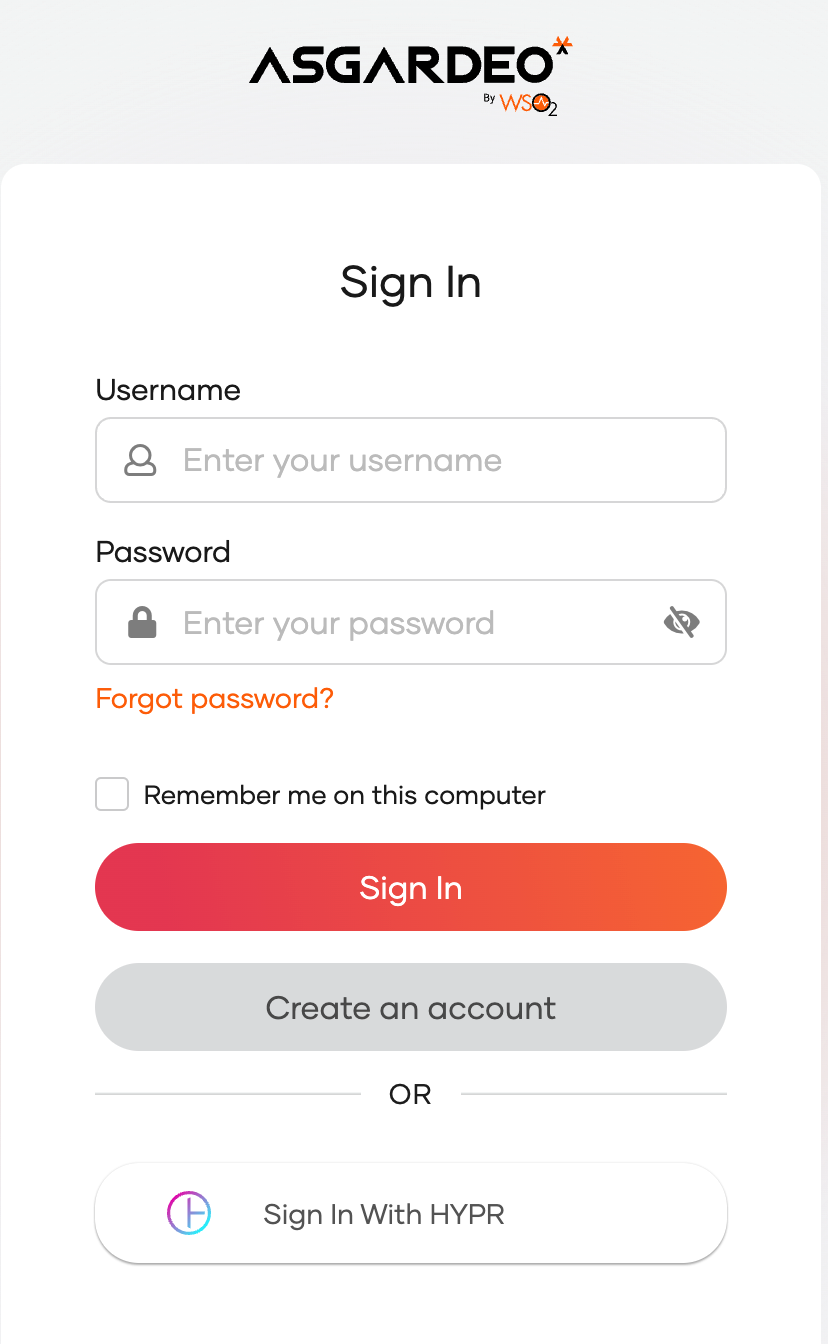
Click Login to open the WSO2 Identity Platform login page.
-
On the WSO2 Identity Platform login page, click Sign In With HYPR.
-
Enter the username of an existing HYPR user.
-
Use the HYPR mobile application to complete the log in.
Was this page helpful?