Add SMS OTP login
An SMS one-time password (OTP) delivers a short-lived code to the user’s registered mobile number. This works as a passwordless authentication mechanism, allowing users to log in without a password by entering the OTP received via SMS.
Follow the instructions given below to implement passwordless login using SMS OTP in WSO2 Identity Platform.
Prerequisites
-
To begin, you must register an application with WSO2 Identity Platform. You have the option to register your own application or use one of the sample applications available.
-
Ensure you have a user account in WSO2 Identity Platform. If not, you can create a user account within WSO2 Identity Platform.
-
Update the user profile of the users with an mobile number to which the user will receive the OTP.
-
Configure your preferred SMS provider in WSO2 Identity Platform. For detailed instructions, see Configure SMS providers.
noteYou cannot use an administrator account to log in to an application.
Configure SMS OTP
To update the default SMS OTP settings:
- On the WSO2 Identity Platform Console, go to Connections and select SMS OTP.
- Update the following parameters in the Settings tab:
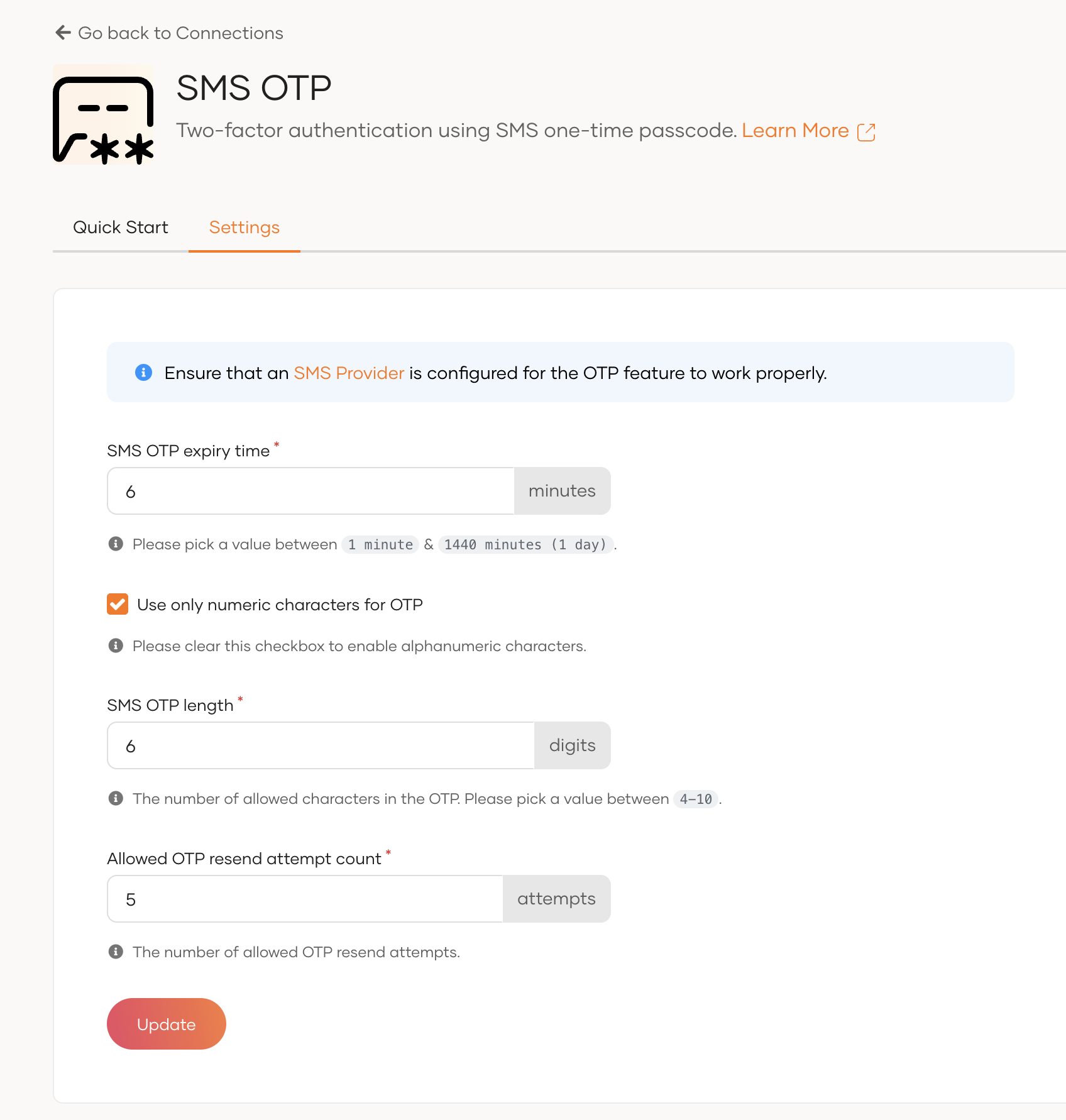
Field Description SMS OTP expiry timeSpecifies the OTP expiry time. The generated OTP won't be valid after this time. Use only numeric characters for OTPSpecifies whether to use only numeric characters in the OTP. If this is selected, the generated OTP contains only digits (0-9). If this option is not selected, the OTP will contain alphanumeric characters. SMS OTP lengthSpecifies the number of characters allowed in the OTP. Allowed OTP resend attempt countSpecifies the number of allowed OTP resend attempts. - Once you update the SMS OTP settings, click Update.
Enable SMS OTP login for your app
Follow the steps given below to add SMS OTP login to the login flow of your application.
-
On the WSO2 Identity Platform Console, go to Applications.
-
Select the application to which you wish to add SMS OTP login.
-
Go to the Login Flow tab of the application and add SMS OTP login as follows:
- Visual Editor
- Classic Editor
To add passwordless login with SMS OTP using the Visual Editor:
-
Switch to the Visual Editor tab and go to Predefined Flows > Basic Flows > Add Passwordless login.
-
Select SMS OTP.
-
Click Confirm to add passwordless login with SMS OTP to the sign-in flow.
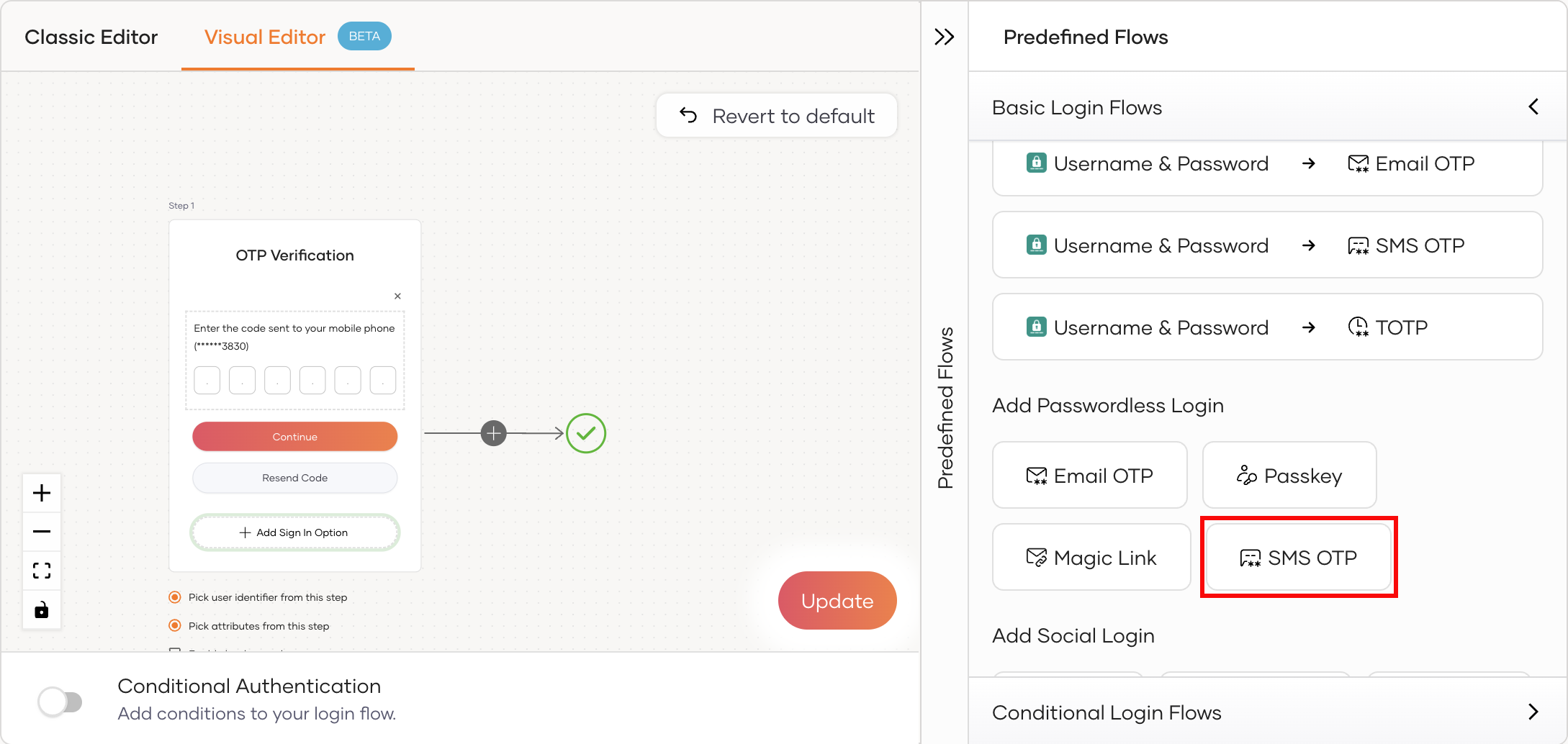
-
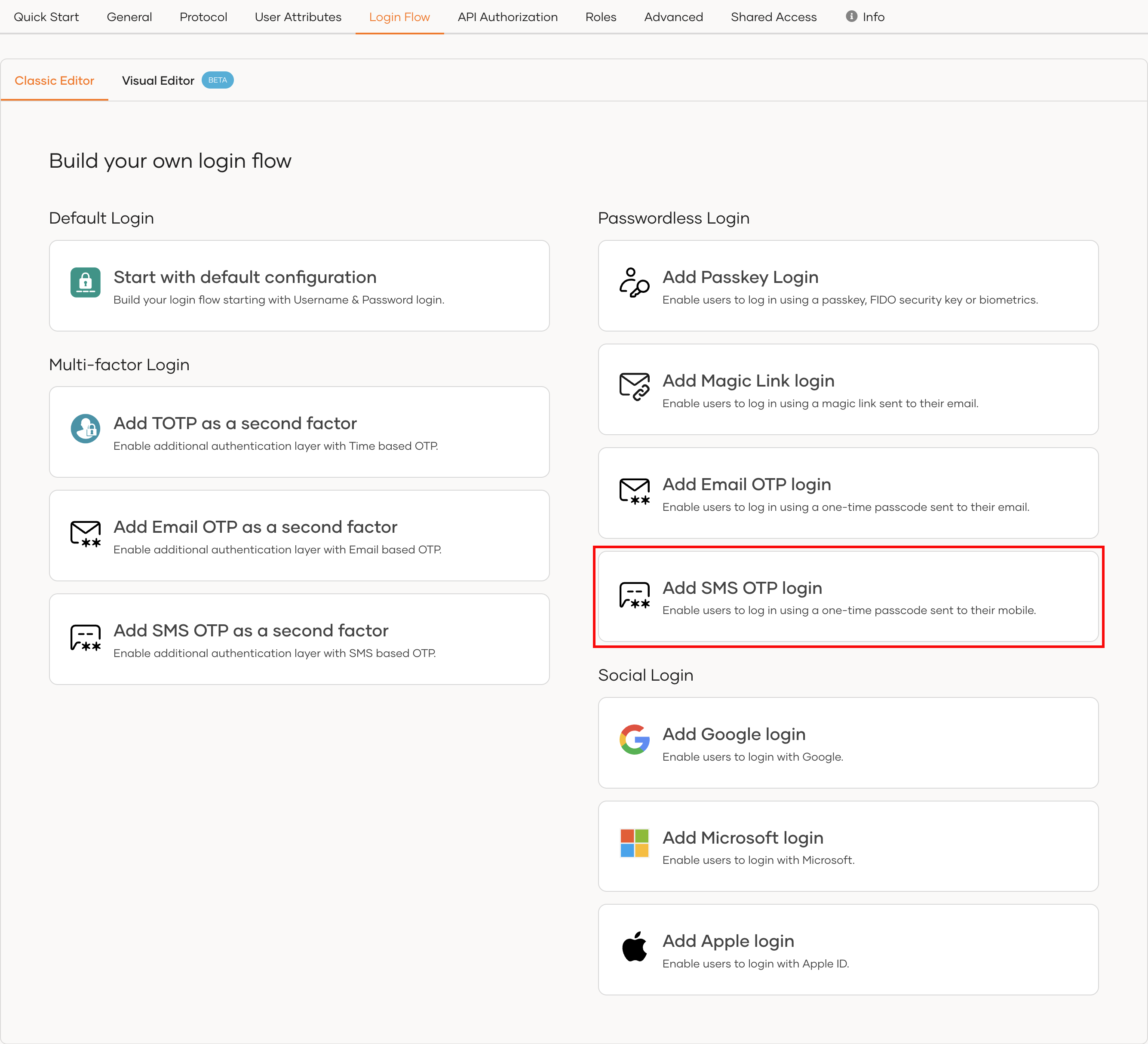
If you haven't already built a login flow for your application, select Add SMS OTP login to build one.
-
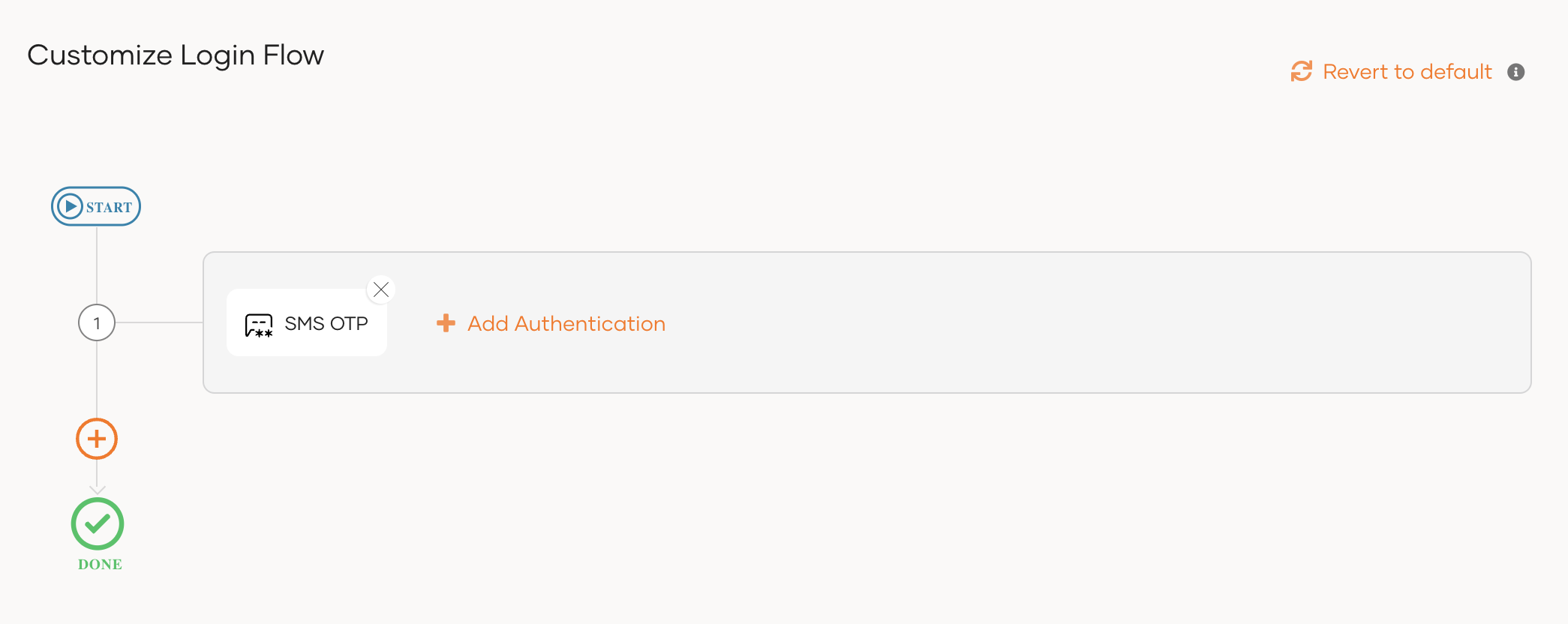
If you have an already built login flow, add the SMS OTP authenticator as the first authentication step.
- Click Update to save your changes.
Try it out
Follow these steps to test the SMS OTP login:
-
Visit the application URL.
-
Click Login to bring up the WSO2 Identity Platform login page.
-
On the login page, enter your username and click Continue.
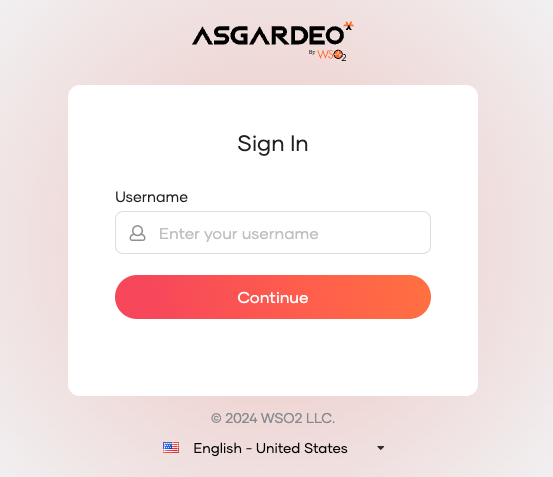
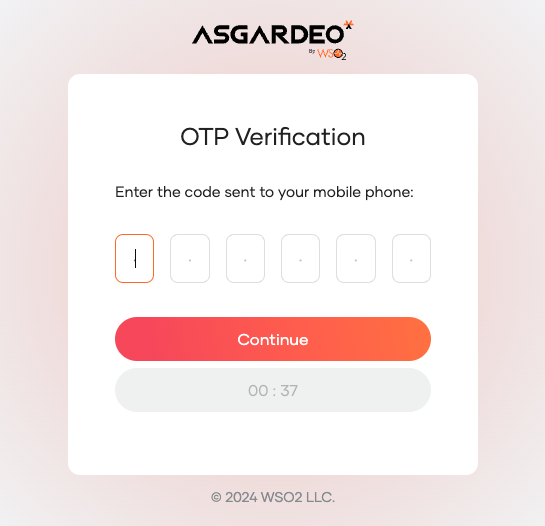
This action redirects you to the SMS OTP page.
-
Check your phone for the SMS containing the one-time password (OTP).
-
Enter the received OTP on the SMS OTP page and click Continue.
Was this page helpful?